Best External SSDs For Video Editing In 2026
Waiting for a file transfer to finish is one of the most soul-crushing parts of video editing. You’ve wrapped a shoot, you’ve got hours of 4K or 8K footage on your camera cards, and you need to get everything onto your editing drive before you can even think about cutting. If your external SSD can’t keep up, you’re sitting there watching a progress bar crawl while your creative momentum evaporates.
The external SSD market has matured significantly in 2026, and that’s great news for video editors. Thunderbolt 5 drives are starting to appear, USB4 is more common than ever, and even budget USB 3.2 drives have gotten fast enough for many editing workflows. But more options also means more confusion. Not every drive that calls itself “fast” can actually handle a multicam 4K timeline or smooth 8K ProRes playback.
This guide will help you pick the right external SSD for your specific video editing needs. I’ll cover the speed requirements for different codecs and resolutions, break down the interface differences that actually matter, and recommend specific drives across different budgets. Whether you’re a solo content creator working from a laptop or a professional editor hauling gear between sets and post houses, there’s a drive here for you.
Why Your External SSD Choice Matters for Video Editing
Video editing is one of the most storage-intensive tasks you can throw at a computer. A single hour of 4K ProRes 422 HQ footage eats up roughly 110 GB. Shoot in 8K RAW, and you’re looking at closer to 500 GB per hour. Your external SSD needs to handle not just storing these massive files, but reading them back fast enough for real-time playback and scrubbing.
A drive that benchmarks well in synthetic tests might still choke during sustained video transfers. That’s because many SSDs use SLC caching, which provides a burst of high speed for small files but slows down dramatically once the cache fills up. For video editors moving 200+ GB at a time, sustained write speed matters far more than peak speed.
Thermal performance also plays a huge role. External SSDs crammed into tiny enclosures can overheat during long transfers or extended editing sessions, causing the drive to throttle its speed to protect itself. You’ll want a drive with good thermal design, especially if you’re working outdoors or in warm environments.
Minimum Speed Requirements by Resolution and Codec
Before picking a drive, you need to know how fast it actually needs to be. Here’s a practical breakdown of the sustained read speeds required for smooth playback of common video formats:
- 1080p H.264/H.265: 50 MB/s (virtually any external SSD will handle this)
- 4K H.264/H.265: 100-200 MB/s
- 4K ProRes 422: 220-330 MB/s
- 4K ProRes 4444: 500+ MB/s
- 6K/8K RAW (RED, Blackmagic): 700-1,200 MB/s
- 8K ProRes 4444 XQ: 1,500+ MB/s
- Multicam 4K (3+ streams): Multiply single-stream requirements by the number of streams
For most editors working in 4K with compressed codecs like H.265, a good USB 3.2 Gen 2 drive delivering 800-1,000 MB/s of sustained read speed will be more than enough. Once you step into ProRes 4444, RAW workflows, or multicam editing, you’ll want a Thunderbolt or USB4 drive capable of 2,000+ MB/s sustained.
Thunderbolt vs. USB-C: Understanding the Interface Differences
USB 3.2 Gen 2 (10 Gbps)
This is the most common interface on affordable external SSDs, delivering theoretical speeds up to 1,250 MB/s. In practice, you’ll see around 900-1,050 MB/s from a good NVMe-based drive using this connection. That’s perfectly fine for 4K H.264/H.265 editing, single-stream ProRes 422, and file transfers from shoots. Most editors who aren’t working in high-end RAW formats will be well served here.
USB 3.2 Gen 2×2 (20 Gbps)
Doubles the bandwidth to a theoretical 2,500 MB/s, though real-world speeds typically land around 1,800-2,000 MB/s. The challenge is that not many computers support this specific protocol. Check your machine’s specs carefully before buying a Gen 2×2 drive. If your computer doesn’t support it, the drive will fall back to Gen 2 speeds, and you’ll have overpaid for performance you can’t access.
Thunderbolt 4 / USB4 (40 Gbps)
This is where things get serious for professional video work. With up to 40 Gbps of bandwidth, these drives can sustain 2,500-2,800 MB/s in real-world use. That’s enough for 8K RAW playback, multicam 4K editing, and rapid transfers of massive project files. Thunderbolt 4 and USB4 use the same USB-C connector, which can cause confusion, so always check the actual protocol, not just the port shape.
Thunderbolt 5 (80 Gbps / 120 Gbps asymmetric)
The newest kid on the block, Thunderbolt 5 drives are just starting to become available in 2026. With potential speeds exceeding 5,000 MB/s, they’re overkill for most current workflows but increasingly relevant for editors working with 8K+ footage or multiple high-bitrate streams simultaneously. The drives carry a premium price, and you’ll need a computer with Thunderbolt 5 ports to take advantage. Right now, this is a future-proofing play for editors with the latest Mac or PC hardware.
Top Picks: Best External SSDs for Video Editing in 2026
Best Overall: Samsung T9
The Samsung T9 continues to be the drive I recommend to most video editors. It uses USB 3.2 Gen 2×2 to deliver real-world sequential read/write speeds around 1,900 MB/s, which is fast enough for essentially any 4K workflow and many 6K/8K scenarios too. Samsung’s thermal management is excellent, with a rubber-wrapped aluminum body that dissipates heat without excessive throttling during long transfers.
The T9 comes in 1TB, 2TB, and 4TB capacities. For video editing, I’d recommend starting at 2TB minimum. The drive also features IP65 water and dust resistance, making it viable for light field work. It’s not the most rugged drive on this list, but it strikes the best balance between speed, durability, and value.
Samsung T9 Portable SSD
Our top overall pick with blazing USB 3.2 Gen 2×2 speeds, excellent thermal design, and IP65 durability for video editors at every level.
Best Thunderbolt Drive: SanDisk Professional PRO-G40
If you need true Thunderbolt 3/4 speeds, the SanDisk Professional PRO-G40 is a fantastic choice. It supports both Thunderbolt 3 and USB 3.2 Gen 2, giving you flexibility across different machines. Over Thunderbolt, you’ll see real-world speeds around 2,700 MB/s for reads and 1,900 MB/s for writes. That’s enough bandwidth for editing 8K ProRes directly from the drive.
The PRO-G40 features an IP68 rating and a tough aluminum core wrapped in a silicone bumper. It can handle drops up to 3 meters and survive being submerged in water. For editors who bounce between a studio Mac and an on-set laptop, the dual-interface design means you always have a fast connection option. It’s available in 1TB, 2TB, and 4TB sizes.
SanDisk Professional PRO-G40 SSD
The best Thunderbolt option with dual-interface flexibility, IP68 ruggedness, and speeds that handle 8K workflows with ease.
Best Budget Option: Samsung T7 Shield
Not everyone needs 2,000+ MB/s speeds, and if your work is primarily 4K with compressed codecs, the Samsung T7 Shield delivers excellent performance at a much lower price point. With USB 3.2 Gen 2, you’ll get around 1,000 MB/s reads and 950 MB/s writes. That’s plenty for editing 4K H.264, H.265, and even single-stream ProRes 422.
The T7 Shield earns its name with IP65 water and dust resistance plus a 3-meter drop rating. It’s extremely compact and lightweight, making it easy to toss in a camera bag. Available in 1TB, 2TB, and 4TB capacities, it’s an outstanding value for content creators, wedding videographers, and anyone working with standard 4K footage. The 2TB model hits a sweet spot for most users.
Best for Extreme Field Conditions: LaCie Rugged SSD Pro
If you regularly shoot in harsh environments (think desert dust storms, rain-soaked outdoor events, or freezing mountain locations), the LaCie Rugged SSD Pro was built for you. This Thunderbolt 3 drive delivers up to 2,800 MB/s reads and features a signature orange rubber bumper that provides drop protection up to 3 meters. It carries IP67 dust and water resistance and can withstand 2-ton crush resistance.
Performance-wise, it’s comparable to the PRO-G40, but the LaCie’s thermal management is a touch more aggressive, which helps maintain consistent speeds during long field transfers when you might not have the luxury of climate control. It’s available in 1TB, 2TB, and 4TB configurations.
Best High-Capacity Option: WD Black C50 / WD_BLACK SN850X with Enclosure
For editors who need massive local storage, a DIY approach can be appealing. Pairing a high-capacity NVMe drive like the WD_BLACK SN850X (4TB) with a quality Thunderbolt 4 enclosure gives you top-tier speed and the flexibility to upgrade later. You’ll get the full performance of a desktop-class NVMe drive in a portable package.
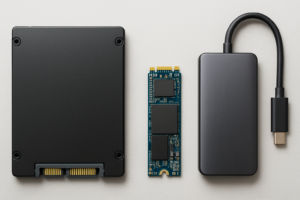
This approach requires a bit more setup, but it also lets you choose the exact enclosure thermal design you prefer. For a plug-and-play high-capacity option, the 4TB Thunderbolt external SSDs on Amazon offer several ready-made solutions. Just make sure whatever you buy uses an NVMe drive internally, not a SATA one, as SATA-based external SSDs top out around 550 MB/s regardless of the interface.
Capacity Recommendations by Workflow
Choosing the right capacity saves you from either running out of space mid-project or overspending on storage you don’t need. Here’s a practical guide:
- 1TB: Fine for YouTube creators and social media content in 1080p/4K H.264. Holds roughly 9 hours of 4K H.264 footage or 4-5 hours of 4K ProRes 422.
- 2TB: The sweet spot for most video editors. Enough for a typical short film, a documentary project, or several weeks of content creation. This is the capacity I recommend most often.
- 4TB: Ideal for professional editors handling long-form content, multicam shoots, or 6K/8K RAW workflows. Also great as a working drive for an entire season of episodic content.
- 8TB+: For studios and high-volume productions. At this capacity, you might consider a RAID-based solution like the Thunderbolt RAID enclosures available on Amazon for both speed and redundancy.
A good rule of thumb: buy at least double the capacity you think you need. Video projects always grow larger than expected, and working with a nearly full SSD degrades write performance on most drives.

Samsung T7 Shield Portable SSD 2TB
Best value for 4K video editors who want solid speed, rugged design, and reliable Samsung quality without the premium Thunderbolt price.
Tips for Getting the Best Performance From Your External SSD
Format your drive correctly. Use APFS for Mac-only workflows, exFAT if you need cross-platform compatibility between Mac and Windows, or NTFS for Windows-only setups. Avoid FAT32, which has a 4GB file size limit that’s useless for video work.
Don’t fill your SSD past 80% capacity. SSDs slow down as they fill up because the controller has fewer empty blocks to write to. Keeping 20% free space ensures consistent write speeds during those critical large transfers.
Use the right cable. This sounds obvious, but it trips up a lot of people. Not all USB-C cables support the same speeds. The cable that came with your phone charger probably won’t deliver full Thunderbolt performance. Always use the cable included with your drive, or buy a certified Thunderbolt 4 cable if you need a replacement.
Connect directly to your computer. Avoid USB hubs and docks when possible during editing. Most hubs share bandwidth between connected devices, which can cut your drive’s speed significantly. If you must use a hub, choose a Thunderbolt dock with dedicated bandwidth allocation.
Keep your drive cool. If you’re editing outdoors or in a warm room, consider propping your SSD up on its side to maximize airflow around the enclosure. Some editors use small laptop cooling pads under their drives during heavy sessions. It sounds excessive, but it genuinely prevents thermal throttling.
Frequently Asked Questions
Can I edit video directly from an external SSD, or do I need to copy files to my internal drive first?
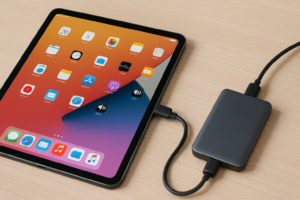
You can absolutely edit directly from an external SSD, and most professional editors do exactly this. The key is having a drive with sufficient sustained read speed for your footage format. For 4K H.264/H.265, any decent USB 3.2 Gen 2 SSD works great. For 4K ProRes, 6K, or 8K workflows, you’ll want a Thunderbolt or USB4 drive. Editing directly from the external drive also makes it easy to move projects between computers.
How long will an external SSD last with heavy video editing use?
James Kennedy is a writer and product researcher at Drives Hero with a background in IT administration and consulting. He has hands-on experience with storage, networking, and system performance, and regularly improves and optimizes his home networking setup.

James Kennedy is a writer and product researcher at Drives Hero with a background in IT administration and consulting. He has hands-on experience with storage, networking, and system performance, and regularly improves and optimizes his home networking setup.