Is It Worth Buying Last-Gen Storage on Sale?
You’re scrolling through Amazon and spot a 2TB SATA SSD for a fraction of what it cost a year ago. Or maybe a PCIe Gen 3 NVMe drive has been slashed to clearance pricing. Your gut says “buy it,” but a nagging voice asks whether you’re actually getting a deal or just buying yesterday’s tech. It’s a fair question, and the answer depends entirely on what you plan to do with the drive.
Last-generation storage regularly goes on deep discount as manufacturers push newer Gen 4 and Gen 5 products. Retailers need to clear shelf space, and that creates genuine opportunities for smart buyers. But not every clearance drive is a smart buy. Let’s break down when older storage is a steal and when you should walk away.
What Counts as “Last-Gen” Storage Right Now?
In 2026, last-gen storage generally falls into three buckets:
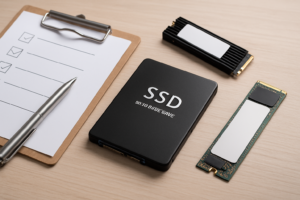
- SATA SSDs (2.5-inch) like the Samsung 870 EVO, Crucial MX500, and WD Blue SA510. These max out around 550 MB/s read and 520 MB/s write.
- PCIe Gen 3 NVMe drives like the Samsung 970 EVO Plus, WD Black SN750, and Crucial P3. These top out near 3,500 MB/s sequential read.
- QLC-based Gen 4 drives that were already budget-tier and are now being pushed out by newer, denser models.
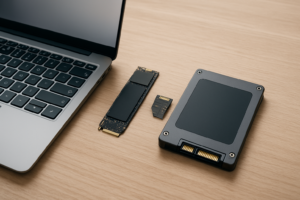
Gen 4 NVMe drives like the Samsung 980 Pro and WD Black SN850X are still current-gen for most practical purposes, even though Gen 5 drives exist. If you see Gen 4 drives on sale, those are almost always worth grabbing. The real debate is about SATA and Gen 3 NVMe. For a deeper look at how form factors compare, check out our M.2 vs 2.5-inch SSD comparison guide.
When Last-Gen Storage Is a Smart Buy
Upgrading an Older PC or Laptop
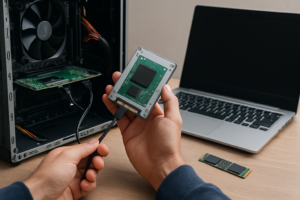
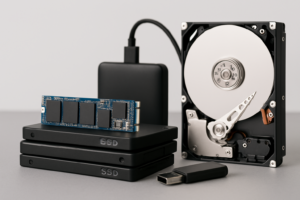
If you’re breathing new life into a machine from 2015 to 2019, there’s a good chance it only supports SATA or Gen 3 at best. Buying a Gen 4 NVMe drive for a system that can only run it at Gen 3 speeds is literally wasting money. A clearance Samsung 870 EVO or Crucial MX500 will transform a sluggish laptop with a spinning hard drive. The jump from HDD to any SSD is enormous, and you can learn more about that difference in our SSD vs HDD comparison.

Samsung 870 EVO 1TB SATA SSD
The most reliable SATA SSD on the market, perfect for breathing new life into older laptops and desktops.
NAS and Home Server Builds
Building a home NAS? SATA drives are often the better choice anyway. Most consumer NAS enclosures from Synology and QNAP use SATA bays, and the network bottleneck (1GbE tops out at ~125 MB/s) means even a budget SATA SSD is overkill in terms of raw speed. Clearance SATA SSDs make excellent, quiet, low-power NAS drives. If you’re considering a NAS project, our guide on building a budget home NAS walks through the whole process.
Secondary Storage and Game Libraries
You don’t need Gen 5 speeds for your Steam library. Real-world gaming tests consistently show that the difference between SATA and NVMe SSDs in game load times is measured in single-digit seconds, and sometimes there’s no perceptible difference at all. Our SATA vs NVMe gaming performance tests confirm this. A cheap 2TB SATA or Gen 3 NVMe drive as a secondary game drive is one of the best uses for clearance storage.
External Drive Enclosures
Most USB 3.0 and USB 3.1 Gen 1 enclosures cap at 5 Gbps, which translates to roughly 450 MB/s in practice. A SATA SSD will saturate that connection just fine. Even USB 3.2 Gen 2 (10 Gbps) enclosures won’t bottleneck a Gen 3 NVMe drive by much. Paying extra for Gen 4 speeds inside an external enclosure is pointless unless you have a Thunderbolt or USB4 setup.
When You Should Skip the Sale
Your Primary Boot Drive on a Modern System
If you have a motherboard with Gen 4 or Gen 5 M.2 slots and you’re buying your main system drive, don’t cheap out with Gen 3. The price gap between a Gen 3 and Gen 4 NVMe drive has shrunk dramatically. A WD Black SN770 or Samsung 980 Pro will give you roughly double the sequential speeds, better sustained write performance, and longer support from the manufacturer. For your boot drive, buy current-gen.
Video Editing and Large File Transfers
If you’re regularly moving 4K or 8K video files, the sequential speed difference between SATA (550 MB/s) and Gen 4 NVMe (7,000+ MB/s) is not theoretical. It’s the difference between a 50GB file transferring in 90 seconds versus under 10. Creative professionals should avoid SATA entirely for their working drives, regardless of the discount.
Drives with Short or Expired Warranties
Some clearance drives have been sitting on shelves for a while. Check the warranty status before buying. Samsung offers 5 years on most consumer SSDs, but that clock starts at the date of manufacture, not purchase. A “new” drive that was manufactured three years ago only has two years of warranty left. If you can’t verify the manufacturing date, you’re taking a risk. And if you’re worried about how long your SSD will last in general, our SSD lifespan analysis has real data to help set expectations.
Unknown or Off-Brand Drives
Clearance bins are where no-name SSDs go to find unsuspecting buyers. Stick with Samsung, Western Digital, Crucial (Micron), SK Hynix, and Kingston (A2000/NV2 line specifically). Off-brand drives often use bottom-bin NAND and controllers with no DRAM cache, which leads to severe slowdowns once the SLC write cache fills up. A “deal” on a drive that stutters during sustained writes isn’t a deal.

Crucial MX500 2TB SATA SSD
A proven workhorse with DRAM cache and strong endurance ratings, excellent for secondary storage or NAS use at clearance pricing.
A Quick Checklist Before You Buy
Before adding that clearance drive to your cart, run through these questions:
- Does your system actually support faster storage? If not, buy the older gen without guilt.
- Is this drive from a reputable manufacturer? Stick to the names you know.
- Does it have DRAM cache? For SATA drives especially, DRAM-less models perform significantly worse under real workloads. The Samsung 870 EVO and Crucial MX500 both have DRAM. The Crucial BX500 does not.
- What’s the warranty situation? Verify before buying, especially from third-party sellers.
- How much of a discount are you actually getting? Compare the clearance price against current-gen drives at the same capacity. If a Gen 3 NVMe is only marginally cheaper than a Gen 4 alternative, go Gen 4.
The Verdict
Last-gen storage on sale is genuinely worth buying in many scenarios. Older PCs, NAS builds, game libraries, external enclosures, and general secondary storage all benefit from clearance SATA and Gen 3 NVMe drives without any real performance compromise. For these use cases, you’re getting proven, reliable hardware at reduced prices.
But for your primary system drive on a modern build, creative workloads, or any situation where sustained transfer speeds actually matter, spend the extra money on current-gen. The performance per dollar of Gen 4 NVMe drives is excellent right now, and you’ll get a longer effective warranty runway.
Be selective, check the brand and warranty, and match the drive to your actual use case. Do that, and clearance storage can save you real money without any regret.
Frequently Asked Questions
Will a SATA SSD bottleneck my gaming performance?
In almost all cases, no. Most games depend far more on CPU and GPU performance than storage speed. Load times on a SATA SSD are typically only 1 to 3 seconds slower than an NVMe drive. The exception is games with DirectStorage support, which are designed to take advantage of fast NVMe speeds, but these titles are still rare in 2026. For the vast majority of your library, a SATA SSD on clearance will perform just fine.
Can I use a Gen 3 NVMe drive in a Gen 4 or Gen 5 M.2 slot?
Yes, PCIe is backward compatible. A Gen 3 drive will work perfectly in a Gen 4 or Gen 5 slot. It will simply run at Gen 3 speeds. This is a perfectly valid approach for secondary drives. Just don’t waste your primary M.2 slot on a Gen 3 drive if you have a limited number of slots and plan to add a faster drive later.
How can I tell if a clearance SSD is old stock versus a returned item?
Check the packaging for signs of resealing or missing factory seals. Once you’ve installed the drive, use a tool like CrystalDiskInfo (Windows) or Smartmontools (Mac/Linux) to check the power-on hours and total data written. A new drive should show near-zero for both values. If you see hundreds of power-on hours or significant data written, you’ve likely received a used or refurbished unit. Also check the SMART data for any reallocated sectors or warning flags.
This article contains affiliate links. We may earn a small commission at no extra cost to you.

James Kennedy is a writer and product researcher at Drives Hero with a background in IT administration and consulting. He has hands-on experience with storage, networking, and system performance, and regularly improves and optimizes his home networking setup.