What Is SLC Caching And How It Affects SSD Speed
You just bought a shiny new NVMe SSD that promises 5,000 MB/s read speeds. You plug it in, start copying a large game library or video project, and for the first 30 seconds everything looks incredible. Then the transfer speed tanks. It drops to maybe 500 MB/s or even lower. Your “blazing fast” SSD suddenly feels like a hard drive from 2015.
You’re not imagining things, and your drive isn’t broken. What you’re experiencing is SLC cache exhaustion, and it’s one of the most important (and most misunderstood) factors in real-world SSD performance. Nearly every consumer SSD sold today uses this technique, and understanding it will completely change how you evaluate drive specs and marketing claims.
This is the gap between what SSD manufacturers advertise and what you actually get during sustained workloads. Let’s break down exactly what’s happening inside your drive and why it matters for your buying decisions.
A Quick Refresher on NAND Flash Types
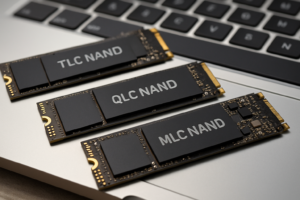
To understand SLC caching, you first need to know the basics of how SSDs store data. Modern flash memory comes in several flavors, defined by how many bits each memory cell holds.
- SLC (Single-Level Cell) stores 1 bit per cell. It’s the fastest and most durable, but also the most expensive per gigabyte.
- MLC (Multi-Level Cell) stores 2 bits per cell. A solid middle ground, though mostly phased out of consumer drives.
- TLC (Triple-Level Cell) stores 3 bits per cell. This is what most mainstream SSDs use today.
- QLC (Quad-Level Cell) stores 4 bits per cell. The cheapest per gigabyte, but the slowest and least durable.
The more bits you pack into a single cell, the more complex the voltage states the controller has to manage. Writing to a TLC cell means the controller must precisely distinguish between 8 voltage levels. QLC requires 16. This precision takes time, which is why raw TLC and QLC write speeds are significantly slower than SLC.
How SLC Caching Actually Works
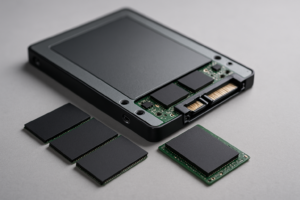
SSD manufacturers figured out a clever workaround years ago. Instead of always writing data in its native TLC or QLC mode, the drive temporarily treats a portion of its NAND cells as if they were SLC. It only writes 1 bit per cell to that reserved area, which is dramatically faster.
Think of it like a loading dock at a warehouse. Packages arrive fast and get tossed into a staging area (the SLC cache) without being sorted. Later, when things calm down, workers reorganize everything into its proper long-term storage location (the TLC/QLC cells). This background process is called “folding” or “garbage collection.”
During that initial burst, your SSD genuinely is writing at near-SLC speeds. The advertised sequential write numbers on the box? They’re measured during this cache burst phase. They’re real numbers, but they only tell part of the story.
Static vs. Dynamic SLC Cache
There are two main approaches to SLC caching, and many drives use a combination of both.
Static SLC cache is a fixed portion of the drive permanently set aside to operate in SLC mode. For example, a 1TB drive might dedicate 12GB of NAND permanently as SLC. This space is always available regardless of how full the drive is.
Dynamic SLC cache uses empty TLC or QLC cells and temporarily operates them in SLC mode. The key word here is “empty.” As you fill the drive with data, the amount of available dynamic cache shrinks. A 1TB TLC drive that’s nearly empty might offer over 100GB of dynamic SLC cache. That same drive at 80% capacity might only have a few gigabytes of cache available.
This is why your SSD feels fast when it’s new and relatively empty, then seems to slow down over the months as you fill it up. You’re not imagining a performance decline. The physics of the situation have literally changed.
What Happens When the Cache Runs Out
Once you’ve written enough data to exhaust the SLC cache, the drive has to start writing directly to the TLC or QLC cells in their native mode. This is where the speed cliff happens.
For TLC drives, post-cache write speeds typically drop to somewhere between 400 MB/s and 1,500 MB/s depending on the controller and NAND quality. For QLC drives, the drop is more severe, often falling to 100-400 MB/s. Some budget QLC drives have been measured at under 100 MB/s after cache exhaustion, which is genuinely slower than a decent SATA SSD.
The drive also has to simultaneously handle two tasks: writing new incoming data to TLC/QLC cells AND folding the cached SLC data into its final TLC/QLC format. This double duty can make things even worse during heavy sustained writes.
Real-World Examples from Popular SSDs
Let’s look at some actual drives to see how dramatically SLC caching affects performance.
Samsung 990 Pro (2TB, TLC)
Samsung’s flagship consumer NVMe drive advertises sequential writes up to 6,900 MB/s. Its SLC cache is relatively generous, and Samsung’s controller is excellent at managing the transition. After cache exhaustion, you’ll see speeds drop to around 2,000-2,500 MB/s for the 2TB model. That’s still fast by any reasonable standard. Samsung has always been strong at post-cache performance, and this is a big reason enthusiasts trust the brand.
WD Black SN770 (1TB, TLC)
This popular mid-range drive advertises 5,150 MB/s writes. It uses a dynamic SLC cache that varies with drive fullness. On a relatively empty drive, you’ll get the advertised burst speeds for a reasonable amount of data. Once the cache is exhausted, writes drop to roughly 700-900 MB/s. That’s a significant cliff, but for most consumer workloads you’ll rarely notice because the cache handles typical file operations just fine.
Crucial P3 Plus (1TB, QLC)
Here’s where things get more dramatic. The P3 Plus advertises sequential writes of 3,600 MB/s. After its SLC cache runs out, write speeds can plummet to around 100-200 MB/s. That’s a drop of over 90%. If you’re transferring a large video file or installing a massive game, you will absolutely feel this. The P3 Plus is a perfectly fine drive for everyday use, but it illustrates why QLC drives need to be evaluated differently than their spec sheets suggest.
Samsung 870 EVO (SATA, TLC)
Even SATA drives use SLC caching. The 870 EVO’s Intelligent TurboWrite feature gives you burst speeds near the SATA III limit of around 530 MB/s. After the cache fills, the 250GB model drops to roughly 300 MB/s, while larger capacities maintain higher post-cache speeds. This drive demonstrates an important pattern: larger capacity models almost always have better sustained performance because they have more NAND chips working in parallel and more room for dynamic cache.
Why Drive Capacity Affects Cache Performance
You’ll consistently find that the 2TB version of a drive outperforms the 500GB version of the exact same model in sustained writes. This isn’t just about cache size. There are a few reasons for this.
- More NAND chips means more parallelism. The controller can spread writes across more chips simultaneously.
- Dynamic SLC cache scales with available free space. A 2TB drive simply has more empty cells to work with.
- Some manufacturers allocate more static cache to larger capacities.
If sustained write performance matters to you (video editing, frequent large file transfers, game library management), buying a larger capacity than you strictly need for storage is one of the best things you can do. A 2TB drive used at 50% capacity will almost always outperform a 1TB drive used at 100% capacity, even if they’re the exact same model.
Marketing vs. Reality: Reading SSD Specs Honestly
The advertised sequential read and write speeds on SSD packaging are measured under ideal conditions, which means a fresh drive, within the SLC cache window, using a benchmark that runs long enough to look good but not long enough to hit the cache wall.
This isn’t exactly dishonest, but it’s certainly selective. It’s like advertising a car’s 0-60 time without mentioning it overheats after a quarter mile of hard driving.
When evaluating SSDs, look for these data points in reviews instead of relying on manufacturer specs:
- Sustained write speed after cache exhaustion. This is the number that matters for large transfers.
- SLC cache size at various fill levels. A drive might have 100GB of cache when empty but only 10GB when 75% full.
- Random 4K read/write performance. For everyday responsiveness (app launches, boot times, general snappiness), random I/O matters far more than sequential speeds.
- Performance consistency over time. Some drives maintain steady post-cache speeds, while others oscillate wildly as the controller juggles garbage collection.
Review sites like Tom’s Hardware, AnandTech’s archived reviews, and TechPowerUp typically test sustained writes thoroughly. Look for their charts showing write speed over time during large transfers.
Does SLC Caching Actually Matter for Most People?
Here’s my honest take: for the majority of users, SLC caching works exactly as intended and you’ll rarely hit its limits. Most daily computing tasks involve small, bursty writes. Installing apps, saving documents, downloading files, loading games. These operations fit comfortably within even modest SLC caches.
You’ll only consistently notice cache exhaustion if you regularly:
- Transfer files larger than 30-50GB in a single operation
- Work with 4K or 8K video files
- Move entire game libraries between drives
- Use the drive as a scratch disk for large creative projects
- Run sustained database or virtual machine workloads
If those describe your usage, prioritize drives with large SLC caches and strong post-cache performance. The Samsung 990 Pro, SK Hynix Platinum P41, and WD Black SN850X are all excellent choices with well-managed caching and respectable sustained write speeds. For a budget-friendly TLC option, the Silicon Power US75 and Crucial T500 also perform admirably after cache.
If you mostly browse the web, play games, and do typical office work, a budget QLC drive like the Crucial P3 Plus or WD Blue SN580 will serve you perfectly fine. You’ll enjoy the fast burst speeds and likely never write enough data at once to notice the cliff.
Tips for Getting the Best Performance from Your SSD’s Cache
- Don’t fill your drive past 75-80% capacity. This preserves dynamic SLC cache space and gives the controller room for garbage collection.
- Buy more capacity than you think you need. A half-full 2TB drive will almost always outperform a packed 1TB drive.
- Enable TRIM and keep your firmware updated. TRIM helps the controller manage free space efficiently, which directly impacts cache availability.
- Let your drive idle after large writes. Give the controller time to fold cached data into its final TLC/QLC format before hammering it with more writes.
- Check thermals. SSDs throttle when hot, and sustained writes generate significant heat. Good airflow or a heatsink can help maintain consistent speeds.
Frequently Asked Questions
Does SLC caching reduce the lifespan of my SSD?
It can, marginally. When data is written to SLC cache and then folded into TLC/QLC, the NAND cells experience additional write cycles compared to writing directly to TLC/QLC. This “write amplification” means the NAND wears slightly faster than a raw calculation would suggest. In practice, modern SSDs are rated for hundreds of terabytes written (TBW), and most consumers will never come close to exhausting that endurance. It’s not something worth worrying about for typical use.
Can I disable SLC caching on my SSD?
Generally, no. SLC caching is managed by the drive’s firmware and controller, and manufacturers don’t provide user-facing options to disable or configure it. Some enterprise SSDs offer more granular control, but consumer drives handle it automatically. You wouldn’t want to disable it anyway, since it dramatically improves performance for the bursty workloads that make up 95% of normal computing.
Why does my SSD get slower as it fills up?
Two factors are at play. First, the dynamic SLC cache shrinks as free space decreases, meaning you hit the post-cache speed cliff much sooner during writes. Second, the controller has less room to perform efficient garbage collection and wear leveling, which can impact both read and write performance. Keeping at least 20-25% of your drive free is the single best thing you can do to maintain consistent performance over the life of the drive.
Is a TLC SSD always better than a QLC SSD?
For sustained write performance and endurance, yes, TLC is consistently superior. But QLC drives offer more storage per dollar, and their burst speeds (within the SLC cache) can be just as fast. If your workload involves mostly reads and small writes, a QLC drive like the Crucial P3 Plus is a smart, cost-effective choice. If you regularly handle large sustained writes, spend a bit more on a TLC drive like the SK Hynix Platinum P41 or Samsung 990 EVO Plus. The performance difference after cache exhaustion is substantial enough to justify the price gap for write-heavy users.

James Kennedy is a writer and product researcher at Drives Hero with a background in IT administration and consulting. He has hands-on experience with storage, networking, and system performance, and regularly improves and optimizes his home networking setup.