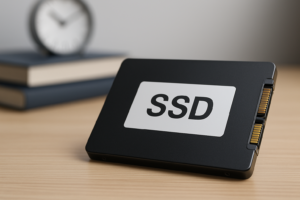
Best SSD Backup Strategies To Protect Your Data
Your SSD will fail one day. That’s not pessimism. It’s a simple fact of electronics. And unlike a traditional hard drive that might give you warning signs like clicking noises, slow performance, or increasing bad sectors, an SSD tends to die suddenly and completely. One moment everything works fine, and the next your data is gone.
This makes backup strategies for SSD users not just important but absolutely essential. The flash memory cells in your SSD have a finite number of write cycles, and the controller that manages everything can fail without any advance notice. Whether you’re storing years of family photos, critical business documents, or your entire digital life, you need a backup plan that actually works when disaster strikes.
In this guide, I’ll walk you through the best SSD backup strategies, including the proven 3-2-1 backup rule, specific software recommendations, cloud solutions, and how to create bootable recovery drives so you’re never left scrambling after a failure.
Why SSDs Fail Differently (And Why It Matters for Backups)
Before we talk strategy, you need to understand why SSD failure is uniquely dangerous. Traditional HDDs use spinning magnetic platters, and when they start to fail, you’ll often notice degraded performance, unusual sounds, or gradually increasing errors. This gives you time to react.
SSDs store data in NAND flash cells that wear out over time with each write operation. Most modern SSDs are rated for hundreds of terabytes written (TBW), so casual users probably won’t wear out the cells themselves. The bigger risk is controller failure, firmware bugs, or power surges that can brick an SSD instantly.
When an SSD fails, it often fails completely. You might not get a chance to recover anything. Data recovery from a dead SSD is also significantly more expensive and less reliable than recovering data from a failed HDD. Professional SSD recovery services can cost thousands of dollars with no guarantee of success. This is exactly why a solid backup strategy is your best and most affordable insurance.
The 3-2-1 Backup Rule Applied to SSD Storage
The 3-2-1 backup rule has been the gold standard for data protection for decades, and it applies perfectly to SSD-based systems. Here’s how it breaks down:
- 3 copies of your data: Your original data on your SSD plus two backup copies.
- 2 different types of storage media: Don’t put all your backups on the same kind of drive. Mix SSDs, HDDs, and cloud storage.
- 1 copy stored offsite: At least one backup should be physically separate from your home or office, whether that’s cloud storage or a drive kept at another location.
Let me show you what this looks like in practice. Say your primary system runs on a 1TB NVMe SSD. Your first backup could be to an external SSD connected via USB. Your second backup could go to a cloud service like Backblaze or Google One. The external SSD covers the “different media” and “second copy” requirements, while the cloud backup satisfies the offsite requirement.
Some people take it a step further with a 3-2-1-1-0 strategy, which adds one offline (air-gapped) copy and zero errors verified through backup testing. For most home users, the standard 3-2-1 approach is more than sufficient.
Local Backup Solutions: External Drives and NAS
External SSDs for Fast Local Backups
An external SSD is the fastest and most convenient way to maintain a local backup. Modern portable SSDs connect via USB 3.2 or Thunderbolt and can transfer data at speeds that make the backup process quick and painless.
The Samsung T7 Shield is my top recommendation for most people. It’s available in capacities up to 4TB, offers read speeds around 1,050 MB/s, and has IP65-rated dust and water resistance. You can toss it in a bag without worrying about damage.
Samsung T7 Shield Portable SSD
Excellent balance of speed, durability, and capacity for regular local backups with IP65 water and dust resistance
For users who want maximum speed and have a Thunderbolt port, the SanDisk Extreme Pro Portable SSD V2 delivers impressive transfer rates. If you’re backing up large video files or extensive photo libraries, the speed difference is noticeable and appreciated.
External HDDs for Affordable Bulk Storage
Don’t overlook traditional external hard drives for backup purposes. They’re significantly cheaper per gigabyte than SSDs, which makes them ideal for the “different media” component of the 3-2-1 rule. A 5TB external HDD gives you plenty of room to store multiple backup versions and file history.
The trade-off is speed and durability. External HDDs are slower and more susceptible to physical damage from drops. But for a backup that mostly sits on your desk, this rarely matters. You can pick up a quality external drive from a reputable brand and have enormous backup capacity for a fraction of what an equivalent SSD would cost.
NAS (Network Attached Storage) for Whole-Home Backups
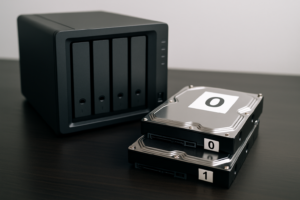
If you have multiple computers in your household, a NAS device might be worth the investment. Brands like Synology and QNAP offer consumer-friendly units that let you back up every device on your network to a central storage pool. Most NAS devices support RAID configurations, which means your backup itself has redundancy built in.
A two-bay Synology NAS like the DS224+ running in RAID 1 (mirrored) mode gives you a local backup that can survive a single drive failure. Combined with Synology’s built-in cloud sync features, you can also push data offsite automatically.
Cloud Backup Solutions
Cloud backup handles the offsite requirement of the 3-2-1 rule without you needing to physically transport drives to another location. Here are the best options depending on your needs:
- Backblaze Personal Backup: Unlimited backup for a single computer at a very reasonable subscription price. It runs quietly in the background and backs up everything on your internal and connected external drives. This is my top pick for most individuals.
- iDrive: Backs up multiple devices (including phones and tablets) under one plan. Offers 5TB or 10TB plans and includes a physical drive shipping option for initial large backups or emergency restores.
- Google One / Microsoft OneDrive / iCloud: These are more file-sync services than true backup solutions, but they work well for protecting documents, photos, and files you keep in their respective ecosystems. They won’t create a full system image, though.
- Acronis Cyber Protect Home Office: Combines local and cloud backup with security features. It can create full disk images and sync them to Acronis Cloud, giving you both a system backup and offsite protection in one tool.
I strongly recommend Backblaze for anyone who just wants to set it up once and forget about it. The unlimited storage means you never have to think about what to include or exclude. Every file on your drive gets backed up continuously.
Automated Backup Software: Set It and Forget It
The best backup is one that happens automatically. If you rely on remembering to manually copy files, you will eventually forget, and Murphy’s Law guarantees that’s when your SSD will fail. Here are the tools I recommend:
For Windows Users
- Windows Backup (built-in): Windows 10 and 11 include File History and the older Backup and Restore feature. File History is great for protecting documents and personal files, but it doesn’t create a full system image by default. It’s free, built-in, and better than nothing.
- Macrium Reflect Free: This is my go-to recommendation for Windows users. It creates full disk images, supports incremental backups (so only changed data gets backed up after the first run), and can schedule everything to run automatically. The free version handles everything most home users need.
- Veeam Agent for Microsoft Windows (Free): Another excellent free option that offers full system backup, volume-level backup, and file-level backup with scheduling.
For Mac Users
Time Machine is genuinely excellent backup software, and it’s already on your Mac. Connect an external drive, enable Time Machine, and it automatically maintains hourly, daily, and weekly backups. It’s one of the few backup tools that works well enough out of the box that I don’t feel the need to suggest alternatives.
Pair Time Machine with a cloud backup service like Backblaze, and you’ve got the 3-2-1 rule covered with minimal effort. Time Machine handles local backup, Backblaze handles offsite, and your internal SSD is the primary copy.
Creating a Bootable Recovery Drive
Having backups is only half the equation. You also need a way to restore those backups when your SSD fails and you can’t boot into your operating system. This is where a bootable recovery drive comes in.
Windows Recovery Drive
- Search for “Create a recovery drive” in the Windows Start menu.
- Insert a USB flash drive (16GB minimum, 32GB recommended).
- Check the box for “Back up system files to the recovery drive.”
- Follow the prompts and wait for the process to complete.
- Label the USB drive clearly and store it somewhere safe.
If you’re using Macrium Reflect, you should also create its rescue media. This is a bootable USB or disc that loads Macrium’s recovery environment, allowing you to restore a full disk image to a new SSD. In Macrium Reflect, go to Other Tasks > Create Rescue Media, and follow the wizard.
Mac Recovery Options
Modern Macs with Apple Silicon (M1/M2/M3/M4 chips) have a built-in recovery partition that you can access by holding the power button during startup. For Intel Macs, hold Command + R during boot. From recovery mode, you can reinstall macOS and then restore your data from a Time Machine backup.
I recommend keeping a bootable macOS installer on a USB drive as an additional safety net. Apple provides instructions for creating one using the createinstallmedia terminal command. It takes about 15 minutes and gives you a reliable way to start fresh if everything else fails.
Choosing the Right USB Drive for Recovery Media
For your bootable recovery drive, you don’t need anything fancy, but reliability matters. A quality 32GB or 64GB USB flash drive from Samsung or SanDisk will work perfectly. Keep it labeled, stored in a known location, and test it at least once a year to make sure it still boots correctly.
SanDisk 128GB Ultra Fit USB 3.2 Flash Drive
Tiny and affordable USB drive that’s perfect for creating bootable recovery media
Building Your Complete Backup Plan: A Practical Example
Here’s a real-world backup plan that covers all the bases. This is roughly what I use personally, and it follows the 3-2-1 rule faithfully:
- Primary storage: 1TB internal NVMe SSD (Samsung 990 Pro).
- Local backup #1: Macrium Reflect runs a scheduled incremental image backup every night at 2 AM to an external SSD (Samsung T7 Shield 2TB).
- Offsite backup: Backblaze continuously backs up everything in the background to the cloud.
- Recovery media: A bootable USB drive with Macrium Reflect rescue media, stored in my desk drawer.
- Monthly test: Once a month, I verify a random file from my Backblaze backup and check that my Macrium image mounts correctly.
This entire setup takes about 30 minutes to configure initially, and after that, it runs entirely on autopilot. The monthly verification step is something most people skip, but it’s crucial. A backup you’ve never tested is a backup you can’t trust.
WD My Passport SSD 2TB
Compact and reliable portable SSD with hardware encryption, great for nightly automated backups
Extra Tips for SSD-Specific Backup Practices
Monitor your SSD’s health. Tools like CrystalDiskInfo (Windows) or DriveDx (Mac) can read your SSD’s SMART data and alert you to potential issues. Pay attention to metrics like Media Wearout Indicator, Reallocated Sector Count, and Available Spare. These won’t always predict failure, but they give you more information than flying blind.
Don’t keep your only backup connected 24/7. Ransomware can encrypt connected external drives just as easily as your internal SSD. Consider rotating two external drives: one connected for active backups and one disconnected and stored safely. Swap them weekly.
Enable TRIM on your backup SSD. If you’re backing up to an external SSD, make sure TRIM is enabled on that drive as well. TRIM helps maintain SSD performance and longevity by allowing the drive to properly manage deleted data blocks.
Keep firmware updated. SSD manufacturers occasionally release firmware updates that fix bugs and improve reliability. Check your SSD manufacturer’s website or management software (Samsung Magician, WD Dashboard, Crucial Storage Executive) every few months.
Frequently Asked Questions
How often should I back up my SSD?
For most users, daily automated backups are ideal. If your backup software supports incremental or differential backups, you can run them daily without using excessive storage space since only changed files get copied after the initial full backup. Continuous cloud backup services like Backblaze work even better because they back up files as they change throughout the day.
Can I clone my SSD to another SSD as a backup?
You can, but cloning creates a one-time snapshot rather than an ongoing backup. Every time you want an updated backup, you’d need to re-clone the entire drive. Disk imaging software like Macrium Reflect or Acronis is a better approach because it supports incremental backups that only capture changes. You can also store multiple backup versions, so if a file gets corrupted or accidentally deleted, you can go back to an earlier version.
How long do SSDs last if they’re used only for backups?
An SSD used primarily for storing backups will experience far fewer write cycles than a primary system drive, so the NAND cells should last many years. However, SSDs can lose data if left unpowered for extended periods. Enterprise MLC drives may retain data for about three months without power in extreme conditions, while consumer drives generally hold data longer under normal storage conditions. As a best practice, power on your backup SSD at least once every few months and verify the data is intact.
Is cloud backup alone enough to protect my data?
Cloud backup alone satisfies the offsite requirement but leaves you vulnerable if your internet goes down when you need to restore, or if the cloud service experiences an outage. Restoring a full terabyte from the cloud can also take days depending on your internet speed. A local backup gets you up and running in under an hour, while the cloud backup provides offsite protection for worst-

James Kennedy is a writer and product researcher at Drives Hero with a background in IT administration and consulting. He has hands-on experience with storage, networking, and system performance, and regularly improves and optimizes his home networking setup.