The Most Common Causes of Data Loss and How to Avoid Them
Losing data feels a lot like losing a wallet. There’s that sudden wave of panic, the frantic searching, and then the slow, sinking realization that what’s gone might actually be gone for good. Except with data loss, you’re not just losing a few credit cards. You might be losing years of family photos, critical business documents, or an entire music library you’ve been curating since college.
The frustrating truth is that most data loss is entirely preventable. According to various industry studies, human error and hardware failure account for the vast majority of lost files, and both can be mitigated with a little planning. In this guide, we’ll break down the four most common causes of data loss, explain what actually happens behind the scenes, and give you practical steps to protect yourself from each one.
1. Hardware Failure: The Silent Killer of Your Files
Hardware failure is the number one cause of data loss worldwide, responsible for roughly 40% of all incidents. Every storage device has a finite lifespan, and eventually, every drive will fail. The question is never if but when.
Why Drives Fail
Traditional hard disk drives (HDDs) rely on spinning magnetic platters and a tiny read/write head that hovers nanometers above the surface. Over time, mechanical wear, heat buildup, and bearing degradation take their toll. If you’ve ever heard clicking or grinding sounds from your hard drive, you’ve witnessed the early stages of mechanical failure.
Solid-state drives (SSDs) don’t have moving parts, but they’re not immortal either. NAND flash cells can only endure a finite number of write cycles before they degrade. Most consumer SSDs are rated for hundreds of terabytes written (TBW), which is plenty for most users, but SSD lifespan varies significantly depending on workload, temperature, and drive quality.
External drives face additional risks. Physical drops, cable disconnections during transfers, and power surges can all shorten their lives considerably. If your external drive keeps disconnecting, that’s a warning sign you shouldn’t ignore.
How to Prevent Data Loss from Hardware Failure
- Monitor drive health regularly. Tools like CrystalDiskInfo (Windows) and DriveDx (Mac) read your drive’s S.M.A.R.T. data and alert you before failure strikes. Check these at least once a month.
- Replace aging drives proactively. If your HDD is older than 4-5 years or your SSD is approaching its rated TBW, start planning a replacement. Don’t wait for symptoms.
- Keep at least one backup on a separate physical device. A dedicated backup drive sitting in a drawer is cheap insurance. The WD Elements Portable is a reliable and affordable option for keeping a local backup copy of your most important files.
- Consider a NAS with redundancy. If you’re storing anything truly irreplaceable, a network-attached storage device with RAID 1 mirroring ensures that a single drive failure doesn’t mean data loss.

WD My Passport 5TB Portable External Hard Drive
An excellent everyday backup drive with built-in 256-bit AES hardware encryption and enough space for most users’ complete backup needs
2. Accidental Deletion and Human Error
This one stings because there’s nobody to blame but yourself. Studies from Kroll Ontrack consistently place human error as the second leading cause of data loss, accounting for roughly 29% of cases. It ranges from the classic “I accidentally deleted the wrong folder” to more subtle mistakes like formatting the wrong drive or overwriting a critical file.
Common Scenarios
You’d be surprised how often people format a drive they didn’t mean to. Maybe you’re setting up a new external SSD, you have two drives connected, and you accidentally initialize the one full of vacation photos instead of the blank one. Or you drag a folder to the trash, empty it without checking, and only realize your mistake three days later.
Another common scenario involves wiping drives before selling them. It’s absolutely the right thing to do for privacy, but more than a few people have wiped a drive before confirming the backup was complete and verified.
Overwriting is sneaky too. You save a new version of a document over the old one, and that carefully crafted original draft disappears. Or a sync service like Dropbox or OneDrive propagates a corrupted version of a file across all your devices before you notice.
How to Prevent Accidental Data Loss
- Enable versioning everywhere possible. Cloud services like Backblaze, Google Drive, and OneDrive keep previous versions of your files. Turn this feature on and set the retention period as long as your storage allows.
- Use the 3-2-1 backup rule. Keep 3 copies of your data, on 2 different types of media, with 1 stored offsite. This is the gold standard, and it’s effective because no single mistake can wipe out all your copies simultaneously.
- Pause before formatting. Anytime you’re about to format or erase a drive, triple-check the drive letter or disk label. Rename your drives with clear labels like “BACKUP_2026” or “WORK_FILES” to avoid confusion.
- Set up automated backups. Manual backups don’t happen because life gets in the way. Automating your backups to a NAS takes about 30 minutes to configure and eliminates the chance of forgetting.
- Don’t rely on the Recycle Bin alone. It’s a first line of defense, but it has size limits and can be bypassed entirely with Shift+Delete on Windows or certain cleanup utilities.
3. Ransomware and Malware Attacks
Ransomware attacks surged dramatically in recent years, and they don’t just target large corporations. Home users, freelancers, and small businesses are frequent targets precisely because they’re less likely to have proper defenses in place. In a ransomware attack, malicious software encrypts your files and demands payment (usually in cryptocurrency) for the decryption key.
How Ransomware Gets In
The most common infection vector is phishing emails. You receive an email that looks legitimate, maybe an invoice, a shipping notification, or a message from a colleague. You click the attachment or link, and the malware begins encrypting everything it can access. This includes not just your internal drive but any connected external drives, mapped network shares, and sometimes even cloud-synced folders.
Other entry points include compromised websites, outdated software with known vulnerabilities, and remote desktop protocol (RDP) connections left exposed to the internet. Variants like LockBit and Clop have become increasingly sophisticated, sometimes sitting dormant on systems for weeks before activating.
How to Protect Yourself from Ransomware
- Keep offline backups. This is your most powerful defense. A backup drive that’s physically disconnected from your computer can’t be encrypted by ransomware. Back up weekly (or more often for critical data), then unplug the drive and store it separately.
- Use reputable security software. Windows Defender has improved enormously and is sufficient for most users when combined with good habits. Malwarebytes is an excellent supplemental scanner for catching what slips through.
- Update your operating system and software promptly. Many ransomware attacks exploit known vulnerabilities that already have patches available. Delaying updates is one of the most common and most avoidable security mistakes.
- Be skeptical of email attachments and links. If you weren’t expecting it, don’t open it. Verify with the sender through a separate communication channel if something looks even slightly off.
- Enable controlled folder access on Windows. This built-in feature restricts which applications can modify files in your Documents, Pictures, and other protected folders. It’s free and surprisingly effective against ransomware.
For your offline backup strategy, a reliable external drive that you connect only during backup windows is essential. The Seagate Backup Plus line offers generous storage capacity in a compact form factor, making it easy to store in a drawer or fireproof safe between backups.

Samsung T7 Shield Portable SSD 2TB
Fast, durable, and IP65-rated for water and dust resistance, making it ideal for offline backup storage that you can tuck away safely between backup sessions
4. Natural Disasters and Environmental Damage
Floods, fires, lightning strikes, power surges, and even extreme heat can destroy storage devices in minutes. While less common than the other causes on this list, environmental damage is uniquely devastating because it often destroys both your primary data and your local backups simultaneously.
The Risks Most People Overlook
A power surge from a lightning strike can fry every connected electronic device in your home. If your computer and backup drive are both plugged in, both can be destroyed in the same instant. Flooding in a basement home office can submerge a desktop PC and the external drive sitting next to it. A house fire doesn’t discriminate between your laptop and the NAS sitting on the shelf above it.
Extreme heat is a slower but equally dangerous threat. Storage devices left in cars, garages, or poorly ventilated rooms can suffer accelerated degradation. SSDs are more heat-tolerant than HDDs, but sustained temperatures above 70°C (158°F) will shorten their lifespan considerably. If you’ve noticed your SSD slowing down over time, thermal throttling from heat exposure might be a contributing factor.
How to Protect Against Environmental Data Loss
- Maintain an offsite backup. This is the single most important defense against natural disasters. Store a backup drive at a family member’s house, in a bank safety deposit box, or use a cloud backup service. Weighing the cost of cloud backup versus a local NAS can help you decide which offsite strategy makes sense for your budget.
- Use a surge protector or UPS. A quality surge protector guards against power spikes, while an uninterruptible power supply (UPS) gives your system enough battery power to shut down gracefully during an outage. The APC Back-UPS 600VA is a solid entry-level option that protects your equipment and gives you a few minutes to save work and shut down properly.
- Store backup drives in a fireproof, waterproof safe. A small fireproof media safe (specifically rated for electronic media, not just paper documents) can protect a backup drive from most residential fires and minor flooding.
- Control your environment. Keep storage devices in climate-controlled rooms away from windows, water sources, and direct sunlight. Elevated placement protects against minor flooding.
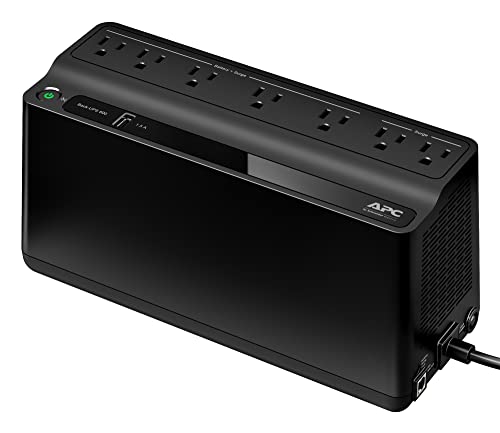
APC UPS Battery Backup Surge Protector 600VA
Affordable power protection that gives your PC and drives enough runtime to shut down safely during outages, preventing corruption and hardware damage
Building Your Data Protection Plan: Putting It All Together
Knowing the risks is one thing. Actually implementing a protection plan is where most people stall out. Here’s a practical, prioritized approach that covers all four threat categories without requiring a huge investment of time or money.
Step 1: Start with a Single External Backup
If you don’t have any backup right now, buy an external drive today and copy your most important files to it. This alone protects you from hardware failure and accidental deletion. Whether you choose an SSD or HDD depends on your priorities. SSDs are faster and more shock-resistant, while HDDs offer more storage per dollar.
Step 2: Automate Your Backups
Use built-in tools like Windows Backup, macOS Time Machine, or free software like FreeFileSync to schedule automatic backups. You shouldn’t have to remember to back up. It should just happen.
Step 3: Add an Offsite Copy
Whether it’s a cloud service like Backblaze (which offers unlimited backup for a flat annual fee) or a second drive stored at a different physical location, this step protects you from natural disasters and ransomware that hits while your backup drive is connected.
Step 4: Harden Your Security
Keep your OS and software updated. Enable two-factor authentication on all cloud services. Run a reputable antivirus/anti-malware tool. Don’t click suspicious links. These habits cost nothing but protect you from the fastest-growing category of data loss.
Step 5: Test Your Backups
A backup you’ve never tested is a backup you can’t trust. At least once a quarter, pick a few random files from your backup and verify that they open correctly. If you’re using disk images or clones, test the clone by booting from it or mounting it to confirm everything is intact.
When Data Loss Has Already Happened
If you’re reading this after losing data, don’t panic, and don’t keep using the affected drive. Every write operation to that drive could overwrite the data you’re trying to recover, making it permanently unrecoverable.
For accidental deletion, software tools like Recuva (Windows) or Disk Drill (Mac/Windows) can often recover recently deleted files, especially from HDDs. SSDs are trickier due to the TRIM command, which proactively erases deleted data blocks. We’ve covered several effective approaches in our guide on recovering data from a failed external drive.
For mechanical failure involving clicking, grinding, or drives that aren’t recognized at all, professional data recovery services like DriveSavers or Ontrack are your best bet. These services aren’t cheap, but they operate in cleanroom environments and can often salvage data from severely damaged drives.
Frequently Asked Questions
How often should I back up my data?

James Kennedy is a writer and product researcher at Drives Hero with a background in IT administration and consulting. He has hands-on experience with storage, networking, and system performance, and regularly improves and optimizes his home networking setup.

James Kennedy is a writer and product researcher at Drives Hero with a background in IT administration and consulting. He has hands-on experience with storage, networking, and system performance, and regularly improves and optimizes his home networking setup.