Best NVMe SSDs for PS5 Storage Expansion in 2026
The PS5’s internal 667 GB of usable storage fills up fast, especially if you’re juggling a few modern titles that regularly exceed 100 GB each. Adding a compatible NVMe SSD to the console’s expansion slot is the single best upgrade you can make, and in 2026, the options are faster, cooler, and more affordable than ever. Below, I’ve ranked the top drives worth buying right now, along with everything you need to know about heatsinks and installation.
PS5 NVMe SSD Requirements (Quick Refresher)
Sony requires a PCIe Gen 4 (or newer) M.2 2230/2242/2260/22110 NVMe drive. The recommended sequential read speed is 5,500 MB/s or higher. If you’re unfamiliar with M.2 form factors, our M.2 vs 2.5-inch SSD comparison guide breaks down the physical differences. The expansion slot accepts standard 2230 through 22110 sizes, but most drives on the market are the common 2280 length.
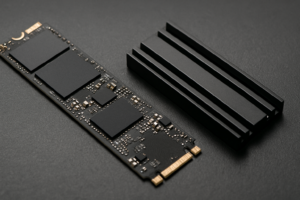
A heatsink is also required. The PS5 expansion bay can accommodate a drive plus heatsink up to 110 mm long, 25 mm wide, and 11.25 mm tall (total, both sides). Some drives ship with a heatsink pre-installed. For those that don’t, you can grab a low-profile PS5-compatible NVMe heatsink separately.
Top PS5 NVMe SSDs for 2026
1. Crucial T500 (1TB / 2TB) — Best Overall
The Crucial T500 hits 7,400 MB/s sequential reads and 7,000 MB/s writes, well above Sony’s recommended threshold. It ships in a variant with a pre-attached heatsink that fits the PS5 expansion bay perfectly, so you don’t need to buy anything extra. Sustained write performance stays consistent even during large game transfers, and Crucial’s 5-year warranty adds confidence.
For most people, this is the drive I’d recommend first. It’s competitively priced, widely available, and performs brilliantly inside the PS5.

Crucial T500 2TB NVMe SSD with Heatsink
Top pick for PS5 — fast Gen 4 speeds, includes a PS5-ready heatsink, and backed by a 5-year warranty
2. WD Black SN850X (1TB / 2TB / 4TB) — Best for Power Users
The WD Black SN850X has been a PS5 community favorite since launch, and for good reason. Sequential reads hit 7,300 MB/s, and real-world game load times are virtually identical to the Crucial T500. It also comes in a 4TB option if you want to load your entire library without ever worrying about space again. Western Digital sells a heatsink version specifically marketed for PS5.
If you’ve read our Samsung 990 PRO vs WD Black SN850X comparison, you know this drive trades blows with Samsung at the top of the Gen 4 class. For PS5 specifically, the SN850X’s game mode firmware optimization gives it a slight edge in reducing micro-stutters.
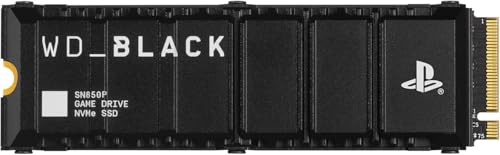
WD Black SN850X 2TB with Heatsink
Excellent PS5 pick with game mode optimization and a 4TB option for huge libraries
3. Seagate FireCuda 530 (1TB / 2TB / 4TB) — Proven Reliability
The Seagate FireCuda 530 delivers 7,300 MB/s reads with one of the highest endurance ratings in its class (2,550 TBW for the 2TB model). It runs a bit warmer than the competition, so I’d strongly recommend the heatsink version or adding your own. In terms of PS5 performance, it matches the SN850X in game load tests.
The FireCuda 530 is a great choice if longevity matters to you. Speaking of SSD longevity, our deep dive on SSD lifespan covers how to estimate how long your drive will actually last based on real usage data.
Honorable Mention: Samsung 990 PRO
The Samsung 990 PRO is another excellent pick with 7,450 MB/s reads. Samsung’s reliability track record is hard to beat, and the drive is available with or without a heatsink. Our Samsung 990 PRO review covers benchmarks in detail. It didn’t crack the top three only because the Crucial T500 matches its speed at a typically lower price point.
How to Install an NVMe SSD in Your PS5
- Power off your PS5 completely and unplug all cables. Place it on a flat, clean surface.
- Remove the side panel. With the PS5 lying flat (disc drive facing down if you have one), lift the top-left corner and slide the panel to the left until it clicks off.
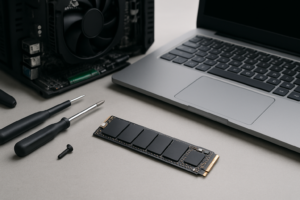
- Unscrew the expansion slot cover using a Phillips-head screwdriver. You’ll see the M.2 slot and a set of spacer positions for different drive lengths.
- Move the spacer and screw to the 2280 position (the most common NVMe length).
- Insert the SSD at a slight angle into the M.2 connector, then press it down gently and secure it with the screw.
- Replace the cover and side panel. Power on the PS5, and the console will prompt you to format the new drive.
The entire process takes about 10 minutes. If you’ve installed an NVMe drive in a PC before, you’ll find this even simpler. Our NVMe SSD installation guide has additional tips that apply to both PC and PS5

James Kennedy is a writer and product researcher at Drives Hero with a background in IT administration and consulting. He has hands-on experience with storage, networking, and system performance, and regularly improves and optimizes his home networking setup.