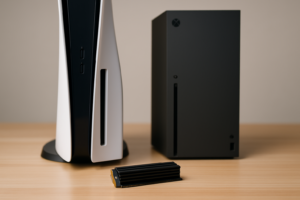
Can You Play PS5 Games from an External SSD?
You just dropped serious money on a PS5, and the 825GB internal SSD is already feeling cramped after installing a handful of modern titles. Naturally, you’re eyeing that external SSD sitting on your desk and wondering if you can just plug it in and start playing. The answer is both yes and no, and the difference matters more than you’d think.
Sony built the PS5 with some strict rules about which games can run from where, and understanding those rules is the key to managing your storage without constantly deleting and re-downloading titles. Let’s break down exactly what works, what doesn’t, and the smartest way to handle your PS5 game library.
How PS5 Storage Actually Works
The PS5 ships with an 825GB custom NVMe SSD, but only about 667GB of that is usable after the operating system takes its share. That’s roughly five to eight modern AAA games before you’re staring at a “Storage Full” notification. Sony designed the console’s architecture around this ultra-fast internal drive, and the PS5’s I/O system depends on those speeds for features like near-instant loading and the Activities system.
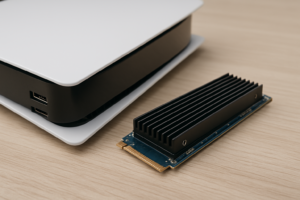
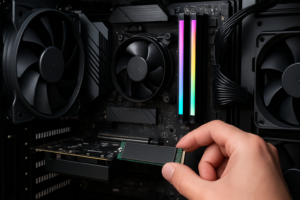
To expand your storage, Sony gives you two options: install an internal M.2 NVMe SSD in the console’s expansion bay, or connect an external USB drive. But these two options are not equal. The internal M.2 slot acts as a true extension of your primary storage, while external drives have significant limitations when it comes to PS5-native games.
If you’re unfamiliar with the differences between M.2 and traditional drive formats, our M.2 vs 2.5-inch SSD comparison guide covers the physical and performance distinctions in detail.
Which Games Can You Play from an External SSD?
Here’s the critical distinction every PS5 owner needs to understand:
- PS4 games: Can be stored, installed, and played directly from an external USB drive. Full functionality, no restrictions.
- PS5 games: Can be stored on an external USB drive for archival purposes, but cannot be played from it. You must transfer them back to internal storage (or an installed M.2 NVMe SSD) before launching them.
This isn’t a suggestion or a performance recommendation. It’s a hard technical limitation enforced by the system software. If you try to launch a PS5 game stored on an external drive, the console will prompt you to copy it to internal storage first.
The reason comes down to speed. PS5 games are built to take advantage of the console’s 5.5 GB/s raw read speed. Even the fastest external SSDs over USB 3.2 top out around 1,000 MB/s, which is simply too slow for games designed around that internal throughput. Game worlds, textures, and assets stream in real-time from storage, and an external drive would create bottlenecks that break the experience.
PS4 Games Run Just Fine Externally
PS4 titles were designed for the much slower hard drive in the original PS4, which delivered roughly 100 MB/s of read speed. Any external SSD connected via USB will massively exceed that baseline. In fact, PS4 games often load faster from an external SSD than they did on the original console.
This makes external storage perfect for your PS4 backlog. Games like God of War (2018), The Last of Us Part II, Persona 5 Royal, and hundreds of other PS4 titles will run happily from an external drive with no performance penalty. For a deeper look at how SATA and NVMe drives compare in gaming scenarios, check out our SATA vs NVMe real-world gaming test.
Using an External SSD as Cold Storage for PS5 Games
Even though you can’t play PS5 games from an external drive, you absolutely should use one as a game locker. This is the single best quality-of-life upgrade you can make for your PS5’s storage management.
Instead of deleting a PS5 game when you need space (and then downloading 80-100GB again later), you can move it to your external SSD. When you want to play it again, transferring from USB is dramatically faster than re-downloading. A 100GB game that might take hours to download on a typical internet connection can transfer back from an external SSD in 15 to 25 minutes.
Transfer Speeds You Can Expect
The PS5’s USB ports support USB 3.2 Gen 2, which has a theoretical maximum of 10 Gbps. In practice, transfer speeds for game data between internal and external storage land between 500 MB/s and 900 MB/s, depending on the external drive and which USB port you’re using.
The rear USB-A port and the rear USB-C port both support SuperSpeed USB. The front USB-A port on the original PS5 is only USB 2.0 (much slower), so always connect your external drive to a rear port. The PS5 Slim models improved this, with a front USB-C port that supports faster speeds.
The Best Workflow for Managing PS5 Storage
After years of PS5 ownership, here’s the storage management strategy that works best for most people:
- Install an internal M.2 NVMe SSD for your actively played PS5 games. This gives you a second pool of full-speed storage where PS5 games can run natively. A 2TB drive like the WD Black SN850X 2TB or the Samsung 990 Pro 2TB with heatsink will more than double your usable PS5 game storage.
- Connect an external SSD via USB as your game archive. Move PS5 titles you’re not currently playing here. Keep all your PS4 games installed on this drive permanently, since they’ll run directly from it.
- Keep your internal 825GB drive for your current rotation. The three to five games you’re actively playing right now live here or on your internal M.2 expansion.
This three-tier approach means you’ll rarely need to delete anything, and you’ll almost never need to re-download a game from the internet. We’ve covered a similar approach for PC users in our guide on using SSD and HDD together in one PC, and the same principle applies: fast storage for what you’re using now, bigger storage for everything else.

WD Black SN850X 2TB NVMe SSD
Top pick for PS5 internal expansion with consistent read speeds exceeding 7,000 MB/s and an optional heatsink model.
What to Look for in an External SSD for PS5
Not every external drive is a good match for PS5 use. Here’s what actually matters:
USB 3.0 or Higher Is Mandatory
The PS5 requires a minimum of SuperSpeed USB (5 Gbps) for game storage. Any modern external SSD will meet this requirement, but double-check if you’re repurposing an older drive. USB 2.0 drives will only work for media file storage, not game installation.
Capacity Sweet Spot: 1TB to 2TB
For a game archive drive, 1TB is the practical minimum. A single large game like Call of Duty: Modern Warfare III can eat over 150GB. With a 2TB external SSD, you can comfortably archive 15 to 20 major titles. Our 1TB vs 2TB SSD capacity guide breaks down how to pick the right size for your needs.
SSD Over HDD, Always
You can technically use an external hard drive for PS5 storage, but an SSD is a far better choice. Transfer speeds are several times faster, there are no moving parts to fail if the drive gets bumped, and the drives run silently. An external HDD will work for archiving, but transferring a 100GB game back to internal storage could take well over an hour instead of minutes.
Recommended External SSDs for PS5
For pure reliability and speed, the Samsung T7 Shield is hard to beat. It’s IP65-rated for dust and water resistance, reads at up to 1,050 MB/s, and the 2TB model gives you plenty of archive space. It’s compact enough to sit behind your PS5 without any cable management headaches.

Samsung T7 Shield 2TB External SSD
Our top pick for PS5 external storage thanks to fast USB 3.2 Gen 2 speeds, rugged build quality, and a compact form factor.
The WD My Passport SSD is another solid option, especially if you want NVMe-level speeds over USB-C. Both drives include the necessary cables for PS5 connection out of the box. For more portable SSD options, take a look at our roundup of the best portable SSDs for travel in 2026.
How to Set Up an External SSD on PS5 (Step by Step)
Setting up your external drive takes just a few minutes, but be aware that the PS5 will format the drive exclusively for console use. Any existing data on the drive will be erased.
- Plug the external SSD into one of the rear USB ports on your PS5.
- Go to Settings > Storage > USB Extended Storage.
- Select Format as USB Extended Storage and confirm.
- Wait for the formatting to complete (usually under a minute).
- Once formatted, you can move games to the drive from Settings > Storage > Console Storage > Games and Apps.
You can also set the PS5 to automatically install PS4 games to your external drive. Go to Settings > Storage > Installation Location and change the PS4 game install location to USB Extended Storage. PS5 games will always install to internal storage initially, but you can move them afterward.
If your external drive isn’t being recognized, our troubleshooting guide on fixing external drives that aren’t showing up covers the most common causes and solutions.
Internal M.2 Expansion vs. External SSD: Which Should You Get First?
If you can only buy one storage upgrade right now, get the internal M.2 NVMe SSD first. It’s the only expansion option that lets you actually play PS5 games from it, and it completely eliminates the transfer shuffle for your most-played titles.
The PS5 requires a PCIe Gen 4 M.2 NVMe drive with a heatsink (either built-in or added separately). Sony recommends drives with sequential read speeds of 5,500 MB/s or faster. The Samsung 990 Pro and the WD Black SN850X are the two most popular choices, and both deliver excellent performance. We’ve put these two drives head-to-head in our Samsung 990 Pro vs WD Black SN850X comparison.
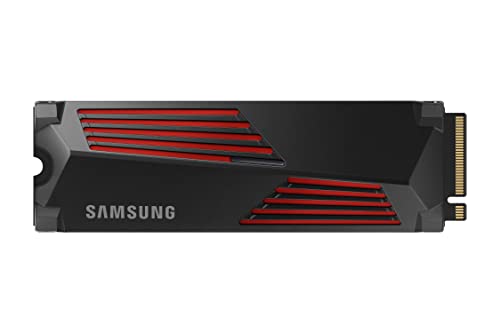
Samsung 990 Pro 2TB with Heatsink
Excellent internal PS5 expansion drive with up to 7,450 MB/s reads and a pre-attached heatsink for easy installation.
After you’ve installed an internal M.2 drive, adding an external SSD for archival and PS4 game storage becomes the natural next step. Together, the two upgrades give you a flexible system where nothing ever needs to be deleted.
Common Mistakes to Avoid
A few pitfalls catch PS5 owners off guard when dealing with external storage:
- Don’t unplug the drive while the PS5 is on. Always use “Safely Remove USB Storage Device” from the quick menu, or power down the console first. Yanking the cable can corrupt game data.
- Don’t use a USB hub. Connect the drive directly to the PS5. Hubs can cause power delivery issues and intermittent disconnections.
- Don’t expect rest mode downloads to external. The PS5 won’t download and install games directly to an external drive in rest mode. Games download to internal storage first, and you move them manually.
- Don’t forget about SSD health over time. External SSDs used frequently for large file transfers will accumulate write cycles. This isn’t a short-term concern, but it’s worth understanding. Our article on SSD lifespan and how long they really last has the data.
Frequently Asked Questions
Can I play PS5 games directly from an external SSD without transferring?
No. PS5-native games must be stored on the console’s internal SSD or an installed M.2 NVMe expansion drive to be played. You can store PS5 games on an external USB drive as an archive, but you’ll need to copy them back to internal storage before you can launch them. PS4 games, however, can be played directly from an external USB drive with no restrictions.
How long does it take to transfer a PS5 game from external to internal storage?
Using a decent external SSD connected to a rear USB 3.2 port, most games transfer at 500 to 900 MB/s in practice. A 50GB game typically takes around 2 to 4 minutes, while a massive 100GB+ title might take 10 to 20 minutes. This is significantly faster than re-downloading the same game, especially if your internet connection is slower than a few hundred Mbps.
Does

James Kennedy is a writer and product researcher at Drives Hero with a background in IT administration and consulting. He has hands-on experience with storage, networking, and system performance, and regularly improves and optimizes his home networking setup.

James Kennedy is a writer and product researcher at Drives Hero with a background in IT administration and consulting. He has hands-on experience with storage, networking, and system performance, and regularly improves and optimizes his home networking setup.