Internal vs External Storage for Console Gaming: What You Need to Know
Your PS5 or Xbox Series X shipped with a limited amount of internal storage, and modern games are eating through it faster than ever. Call of Duty alone can consume over 150GB. Throw in a few more AAA titles, and you’re staring at a full drive before you’ve barely scratched your backlog. The solution seems obvious: add more storage. But the choice between internal expansion and external drives isn’t as simple as grabbing whatever’s on sale.
Each console handles storage differently, and picking the wrong option can mean your games won’t actually launch from the drive you just bought. This guide breaks down everything you need to know about internal vs. external storage for PS5 and Xbox Series X|S, including game compatibility, real-world transfer speeds, cold storage strategies, and specific drive recommendations.
How PS5 and Xbox Handle Storage Differently
Before you buy anything, you need to understand a fundamental difference in how Sony and Microsoft approach expandable storage. Both consoles use custom NVMe SSDs internally, but their expansion methods are completely different.
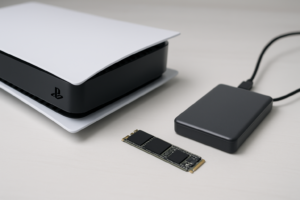
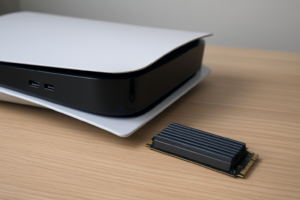
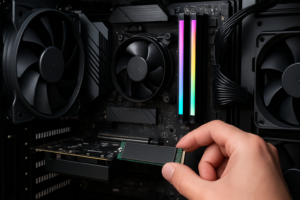
The PS5 has an internal M.2 NVMe expansion slot. You pop off the side panel, unscrew a small cover, and slide in a standard M.2 2230 or 2280 NVMe SSD. Sony requires a Gen 4 NVMe drive with sequential read speeds of 5,500 MB/s or higher for the best experience, though slightly slower drives will still work. Once installed, the internal expansion drive functions identically to the built-in storage. You can install, play, and update both PS5 and PS4 games from it. If you’re unfamiliar with M.2 form factors, our M.2 vs 2.5-inch SSD comparison guide explains the physical differences in detail.
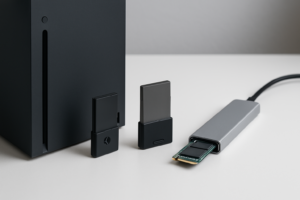
The Xbox Series X|S uses a proprietary expansion card slot on the back of the console. The Seagate Storage Expansion Card (now also available from WD_BLACK) plugs directly into this port. It’s essentially plug-and-play, and games run from it with zero performance difference compared to the internal drive. No screwdrivers required, no compatibility guesswork.
Both consoles also support standard external USB drives, but with major limitations we’ll cover next.
Internal Storage: The Pros and Cons
Why Internal Expansion Is Ideal
Internal storage, whether it’s an M.2 NVMe in your PS5 or a proprietary expansion card in your Xbox, gives you the full experience. Every game in your library can be installed and played directly from it. Load times match or come extremely close to the built-in drive. There’s no compromise on features like the PS5’s Activities or the Xbox’s Quick Resume.
For PS5 owners, internal NVMe expansion is particularly attractive because you’re buying standard PC hardware. Drives like the Samsung 990 Pro, WD_BLACK SN850X, and Seagate FireCuda 530 all work beautifully. You also benefit from competitive pricing since these drives are sold across the entire PC market, not just to console gamers. We did a deep comparison of two top contenders in our Samsung 990 Pro vs. WD_BLACK SN850X showdown if you want the technical breakdown.
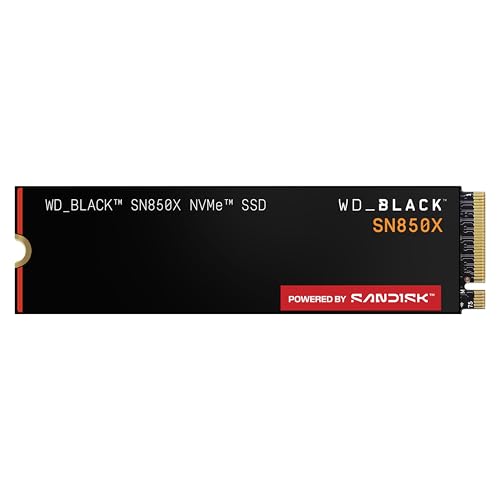
WD_BLACK SN850X 2TB NVMe SSD
Top-tier PS5 internal expansion drive with a heatsink option and read speeds up to 7,300 MB/s.
The Downsides of Going Internal
For PS5, you need to be comfortable opening the console and handling a small screw. It’s genuinely easy (Sony designed it that way), but it’s still more involved than plugging in a USB cable. You also need to make sure you buy a drive with a heatsink, or add one separately, since the M.2 slot sits in an enclosed space that gets warm.
For Xbox, the proprietary expansion cards are more expensive per gigabyte than standard NVMe drives. You’re paying a premium for the convenience and the licensing. The 2TB Seagate Storage Expansion Card, for example, carries a notably higher cost-per-terabyte than a comparable M.2 drive. But it’s the only way to run Series X|S optimized games from expanded storage without using the internal drive.
It’s also worth remembering that all SSDs degrade over time with heavy write cycles. If you’re someone who frequently installs and uninstalls large games, read up on how long SSDs actually last so you know what to expect from your investment.
External Storage: The Pros and Cons
Where External Drives Shine
External USB drives are cheap, plentiful, and dead simple to set up. You plug in a USB 3.0 or USB 3.2 drive, format it through the console’s settings menu, and start transferring games. Both PS5 and Xbox support external USB hard drives and SSDs for storage.
The biggest advantage is capacity for the money. A 4TB or 5TB external HDD gives you a massive library on standby. For anyone with hundreds of digital games, this kind of bulk storage is invaluable.
External drives also make it easy to move your library between consoles or take your games to a friend’s house. A portable SSD like the Samsung T7 Shield is small enough to toss in a bag, and it’s tough enough to survive the trip. We’ve tested several options in our best portable SSDs for travel roundup.
The Catch with External Storage on Current-Gen Consoles
Here’s where things get complicated, and where most people get frustrated after buying an external drive without doing their homework.
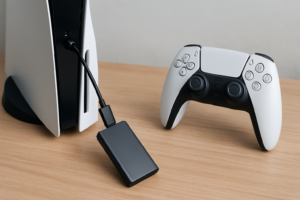
On PS5: You cannot play PS5 games from an external USB drive. Period. PS5 titles must be stored on the internal SSD or an internal M.2 NVMe expansion drive to run. You can store PS5 games on an external drive and transfer them back to internal storage when you want to play, but they won’t launch from the external device. PS4 games, however, can be played directly from an external USB drive with no issues.
On Xbox Series X|S: Games that are “Optimized for Series X|S” cannot be played from a standard external USB drive. They require either the internal drive or the official expansion card. Older Xbox One, Xbox 360, and original Xbox backward-compatible games will play just fine from any external USB drive. Some optimized games may allow you to move them to external storage, but they’ll need to be moved back to internal (or the expansion card) before launching.
This distinction is critical. If you buy an external drive expecting to play the latest titles directly from it, you’ll be disappointed on both platforms.
Cold Storage: The Smart Way to Use External Drives
Even with the play restrictions, external drives are incredibly useful as “cold storage.” This strategy involves keeping your less-played games parked on an external drive and transferring them to internal storage only when you want to play.
Why Cold Storage Matters
Redownloading a 100GB+ game takes hours, depending on your internet speed. Transferring that same game from an external USB SSD takes minutes. Even transferring from a mechanical HDD is significantly faster than redownloading over most home internet connections.
Here’s what real-world transfer speeds look like:
- External USB HDD (5,400 RPM): Roughly 80-120 MB/s. A 100GB game transfers in about 15-20 minutes.
- External USB SSD (USB 3.2 Gen 1): Around 400-450 MB/s. That same 100GB game transfers in about 4-5 minutes.
- External USB SSD (USB 3.2 Gen 2): Up to 900+ MB/s theoretically, but console USB ports often cap actual throughput lower. Expect 5-7 minutes for 100GB.
- Redownloading on a 100 Mbps connection: Over two hours.
An external SSD as a cold storage companion is a massive time saver. You keep your active rotation on internal storage and everything else parked on the external, ready to swap in quickly.

Samsung T7 Shield 2TB Portable SSD
Excellent cold storage option for consoles with fast USB 3.2 Gen 2 speeds and drop-resistant design.
HDD vs. SSD for Cold Storage
If you’re only using an external drive for cold storage (not playing games from it), a mechanical HDD works fine. It’s slower for transfers, but if you don’t mind waiting 15-20 minutes instead of 5, you can grab a 4TB or 5TB HDD and store a huge chunk of your library. The WD Elements 5TB or the Seagate Portable 5TB are reliable, affordable picks for this purpose.
If you want faster transfers and less bulk on your desk, an external SSD is the better choice. You’ll pay more per terabyte, but the speed difference is real and the drives are smaller and more durable. For a deeper look at the HDD vs. SSD trade-offs in general, check out our SSD vs. HDD comparison.
Recommended Setups for PS5 and Xbox
Best Setup for PS5
The ideal PS5 storage setup uses a combination of both internal and external. Install a 2TB or 4TB NVMe SSD in the M.2 expansion slot for your active PS5 and PS4 games, and pair it with an external USB SSD or HDD for cold storage.
Internal pick: The Samsung 990 Pro with heatsink is my top recommendation. It meets Sony’s speed requirements with room to spare, includes an integrated heatsink for the PS5’s M.2 slot, and Samsung’s reliability track record speaks for itself.
External pick: For cold storage on a budget, grab a high-capacity external HDD. For faster swaps, a 2TB portable SSD like the Samsung T7 Shield or WD My Passport SSD is a great pairing.
Best Setup for Xbox Series X|S
Xbox owners face a tougher decision because the proprietary expansion card is the only way to add internal-equivalent storage. If budget allows, grab the Seagate Storage Expansion Card for Xbox (2TB) or the newer WD_BLACK C50 Expansion Card. These let you play Series X|S optimized games directly, with no transfers needed.

Seagate Storage Expansion Card 2TB for Xbox
The only way to expand playable storage for Xbox Series X|S optimized games, with true plug-and-play simplicity.
Then add a standard external USB drive for backward-compatible titles and cold storage. Xbox One games, Xbox 360 titles, and original Xbox games all play directly from external USB storage, so you can offload those entirely and save your premium internal and expansion card space for current-gen titles.
Transfer Speeds Compared: Internal vs. External
Let’s put some real numbers on the performance gap. These are approximate speeds you’ll actually experience on consoles, not the maximum theoretical numbers on the box.
- PS5 internal SSD: ~5,500 MB/s (raw read speed). Games load in seconds.
- PS5 M.2 NVMe expansion (Gen 4): ~5,500-7,300 MB/s depending on the drive. Functionally identical to internal.
- Xbox internal / Expansion Card: ~2,400 MB/s (Xbox’s custom I/O). Games load at full speed.
- External USB SSD (USB 3.2): ~400-900 MB/s for file transfers. Cannot play current-gen games.
- External USB HDD: ~80-120 MB/s for file transfers. Can play last-gen games, but with longer load times.
Playing last-gen games from an external USB SSD versus an HDD does make a noticeable difference. PS4 and Xbox One titles load significantly faster from an SSD, even over USB. If you want to understand the difference NVMe makes compared to SATA in gaming scenarios, our SATA vs. NVMe gaming performance test has real-world benchmarks.
Common Mistakes to Avoid
After helping dozens of readers troubleshoot console storage issues, these are the mistakes I see most often:
- Buying a Gen 3 NVMe for PS5: Gen 3 drives technically work, but they’re below Sony’s recommended specs. You may experience texture pop-in or slightly longer loads in some games. Stick with Gen 4 or newer.
- Forgetting the heatsink on PS5: The M.2 slot gets hot. Without a heatsink, your drive can thermal throttle and degrade faster. Many drives now include one, like the Samsung 990 Pro heatsink model. If yours doesn’t, you can buy a slim M.2 heatsink separately.

James Kennedy is a writer and product researcher at Drives Hero with a background in IT administration and consulting. He has hands-on experience with storage, networking, and system performance, and regularly improves and optimizes his home networking setup.