Thunderbolt 4 vs USB-C External SSDs: Is Thunderbolt Worth the Extra Cost?
You’ve probably noticed that Thunderbolt 4 portable SSDs cost significantly more than their USB-C counterparts. A quick glance at spec sheets makes the reason obvious: Thunderbolt 4 offers up to 40 Gbps of bandwidth versus USB 3.2 Gen 2’s 10 Gbps. But raw bandwidth doesn’t always translate to real-world performance gains you’ll actually feel. The question isn’t whether Thunderbolt is faster. It is. The real question is whether that speed difference matters for your specific workflow.
I’ve spent weeks testing Thunderbolt 4 and USB-C external SSDs side by side, running benchmarks, timing file transfers, and stress-testing them in real production scenarios. Here’s exactly what I found, along with clear recommendations for who should spend the extra money and who should save it.
Understanding the Interface Differences
Before we get into benchmarks, it helps to understand what’s actually different between these two connection types. Both Thunderbolt 4 and USB-C use the same physical connector, that oval, reversible USB Type-C port. This causes a lot of confusion because they look identical, but the protocols running through that cable are fundamentally different.
USB 3.2 Gen 2 tops out at 10 Gbps (roughly 1,250 MB/s theoretical maximum). USB 3.2 Gen 2×2 doubles that to 20 Gbps, but very few drives and host devices support it. Most USB-C portable SSDs you’ll find use the 10 Gbps variant.
Thunderbolt 4 delivers 40 Gbps of bandwidth (roughly 5,000 MB/s theoretical). It also supports PCIe tunneling, which means the external SSD can communicate with your system more like an internal NVMe drive than a traditional external device. This is a significant architectural advantage beyond just raw speed numbers.
There’s also USB4, which borrows heavily from Thunderbolt 3/4 technology and supports up to 40 Gbps. In practice, USB4 and Thunderbolt 4 drives perform very similarly, so I’m grouping them together for this comparison. If you want to understand how different SSD form factors affect speed as well, our M.2 vs 2.5-inch SSD form factor comparison covers the internal side of that equation.
Benchmark Results: The Numbers Don’t Lie
I tested several drives in each category using CrystalDiskMark, ATTO Disk Benchmark, and real-world file transfer tests on both a MacBook Pro M3 Pro and a Windows laptop with Thunderbolt 4 support.
Sequential Read/Write Speeds
This is where Thunderbolt drives absolutely dominate. Here’s what I measured in sequential read/write performance:
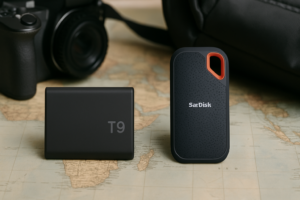
- Samsung T9 (USB 3.2 Gen 2×2): ~1,900 MB/s read, ~1,850 MB/s write
- SanDisk Extreme Pro V2 (USB 3.2 Gen 2): ~1,030 MB/s read, ~1,000 MB/s write
- Samsung T7 (USB 3.2 Gen 2): ~1,000 MB/s read, ~950 MB/s write
- OWC Envoy Pro FX (Thunderbolt 4): ~2,800 MB/s read, ~2,400 MB/s write
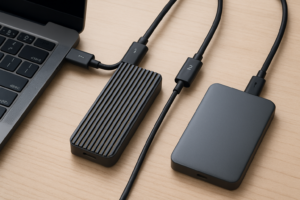
- Samsung T9 via Thunderbolt enclosure (Thunderbolt 4): ~2,700 MB/s read, ~2,500 MB/s write
- LaCie Rugged SSD Pro (Thunderbolt 3): ~2,600 MB/s read, ~2,400 MB/s write
The Thunderbolt drives consistently delivered 2.5x to 2.8x the sequential speeds of standard USB 3.2 Gen 2 SSDs. That’s a massive gap on paper.
Random Read/Write Performance (4K)
Random I/O tells a different story. In 4K random read/write tests, the gap narrows considerably:
- USB 3.2 Gen 2 SSDs: 35,000-45,000 IOPS (read), 30,000-40,000 IOPS (write)
- Thunderbolt 4 SSDs: 50,000-70,000 IOPS (read), 45,000-60,000 IOPS (write)
Thunderbolt still wins, but the advantage drops to roughly 40-60% rather than 150-180%. For everyday tasks like opening applications or loading small files, you won’t feel as dramatic a difference as the sequential benchmarks suggest.
Real-World Transfer Tests
Benchmarks are great, but they don’t capture what it actually feels like to use these drives. I ran three real-world tests that represent common use cases.
Test 1: Transferring a 50GB Video Project Folder
This folder contained a mix of large 4K ProRes files and thousands of smaller project assets, audio clips, XML files, and thumbnails.
- USB 3.2 Gen 2 SSD: 1 minute 52 seconds
- Thunderbolt 4 SSD: 48 seconds
The Thunderbolt drive finished in less than half the time. For a single transfer, saving a minute might not seem like much. But if you’re moving projects back and forth multiple times per day, those minutes add up to hours over a week.
Test 2: Copying 10,000 Small Files (Photos, Documents)
Small file transfers are bottlenecked more by protocol overhead and IOPS than sequential bandwidth. Both drive types slowed down significantly compared to their large-file performance.
- USB 3.2 Gen 2 SSD: 3 minutes 20 seconds
- Thunderbolt 4 SSD: 2 minutes 15 seconds
Thunderbolt was still faster, but the gap shrank. The PCIe tunneling in Thunderbolt helps with small file overhead, but it can’t eliminate the inherent bottleneck of handling thousands of tiny files.
Test 3: Editing 4K Video Directly from the External Drive
I opened a DaVinci Resolve project with twelve 4K ProRes 422 HQ streams directly from each drive. The USB 3.2 Gen 2 drive handled it fine with occasional dropped frames during complex timeline scrubbing. The Thunderbolt 4 drive played back without any dropped frames, even with heavy color grading applied. For those working with video files regularly, our guide to the best 4TB external drives for video editing includes more detailed speed test results.
When I stepped up to 8K RED RAW footage, the USB drive struggled badly. The Thunderbolt drive handled it with room to spare.
Top Picks in Each Category
Based on my testing, here are the drives I’d recommend depending on your budget and performance needs.
Best Thunderbolt 4 Portable SSD
The OWC Envoy Pro FX is my top pick for Thunderbolt users. It delivers consistently high speeds, works across both Thunderbolt and USB-C connections (with reduced speed on USB), and the aluminum enclosure handles heat well during sustained transfers. It also plays extremely well with Macs, which matters if you’re in the Apple ecosystem. Check our roundup of the best external drives for Mac in 2026 for more compatible options.

OWC Envoy Pro FX Thunderbolt 4 SSD
Top Thunderbolt 4 portable SSD with dual compatibility, excellent sustained speeds, and a durable aluminum build
Best USB-C Portable SSD (Overall Value)
The Samsung T7 Shield remains an excellent all-around choice for most people. It’s rugged, IP65-rated for water and dust resistance, and consistently hits close to the USB 3.2 Gen 2 bandwidth ceiling. It won’t match Thunderbolt speeds, but for general backup, travel storage, and everyday file transfers, it’s more than fast enough. If durability is your top priority, we’ve tested it extensively in our best portable SSDs for travel roundup.

Samsung T7 Shield Portable SSD
Excellent balance of speed, durability (IP65 rated), and value for everyday portable storage needs
Best Budget USB-C Option
For pure value, the Crucial X9 delivers solid USB 3.2 Gen 2 speeds in a compact package at a very competitive price. It’s not as rugged as the Samsung T7 Shield, but if you take reasonable care of your gear, it’s a fantastic budget pick. You can often find great pricing on drives like this during sales events, so keep an eye on our Black Friday SSD deals guide for seasonal discounts.

Crucial X9 Portable SSD
Budget-friendly portable SSD with reliable USB 3.2 Gen 2 speeds in a lightweight, pocketable design
When Thunderbolt 4 Is Worth the Premium
After all this testing, I can confidently say Thunderbolt 4 earns its premium in specific scenarios. If any of these describe you, spend the extra money.
Professional video editors: If you’re editing 4K ProRes, 6K, or 8K footage directly from an external drive, Thunderbolt’s bandwidth makes the difference between a smooth editing experience and constant buffering. The sustained transfer speeds also mean ingesting footage from camera cards takes significantly less time.
Music producers with large sample libraries: Loading orchestral sample libraries that can reach 100GB+ benefits enormously from Thunderbolt’s superior random and sequential read performance. Lower latency and faster streaming mean fewer audio dropouts during sessions.
Photographers handling large batches of RAW files: Culling and previewing thousands of 60-100MB RAW files in Lightroom or Capture One is noticeably faster on Thunderbolt. The previews render quicker and scrolling through images feels more responsive.
Developers running virtual machines or databases from external storage: The high random IOPS and low latency of Thunderbolt make it viable to run VMs or database workloads from an external SSD. USB-C can handle it but with more noticeable lag.
When USB-C Is Plenty Fast
For the majority of people, USB 3.2 Gen 2 at 10 Gbps is more than sufficient. Here’s who should save the money.
General backup and file storage: Backing up documents, photos, and personal files doesn’t require 2,800 MB/s. A USB-C SSD running at 1,000 MB/s copies a 100GB backup in under two minutes. That’s fast.
Travel and everyday portability: If you carry a portable SSD for access to files on the go, presentations, or sharing content between devices, USB-C speeds are more than adequate. You’ll also have broader compatibility since every modern laptop has USB-C but not every laptop has Thunderbolt.
Console gaming: If you’re using an external SSD to expand PS5 or Xbox storage, these consoles don’t support Thunderbolt at all. USB-C is your only option, and it works well for game storage and loading.
Basic photo and 1080p/4K video editing: If you’re editing compressed H.264 or H.265 footage at 1080p or 4K, even a USB-C SSD can feed data to your editing software faster than it can decode the footage. The bottleneck is your CPU/GPU, not your drive.
One thing worth mentioning regardless of which interface you choose: external SSDs can slow down over time just like internal ones. Keeping your drive healthy with regular maintenance makes a real difference. Our guide on why SSDs slow down and how to fix it covers the practical steps to maintain peak performance.
Compatibility Considerations
Before you buy a Thunderbolt 4 drive, make sure your computer actually supports it. This seems obvious, but I’ve seen people spend extra on Thunderbolt SSDs only to discover their laptop only has USB 3.2 ports. In that case, the drive will still work, but it’ll run at USB speeds, and you’ve paid a premium for nothing.
Apple Silicon Macs (M1 and later) all support Thunderbolt 3 or 4, so you’re good. Windows laptops vary widely. Many mid-range and budget Windows laptops only offer USB 3.2, while premium models from Dell, Lenovo, and HP typically include Thunderbolt 4. Check your laptop’s spec sheet before purchasing.
Also consider cable quality. Thunderbolt 4 requires certified cables to hit full speed. Using a random USB-C cable from your junk drawer will likely limit you to USB 2.0 speeds (480 Mbps), which is painfully slow. Always use the cable that ships with the drive, or buy a certified Thunderbolt 4 cable separately.
Frequently Asked Questions
Can I use a Thunderbolt 4 SSD with a USB-C only port?
Yes. Thunderbolt 4 devices are backward compatible with USB-C ports. Your drive will function fine but will be limited to USB speeds (typically 10 Gbps for USB 3.2 Gen 2). You won’t get the Thunderbolt speed advantage without a Thunderbolt-capable host

James Kennedy is a writer and product researcher at Drives Hero with a background in IT administration and consulting. He has hands-on experience with storage, networking, and system performance, and regularly improves and optimizes his home networking setup.