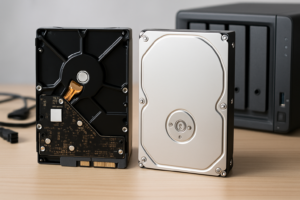
Signs Your Hard Drive Is Failing and What to Do Next
Your computer has been acting weird lately. Files take forever to open, you hear a faint clicking noise you’ve never noticed before, and last week a file just vanished. These aren’t random glitches. They’re your hard drive waving a red flag, telling you it’s on its way out.
A failing hard drive doesn’t usually die all at once. It gives you warnings, sometimes weeks or months in advance. If you know what to look for, you can save your data before it’s too late. Here’s how to spot the signs and exactly what to do when you see them.
The Warning Signs You Shouldn’t Ignore
Clicking, Grinding, or Beeping Sounds
A healthy hard drive makes a soft whirring noise during normal operation. If you start hearing repetitive clicking, grinding, or beeping, that’s a mechanical problem. The read/write head inside the drive is struggling to find data on the platters, or it’s hitting a physical barrier it shouldn’t be. This is commonly called the “click of death,” and it’s one of the most urgent warning signs you’ll encounter.
We’ve covered this topic in depth in our guide on hard drive clicking sounds and what they mean, but the short version is this: if your drive is clicking, stop using it immediately. Every minute you keep it powered on risks further damage to the platters and makes data recovery harder.
SMART Warnings and Errors
Every modern hard drive has a built-in monitoring system called SMART (Self-Monitoring, Analysis, and Reporting Technology). It tracks dozens of health metrics, including reallocated sectors, spin retry counts, and temperature. When SMART detects that certain thresholds have been crossed, it flags a warning.
You can check your drive’s SMART status using free tools like CrystalDiskInfo (Windows) or DriveDx (Mac). Look for these critical attributes:
- Reallocated Sector Count: If this number is climbing, your drive is finding bad spots on the platters and moving data to spare sectors. A few is normal over time. A rapid increase means the drive is deteriorating fast.
- Current Pending Sector Count: These are sectors the drive suspects are bad but hasn’t confirmed yet. High numbers here are a red flag.
- Spin Retry Count: The drive is struggling to spin up to operating speed. This usually points to a motor or bearing problem.
- Uncorrectable Sector Count: Data in these sectors couldn’t be read or repaired. This means data loss has already occurred.
If CrystalDiskInfo shows a “Caution” or “Bad” status, treat it seriously. Don’t wait for the drive to prove it right.
Sluggish Performance and Freezing
A drive that takes noticeably longer to boot, open files, or save documents might be failing. When the drive encounters bad sectors, it has to retry reads multiple times, which causes those frustrating freezes where your system locks up for 10 to 30 seconds before resuming.
Of course, slow performance can also come from a drive that’s simply old and fragmented. If you’re unsure whether your traditional hard drive is actually failing or just sluggish, check out our tips on making an old hard drive faster. If those optimizations don’t help, the hardware itself is likely the problem. SSDs can also slow down for different reasons, which we explain in our article on why SSDs slow down over time.
Disappearing Files and Corruption
Files that vanish without explanation, documents that open as garbled text, or folders that suddenly become inaccessible are all symptoms of bad sectors spreading across your drive. When the area of the platter storing your file’s data degrades, the file becomes unreadable. You might also see frequent “blue screen” crashes on Windows or kernel panics on Mac.
Emergency Backup Steps: Act Fast
Once you suspect your drive is failing, your number one priority is getting your data off that drive. Everything else is secondary. Here’s the order of operations:
- Stop writing new data to the drive. Don’t install software, don’t save new files to it, don’t defragment it. Any write operation risks overwriting recoverable data or stressing the failing hardware further.
- Identify your most important files first. Family photos, financial documents, work projects, anything irreplaceable. If the drive dies mid-backup, you want the critical stuff saved first.
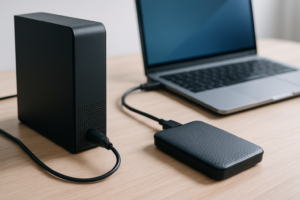
- Copy data to an external drive or cloud storage. Plug in an external drive and start dragging your priority files over. If your internet connection is fast enough, uploading to a cloud service simultaneously gives you a second copy. For a longer-term approach to backup strategy, our cloud backup vs. local NAS comparison can help you decide what makes sense for your setup.
- Use disk cloning software if the drive is still functional. Tools like Clonezilla or Macrium Reflect can create a sector-by-sector image of your drive, including data you might not think to copy manually. We walk through the full process in our guide on how to clone your hard drive without losing data.
- If the drive is barely responsive, use ddrescue. This Linux-based tool is designed specifically for copying data from failing drives. It reads the good sectors first, then goes back and retries the bad ones, minimizing stress on the hardware.
For the backup itself, a reliable external SSD is your best bet for speed and portability. The Samsung T7 Portable SSD gives you fast USB 3.2 transfer speeds, so you can pull data off a dying drive quickly.
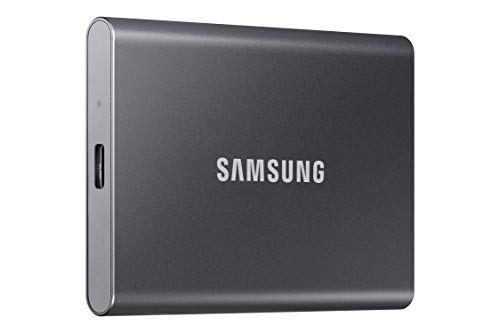
Samsung T7 Portable SSD 1TB
Fast, compact, and reliable for emergency backups when your internal drive is failing.
Data Recovery Options When Backup Isn’t Possible
If your drive has already died or is too damaged for a normal copy, you still have options. They range from free DIY attempts to professional lab recovery.
Software Recovery (Minor Failures)
If the drive still spins up and is recognized by your computer (even if you can’t access files normally), data recovery software can often pull files from damaged partitions. Stellar Data Recovery and R-Studio are solid options that can scan for recoverable files on drives with bad sectors or corrupted file tables.
For more approaches, including some you might not have considered, check our guide on recovering data from a failed external drive.
Using a Drive Dock (Drive Won’t Boot)
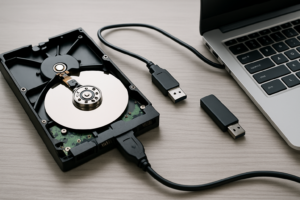
If your computer won’t boot because the internal drive is failing, remove the drive and connect it to a working computer using a USB hard drive dock. This bypasses the need for the drive to support an operating system boot and lets you access it as a simple external storage device. A dock like the Sabrent USB 3.0 Hard Drive Docking Station accepts both 2.5-inch and 3.5-inch drives, making it useful for laptops and desktops alike.

Sabrent USB 3.0 Hard Drive Docking Station
A versatile dock that handles both laptop and desktop drives for easy data access and recovery.
Professional Recovery (Severe Failures)
When the drive makes clicking sounds, isn’t detected at all, or has suffered physical damage (dropped, water exposure, fire), software won’t help. You’ll need a professional data recovery lab. Companies like DriveSavers and Ontrack operate clean rooms where technicians can open the drive, replace damaged heads, and extract data from the platters directly.
Professional recovery isn’t cheap. Expect to pay several hundred dollars for logical recovery and potentially over a thousand for physical platter work. But if the data is truly irreplaceable, it’s worth getting a diagnostic quote. Most reputable labs offer free evaluations.
Replacing the Failed Drive
Once you’ve recovered what you can, it’s time to replace the failing drive. In 2026, there’s very little reason to replace a dead hard drive with another spinning disk unless you need massive storage capacity on a budget. An SSD will be dramatically faster, more reliable, and silent. Our SSD vs. HDD comparison breaks down the full decision, but for a primary boot drive, an SSD is the clear winner.
For a reliable replacement, the Samsung 870 EVO 1TB remains one of the best SATA SSDs available, with excellent endurance ratings and consistent performance.

Samsung 870 EVO 1TB SSD
One of the most trusted SATA SSDs for replacing a failed hard drive, with strong endurance and speed.
After installing your new drive and restoring your data, set up automated backups so you never face this situation again. A simple NAS or cloud backup routine running on a schedule can save you from future data loss. Our walkthrough on setting up automated backups to a NAS takes about 30 minutes and is well worth the effort.
Frequently Asked Questions
How long does a hard drive typically last before it fails?
Most traditional hard drives last between 3 and 5 years with regular use, though some survive much longer. The failure rate increases significantly after the 3-year mark. Enterprise drives and drives in temperature-controlled environments tend to last longer. SSDs have different failure patterns and generally offer longer lifespans, which we cover in our SSD lifespan analysis.
Can a failing hard drive damage other components in my computer?
A failing hard drive won’t typically damage your motherboard, RAM, or other hardware. However, a drive that draws excessive power due to a motor failure could theoretically strain your power supply. The bigger risk is data corruption spreading to files you care about. If a failing drive causes constant system crashes, those unexpected shutdowns could corrupt data on other connected drives.
Should I try to repair a failing hard drive or just replace it?
Replace it. A hard drive with bad sectors, SMART warnings, or clicking sounds has physical damage that can

James Kennedy is a writer and product researcher at Drives Hero with a background in IT administration and consulting. He has hands-on experience with storage, networking, and system performance, and regularly improves and optimizes his home networking setup.