Desktop HDD vs Portable HDD: Which Is Better for Backup?
You’ve got important files, irreplaceable photos, and maybe years of work sitting on your computer. You know you need a backup. So you start shopping for an external hard drive and immediately hit a fork in the road: do you grab a compact portable HDD that fits in your pocket, or a larger desktop HDD that sits next to your monitor and plugs into the wall?
It’s not just a size preference. These two form factors differ in speed, maximum capacity, power delivery, durability, and price per gigabyte. The right choice depends entirely on how you plan to back up your data, where you’ll do it, and how much data you’re working with. Let’s break down every angle so you can pick the drive that actually matches your backup workflow.
Understanding the Two Form Factors
Before comparing specs, it helps to understand what’s physically different inside these enclosures.
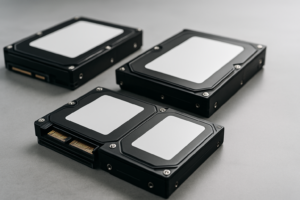
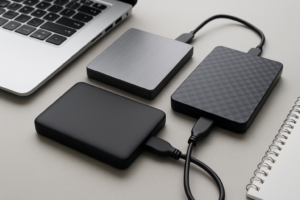
Portable HDDs use 2.5-inch hard drive mechanisms, the same size originally designed for laptops. They’re small enough to hold in one hand, typically weigh under 200 grams, and draw all their power from the USB cable. Popular examples include the Seagate Portable and the WD Elements Portable.
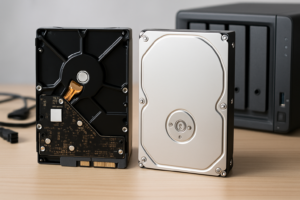
Desktop HDDs house 3.5-inch drive mechanisms, the full-size platters found in traditional desktop computers. They’re significantly larger, heavier (often 900g or more), and require an external AC power adapter. The WD Elements Desktop and Seagate Expansion Desktop are common choices in this category.
This fundamental size difference ripples through every other spec. Larger platters spin faster, store more data, and need more juice. Smaller platters trade those advantages for portability and simplicity. If you’re also considering solid-state options, our comparison of SSD vs HDD in 2026 covers the broader technology differences.
Speed: Desktop Drives Have a Clear Edge
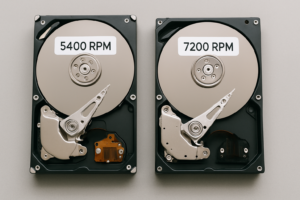
Desktop 3.5-inch HDDs typically spin at 7,200 RPM, while most portable 2.5-inch drives spin at 5,400 RPM (some even run at 5,900 RPM, but that’s less common in budget portable drives). This rotation speed directly affects sequential read and write performance.
In real-world use, a typical desktop external HDD delivers sustained transfer speeds of 150 to 200 MB/s over USB 3.0. A portable HDD usually lands between 100 and 130 MB/s. That gap adds up fast when you’re backing up hundreds of gigabytes.
Here’s what that looks like in practice. Backing up a 500 GB photo library takes roughly 45 to 55 minutes on a desktop HDD, compared to around 65 to 85 minutes on a portable drive. For a one-time backup, the difference is a mild inconvenience. For weekly full backups of a large media collection, it becomes a real consideration.
Both form factors are limited by the USB interface, so if you’re connecting via USB 3.0 (5 Gbps), neither drive type will saturate the bus. The bottleneck is always the spinning platters. Upgrading to a USB 3.2 Gen 2 desktop enclosure won’t help much with HDDs since the mechanical drive itself is the speed ceiling.
Capacity: Desktop Drives Go Much Higher
This is where desktop HDDs really pull ahead. Because 3.5-inch mechanisms have larger platters and more physical room for platter stacks, they scale to much higher capacities.
- Portable HDDs: Commonly available from 1TB to 5TB. Models above 4TB tend to be thicker and heavier, partially negating the portability advantage.
- Desktop HDDs: Readily available from 4TB to 22TB, with some newer models pushing even higher. The sweet spot for backup use tends to be 8TB to 16TB.
If you’re backing up a single laptop with a 512GB or 1TB drive, a 2TB portable HDD gives you plenty of headroom for versioned backups. But if you’re archiving a household’s worth of photos, videos, and documents, or if you’re a creative professional with terabytes of project files, a desktop drive in the 8TB to 16TB range makes much more sense.
The price-per-terabyte equation also favors desktop drives, especially at higher capacities. An 8TB desktop HDD typically costs significantly less per terabyte than four 2TB portable drives. For those considering an even more serious storage setup, building a budget home NAS can offer redundancy alongside high capacity.

WD Elements Desktop 12TB External Hard Drive
Excellent high-capacity desktop backup drive with reliable performance and strong price-per-terabyte value
Power Requirements and Setup Convenience
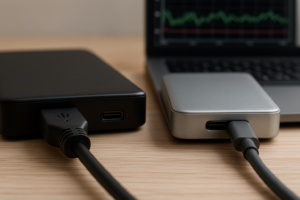
Portable HDDs are genuinely plug-and-play. You connect a single USB cable, the drive draws power through that cable, and you’re up and running. No wall outlet needed. No power brick cluttering your desk. This simplicity is one of the biggest selling points of the portable form factor.
Desktop HDDs require a separate AC power adapter. That means you need an available power outlet, another cable to manage, and a power brick that generates a small amount of heat. If the power adapter fails (and they occasionally do), the drive is useless until you find a replacement.
For a backup drive that lives permanently on your desk next to your computer, the power adapter is a minor inconvenience. You plug it in once and forget about it. But if you need to move your backup drive between rooms, bring it to a friend’s house, or use it while traveling, the extra power brick becomes genuinely annoying.
One subtle issue: some USB ports on older laptops don’t deliver enough power for larger-capacity portable HDDs, especially the 4TB and 5TB models. If your portable drive keeps disconnecting or fails to mount, insufficient USB power is often the culprit. We’ve covered this exact problem and its fixes in our guide on why your external drive keeps disconnecting.
Portability and Durability
Portable HDDs win the portability comparison by a wide margin. A typical 2TB portable drive like the Seagate Portable 2TB is about the size of a smartphone and weighs around 180 grams. Toss it in a laptop bag, a jacket pocket, or a small pouch and you’re set.

Seagate Portable 2TB External Hard Drive
Compact and bus-powered, ideal for laptop backups you need to carry with you
Desktop HDDs are meant to sit in one spot. They’re large, heavy, and fragile when moved while powered on. Moving a desktop HDD isn’t impossible, but you’ll want to power it down, disconnect it properly, and transport it carefully. These drives aren’t designed for life in a backpack.
Neither form factor handles drops well. Both contain spinning platters and read/write heads that can be damaged by physical shock. Some portable drives include basic shock-resistant features (rubber bumpers, internal shock sensors), but a hard drop onto concrete will likely damage any HDD regardless of form factor. If durability is your top priority and you travel frequently, a portable SSD designed for travel is a better bet than any spinning drive.
Which Backup Scenarios Favor Each Type?
Choose a Portable HDD if:
- You’re backing up a single laptop or small workstation with less than 2TB of total data
- You need to carry your backup offsite for disaster protection (keeping a copy at a family member’s house, for example)
- You travel and want a backup with you without dealing with power adapters
- Desk space is limited and you don’t want more cables and power bricks
- You’re on a tight budget and just need a basic 1TB or 2TB backup solution
Choose a Desktop HDD if:
- You’re backing up multiple computers or a household’s worth of data
- You work with large media files (video, RAW photos, audio projects) and need 4TB or more
- The drive will sit permanently on a desk connected to one machine or a router
- You want the best cost-per-terabyte for bulk storage
- Backup speed matters to you and you’re regularly transferring large amounts of data
For video editors and photographers who need reliable high-capacity external storage, our roundup of the best 4TB external drives for video editing covers specific models with speed test data.
My Recommendation: A Practical Approach
For most home users backing up a single computer, a 2TB to 4TB portable HDD is the right call. It’s simple, affordable, and doesn’t add clutter. The WD Elements Portable 4TB is a solid pick that balances capacity and convenience without getting too thick or heavy.
For power users, creative professionals, or anyone who needs to back up more than 4TB of data, a desktop HDD in the 8TB to 16TB range is the smarter investment. The faster transfer speeds and dramatically better price-per-terabyte make it the obvious choice for stationary backup duties. The Seagate Expansion Desktop 16TB is one of the best values in this category.
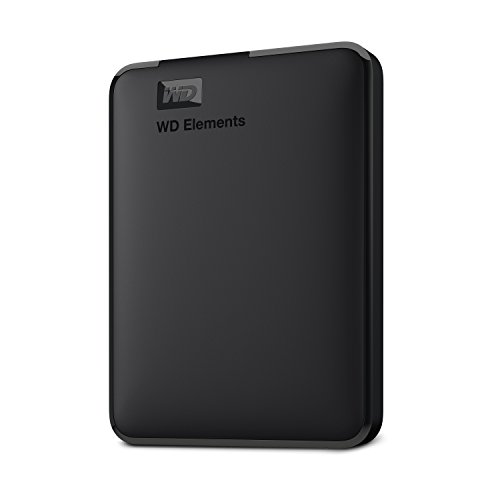
WD Elements Portable 4TB External Hard Drive
Best all-around portable backup drive for most home users who need simplicity and decent capacity
And here’s a strategy that works even better: use both. Keep a desktop HDD at home for your primary backup (Time Machine, Windows File History, or any scheduled backup tool), and keep a portable HDD as a secondary offsite copy that you update monthly and store somewhere away from your home. This two-drive approach protects you against both hardware failure and physical disasters like fire or flooding. If you want to compare the economics of local versus cloud-based strategies, our cloud backup vs. local NAS cost comparison breaks down the long-term numbers.
A Quick Note About Portable SSDs
Both portable and desktop HDDs are mechanical drives with spinning platters. If you’re willing to spend more, portable SSDs like the Samsung T7 offer significantly faster speeds (up to 1,050 MB/s), better shock resistance, and silent operation in a tiny package. The trade-off is that SSD storage costs more per terabyte, and maximum capacities are lower than desktop HDDs.
For most backup scenarios where you’re writing data once and reading it occasionally, an HDD’s speed is perfectly adequate. But if you frequently restore large files from your backup or use the drive as active working storage in addition to backup, an SSD makes the workflow noticeably smoother.
Frequently Asked Questions
Can a portable HDD last as long as a desktop HDD?
Both form factors have similar lifespans when treated properly, typically 3 to 5 years of regular use. Portable drives face more risk in practice because they travel with you and are more likely to experience physical shocks, drops, or cable yanks. Desktop drives that sit undisturbed on a desk tend to have slightly longer effective lifespans simply because they’re exposed to less physical stress. If you ever hear unusual sounds from either drive type, check our guide on what hard drive clicking sounds mean before it’s too late.
Do I need to format a new external HDD before using it for backup?
Most external HDDs come pre-formatted in a universal format (usually exFAT or NTFS). Windows users can typically use the drive immediately. Mac users may need to reformat the drive to APFS or HFS+ for Time Machine backups. If you’re using the drive across both platforms, exFAT is the most compatible choice. Our guide to the best external hard drives for Mac covers formatting recommendations in detail.
Is it safe to leave a desktop external HDD running 24/7?
Most consumer desktop external HDDs are designed for intermittent use, not continuous 24/7 operation. They’ll go into sleep mode after a period of inactivity, which is fine and helps extend drive life. If you need a drive that runs around the clock (for a NAS or server), look specifically for NAS-rated drives like the WD Red or Seagate IronWolf series, which are built with more durable components for always-on workloads.
Can I use an external HDD for both backup and everyday file storage?
You can, but you shouldn’t. Your backup drive should be a dedicated copy of your important data, not a place where you also store your only copy of active files. If the backup drive fails, you lose both your backup and your working files. Keep your active storage and your backup on separate drives. If you ever need to recover files from a failed drive, our guide on recovering data from a failed external drive walks through the options.
This article contains affiliate links. We may earn a small commission at no extra cost to you.

James Kennedy is a writer and product researcher at Drives Hero with a background in IT administration and consulting. He has hands-on experience with storage, networking, and system performance, and regularly improves and optimizes his home networking setup.