How to Extend the Lifespan of Your Hard Drive
Your hard drive won’t last forever, but you might be surprised at how much control you have over when it finally gives up. Most drive failures aren’t sudden, random events. They’re the result of months or years of preventable stress, from excess heat and vibration to abrupt disconnections and neglected maintenance.
Whether you’re running a mechanical hard drive inside a desktop, using an external drive for backups, or managing multiple disks in a NAS, the habits you build today determine whether your drive lasts three years or ten. Here are the practical steps that actually make a difference.
Keep Your Drive Cool (Temperature Is the Silent Killer)
Heat is the number one enemy of hard drive longevity. A study by Google’s data center team found that drives operating above 45°C (113°F) experienced significantly higher failure rates compared to those kept in the 25°C to 40°C range. Every degree matters, especially during sustained workloads like large file transfers or video rendering.
For internal drives, make sure your case has adequate airflow. A case fan blowing air directly across your drive bay makes a measurable difference. If your desktop has drive bays stacked close together with no ventilation, consider repositioning the drive or adding a dedicated drive bay cooler. These are inexpensive and easy to install.
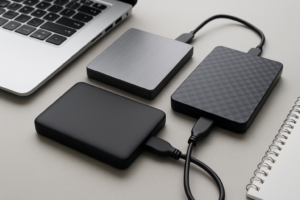
External drives are trickier because they’re often sealed in plastic enclosures with no active cooling. Don’t stack them on top of each other, don’t leave them running on carpet, and avoid placing them near heat sources like gaming consoles or radiators. If you’re running an external drive for extended periods (like ongoing backups to a NAS), a ventilated enclosure can help significantly.

ORICO Hard Drive Enclosure with Fan
A well-reviewed aluminum enclosure with a built-in fan, ideal for keeping external drives cool during heavy use
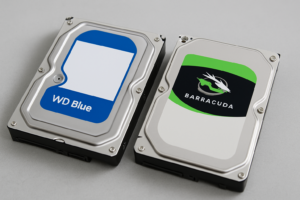
If you’re running a budget home NAS build, pay special attention to the enclosure’s cooling design. NAS-grade drives like the WD Red Plus and Seagate IronWolf are built to tolerate higher operating temperatures, but “tolerate” doesn’t mean “prefer.” Keep them cool, and they’ll reward you with extra years of service.
Minimize Vibration and Physical Shock
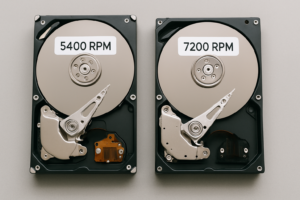
Mechanical hard drives contain spinning platters and read/write heads that hover nanometers above the disk surface. Even minor vibrations can cause micro-movements that lead to read errors, bad sectors, and eventually head crashes. This is especially true for 7200 RPM drives, which are more sensitive to vibration than their 5400 RPM counterparts.
For desktop setups, make sure your drive is properly secured with screws or rubber mounting grommets in its bay. Loose drives that rattle inside a case are accumulating damage with every vibration. If your PC sits on a desk with subwoofers nearby, that bass rumble is literally shaking your platters.
External drives need even more care. Don’t move or bump an external HDD while it’s powered on and spinning. If you hear clicking sounds from your hard drive, stop using it immediately and investigate. For portable drives that travel with you, consider upgrading to a portable SSD instead, since they have no moving parts and can withstand drops and bumps that would destroy a traditional HDD.
In multi-drive NAS setups, vibration from one drive can affect its neighbors. This is called “rotational vibration,” and it’s the reason enterprise and NAS-rated drives include vibration sensors. If you’re choosing between standard desktop drives and NAS-specific models for a RAID setup, always go with NAS-rated drives. The vibration tolerance alone justifies the price difference.
Always Safely Eject External Drives
This is the tip everyone knows and almost nobody follows consistently. When you yank out a USB drive without safely ejecting it, you risk corrupting the file system, losing data that’s still in the write cache, and in some cases, damaging the drive’s firmware metadata.
Modern operating systems use write caching to speed up file transfers. This means that when your OS says a file copy is “complete,” data may still be sitting in a memory buffer waiting to be physically written to the disk. Pulling the plug at that moment doesn’t just lose that file. It can corrupt the entire file allocation table.
On Windows, click the “Safely Remove Hardware” icon in the system tray. On macOS, drag the drive to the trash or right-click and select “Eject.” On Linux, use the umount command or your file manager’s eject button. It takes five seconds and could save you from a painful data recovery process later.
If your external drive keeps disconnecting on its own before you get a chance to eject properly, that’s a separate problem worth troubleshooting right away, since repeated unexpected disconnections accelerate wear.
Defragment HDDs (But Leave SSDs Alone)
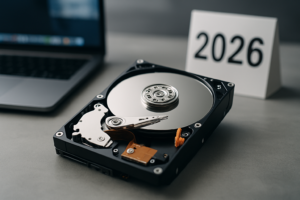
Fragmentation happens when files are split into pieces scattered across different areas of a spinning disk. The read/write head has to jump around to reassemble those files, which slows performance and increases mechanical wear on the drive’s actuator arm.
Windows has a built-in defragmentation tool (search for “Defragment and Optimize Drives” in the Start menu). For HDDs, running this monthly is a good practice. If you use your drive heavily for video editing or large file downloads, consider running it every two weeks. You’ll notice faster file access times and slightly lower operating temperatures, since the drive isn’t working as hard.
One important distinction: do not defragment SSDs. Solid-state drives don’t benefit from defragmentation because they have no moving heads. Running defrag on an SSD just burns through write cycles for no performance gain. Windows 10 and 11 are smart enough to recognize SSDs and run a TRIM command instead of a traditional defrag, but third-party tools don’t always make that distinction. If you’re curious about what else slows down SSDs over time, this guide explains the real causes and fixes.
If you’re running both an SSD and an HDD in the same system, you can set them up to complement each other by keeping your OS and frequently accessed programs on the SSD while storing large media files on the HDD. This reduces wear on both drives.
Monitor SMART Data Before It’s Too Late
Every modern hard drive and SSD includes a self-monitoring system called S.M.A.R.T. (Self-Monitoring, Analysis, and Reporting Technology). It tracks dozens of health metrics internally, from the number of reallocated sectors to the drive’s power-on hours and temperature history. The problem is that most people never check it.
Free tools like CrystalDiskInfo (Windows) and DriveDx (macOS) give you a clear, color-coded readout of your drive’s health. The key attributes to watch are:
- Reallocated Sector Count: If this number is climbing, your drive is actively developing bad sectors and moving data to spare areas. A rising count is an early warning sign of failure.
- Current Pending Sector Count: Sectors that the drive suspects are bad but hasn’t confirmed yet. Any non-zero value deserves attention.
- Power-On Hours: Most consumer drives are rated for 30,000 to 50,000 hours of operation. If you’re past that range, start planning a replacement.
- Temperature: A quick way to confirm whether your cooling setup is doing its job.
Set a calendar reminder to check SMART data once a month. If your drive starts showing warning signs, don’t wait. Clone your data to a new drive immediately. You can clone your hard drive without losing any data using free tools like Clonezilla or Macrium Reflect.

WD Red Plus 4TB NAS Hard Drive
A reliable NAS-rated drive with vibration protection, built for 24/7 operation and long lifespan
Bonus: Know When to Replace, Not Repair
All of these tips will extend your drive’s life, but every drive eventually dies. If your SMART data is showing deterioration, if you’re hearing new or unusual noises, or if you’re experiencing frequent file corruption, it’s time to replace the drive rather than try to squeeze more life out of it. The cost of a new drive is always less than the cost of professional data recovery.
Keep a current backup at all times. An automated backup to a NAS or cloud service ensures that a drive failure is an inconvenience rather than a catastrophe. If you’re weighing your backup options, the cost comparison between cloud backup and local NAS is worth reviewing before you commit.
Frequently Asked Questions
How long does a typical hard drive last?
Most consumer mechanical hard drives last between 3 and 5 years under normal use, though many run well beyond that. Enterprise and NAS-rated drives often last 5 to 8 years. SSDs have a different wear mechanism based on write cycles, but modern SSDs frequently outlast HDDs in practice. The actual lifespan depends heavily on operating conditions, which is exactly why temperature management, vibration control, and SMART monitoring matter so much.
Should I leave my external hard drive plugged in all the time?
For drives used primarily as backup targets, it’s better to power them on only when needed. Keeping a drive spinning 24/7 adds to its power-on hours and generates continuous heat. If you do need a drive running constantly (like in a NAS), make sure it’s a model rated for continuous operation, like the WD Red Plus or Seagate IronWolf series, and ensure proper cooling.
Can a failing hard drive be saved?
Once a drive starts developing bad sectors or showing SMART warnings, you can’t reverse the physical degradation. You can sometimes continue using the drive temporarily by remapping bad sectors, but this is borrowed time. Your priority should be getting all data off the drive as quickly as possible. Clone it to a healthy drive, verify your backup, and then retire or securely wipe the old drive before recycling it.

James Kennedy is a writer and product researcher at Drives Hero with a background in IT administration and consulting. He has hands-on experience with storage, networking, and system performance, and regularly improves and optimizes his home networking setup.