Internal vs External Storage: What Is Best for Your Setup?
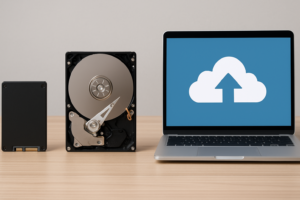
Most people think of storage as a single decision: pick a drive, install it, done. But the smartest setups mix internal and external storage to get the best of both worlds. Your internal drive handles speed-critical tasks, while external drives cover backup, portability, and overflow. Getting this balance right can dramatically improve your daily workflow, whether you’re editing video, gaming, or just trying to keep years of files organized and safe.
Let’s break down exactly how to combine internal and external storage for maximum performance and reliability.
Internal Storage: Your Speed Engine
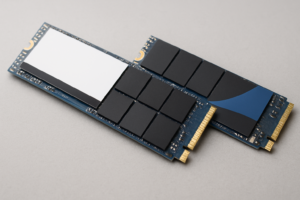
Internal drives live inside your PC or laptop, connected directly to the motherboard. This direct connection is what gives them their speed advantage. An NVMe SSD plugged into an M.2 slot can hit sequential read speeds of 5,000 MB/s or higher, which makes a massive difference when you’re booting your OS, loading games, or scrubbing through a 4K timeline.
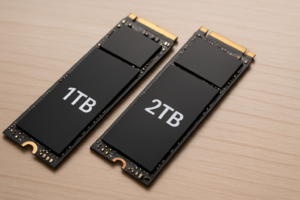
For most people, the ideal internal setup is simple: an NVMe SSD as your boot and primary work drive. If you need a refresher on the differences between drive form factors, our M.2 vs 2.5-inch SSD comparison covers everything you need to know. A 1TB or 2TB NVMe drive handles the operating system, applications, and active project files beautifully.
If you’re on a tighter budget or have extra drive bays, pairing an SSD with a traditional hard drive is still a solid strategy. You can keep your OS and apps on the SSD while storing larger media libraries on the HDD. We’ve written a full walkthrough on how to use an SSD and HDD together in one PC if you want step-by-step guidance.
The Samsung 990 Pro remains one of the best internal NVMe drives you can buy, with consistent real-world performance that matches its spec sheet. For a more affordable option, the WD Blue SN580 delivers excellent value.

Samsung 990 Pro 2TB NVMe SSD
Top-tier Gen4 NVMe drive with outstanding sustained write performance for creative and gaming workloads
External Storage: Your Flexibility Layer
External drives serve a different purpose entirely. They’re your backup safety net, your portable project library, and your archive for files you don’t need every day but can’t afford to lose. Trying to do everything with internal storage alone leaves you vulnerable to a single point of failure.
For backup, a reliable external HDD with large capacity is hard to beat. Something like the WD Elements Desktop 8TB gives you massive space for Time Machine backups, file history, or manual archives. If you want to go a step further, consider setting up automated backups to a NAS for a hands-off approach.
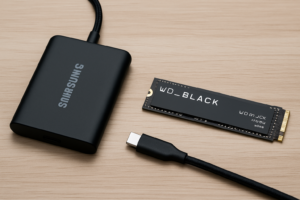
For portable work, external SSDs are the clear winner. They’re fast enough to edit photos or even video directly from the drive, and they survive drops that would destroy a spinning disk. If you travel with your work, check out our picks for the best portable SSDs in 2026. The Samsung T7 Shield is a favorite for its water and dust resistance combined with strong transfer speeds over USB 3.2.

Samsung T7 Shield 2TB Portable SSD
Rugged, IP65-rated portable SSD with read speeds up to 1,050 MB/s, perfect for on-the-go workflows
The Best Setup: Combining Both
Here’s the combination that works for most people:
- Internal NVMe SSD (1TB or 2TB): OS, apps, games, and active project files. This is your daily driver.
- Internal HDD (optional, 2TB+): Cold storage for media libraries, old projects, and anything that doesn’t need fast access.
- External SSD (1TB or 2TB): Portable projects, quick file transfers between machines, and secondary backup of critical work.
- External HDD (4TB+): Primary local backup target. Pair this with cloud storage for a true 3-2-1 backup strategy.
This layered approach means your fastest storage handles the work that benefits from speed, while larger, more affordable external drives handle everything else. Over time, as internal SSDs fill up and performance starts to dip, you’ll want to understand why SSDs slow down and how to fix it.
One important note: don’t rely on a single external drive as your only backup. Drives fail. If you’re weighing the costs of cloud backup versus a local NAS for your backup layer, our cloud backup vs local NAS cost comparison breaks down the numbers.
FAQ
Can I use an external SSD as my main boot drive?
Technically yes, but it’s not recommended. Even the fastest USB connections top out around 1,050 MB/s, while an internal NVMe drive can reach 5,000 MB/s or more. You’ll also occasionally run into compatibility issues with boot configurations. External SSDs are best used for portable storage and backup, not as your primary operating system drive.
How many external drives do I really need for a good backup?
At minimum, one dedicated external backup drive plus one offsite or cloud backup. The 3-2-1 rule is the gold standard: three copies of your data, on two different media types, with one copy stored offsite. A local external HDD plus a cloud service like Backblaze or a home NAS covers all three requirements without much effort.
This article contains affiliate links. We may earn a small commission at no extra cost to you.

James Kennedy is a writer and product researcher at Drives Hero with a background in IT administration and consulting. He has hands-on experience with storage, networking, and system performance, and regularly improves and optimizes his home networking setup.