Time Machine vs Windows Backup vs Third-Party Tools: Which Is Best?
Losing files hurts. Whether it’s a corrupted drive swallowing your photo library or a ransomware attack encrypting years of work, the sting is the same. The good part is that every major operating system ships with a free backup tool. But “free” and “best” aren’t always the same thing, and a growing list of third-party options like Backblaze, Acronis, and Carbon Copy Cloner can fill gaps the built-in tools leave behind.
This guide breaks down macOS Time Machine, Windows Backup (including the newer Windows Backup app and the legacy File History), and the most popular third-party alternatives. I’ll compare them feature by feature, call out the weak spots most people overlook, and give you a clear recommendation based on your platform and priorities.
macOS Time Machine: The Set-It-and-Forget-It Champion
Time Machine has been part of macOS since 2008, and Apple has refined it into one of the most user-friendly backup systems available on any platform. Plug in an external drive, click one button, and you’re protected. It creates hourly backups for the past 24 hours, daily backups for the past month, and weekly backups for everything older, automatically deleting the oldest snapshots when the drive fills up.
What makes Time Machine genuinely great is its file-level restore interface. You can browse your files through a visual timeline, preview documents, and pull back exactly the version you need. For most Mac users, this is all the backup they’ll ever require. It also works beautifully with network-attached storage if you’ve got a NAS running at home, something we covered in our guide to setting up automated NAS backups.
Time Machine’s Limitations
Time Machine is a local backup tool, not a disaster recovery tool. If your house floods or your laptop bag gets stolen, that external drive on your desk won’t help. It also can’t create a bootable clone of your system, meaning a full restore after a drive failure requires booting into macOS Recovery first, then waiting (sometimes hours) for everything to copy back.
Performance can also be an issue on older spinning drives. Time Machine writes a lot of small files during incremental backups, and HDDs struggle with that workload. If your backups are sluggish, switching to an external SSD makes a dramatic difference. Check out our roundup of the best external drives for Mac for tested options that play nicely with Time Machine.
For a reliable Time Machine drive, a portable SSD with USB-C connectivity is hard to beat. The Samsung T7 Shield offers solid speed, hardware encryption, and IP65 water and dust resistance, all in a pocket-sized package.

Samsung T7 Shield Portable SSD 2TB
Rugged, fast, and perfectly suited for Time Machine backups on any modern Mac
Windows Backup: A Confusing, Evolving Situation
Microsoft’s backup story is, frankly, a mess. Over the years, Windows has shipped with multiple backup tools: Backup and Restore (originally from Windows 7), File History (introduced in Windows 8), and the newer Windows Backup app that arrived with Windows 11 23H2. None of them fully replaces the others, and Microsoft hasn’t done a great job communicating which tool does what.
File History
File History works similarly to Time Machine in concept. It monitors your libraries, desktop, contacts, and favorites, saving copies of changed files at regular intervals. You can restore previous versions of individual files, which is useful for accidental overwrites. But it doesn’t back up your entire system. Applications, system settings, and anything outside your designated folders won’t be included.
Windows Backup App
The newer Windows Backup app in Windows 11 focuses on syncing your settings, app list, and credentials to your Microsoft account. It’s designed to make setting up a new PC faster, not to protect your actual files. Think of it more as a migration assistant than a backup solution. Your documents still need to live in OneDrive or another backup destination to be truly protected.
Backup and Restore (Windows 7 Legacy Tool)
Ironically, the oldest tool in the bunch is still the most capable for full system image backups. Backup and Restore can create a complete image of your system drive, which you can restore from a recovery disk. It still works in Windows 11, tucked away in Control Panel. But it hasn’t been updated in years, and Microsoft has hinted at deprecating it without offering a real replacement.
The bottom line for Windows users: Microsoft’s built-in tools are fragmented and incomplete. You can cobble together partial protection using File History plus a system image, but it takes effort and still leaves gaps.
Third-Party Tools: Where the Real Power Lives
This is where things get interesting. Third-party backup software fills the gaps that built-in tools leave behind, often with better interfaces, more flexibility, and cloud backup options. Here are the ones worth your time.
Backblaze (Best Cloud Backup for Most People)
Backblaze is a cloud backup service that runs quietly in the background, uploading everything on your internal and external drives to their servers. There’s no file size limit and no storage cap. It backs up your entire computer (minus the operating system and applications, which you can reinstall) and keeps deleted file versions for 30 days by default, with an option to extend to one year or forever.
The setup takes about five minutes. Install it, let it run, and your computer is backed up offsite. Restores can be done via web download or Backblaze will ship you a USB drive with your data. For pure “protect me from disaster” backup, it’s the simplest option on the market. It runs on both macOS and Windows, making it a great complement to Time Machine or File History.
If you’re weighing cloud backup against a local NAS for your primary backup strategy, our cloud backup vs. local NAS cost comparison breaks down the long-term expenses of each approach.
Acronis Cyber Protect Home Office (Best Full-Featured Suite)
Formerly known as Acronis True Image, this is the Swiss Army knife of backup software. It handles full disk imaging, file-level backup, cloud backup (with included storage on paid plans), active ransomware protection, and even disk cloning. It works on Windows, macOS, iOS, and Android.
Acronis is the tool I recommend for anyone who wants a single application to handle everything. Its disk cloning feature is particularly valuable when you’re migrating to a new SSD, a process we explain in detail in our guide to cloning your hard drive without losing data. The downside is complexity. There are a lot of options, and the interface can feel overwhelming compared to Time Machine’s simplicity.
Carbon Copy Cloner (Best Mac Cloning Tool)
Carbon Copy Cloner (CCC) is a macOS-only tool that creates bootable clones of your startup disk. If your Mac’s internal drive dies, you can boot directly from the clone and keep working while you sort out repairs. Time Machine can’t do this. CCC also supports incremental updates, so after the initial clone, subsequent backups are fast.
For Mac users who want both versioned backups and a bootable safety net, the ideal setup is Time Machine for daily versioned backups plus Carbon Copy Cloner for a weekly bootable clone on a separate drive.
Veeam Agent (Best Free Option for Windows)
Veeam is a major name in enterprise backup, and their free Veeam Agent for Microsoft Windows brings serious capability to home users. It can create full system image backups, volume-level backups, or file-level backups, all on a schedule you define. Restores are handled via a bootable recovery image. For a free tool, it’s remarkably capable and fills the gap that Microsoft’s own tools leave wide open.
Feature Comparison: Side by Side
- Full System Image: Time Machine (no), Windows Backup and Restore (yes), Acronis (yes), Backblaze (no), Carbon Copy Cloner (yes), Veeam (yes)
- File Versioning: Time Machine (excellent), File History (good), Acronis (good), Backblaze (good), Carbon Copy Cloner (limited), Veeam (limited)
- Cloud Backup: Time Machine (no), Windows tools (no, unless counting OneDrive), Acronis (yes, included), Backblaze (yes, unlimited), Carbon Copy Cloner (no), Veeam (no)
- Bootable Clone: Time Machine (no), Windows tools (sort of, via system image), Acronis (yes), Backblaze (no), Carbon Copy Cloner (yes), Veeam (yes)
- Ransomware Protection: Time Machine (no), Windows tools (no), Acronis (yes, active monitoring), Backblaze (partial, via version history), Carbon Copy Cloner (no), Veeam (no)
- Platforms: Time Machine (macOS only), Windows tools (Windows only), Acronis (Windows, macOS, mobile), Backblaze (Windows, macOS), Carbon Copy Cloner (macOS only), Veeam (Windows only)
My Recommendations by Platform and Use Case
Mac Users: Casual / Home Use
Stick with Time Machine as your primary backup. Pair it with a quality external drive and you’re covered for accidental deletions, file corruption, and drive failures. Add Backblaze for offsite protection against theft, fire, or natural disasters. This two-pronged approach gives you fast local restores plus an always-current cloud safety net.
A high-capacity portable drive dedicated to Time Machine keeps things simple. The WD My Passport series is a popular, reliable choice that comes pre-formatted for Mac.
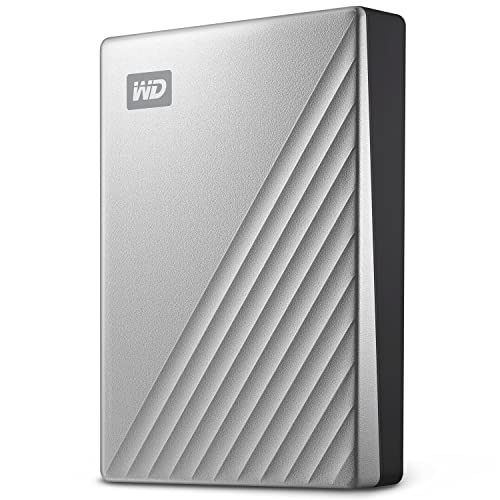
WD My Passport 4TB External Hard Drive for Mac
Pre-formatted for macOS with hardware encryption, ideal as a dedicated Time Machine drive
Mac Users: Power Users / Creative Professionals
Use Time Machine plus Carbon Copy Cloner. Time Machine handles your daily versioned backups, while CCC creates a bootable clone you can update weekly. If your internal drive dies during a deadline, you boot from the clone and keep working. Add Backblaze as a third layer for offsite cloud protection. Yes, that’s three backup methods. Your data is worth it.
Windows Users: Casual / Home Use
Skip File History and the Windows Backup app. Install Veeam Agent (free) for scheduled full system image backups to an external drive. Add Backblaze for cloud backup. This gives you complete local and offsite protection without spending anything beyond the external drive and Backblaze subscription.
Windows Users: Power Users / Professionals
Acronis Cyber Protect Home Office is worth the investment. It replaces every built-in Windows backup tool with a single, more capable application. Use it for local image backups, and take advantage of its included cloud storage for offsite protection. The ransomware monitoring feature adds a layer of active defense that no built-in tool offers.
Cross-Platform Households
If you’ve got a mix of Macs and Windows PCs, Backblaze is the simplest way to get everyone backed up to the cloud under one account. For local backups, use each platform’s best tool: Time Machine on the Macs, Veeam or Acronis on the Windows machines. A shared NAS can serve as the local backup target for all devices. Our NAS setup guide for beginners walks through the whole process.
The 3-2-1 Rule Still Matters
No matter which tools you pick, follow the 3-2-1 backup rule: keep three copies of your data, on two different types of media, with one copy offsite. A single Time Machine drive or a Backblaze subscription alone isn’t enough. Pair a local backup with a cloud backup, and you’re covered against virtually every realistic data loss scenario.
Also remember that backup drives don’t last forever. If you’re running backups to an older external hard drive, SSD lifespan and HDD longevity both have limits. Replace your backup drives every three to five years, and always test your restores periodically. A backup you’ve never tested is a backup you can’t trust.
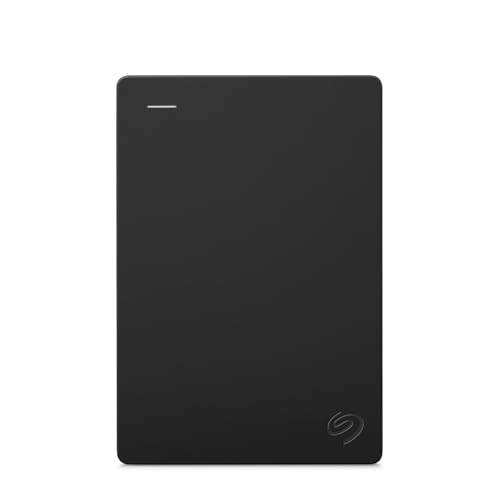
Seagate Backup Plus Portable 5TB External Hard Drive
High-capacity and affordable, great for Windows or Mac system backups with plenty of room for versioned files
Frequently Asked Questions
Can Time Machine back up to a NAS instead of a USB drive?
Yes. Time Machine supports network backup destinations, including most modern NAS devices from Synology and QNAP. You’ll need to enable the Time Machine service on the NAS and configure a shared folder as the backup target. Performance will depend on your network speed, so a wired Ethernet connection is strongly recommended over Wi-Fi for the initial backup.
Is Windows File History being discontinued?
Microsoft hasn’t officially killed File History, but they’ve stopped updating it and have been steering users toward OneDrive for file protection. The Windows Backup app in Windows 11 focuses on settings and app syncing rather than true file backup. For now, File History still works, but relying on it as your sole backup tool is risky given Microsoft’s unclear direction. A third-party tool like Veeam or Acronis is a safer long-term bet.
Do I really need both local and cloud backups?
Yes, and here’s why. Local backups (on an external drive or NAS) give you fast restores when you accidentally delete a file or your internal drive fails. Cloud backups protect you from physical disasters like fires, floods, and theft, situations where your local backup would be destroyed alongside your computer. Each type covers a different category of risk, and using both is the only way to protect against all of them.
Will Backblaze back up my external drives too?
Backblaze backs up any external drive connected to your computer, as long as it’s been plugged in at least once every 30 days. If you disconnect a drive for longer than that, Backblaze removes those files from your backup. This is an important detail for people who rotate backup drives or use portable drives infrequently. Make sure you plug in your external drives regularly or adjust the settings in your Backblaze preferences to avoid losing coverage.
This article contains affiliate links. We may earn a small commission at no extra cost to you.

James Kennedy is a writer and product researcher at Drives Hero with a background in IT administration and consulting. He has hands-on experience with storage, networking, and system performance, and regularly improves and optimizes his home networking setup.