Warning Signs of a Dead or Dying Drive
Every drive dies eventually. Spinning hard drives wear out their mechanical parts, and SSDs exhaust their flash memory cells one write cycle at a time. The difference between losing everything and making a smooth transition to a new drive comes down to one thing: catching the warning signs early enough to act.
I’ve seen people ignore months of subtle symptoms only to wake up one morning to a drive that simply won’t boot. Don’t be that person. This guide covers the specific red flags for both HDDs and SSDs, the monitoring tools that can alert you before disaster strikes, and exactly what to do when your drive starts showing its age.
Warning Signs Your HDD Is Failing
Traditional hard drives have moving parts: spinning platters, a read/write head on an actuator arm, and a motor keeping everything in motion. These mechanical components give HDDs a unique set of failure symptoms that are often physical and audible.
Clicking, Grinding, or Beeping Sounds
A healthy hard drive produces a faint, steady hum. If you start hearing repetitive clicking, grinding, or a beeping sound on startup, your drive’s mechanical components are in trouble. The infamous “click of death” typically means the read/write head can’t position itself correctly over the platter. We’ve covered this topic extensively in our guide on what hard drive clicking sounds mean and what to do about them, and the short version is: back up immediately and stop using the drive.
Frequent Freezing and Very Slow File Access
When an HDD develops bad sectors, the drive has to retry reads multiple times before succeeding or giving up. This manifests as random system freezes, files that take forever to open, or your OS hanging during boot. You might notice your computer locking up for 10 to 30 seconds at a time, then resuming as if nothing happened. These freezes tend to get more frequent as the drive deteriorates.
Disappearing Files and Corrupted Data
Files that suddenly can’t be opened, folders that vanish, or documents that contain garbled data point to physical damage on the platters. If you’re finding corrupted files across multiple directories (not just one folder), the problem is almost certainly the drive itself and not software or malware. This is especially alarming when it happens to files you haven’t touched recently.
The Drive Isn’t Recognized on Boot
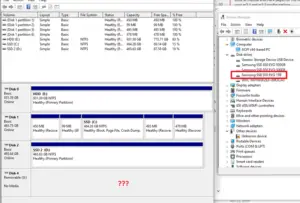
If your BIOS or UEFI intermittently fails to detect your hard drive, the drive’s controller board or motor may be failing. You might find that the drive works after a restart but disappears again later. This pattern of intermittent recognition is a late-stage warning sign. If your external drive isn’t showing up, the same logic applies, though you’ll also want to rule out cable and enclosure issues first.
Warning Signs Your SSD Is Failing
SSDs fail differently from HDDs because they have no moving parts. Instead, SSD failure revolves around flash memory cell degradation, controller issues, and firmware problems. The symptoms are subtler, which actually makes them more dangerous since you might not notice until it’s too late.
Read-Only Mode or Sudden Write Failures
Many modern SSDs are designed to enter a read-only state when they detect that their flash cells are critically worn. You’ll be able to access your existing files but can’t save anything new. This is actually a protective feature, and if your SSD goes read-only, consider yourself lucky: the drive is giving you one last chance to copy your data off before it’s gone for good.
Increasing Bad Blocks and Errors
SSDs manage bad blocks internally through their controller, remapping failed cells to spare blocks from a reserve pool. When that reserve runs low, you’ll start seeing file system errors, failed writes, and applications crashing during save operations. Your operating system’s event log (Windows Event Viewer or macOS Console) will often show disk I/O errors before you notice any performance impact.
Dramatic Performance Drops
A new SSD is blazing fast, but as cells wear out and the controller struggles to manage degraded NAND, speeds can plummet. If your once-snappy SSD now takes noticeably longer to boot your OS or load applications, cell degradation might be the cause. We wrote a detailed piece on why your SSD slows down over time and how to fix it, which covers both normal slowdowns (like TRIM issues) and the more serious degradation-related slowdowns that signal end of life.
Frequent Crashes and Blue Screens
If your system crashes during boot, throws blue screens (BSOD) related to disk errors, or forces file system repairs on every startup, your SSD’s controller or firmware may be failing. This is distinct from software crashes. Pay attention to whether the crash error codes reference storage or disk I/O. On Windows, error codes like KERNEL_DATA_INPAGE_ERROR or CRITICAL_PROCESS_DIED with disk-related parameters are major red flags.
Declining TBW and Wear Leveling Count
Every SSD has a rated endurance measured in Terabytes Written (TBW). Once you approach or exceed this number, the probability of failure increases sharply. For a deeper look at how long you can realistically expect your SSD to last, check out our SSD lifespan data analysis. The TBW rating isn’t a hard cutoff, but it’s the manufacturer’s way of telling you when warranty coverage ends for a reason.
SMART Monitoring: Your Early Warning System
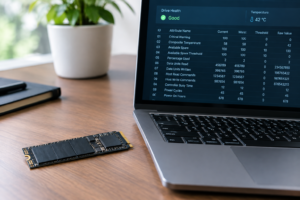
Self-Monitoring, Analysis, and Reporting Technology (S.M.A.R.T.) is built into virtually every HDD and SSD manufactured in the last two decades. It tracks dozens of health metrics in real time, and checking these values regularly is the single best way to catch a failing drive before you lose data.
Key SMART Attributes for HDDs
- Reallocated Sectors Count (ID 5): The number of bad sectors the drive has remapped to spare areas. Any value above zero warrants attention. A rapidly climbing number means the drive is actively deteriorating.
- Spin Retry Count (ID 10): How many times the drive failed to spin up to operating speed on the first attempt. Increasing values suggest motor or bearing problems.
- Current Pending Sector Count (ID 197): Sectors the drive suspects are bad and is waiting to verify. These are sectors that returned read errors but haven’t been officially reallocated yet.
- Uncorrectable Sector Count (ID 198): Sectors where data couldn’t be read or written even after retries. This is data loss in progress.
- Power-On Hours (ID 9): Total hours the drive has been running. Most HDDs are rated for 3 to 5 years of continuous use. Drives exceeding 30,000 to 40,000 hours deserve heightened scrutiny.
Key SMART Attributes for SSDs
- Percentage Used (or Media Wearout Indicator): Shows what percentage of the drive’s rated lifespan has been consumed. When this hits 100%, you’re on borrowed time.
- Available Spare: The remaining percentage of spare NAND blocks. Once this drops below the threshold (usually 10%), failures become likely.
- Unsafe Shutdowns: Frequent unexpected power losses can corrupt the flash translation layer. A high count here increases firmware-related failure risk.
- Total Data Written: Compare this to your drive’s TBW rating. If you’re at 80% or higher, start planning a replacement.
Best SMART Monitoring Tools
You don’t need to be a technician to read SMART data. Several free and paid tools make it easy to check your drive’s health in seconds.
CrystalDiskInfo (Windows, Free): The gold standard for quick SMART checks. It displays health status with a simple color-coded system: blue for good, yellow for caution, red for bad. It also supports most NVMe drives. For ongoing monitoring, you can set it to run in the system tray and alert you when values change.
GSmartControl (Windows/Mac/Linux, Free): A cross-platform option built on the open-source smartmontools framework. It provides more detailed SMART output than CrystalDiskInfo and can run built-in self-tests (short and extended) directly on the drive.
Hard Disk Sentinel (Windows, Paid): If you want continuous background monitoring with automatic alerts, Hard Disk Sentinel is the way to go. It estimates remaining drive lifespan based on SMART trend data and can send email notifications when health drops below a threshold you set. This is particularly useful for NAS setups or workstations where a drive failure would be costly.

Hard Disk Sentinel Professional
The best set-it-and-forget-it drive monitoring software with automatic health alerts and lifespan estimation.
Samsung Magician / WD Dashboard / Crucial Storage Executive: If you have a drive from Samsung, Western Digital, or Crucial, their free manufacturer tools provide SMART data, firmware updates, and health monitoring tailored specifically to their drives. Samsung Magician in particular does an excellent job of presenting SSD health data in a beginner-friendly format.
DriveDx (macOS, Paid): Mac users often get overlooked when it comes to SMART monitoring since macOS’s Disk Utility only shows a basic “Verified” or “Failing” status. DriveDx gives you full SMART data, temperature monitoring, and proactive failure warnings for both internal and external drives connected to your Mac.
How Often Should You Check Drive Health?
For most users, a monthly manual check with CrystalDiskInfo or your manufacturer’s tool is sufficient for drives under two years old. Once a drive passes the three-year mark (or for HDDs exceeding 20,000 power-on hours), I’d recommend weekly checks or, better yet, setting up continuous background monitoring with something like Hard Disk Sentinel.
If you’re running a home NAS, most NAS operating systems (Synology DSM, TrueNAS, Unraid) have built-in SMART monitoring with email alerts. Enable these on day one and configure them to run short self-tests weekly and extended self-tests monthly.
Write down your drive’s key SMART values when it’s new. Having a baseline makes it much easier to spot abnormal changes later. A reallocated sector count of 2 might seem fine in isolation, but if it was 0 three months ago, that’s a trend worth watching.
What to Do When Warning Signs Appear
You’ve spotted a warning sign. Don’t panic, but also don’t procrastinate. Here’s your action plan, in priority order.
Step 1: Back Up Everything Immediately
This is not the time to “wait and see.” Copy your most critical files to another drive or cloud storage right away. If you don’t have a backup strategy in place, our cloud backup vs. local NAS cost comparison can help you pick the right approach. Even a quick copy to a USB flash drive is better than nothing when your primary drive is showing distress signals.
When backing up from a potentially failing drive, prioritize your data. Start with irreplaceable files (photos, documents, creative work), then move to replaceable but inconvenient files (application data, downloads), and save your operating system and apps for last since those can be reinstalled.
Step 2: Run a Full SMART Self-Test
Use GSmartControl or your drive’s manufacturer tool to run an extended self-test. This forces the drive to scan its entire surface and report any problems. The test can take several hours for large drives, so let it run overnight. The results will tell you whether you’re dealing with a few bad sectors or widespread degradation.
Step 3: Check for Firmware Updates
Occasionally, what appears to be a hardware failure is actually a firmware bug. Check the manufacturer’s website or use their proprietary software (Samsung Magician, WD Dashboard, etc.) to see if a firmware update is available. This is more common with SSDs than HDDs, and some high-profile SSD firmware bugs have caused premature “failures” that were entirely fixable with an update.
Step 4: Order a Replacement Drive
If SMART data confirms deterioration, don’t wait for the drive to die completely. Order a replacement and clone your existing drive while it still works. Our guide on how to clone your hard drive without losing any data walks through the process step by step.
For a reliable SSD replacement, the Samsung 870 EVO remains one of the most dependable SATA options, while the WD Black SN770 is a strong NVMe pick. For HDD replacement in a NAS or bulk storage role, the WD Red Plus series is built for continuous operation.

Samsung 870 EVO 1TB SATA SSD
An extremely reliable SATA SSD with a proven track record, making it an ideal replacement for a failing drive.
Step 5: If the Drive Has Already Failed
If you’re past the warning stage and the drive is unresponsive, data recovery is still possible but becomes more expensive and less certain. For HDD recovery, software tools like R-Studio or DMDE can sometimes pull data from drives with bad sectors. For SSDs, recovery is trickier because of encryption and wear-leveling algorithms. Our guide on recovering data from a failed external drive covers five methods ranging from free software to professional recovery services.
Preventing Premature Drive Death
While every drive eventually fails, you can significantly extend its lifespan with a few habits.
Manage heat. Both HDDs and SSDs degrade faster at high temperatures. Keep your case well-ventilated, and if your SSD runs above 70°C under load, add a heatsink. NVMe drives are especially prone to thermal throttling and heat-related wear.
Use a UPS or surge protector. Sudden power loss is hard on both drive types. For HDDs, an unexpected shutdown can cause the read/write head to crash into the platter. For SSDs, it can corrupt the flash translation layer and lead to data loss. An James Kennedy is a writer and product researcher at Drives Hero with a background in IT administration and consulting. He has hands-on experience with storage, networking, and system performance, and regularly improves and optimizes his home networking setup.