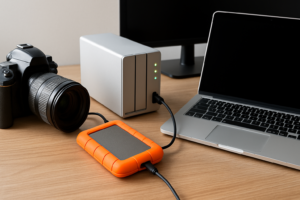
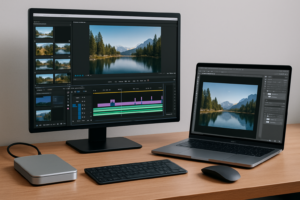
Best Storage Setup for YouTubers and Content Creators
If you’re producing YouTube content regularly, your storage setup is either helping you move faster or silently holding you back. Slow imports, laggy timelines, and the creeping dread of running out of space mid-project are symptoms of a storage workflow that wasn’t designed for video work. And once you start shooting in 4K or higher, those problems multiply fast.
This guide covers a practical, multi-drive storage strategy built specifically for YouTubers and content creators. We’ll walk through the editing setup, long-term archiving, cloud sync options, and the specific drives worth considering for each role in your workflow.
Why a Single Drive Won’t Cut It for Video Editing
A lot of creators start with one internal SSD or a single external drive and try to do everything from it. Your operating system, editing software, project files, media cache, and raw footage all compete for the same read/write bandwidth. The result? Dropped frames, sluggish scrubbing, and export times that feel like they’re mocking you.
The fix is separating your storage into distinct roles. At minimum, you want three tiers: a fast working drive for active projects, a large capacity drive for your media library, and a backup or archive solution that protects your work long-term. Each tier has different speed and capacity requirements, which means different hardware. If you’re wondering about the fundamental differences between SSDs and HDDs, understanding those trade-offs is the foundation of building a good multi-drive setup.
The Ideal Multi-Drive Editing Setup
Drive 1: Your OS and Applications (NVMe SSD)
Your primary internal drive should be an NVMe SSD dedicated to your operating system, Premiere Pro (or DaVinci Resolve, Final Cut, etc.), plugins, and your media cache. This drive doesn’t need massive capacity, but it needs to be fast. A 1TB NVMe like the Samsung 990 Pro 1TB is ideal here. It keeps your software responsive and handles cache files without breaking a sweat.
Make sure to point your editing software’s media cache and scratch disk to this fast NVMe drive. It’s one of the simplest performance tweaks you can make, and it costs you nothing beyond the initial setup. If you need help with the physical installation, our guide to installing an NVMe SSD covers it in about 15 minutes.
Drive 2: Active Project Storage (Fast SSD)
This is where your current project’s raw footage, assets, and project files live while you’re actively editing. You want fast sequential read speeds here because video editing is all about moving large files quickly. A 2TB or 4TB NVMe or SATA SSD works well for this role.
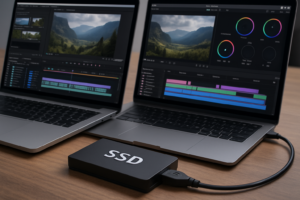
For desktop editors, an internal WD_BLACK SN850X 2TB is a strong pick, with sequential reads above 7,000 MB/s on Gen4. If you’re on a laptop or need portability between machines, a high-speed external SSD connected via USB 3.2 Gen 2 or Thunderbolt gives you close to the same flexibility. We’ve tested plenty of portable options in our best portable SSDs roundup if you’re editing on the go.
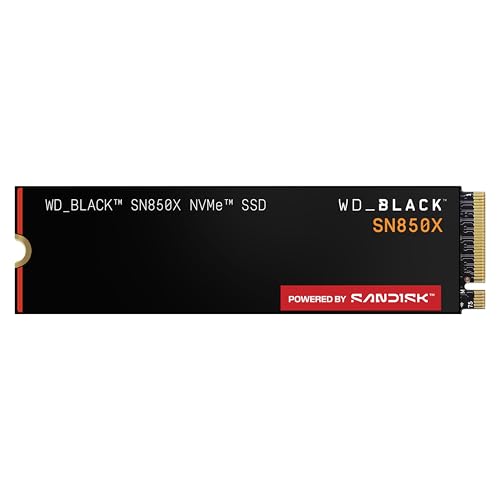
WD_BLACK SN850X 2TB NVMe SSD
Excellent sequential read/write speeds make this one of the best internal drives for active video editing projects.
Once a project is finished and exported, move those files off this drive and onto your archive storage. Keeping your working drive lean means it stays fast. SSDs can actually slow down as they fill up, something we’ve covered in detail in our article on why SSDs slow down over time and how to fix it.
Drive 3: Media Library and Archive (High-Capacity HDD or NAS)
Raw video files add up brutally fast. A single day of 4K shooting can easily produce 200GB or more. You need a high-capacity solution for completed projects, B-roll libraries, music, sound effects, and graphics you’ve accumulated over time.
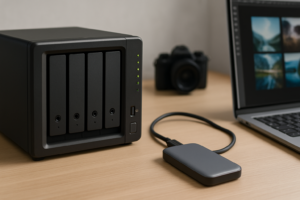
A large HDD (8TB to 18TB) is still the most cost-effective option for bulk storage. The WD Red Plus 8TB is built for always-on NAS use and handles constant read/write cycles well. If you’re producing content as a business, a two-bay NAS with mirrored drives (RAID 1) protects you against a single drive failure wiping out your entire archive. For help choosing the right RAID configuration, check our RAID 0 vs RAID 1 comparison.

Synology DiskStation DS224+ NAS
A reliable two-bay NAS that handles automated backups, remote access, and media archiving perfectly for solo creators and small teams.
A NAS also lets you access archived footage from any computer on your network, which is incredibly useful if you edit on multiple machines or collaborate with an editor.
Cloud Sync for YouTube Workflows
Cloud storage plays a different role for YouTubers than it does for general consumers. You’re not just backing up files. You’re often sharing raw footage with editors, storing final exports for repurposing, and keeping project files synced across devices.
Google Drive (bundled with your YouTube/Google account) offers a natural starting point. The 2TB Google One plan gives you enough room for project files, scripts, thumbnails, and final exports. For raw footage, though, cloud storage gets expensive quickly, and upload speeds can be a bottleneck if you’re working with hundreds of gigabytes per project.
A practical approach: sync your project files, scripts, graphics, and final rendered videos to the cloud. Keep raw footage on your local NAS or archive drives. This way, your most important creative assets (the finished work and project files needed to recreate it) are protected offsite, while your bulky raw files live on affordable local storage with a backup.
If you’re weighing the costs of cloud versus local backup solutions, our cloud backup vs local NAS cost comparison breaks down the math in detail.
Putting It All Together: A Sample Creator Workflow
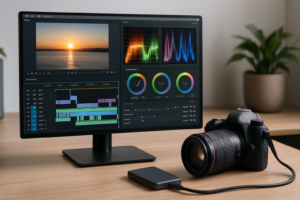
- Import: Transfer footage from your camera’s SD card or SSD directly to your active project drive (Drive 2).
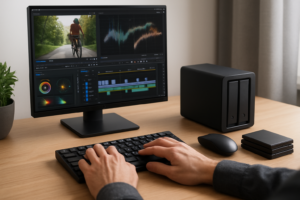
- Edit: Work from Drive 2 with your OS and software running on Drive 1. Media cache and previews render to Drive 1’s NVMe speed.
- Export: Render your final video to Drive 2, then upload to YouTube.
- Archive: Once the video is published, move the entire project folder (raw footage, project file, assets, and final export) to your NAS or archive HDD (Drive 3).
- Cloud sync: Automatically sync project files and final exports to Google Drive or Dropbox for offsite protection.
- Clean up: Clear Drive 2 to make room for your next project.
This cycle keeps your editing drive fast, your archive organized, and your most critical files backed up in at least two locations. It sounds like a lot of steps, but once you set it up with folder structures and automated sync tools, it becomes second nature.
Recommended Hardware at a Glance
- OS/Cache Drive: Samsung 990 Pro 1TB for speed and reliability
- Active Project Drive: WD_BLACK SN850X 2TB or Samsung 870 EVO 4TB if you need more capacity over raw speed
- Archive/NAS Drives: WD Red Plus 8TB or Seagate IronWolf 8TB
- Portable Option: Samsung T7 Shield 2TB for on-location shoots and laptop editing

Samsung T7 Shield 2TB Portable SSD
Rugged, fast, and pocket-sized. Perfect for transferring footage on location or editing from a laptop.
Frequently Asked Questions
How much storage do I actually need as a YouTuber?
It depends heavily on your shooting format. If you film in 1080p, a 2TB active project drive and 4-8TB of archive storage will last a long time. Shooting 4K ProRes or RAW? You’ll want at least 4TB for active editing and 8TB+ for archives, and you’ll outgrow those faster than you think. Plan for roughly 2x more storage than you think you need right now.
Should I use an external SSD or an internal drive for editing?
Internal NVMe drives give you the best performance, with speeds up to 7,000 MB/s on PCIe Gen4. But if you edit on a laptop or switch between machines, a Thunderbolt or USB 3.2 Gen 2 external SSD is perfectly capable for 4K editing. The Samsung T7 Shield and SanDisk Extreme Pro Portable SSD V2 both handle 4K timelines without issues. If you’re curious about the technical differences between drive form factors, our James Kennedy is a writer and product researcher at Drives Hero with a background in IT administration and consulting. He has hands-on experience with storage, networking, and system performance, and regularly improves and optimizes his home networking setup.