Best SSDs for Video Editing in Premiere Pro and DaVinci Resolve
Video editing is one of the most storage-intensive tasks you can throw at a computer. When you’re scrubbing through a 4K timeline in Premiere Pro or grading footage in DaVinci Resolve, your SSD isn’t just storing files. It’s actively feeding data to your CPU and GPU at speeds that can make or break your editing experience. A slow drive means dropped frames, stuttery playback, and render times that eat into your creative hours.
If you’ve been editing off a single drive or, worse, a mechanical hard drive, upgrading to the right SSD setup will transform your workflow. But not all SSDs perform equally under sustained workloads, and the way you configure your drives matters just as much as which ones you buy. Here’s exactly what to look for and which drives deliver where it counts.
Why Video Editing Demands More from Your SSD
Most SSD benchmarks focus on peak sequential speeds and random 4K performance. Those numbers look great on spec sheets, but they don’t tell the full story for video editors. When Premiere Pro or DaVinci Resolve reads a timeline, it’s pulling sustained sequential data from your drive for extended periods. If your SSD’s write cache fills up and speeds drop from 5,000 MB/s to 500 MB/s mid-render, you’ll feel it.
This is why sustained read and write performance matters more than burst speeds for editing work. Drives with large DRAM caches and high-quality NAND flash maintain consistent throughput even under heavy, prolonged workloads. Budget SSDs that use QLC NAND and rely on SLC caching often hit a performance cliff once that cache is exhausted, which is exactly what happens during long renders or when working with large RAW files.
If you’ve noticed your current SSD getting sluggish during big projects, that’s a common issue worth understanding. Our breakdown of why SSDs slow down over time covers the technical reasons and practical fixes.
The Three-Drive Setup: OS, Project, and Cache
Professional editors don’t run everything off a single SSD, and you shouldn’t either. Both Premiere Pro and DaVinci Resolve benefit enormously from separating your storage into three distinct roles:
- OS/Application Drive: This holds your operating system, Premiere Pro, DaVinci Resolve, and plugins. A fast NVMe drive keeps your apps launching quickly and your system responsive, but it doesn’t need to be massive. 500GB to 1TB is plenty.
- Project/Media Drive: Your active project files, raw footage, and assets live here. This drive sees the heaviest sustained read activity during timeline playback and scrubbing. Capacity and sustained read speeds are king. Go with 2TB or larger.
- Cache/Scratch Drive: Premiere Pro’s media cache, DaVinci Resolve’s optimized media, and render previews all write here constantly. This drive needs excellent sustained write performance and good endurance (high TBW ratings). 1TB is a solid starting point.
This separation prevents your OS from competing with your editing software for disk I/O. It’s one of the most effective performance upgrades you can make, often more noticeable than adding extra RAM. For a deeper look at how to pair different drive types effectively, check out our guide on using an SSD and HDD together in one PC.
Best NVMe SSDs for Video Editing
Best Overall: Samsung 990 Pro (2TB)
The Samsung 990 Pro remains the gold standard for creative workloads. It delivers sequential read speeds up to 7,450 MB/s and, more importantly, maintains impressively consistent performance under sustained loads. Samsung’s V-NAND and onboard DRAM cache keep speeds from dropping off a cliff during long renders or large file transfers.
With a 2TB capacity, it’s ideal as your project/media drive. The 990 Pro also has strong endurance ratings (1,200 TBW for the 2TB model), which makes it viable as a cache drive if you’d rather consolidate. We’ve covered this drive extensively in our Samsung 990 Pro review, and it consistently impresses in real-world editing tests.

Samsung 990 Pro 2TB NVMe SSD
Top-tier sustained read/write performance makes this the best all-around NVMe for Premiere Pro and DaVinci Resolve timelines.
Best Value: WD Black SN850X (2TB)
The WD Black SN850X trades blows with the Samsung 990 Pro in nearly every benchmark, and in sustained write tests, it sometimes pulls ahead. With sequential reads up to 7,300 MB/s and a well-tuned controller, it handles 4K and even 8K timelines with ease. It’s typically priced a bit below the Samsung, making it a compelling alternative.
For editors working primarily in DaVinci Resolve, which tends to be more write-heavy during its cache and optimized media generation, the SN850X is an excellent choice for your cache/scratch drive. If you want to see how it stacks up head-to-head, we compared both drives in detail in our Samsung 990 Pro vs WD Black SN850X showdown.
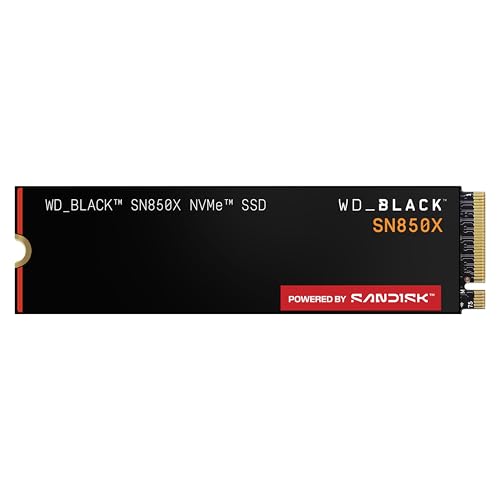
WD Black SN850X 2TB NVMe SSD
Excellent sustained write speeds at a competitive price, ideal for cache and scratch disk duties.
Best Budget NVMe: Kingston Fury Renegade (1TB)
If you’re building out a three-drive setup on a tighter budget, the Kingston Fury Renegade 1TB offers Gen 4 performance with sequential reads up to 7,300 MB/s. It uses a Phison E18 controller with DRAM, so sustained performance stays strong even during extended operations. It’s a great pick for your OS drive or a secondary cache drive.
For editors who need more capacity without spending on premium drives, the Crucial P3 Plus 2TB provides plenty of Gen 4 bandwidth for media storage, though its QLC NAND means sustained writes won’t match the drives above. Use it for reading footage, not for cache duties. Our best budget SSDs analysis covers more affordable options if you’re watching your spend.
When SATA Still Makes Sense
If you’re on a desktop with limited M.2 slots, a 2.5-inch SATA SSD like the Samsung 870 EVO can still serve as a capable media drive for 1080p and some 4K editing. SATA maxes out at about 560 MB/s, which is enough for most compressed codecs like H.264 and H.265. You’ll start hitting limits with uncompressed footage or multi-stream 4K timelines. If you’re unsure about form factors, our M.2 vs 2.5-inch SSD comparison breaks down the physical and performance differences.
How to Configure Premiere Pro and DaVinci Resolve for Multiple Drives
Having the right drives is only half the equation. You also need to tell your editing software to use them properly.
In Premiere Pro: Go to Edit > Preferences > Media Cache and point the cache location to your dedicated cache drive. Under File > Project Settings > Scratch Disks, set all scratch locations (video previews, audio previews, project auto-save) to that same cache drive. Keep your project files and imported media on your project drive.
In DaVinci Resolve: Open Preferences > Media Storage and add your project drive as the primary media storage location. Under Project Settings > Master Settings, set the Proxy Generation and Optimized Media locations to your cache drive. DaVinci Resolve’s Fusion cache should also point to the cache drive to avoid bottlenecking your media reads.
One often-overlooked tip: keep your project drive at least 20% empty. SSDs need free space to maintain performance, and a nearly full drive will see dramatically slower write speeds. This is especially important for video work where individual files can be tens or hundreds of gigabytes.
Don’t Forget About Backup and Long-Term Storage
SSDs are perfect for active projects, but they’re not where you should archive finished work. Once a project wraps, move the files to a NAS or external HDD for long-term storage. This keeps your editing drives fast and gives you a backup in case anything goes wrong. If you’re weighing your archival options, our comparison of cloud backup vs local NAS can help you decide what fits your budget and workflow.
For editors who travel between shoots and edit suites, a portable SSD can bridge the gap. We’ve tested several in our best portable SSDs for travel roundup, and some of them deliver enough speed for on-location editing in a pinch.
Frequently Asked Questions
How much SSD storage do I need for video editing?
For most editors working with 4K footage, a minimum of 2TB for your project drive is a good starting point. A single hour of 4K ProRes footage can consume 100GB or more. Add 1TB for your cache drive and 500GB to 1TB for your OS drive, and you’re looking at roughly 4TB across your entire setup. If you work with 8K or RAW formats, double the project drive capacity.
Is Gen 5 NVMe worth it for video editing?
Not yet for most editors. Gen 5 drives like the Crucial T700 offer sequential speeds over 12,000 MB/s, but Premiere Pro and DaVinci Resolve can’t yet fully saturate Gen 4 bandwidth in most real-world editing scenarios. Gen 5 drives also run hotter and typically cost significantly more. Stick with Gen 4 for now and revisit Gen 5 when software and codecs catch up.
Can I use an external SSD for editing in Premiere Pro or DaVinci Resolve

James Kennedy is a writer and product researcher at Drives Hero with a background in IT administration and consulting. He has hands-on experience with storage, networking, and system performance, and regularly improves and optimizes his home networking setup.

James Kennedy is a writer and product researcher at Drives Hero with a background in IT administration and consulting. He has hands-on experience with storage, networking, and system performance, and regularly improves and optimizes his home networking setup.