How Much Storage Do You Need for 4K and 8K Video Editing?
Running out of storage in the middle of a video editing project is like running out of gas on the highway. Everything stops, deadlines slip, and you’re stuck scrambling for a solution while your timeline sits there, frozen. If you’ve ever had to delete old projects just to make room for a current one, you already know this pain.
The jump from 1080p to 4K was significant, but the leap to 8K is staggering. We’re talking about files that can devour terabytes in a single shooting day. Understanding exactly how much storage you need, broken down by codec, frame rate, and project length, is the difference between a smooth post-production workflow and a constant battle with “disk full” warnings.
Understanding File Sizes by Resolution and Codec
Not all 4K footage is created equal. A minute of 4K H.264 footage takes up far less space than a minute of 4K ProRes 422 HQ, which in turn is dwarfed by 4K RAW files. The codec you shoot in is just as important as the resolution when calculating storage needs.
Here’s a practical breakdown of approximate file sizes per minute of footage:
4K (3840 x 2160) at 24fps
- H.264 (100 Mbps): ~750 MB per minute
- H.265/HEVC (60 Mbps): ~450 MB per minute
- ProRes 422 HQ: ~3.7 GB per minute
- ProRes 4444: ~5.3 GB per minute
- BRAW (Blackmagic RAW, 12:1): ~2.1 GB per minute
- Cinema DNG RAW (uncompressed): ~11.2 GB per minute
8K (7680 x 4320) at 24fps
- H.265/HEVC (200 Mbps): ~1.5 GB per minute
- ProRes 422 HQ: ~14.8 GB per minute
- RED R3D (8:1 compression): ~7.5 GB per minute
- RED R3D (5:1 compression): ~12 GB per minute
- RAW uncompressed: ~44+ GB per minute
Bump the frame rate to 60fps, and those numbers roughly double. Shooting 8K at 60fps in a low-compression RAW format can burn through nearly 90 GB every single minute. That’s not a typo.
Calculating Storage for Real Projects
Knowing per-minute file sizes is useful, but you need to think about your actual shooting ratio. Most projects don’t use every second of footage captured. A typical shooting ratio for narrative work is 5:1 (five minutes of footage for every one minute of finished video). Documentary and event work often runs 10:1 or higher.
Let’s work through a concrete example. Say you’re producing a 10-minute short film, shooting 4K ProRes 422 HQ at 24fps with a 6:1 shooting ratio:
- 60 minutes of raw footage × 3.7 GB/min = 222 GB of source material
- Proxy files (if using them): ~22 GB
- Project files, renders, and exports: ~50-80 GB
- Working headroom (you always need breathing room): ~100 GB
- Total: approximately 400-425 GB
For the same project in 8K ProRes 422 HQ, that source material alone jumps to 888 GB, and your total project footprint easily exceeds 1.2 TB.
A feature-length documentary shot in 4K RAW with a 15:1 shooting ratio can require 8-12 TB of storage before you even start your final renders. These numbers add up fast, which is why professional editors think about storage architecture, not just storage capacity.
The Tiered Storage Strategy: Fast, Warm, and Cold
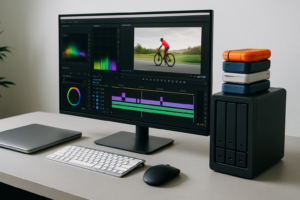
Trying to keep everything on one big, fast drive is expensive and inefficient. The smarter approach is a three-tier storage strategy that balances speed, capacity, and cost.
Tier 1: Fast Working Storage (NVMe SSD)
This is where your active project lives, including the timeline, media cache, scratch disks, and any footage you’re currently cutting. Speed matters here more than anywhere else. You want an NVMe SSD with sequential read speeds of at least 3,000 MB/s for 4K work and 5,000+ MB/s for 8K.
A 2TB or 4TB NVMe drive is the sweet spot for most active projects. The Samsung 990 Pro 2TB is excellent for 4K editing, while those working in 8K should consider a 4TB option like the Crucial T700 4TB. If you’re curious about the differences between drive form factors, our M.2 vs 2.5-inch SSD comparison guide breaks it all down.

Samsung 990 Pro 2TB NVMe SSD
Outstanding read/write speeds and reliability make this ideal as a primary working drive for 4K video editing.
Keep in mind that SSDs can lose performance over time as they fill up and accumulate writes. If you’ve noticed your editing drive getting sluggish, our guide on why your SSD slows down over time and how to fix it can help you restore peak performance.
Tier 2: Warm Storage (SATA SSD or Fast HDD Array)
This tier holds projects you’ve recently completed or might need to revisit soon, plus your proxy files and rendered exports. You don’t need bleeding-fast speeds here, but you still want reasonable access times.
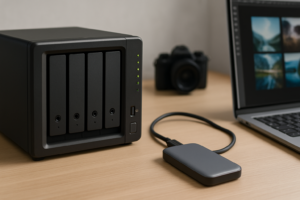
A large SATA SSD like the Samsung 870 EVO 4TB works well for this purpose. For even more capacity, a multi-bay NAS running in a RAID configuration gives you both space and redundancy. If you’re choosing between RAID setups, our RAID 0 vs RAID 1 comparison will help you decide whether you need speed or data protection (spoiler: video editors usually want RAID 5 or RAID 6 for the best of both worlds).

Samsung 870 EVO 4TB SATA SSD
High-capacity SATA SSD with reliable endurance, perfect for warm storage of recent projects and proxy files.
Tier 3: Cold Archive Storage (High-Capacity HDDs or Cloud)
Finished projects that you need to keep but won’t access regularly belong on affordable, high-capacity storage. This is where traditional hard drives still shine. An 18TB or 20TB HDD can hold dozens of completed 4K projects at a fraction of the cost per terabyte compared to SSDs. If you want a deeper look at the cost differences between these two technologies, check out our SSD vs HDD comparison.
For off-site protection, cloud backup services or a secondary NAS at a different location add another layer of safety. Our cloud backup vs local NAS cost comparison walks through the financial trade-offs in detail.
Quick-Reference Storage Calculator
Use this table as a starting point for estimating total project storage. These figures assume a moderate shooting ratio (8:1) and include space for renders, caches, and headroom.
- 5-min video, 4K H.264: ~40-50 GB total
- 5-min video, 4K ProRes 422 HQ: ~200 GB total
- 10-min video, 4K RAW: ~1.2-1.5 TB total
- 10-min video, 8K ProRes 422 HQ: ~1.5-2 TB total
- 30-min video, 4K ProRes 422 HQ: ~1.2-1.5 TB total
- 30-min video, 8K RAW (low compression): ~8-12 TB total
- Feature film (90 min), 4K ProRes: ~6-10 TB total
- Feature film (90 min), 8K RAW: ~30-50 TB total
These are estimates. Your actual numbers will vary based on shooting ratio, number of camera angles, audio tracks, and how many VFX layers you’re compositing.
Practical Tips to Manage Storage Smarter
Use proxy workflows. Editing 8K footage directly is punishing on both your hardware and your storage. Most professional NLEs (DaVinci Resolve, Premiere Pro, Final Cut Pro) can generate lightweight proxy files that you edit with, then relink to the full-resolution media for final export. This can reduce your working storage needs by 80% or more.
Don’t hoard render files. Old renders and cache files are storage hogs. Clear them out after each project wraps. A 4K project in Premiere can easily generate 50-100 GB in cache files alone.
Budget for redundancy. Whatever storage total you calculated, plan for at least one complete backup copy. Losing a project to a drive failure after weeks of editing is devastating. RAID helps, but it’s not a backup. If you’re setting up a NAS for the first time, our beginner’s NAS setup guide will get you started.
Buy more than you think you need. Storage requirements always grow. If your calculation says you need 4TB, get 6TB or 8TB. You’ll use it sooner than you expect.

Seagate IronWolf 18TB NAS Hard Drive
Built for NAS environments with massive capacity, making it ideal for cold archive storage of completed video projects.

James Kennedy is a writer and product researcher at Drives Hero with a background in IT administration and consulting. He has hands-on experience with storage, networking, and system performance, and regularly improves and optimizes his home networking setup.