The Pros and Cons of Storing Everything in the Cloud
Cloud storage has quietly become the default for most of us. Your photos back up to iCloud or Google Photos. Your work files live in Dropbox or OneDrive. Your music streams from Spotify instead of sitting on a hard drive. Before you know it, nearly everything you own digitally exists on someone else’s servers, scattered across data centers you’ll never see.
But is going all-in on the cloud actually smart? Or are you trading one set of problems for another? I’ve spent years testing both cloud and local storage solutions, and the honest answer is more nuanced than most tech blogs want to admit. Let’s break down the real pros and cons of storing everything in the cloud so you can make an informed decision.
The Pros: Why Cloud Storage Is So Appealing
Access Your Files from Anywhere
This is the killer feature, and it’s genuinely transformative. With cloud storage, your files are available on your phone, laptop, tablet, or any device with a browser. You can start editing a document on your desktop at home and pick it up on your laptop at a coffee shop. For remote workers and frequent travelers, this alone can justify the switch.
Services like Google Drive, iCloud, and Dropbox have gotten remarkably good at syncing across devices in near real-time. If you’re someone who works from multiple locations or collaborates with a team, cloud storage removes the friction of transferring files between machines. No more emailing yourself attachments or carrying a portable SSD everywhere you go.
Built-in Redundancy and Disaster Protection
Major cloud providers store your data across multiple data centers in different geographic locations. If a server fails or a natural disaster hits one facility, your files survive because copies exist elsewhere. This level of redundancy would cost thousands to replicate at home.
Compare this to a single external hard drive sitting on your desk. If it fails, and drives do fail, you could lose everything. Cloud storage essentially outsources the hardest part of backup strategy: keeping multiple copies in multiple locations.
No Hardware to Maintain
When you store files locally, you’re responsible for the health of your drives. SSDs degrade over time, HDDs develop mechanical issues, and NAS boxes need firmware updates and occasional drive replacements. With cloud storage, all that maintenance happens on the provider’s end. You don’t have to worry about SSD slowdowns or failing RAID arrays. You just upload your files and forget about it.
The Cons: What You’re Giving Up
You’re Completely Dependent on Your Internet Connection
This is the most practical downside, and it bites harder than people expect. If your internet goes down, your files become inaccessible. Slow upload speeds can make backing up large video projects or photo libraries an exercise in frustration. And if you’re working remotely from a location with spotty Wi-Fi, your cloud-only workflow grinds to a halt.
Most residential internet connections still have asymmetric speeds, meaning uploads are significantly slower than downloads. Backing up 500 GB of data to the cloud over a typical home connection can take days. Doing the same to a local NAS or external SSD takes minutes or hours.
Monthly Costs Add Up Over Time
Cloud storage looks affordable at first. A few dollars a month for a couple hundred gigabytes seems reasonable. But as your storage needs grow into the terabyte range, those subscription fees accumulate year after year. Over a five-year span, you might spend significantly more on cloud subscriptions than you would on a one-time purchase of local storage hardware.
We’ve actually done a deep dive comparing long-term expenses in our cloud backup vs. local NAS cost comparison, and the numbers might surprise you. For users with large media libraries or professional archives, local storage often wins on pure economics.
If you’re considering a hybrid approach where you keep critical files on both cloud and local storage, a reliable external drive like the WD My Passport 5TB can serve as your local safety net while the cloud handles accessibility.

WD My Passport 5TB External Hard Drive
A compact, reliable external drive that’s perfect for maintaining a local backup alongside your cloud storage
Privacy and Data Ownership Concerns
When your files sit on someone else’s servers, you’re trusting that company with your data. Cloud providers can scan your files, comply with government data requests, and change their terms of service at any time. Some services use your data to train AI models or serve targeted ads.
Encryption helps, but most major cloud providers hold the encryption keys. That means they can technically access your files if compelled to. End-to-end encrypted services like Tresorit or Proton Drive give you more control, but they come with trade-offs in convenience and collaboration features.
For particularly sensitive files, keeping a local encrypted copy on a drive you physically control is still the most private option. Just make sure you securely wipe any drive before disposing of it.
Vendor Lock-in Is Real
Once you’ve built your workflow around a specific cloud ecosystem, leaving becomes painful. Your files might be easy enough to download, but what about your organization system, shared links, app integrations, and collaboration setups? Migrating terabytes of data from one provider to another is time-consuming, and some services use proprietary formats that don’t transfer cleanly.
Google, Apple, and Microsoft all make it easy to get your data in but considerably harder to get it out. This isn’t an accident. Before committing to a single provider, consider whether you’re comfortable being tied to that company’s pricing decisions, feature changes, and policies for the foreseeable future.
The Hybrid Approach: Getting the Best of Both
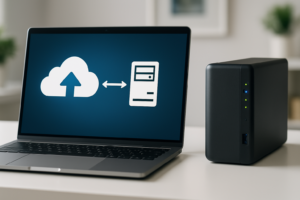
After testing dozens of storage configurations, my recommendation for most people is a hybrid strategy. Use cloud storage for active files you need to access across devices and collaborate on. Keep a local backup of everything important on a NAS or external drive.
For the local side, a budget home NAS gives you network-accessible storage with the privacy of keeping files on your own hardware. If you want something simpler, a high-capacity external drive works too. The Samsung T7 Shield is an excellent portable option that’s tough enough to toss in a bag, while a desktop drive like the Seagate Backup Plus Hub 8TB handles larger archives at home.

Samsung T7 Shield 2TB Portable SSD
Fast, rugged, and IP65-rated for dust and water resistance, making it an ideal local backup companion to your cloud setup
The key is automating the process so you don’t have to think about it. Set up your cloud sync for daily files, then schedule regular backups to your local drive. Our guide on setting up automated backups to a NAS walks through the process if you want to go that route.
This way, if your cloud provider has an outage, changes their pricing, or shuts down entirely, you still have everything. And if your local drive fails, your cloud copy has you covered. True redundancy means no single point of failure.

Synology DiskStation DS223 NAS
A beginner-friendly two-bay NAS that pairs perfectly with cloud services for a bulletproof hybrid backup strategy
Frequently Asked Questions
Is cloud storage safe enough for sensitive personal documents?
Major providers like Google, Microsoft, and Apple use strong encryption in transit and at rest, so your data is reasonably protected from external hackers. However, the provider itself typically holds the encryption keys, which means they can access your data if legally required. For highly sensitive documents like tax records or legal files, consider an end-to-end encrypted service like Tresorit, or store those specific files on an encrypted local drive instead.
What happens to my files if a cloud storage company goes out of business?
Most reputable providers would give you a grace period to download your data before shutting down servers. But smaller or newer companies might not offer that luxury. This is one of the strongest arguments for maintaining a local backup of anything you can’t afford to lose. Don’t rely on a single cloud provider as your only copy of important files.
How much cloud storage does the average person actually need?
For documents, emails, and light photo storage, 100 to 200 GB is usually plenty. If you’re backing up a full phone camera roll with years of photos and videos, you’ll likely need 1 to 2 TB. Video editors, photographers, and creative professionals can easily burn through 5 TB or more. Start with a smaller plan and upgrade as needed, but keep in mind that local storage becomes more cost-effective as your needs grow past the 2 TB mark.
This article contains affiliate links. We may earn a small commission at no extra cost to you.

James Kennedy is a writer and product researcher at Drives Hero with a background in IT administration and consulting. He has hands-on experience with storage, networking, and system performance, and regularly improves and optimizes his home networking setup.