NTFS vs exFAT vs APFS: How to Pick the Right File System for Your Drive
Formatting a drive seems like a quick, throwaway decision until you plug it into a different computer and nothing shows up. Or your 4GB+ video files refuse to transfer. Or your Mac starts yelling about an incompatible format. The file system you choose matters more than most people realize, and picking the wrong one can cause real headaches down the road.
This guide breaks down the three file systems you’re most likely to encounter: NTFS, exFAT, and APFS. You’ll know exactly which one to pick based on your operating system and what you’re using the drive for.
NTFS: The Windows Standard
NTFS (New Technology File System) is the default for Windows internal drives and has been since Windows XP. It supports massive file sizes (up to 16 TB per file), built-in encryption, file permissions, journaling for crash recovery, and compression. If you’re running Windows, your boot drive is almost certainly NTFS.
Where NTFS shines: Internal Windows drives, external backup drives used exclusively with Windows PCs, and drives that need file-level security permissions.
The limitation: macOS can read NTFS drives natively, but it can’t write to them without third-party software like Paragon NTFS or Tuxera. Linux can handle NTFS through the ntfs-3g driver, but performance isn’t always ideal. If you’re sharing a drive between a Windows PC and a Mac, NTFS will cause friction.
For Windows-only setups, NTFS is the clear winner. It’s especially important for internal SSDs and HDDs where you want journaling protection against data corruption. If you’re curious about whether an SSD or HDD makes more sense for your setup, our SSD vs HDD comparison breaks that down in detail.
exFAT: The Cross-Platform Champion
exFAT (Extended File Allocation Table) was designed by Microsoft specifically for flash drives and external storage that needs to work across multiple operating systems. Both Windows and macOS read and write to exFAT natively, and most Linux distributions support it out of the box since kernel 5.4.
Where exFAT shines: Portable SSDs, USB flash drives, SD cards, and any external drive that moves between Windows and Mac machines. It handles files well over 4 GB (a critical limitation of the older FAT32 format), with a theoretical max file size of 16 EB.
The limitation: exFAT lacks journaling, which means it’s slightly more vulnerable to data corruption if a drive is disconnected improperly. It also doesn’t support file permissions or encryption at the file-system level.
If you carry a portable SSD between your Windows desktop and a MacBook, exFAT is almost always the right call. This is the format I recommend for most of the best portable SSDs for travel, since they’re designed to work with any computer you encounter.
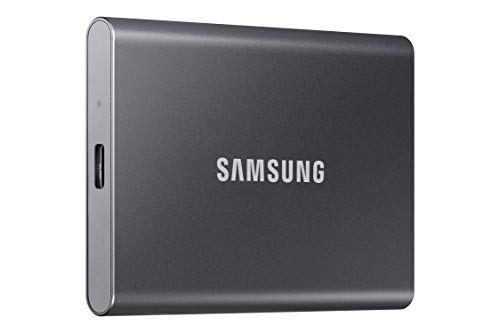
Samsung T7 Portable SSD 1TB
Ships formatted exFAT out of the box, so it works with both Windows and Mac immediately
APFS: Built for Apple Hardware
APFS (Apple File System) replaced HFS+ in 2017 and is now the default for all Apple devices, including Macs, iPhones, and iPads. It was built from the ground up for flash storage and SSDs, with features like space sharing between volumes, native encryption, snapshot backups (used by Time Machine), and crash protection.
Where APFS shines: Internal Mac drives, Time Machine backup drives used only with Macs, and external SSDs dedicated to the Apple ecosystem. APFS is optimized for the way SSDs handle data, which can contribute to better long-term performance. If you’ve noticed your SSD getting sluggish, our guide on why SSDs slow down over time covers the fix.
The limitation: Windows cannot read or write APFS without third-party tools. Linux support is experimental at best. If you format an external drive as APFS and hand it to a Windows user, they won’t be able to access anything on it.
Only format a drive as APFS if it will never need to touch a Windows machine. For Mac-only external drives, check out our roundup of the best external hard drives for Mac to find tested options.

SanDisk Extreme Portable SSD 2TB
Durable, fast portable drive that can be formatted to APFS for Mac or exFAT for cross-platform use
Quick Recommendation Cheat Sheet
- Windows internal drive (SSD or HDD): NTFS. Always.
- Mac internal drive: APFS. It’s what macOS expects.
- External drive for Windows only: NTFS.
- External drive for Mac only: APFS (SSD) or Mac OS Extended/HFS+ (HDD).
- External drive shared between Windows and Mac: exFAT.
- USB flash drive or SD card: exFAT (unless under 32 GB and you need maximum compatibility with older devices, then FAT32).
- NAS drives: Usually handled by the NAS operating system (ext4, Btrfs). If you’re building a budget home NAS, the NAS software will format the drives for you.
Before reformatting any drive, make sure you’ve backed up everything. And if you’re planning to sell or give away an old drive afterward, securely wiping it first is essential to protect your personal data.
FAQ
Can I convert NTFS to exFAT without losing data?
Not directly. There’s no built-in tool in Windows or macOS that converts between these file systems without erasing the drive. You’ll need to back up your data to another location, reformat the drive to exFAT, and then copy everything back. Third-party partition managers like EaseUS or MiniTool claim to offer conversion, but backing up first is still strongly recommended to avoid data loss.
Does the file system affect drive speed?
In most real-world usage, the difference is minimal. APFS is slightly more efficient on SSDs because it was designed for flash storage, and NTFS adds a small overhead from journaling and permissions. But the speed of your drive’s hardware (SATA vs NVMe, HDD vs SSD) matters far more than the file system. You won’t notice a meaningful speed difference between NTFS and exFAT on the same external SSD.
This article contains affiliate links. We may earn a small commission at no extra cost to you.

James Kennedy is a writer and product researcher at Drives Hero with a background in IT administration and consulting. He has hands-on experience with storage, networking, and system performance, and regularly improves and optimizes his home networking setup.