AHCI vs NVMe vs PCIe Lanes: Why Your SSD Speed May Be Bottlenecked
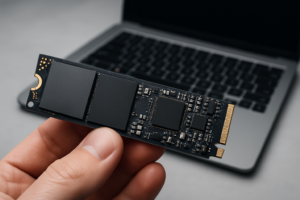
You just installed a brand new NVMe SSD, but CrystalDiskMark is showing speeds that look suspiciously similar to a SATA drive. You’re not imagining things. The problem likely isn’t your drive. It’s the protocol or PCIe lane configuration sitting between your SSD and your CPU.
Understanding the difference between AHCI and NVMe, and how PCIe lanes are allocated on your motherboard, is the key to diagnosing why your “fast” SSD isn’t performing the way it should. Let’s break it down.
AHCI vs NVMe: The Protocol Problem
AHCI (Advanced Host Controller Interface) was designed in 2004 for spinning hard drives. It supports a single command queue with 32 commands. That was fine for HDDs, and it still works for SATA SSDs, but it becomes a serious bottleneck the moment you plug in a modern NVMe drive.
NVMe (Non-Volatile Memory Express) was built from the ground up for flash storage. It supports 65,535 queues with 65,536 commands each. The result is dramatically lower latency and higher throughput, especially for random read/write operations that matter most in real-world use.
Here’s what this looks like in practice:
- SATA SSD over AHCI: ~550 MB/s sequential read, ~10,000 random IOPS
- NVMe SSD over PCIe 3.0 x4: ~3,500 MB/s sequential read, ~500,000+ random IOPS
- NVMe SSD over PCIe 4.0 x4: ~7,000 MB/s sequential read, ~1,000,000+ random IOPS
If your M.2 SSD is running over AHCI instead of NVMe (which can happen with incorrect BIOS settings or an M.2 slot wired for SATA), you’re leaving 90% of your drive’s performance on the table. Check your BIOS storage configuration and make sure NVMe is enabled for the correct slot. Our M.2 vs 2.5-inch SSD comparison guide covers the physical differences, but the protocol layer matters just as much.
PCIe Lanes: The Hidden Bottleneck
Every NVMe SSD needs PCIe lanes to communicate with your CPU. A standard NVMe drive uses four lanes (x4). Consumer CPUs have a limited number of lanes to distribute across your GPU, SSDs, and other expansion cards, and this is where conflicts arise.
An Intel 12th-gen CPU like the i7-12700K provides 20 PCIe lanes directly from the CPU (16 for GPU, 4 for primary M.2). Additional M.2 slots and SATA ports are typically routed through the chipset (like Z690), which connects to the CPU through a DMI 4.0 link. That DMI link has a bandwidth ceiling equivalent to about PCIe 4.0 x4, meaning every device on the chipset shares roughly 7 GB/s of bandwidth.
This creates a few common bottleneck scenarios:
- Second or third M.2 slot running slower than the first: The primary M.2 slot usually connects directly to CPU lanes. Secondary slots go through the chipset, sharing bandwidth with USB controllers, audio, networking, and SATA ports.
- M.2 slot disabling SATA ports: Many motherboards share lanes between M.2 slots and specific SATA ports. Installing an NVMe drive might disable SATA ports 5 and 6. Check your motherboard manual’s lane-sharing diagram.
- GPU running at x8 instead of x16: On some platforms, populating a second M.2 slot splits your GPU’s PCIe connection from x16 to x8. For most gaming scenarios this barely matters, but it’s worth knowing.
For a high-performance setup, your boot NVMe drive should always go in the M.2 slot connected directly to CPU lanes. The Samsung 990 Pro is one of the best PCIe 4.0 drives to take full advantage of direct CPU lane connections, with sequential reads near 7,450 MB/s.

Samsung 990 Pro 2TB NVMe SSD
Top-tier PCIe 4.0 performance with consistent speeds under sustained workloads
If you’ve been noticing your SSD performance degrading over time on top of these lane issues, the problem might be compounding. Our guide on why SSDs slow down over time covers TRIM, overprovisioning, and other factors that stack on top of protocol and lane bottlenecks.
How to Check Your System for Bottlenecks
You don’t need to guess. Here’s how to verify your setup on Windows:
- Open Device Manager and expand “Disk drives.” If your NVMe drive shows up here with its proper model name, the OS recognizes it as NVMe. If it shows under “IDE ATA/ATAPI controllers,” it’s running through AHCI.
- Use HWiNFO64 (free) to check the exact PCIe link speed and width. Look for your NVMe controller and verify it reads “PCIe 4.0 x4” (or 3.0 x4, depending on your drive). If it shows x2 or x1, you’ve found your bottleneck.
- Check your motherboard manual’s block diagram. This single page shows exactly which M.2 slots connect to CPU lanes vs. chipset lanes, and which SATA ports get disabled when M.2 slots are populated.
- Run CrystalDiskMark and compare your sequential read/write speeds against your drive’s spec sheet. If you’re seeing 1,700 MB/s on a drive rated for 7,000 MB/s, you’re likely running through a PCIe 3.0 x2 connection or the chipset bottleneck.
For those building a new system or upgrading, the WD_BLACK SN850X is another excellent PCIe 4.0 option. You can see how it stacks up against Samsung’s best in our Samsung 990 Pro vs WD_BLACK SN850X showdown.
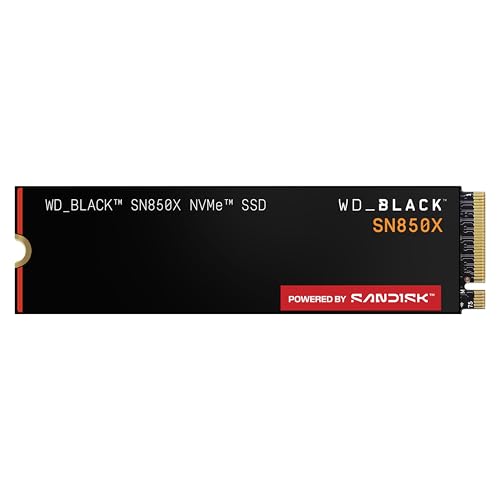
WD_BLACK SN850X 2TB NVMe SSD
Excellent sustained write performance and a strong alternative to the Samsung 990 Pro
If you’re installing a new NVMe drive for the first time, our step-by-step NVMe installation guide

James Kennedy is a writer and product researcher at Drives Hero with a background in IT administration and consulting. He has hands-on experience with storage, networking, and system performance, and regularly improves and optimizes his home networking setup.