The Ultimate Data Backup Guide for Beginners
Losing files feels a lot like losing your wallet. That sinking moment when you realize your photos, documents, and projects might be gone forever. The difference? You can prevent data loss almost entirely with a simple backup routine.
This guide covers the three main backup methods, the tools you actually need, and a dead-simple strategy to keep your files safe. No technical background required.
The 3-2-1 Backup Rule (Your New Best Friend)
Before picking tools, you need a strategy. The 3-2-1 rule is the gold standard, and it’s easier than it sounds:
- 3 copies of your data (the original plus two backups)
- 2 different storage types (like an external drive and cloud storage)
- 1 copy stored off-site (cloud, or a drive kept at a friend’s house)
This protects you against almost everything: accidental deletion, hardware failure, ransomware, theft, even a house fire. Most people skip the off-site copy, which is exactly the one that saves you during a worst-case scenario.
Local Backups: Your First Line of Defense
A local backup means copying your data to a physical drive you own. It’s the fastest way to back up and restore files, and you don’t need an internet connection.
External Hard Drives
For most people, a USB external hard drive is the simplest starting point. Plug it in, run your backup software, and you’re done. The WD Elements and Seagate Backup Plus lines are reliable and widely available. If you’re a Mac user, check out our roundup of the best external hard drives for Mac in 2026 to find one that works out of the box.
Choose a drive that’s at least twice the size of the data you’re backing up. If your computer has 500GB of files, grab a 1TB or 2TB external drive. Wondering whether to go with an SSD or a traditional spinning drive? We break down the differences in our SSD vs HDD comparison, but for pure backup storage, a traditional HDD gives you more space per dollar.

WD Elements 2TB External Hard Drive
A reliable, no-frills backup drive with plenty of space for most users.
NAS (Network Attached Storage)
If you have multiple computers or family members who all need backups, a NAS is a better fit. It’s a small box on your home network that everyone can back up to automatically. We’ve written a complete NAS setup guide for beginners if you want to explore this route, and you can even set up automated backups to your NAS in about 30 minutes.
Built-In Backup Software
You don’t need to buy anything extra. Both Windows and macOS have excellent backup tools built right in:
- Windows: File History (Settings > Update & Security > Backup) runs in the background and saves versions of your files automatically.
- Mac: Time Machine is genuinely brilliant. Connect an external drive, turn it on, and it backs up everything hourly.
Cloud Backups: Your Off-Site Safety Net
Cloud backup handles the “1 off-site copy” part of the 3-2-1 rule automatically. Your files get encrypted and uploaded to remote servers, so even if your house floods, your data survives.
The top services for beginners are Backblaze, iDrive, and Carbonite. Backblaze is my personal pick because it backs up everything on your computer with unlimited storage and minimal setup. Just install it and forget it.
For a deeper look at whether cloud or local storage makes more sense for your situation (and budget), our cloud backup vs. local NAS cost comparison breaks it all down.
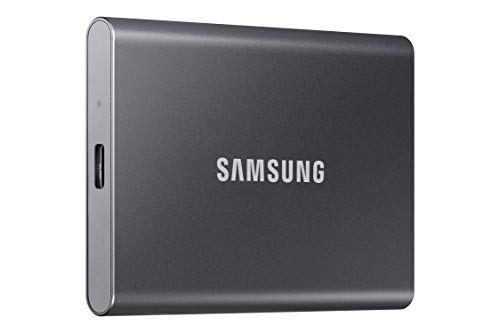
Samsung T7 Portable SSD 1TB
Fast and pocket-sized, perfect for keeping a secondary backup copy off-site.
Setting Up Your First Backup (In 10 Minutes)
Here’s a quick-start plan you can follow right now:
- Grab an external drive. Anything 1TB or larger will work for most people.
- Turn on your built-in backup tool. Time Machine on Mac, File History on Windows.
- Sign up for a cloud backup service. Install Backblaze or iDrive and let the initial upload run overnight (it can take a day or two on the first pass).
- Set a calendar reminder to check both backups once a month. Make sure the external drive is still connected and the cloud service is still running.
That’s it. You’ve just created a 3-2-1 backup system. Your original files are on your computer, a local copy lives on the external drive, and a cloud copy sits safely off-site.
Frequently Asked Questions
How often should I back up my files?
For most people, daily automatic backups are ideal, and both Time Machine and File History handle this without any effort on your part. Cloud backup services also run continuously in the background. If you’re working on something critical, like a big project or tax documents, you can always trigger a manual backup to your external drive for extra protection.
Can I use a flash drive as my backup?
Technically yes, but it’s not a great idea for your primary backup. USB flash drives are small, easy to lose, and tend to fail more often than external hard drives or SSDs. They’re fine for transferring a few important files in a pinch, but for a real backup strategy, use a dedicated external drive or cloud service instead.
This article contains affiliate links. We may earn a small commission at no extra cost to you.

James Kennedy is a writer and product researcher at Drives Hero with a background in IT administration and consulting. He has hands-on experience with storage, networking, and system performance, and regularly improves and optimizes his home networking setup.