How to Choose the Right Storage Device for Any Use Case
Buying a storage device sounds simple until you’re staring at dozens of options across five different categories, each promising to be exactly what you need. SSDs, HDDs, NAS boxes, cloud subscriptions, USB flash drives. The choices multiply fast, and picking the wrong one means either wasting money on features you don’t need or, worse, losing data you can’t replace.
This guide flips the usual approach. Instead of walking through each product type and hoping you figure out where you fit, we’ll start with what you’re actually trying to do and work backward to the right storage device. Your use case should drive the decision, not the other way around.
For Everyday Computing and OS Drives
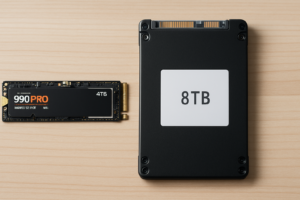
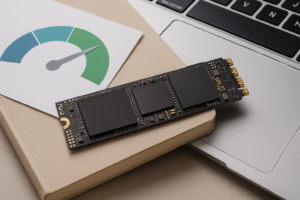
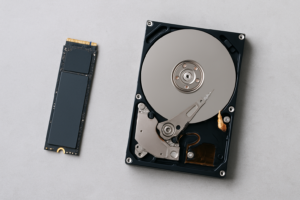
If you’re building or upgrading a PC and need a primary drive for your operating system and applications, a SATA or NVMe SSD is the only sensible choice in 2026. Mechanical hard drives simply can’t compete on boot times, app launches, or general system responsiveness. Even a budget SATA SSD will transform a sluggish computer. For a deeper breakdown, check out our SSD vs HDD comparison for 2026.
For most users, a 1TB NVMe SSD hits the sweet spot. The Samsung 990 EVO and WD Blue SN5000 both deliver excellent everyday performance without the premium pricing of enthusiast-grade drives. If you’re unsure about capacity, our guide on choosing between 1TB and 2TB SSDs can help you decide.

Samsung 990 EVO 1TB NVMe SSD
Excellent all-around NVMe drive with strong sustained performance and power efficiency for laptops and desktops alike.
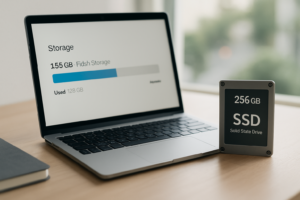
One thing to keep in mind: SSDs can slow down as they fill up and age. Keeping about 10-20% of your drive free and running occasional maintenance goes a long way. We’ve covered this in detail in our article on why SSDs slow down over time and how to fix it.
For Gaming and Creative Workloads
Gamers and content creators have overlapping but distinct needs. Both benefit from fast read speeds (shorter load times, quicker project file access), but video editors also need strong sustained write performance for handling large media files.
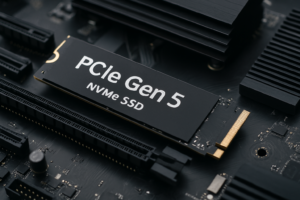
For gaming, a Gen4 NVMe SSD is more than enough. Gen5 drives exist, but real-world gaming benchmarks show minimal improvement over Gen4 for the significant price premium. The WD_BLACK SN850X 2TB remains one of the best options here, delivering sequential reads above 7,000 MB/s and consistently strong random read performance where games actually benefit. Our SATA vs NVMe gaming performance test shows the real-world difference you can expect.
For video editing, capacity matters as much as speed. A single hour of 4K ProRes footage can eat 100GB or more. Consider pairing a fast NVMe boot drive with a larger SATA SSD or even a high-capacity HDD for archiving completed projects. You can use an SSD and HDD together in one PC to get the best of both worlds. For external editing workflows, take a look at the best 4TB external drives for video editing we’ve tested.
For Backup and Long-Term Storage
This is where the decision gets more nuanced, because backup storage priorities are completely different from performance storage. You want reliability, capacity, and redundancy, not blazing speed.
Local Backup with External Drives
A simple external hard drive is still one of the most effective backup solutions for individuals. The Seagate Backup Plus 5TB and WD Elements 5TB give you massive capacity in a pocket-sized form factor. Plug it in, run your backup software, and store it somewhere safe. For Mac users specifically, we’ve tested and reviewed the best external hard drives for Mac in 2026.
NAS for Household or Small Office Backup
When multiple people need access to shared files and backups, a NAS (Network Attached Storage) device makes much more sense than passing around an external drive. A two-bay NAS from Synology or QNAP running in RAID 1 gives you automatic mirroring, meaning if one drive fails, your data survives on the other. We’ve put together a complete NAS setup guide for beginners if you’re new to this, and our RAID 0 vs RAID 1 comparison explains which configuration fits your needs.
Cloud Storage for Off-Site Protection
Local backups protect against drive failure, but they can’t help if your house floods or your equipment is stolen. Cloud backup services like Backblaze, iDrive, or Google One provide off-site redundancy that complements your local backup. The best approach is the 3-2-1 rule: three copies of your data, on two different media types, with one copy off-site. For a full cost breakdown of cloud vs. local options, read our cloud backup vs local NAS cost comparison.
For Portability and File Transfer
Your needs here depend heavily on how much data you’re moving and how often.
For transferring documents, presentations, or small files between computers, a quality USB flash drive still works fine. The Samsung BAR Plus 256GB is compact, durable, and fast enough for everyday file shuttling. Just don’t rely on a flash drive as your only copy of anything important. They’re convenient, not reliable for long-term storage.
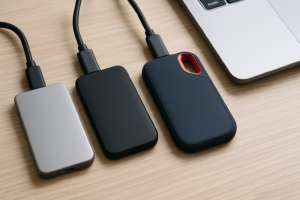
For larger workloads, like transferring photo libraries, video projects, or full system images, a portable SSD is far superior. They’re dramatically faster than flash drives, more durable than portable HDDs, and compact enough to clip onto a keychain or toss in a bag. The Samsung T9 and SanDisk Extreme Pro Portable SSD V2 are both excellent choices with read speeds exceeding 2,000 MB/s. We’ve durability-tested several options in our best portable SSDs for travel in 2026 roundup.
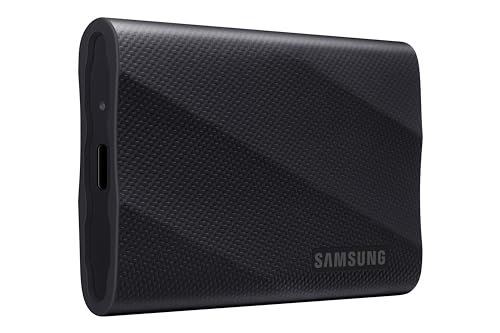
Samsung T9 Portable SSD 2TB
Blazing fast portable SSD with hardware encryption and an IP65 dust/water resistance rating, ideal for on-the-go professionals.
For Archival and Cold Storage
Some data needs to be kept for years but doesn’t need to be accessed regularly. Think tax records, old family photos, completed creative projects, or business documents with legal retention requirements.
For archival purposes, traditional HDDs still make sense because of their capacity-per-dollar advantage. A Seagate IronWolf 8TB packed into a NAS or even connected via a USB dock gives you huge storage volumes at a fraction of what equivalent SSD capacity would cost. Store the drive in a cool, dry place, and power it up every 6-12 months to keep the mechanical components healthy.
Avoid using USB flash drives or cheap SSDs for archival storage. Flash memory can lose data if left unpowered for extended periods, and budget flash drives are particularly prone to this. If you’re planning to sell or repurpose an old drive before archiving elsewhere, make sure to securely wipe your drive first.
Quick Reference: Matching Use Cases to Storage Types
- OS and applications: NVMe SSD (500GB to 2TB)
- Gaming library: NVMe or SATA SSD (1TB to 4TB)
- Video editing scratch disk: Fast NVMe SSD (2TB+)
- Personal backup: External HDD (4TB to 8TB) or cloud subscription
- Multi-user backup: NAS with RAID 1 or RAID 5
- Portable file transfer (small files): USB flash drive (64GB to 256GB)
- Portable file transfer (large files): Portable SSD (1TB to 4TB)
- Long-term archival: Large-capacity HDD stored offline, plus cloud backup
Frequently Asked Questions
Can I use one storage device for everything?
Technically yes, but it’s a bad idea. A single point of failure means all your data is at risk. At minimum, use one fast SSD for your operating system and active files, plus a separate backup drive or cloud service. Mixing a fast primary drive with affordable bulk storage is the most practical approach for most people.
How long do storage devices actually last?
Modern SSDs are rated for hundreds of terabytes written (TBW), which translates to 5-10+ years for typical consumer use. HDDs generally last 3-5 years with regular use, though many survive much longer. Flash drives and SD cards have the shortest reliable lifespan, especially under heavy use. For a data-driven look at SSD endurance, our James Kennedy is a writer and product researcher at Drives Hero with a background in IT administration and consulting. He has hands-on experience with storage, networking, and system performance, and regularly improves and optimizes his home networking setup.