Best Storage Upgrades for Laptops in 2026
Upgrading your laptop’s storage is one of the fastest, most affordable ways to breathe new life into an aging machine. A fresh SSD can cut boot times from over a minute to under ten seconds, and it makes everything from opening apps to loading large files feel snappy again. If you’re still running a mechanical hard drive, the difference will feel dramatic.
But before you buy anything, you need to figure out what type of drive your laptop actually accepts. Get this wrong and you’ll be stuck with a drive you can’t use. Let’s walk through the two main upgrade paths and the best drives for each in 2026.
Step One: Figure Out What Your Laptop Supports
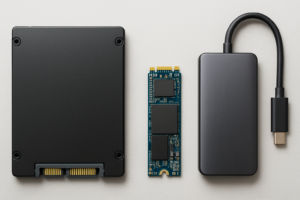
Laptops use one of two internal storage form factors (and sometimes both). Getting this right is the most important step.
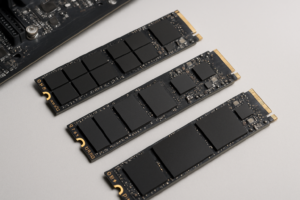
M.2 NVMe slots are the modern standard. If your laptop was made after 2018, there’s a strong chance it has an M.2 slot. These are small, stick-of-gum-sized connectors on the motherboard. M.2 NVMe drives use the PCIe bus and deliver read speeds of 3,500 MB/s or higher, depending on whether your laptop supports Gen 3 or Gen 4. For a detailed breakdown of the physical differences, check out our M.2 vs 2.5-inch SSD form factor comparison.
2.5-inch SATA bays are the older standard. Many laptops from 2012 to 2019 have a 2.5-inch drive bay, originally designed for spinning hard drives. You can drop a 2.5-inch SATA SSD right into the same slot. Speeds top out around 550 MB/s, which is much slower than NVMe but still a massive improvement over a mechanical drive.
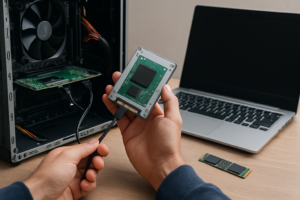
How to check: The easiest method is to search your exact laptop model followed by “storage specs” or “SSD upgrade.” Crucial’s free System Scanner tool at crucial.com can also identify compatible drives in seconds. Alternatively, remove the back panel and look inside. You’ll either see a flat ribbon cable leading to a 2.5-inch bay, a small M.2 slot on the motherboard, or both.
Best M.2 NVMe Upgrades for 2026
For most people upgrading a laptop with an M.2 slot, the Samsung 990 EVO Plus is the drive to get. It supports both PCIe Gen 4 and Gen 5 interfaces, so it works across a wide range of laptops and delivers excellent sequential and random read/write performance. Samsung’s reliability track record is strong, and the bundled migration software makes cloning your old drive painless.

Samsung 990 EVO Plus 1TB
Versatile Gen 4/5 NVMe drive with excellent endurance ratings and Samsung’s proven migration software.
If you want top-tier speed and your laptop supports Gen 4 x4, the WD_BLACK SN850X remains a fantastic option with sequential reads up to 7,300 MB/s. We’ve covered this drive in depth in our Samsung 990 PRO vs WD_BLACK SN850X showdown if you want a head-to-head comparison.
For budget-conscious buyers, the Kingston NV2 1TB offers solid Gen 4 performance at a very competitive price point. It won’t win any benchmarking contests, but for everyday laptop use, you won’t notice the difference.
Best 2.5-Inch SATA Upgrades for 2026
The SATA SSD market is mature, and prices have dropped significantly. The Samsung 870 EVO is still the gold standard here. It maxes out the SATA III interface at 560/530 MB/s read/write, has outstanding endurance ratings, and comes in capacities up to 4TB.

Samsung 870 EVO 1TB
The most reliable 2.5-inch SATA SSD available, perfect for older laptops that don’t support M.2.
The Crucial MX500 is another excellent choice and often available for less than the Samsung. It includes hardware encryption and a power-loss immunity feature that protects your data during unexpected shutdowns.
After installing your new SSD, you’ll want to clone your existing drive so you don’t have to reinstall your operating system from scratch. And if you plan to sell or recycle the old drive, make sure to securely wipe it first to protect your personal data.
FAQ
Will upgrading my SSD void my laptop warranty?
It depends on the manufacturer. Most brands like Dell, Lenovo, and HP allow user-upgradeable storage without voiding the warranty. Apple laptops with soldered storage (2016 and newer MacBooks) can’t be upgraded at all. Always check your specific warranty terms before opening the back panel.
How do I keep my new SSD running at peak speed?
Over time, SSDs can lose some performance as they fill up with data. Keeping at least 10 to 20 percent of the drive free, enabling TRIM (it’s on by default in Windows and macOS), and updating your drive’s firmware periodically all help. We wrote a full guide on why SSDs slow down over time and how to fix it if you want to go deeper.
This article contains affiliate links. We may earn a small commission at no extra cost to you.

James Kennedy is a writer and product researcher at Drives Hero with a background in IT administration and consulting. He has hands-on experience with storage, networking, and system performance, and regularly improves and optimizes his home networking setup.