How to Check Western Digital SSD Warranty by Serial Number
If your Western Digital SSD is acting up or you’re buying one secondhand, checking its warranty status only takes a few minutes once you know where to look. The tricky part isn’t the process itself, it’s finding the right serial number and using WD’s actual support tools instead of random third-party sites that promise instant results but can’t actually pull accurate data from WD’s database.
This guide walks you through finding your serial number, understanding what it actually tells you, and running an official warranty check through Western Digital’s own support channels.
Where to Find the Serial Number on Your WD SSD
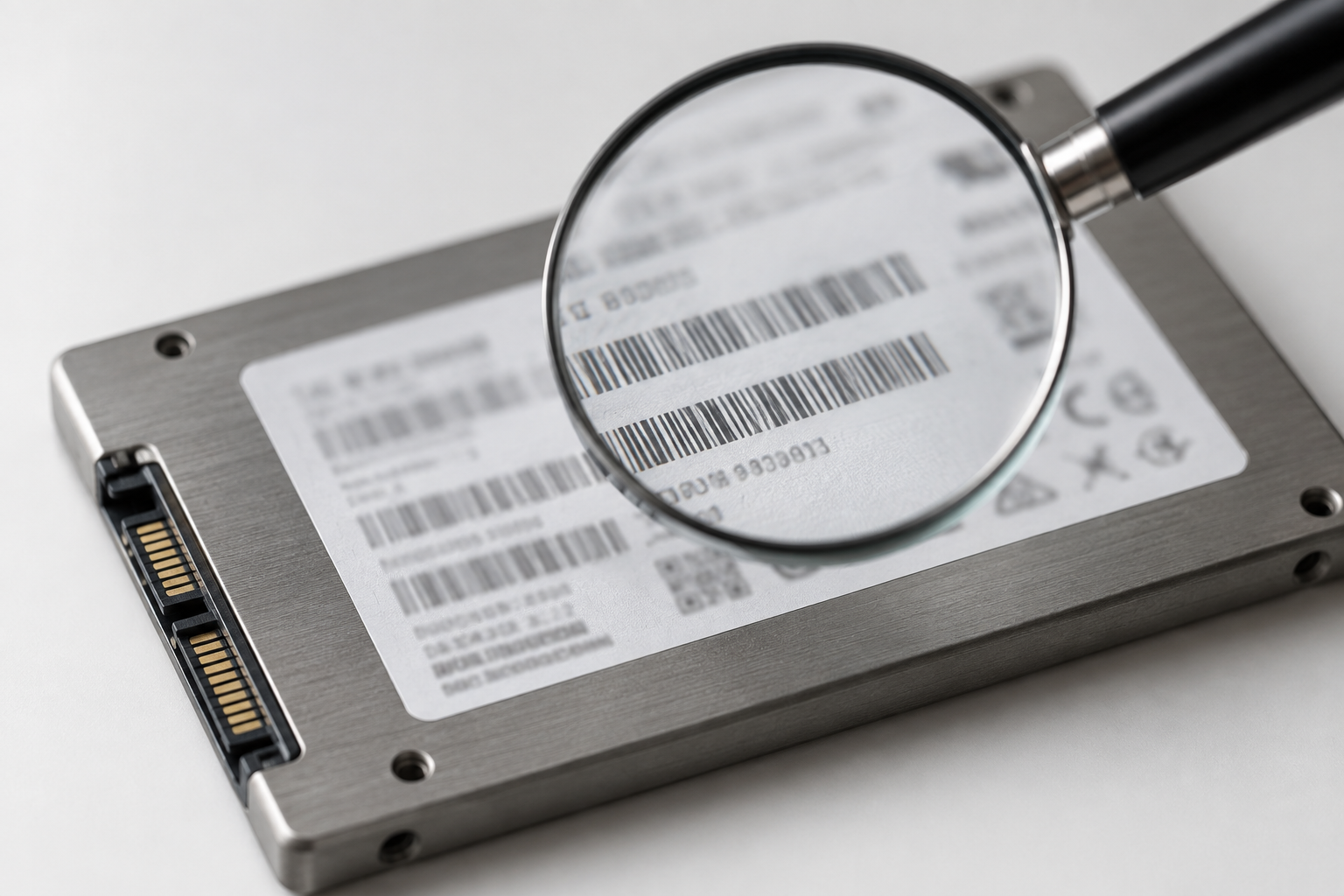
Every Western Digital SSD has a printed label somewhere on the drive that lists the serial number along with a few other identifiers. Where exactly you find it depends on the form factor.
- 2.5-inch SATA SSDs (like the WD Blue or WD Green): The label is on the top of the drive casing. You’ll need to remove the drive from your laptop or desktop to read it.
- M.2 NVMe SSDs (like the WD Black SN770 or SN850X): The serial number is printed directly on the chip itself, usually in small text near the model number. You’ll likely need a flashlight and maybe a magnifying app on your phone.
- External WD SSDs (like the My Passport SSD): Check the bottom or back of the enclosure. Some models also list it on the retail packaging.
If you don’t want to physically open your device, you can also pull the serial number through software. On Windows, open Command Prompt and type wmic diskdrive get serialnumber. On a Mac, use Western Digital’s SSD Dashboard software, which displays the serial number along with drive health stats.
If you’re not sure whether an NVMe drive is even the right choice for your build in the first place, it’s worth reading up on whether NVMe is really faster than standard SSDs before you go shopping for a replacement.
Serial Number vs. Model Number vs. Firmware Version
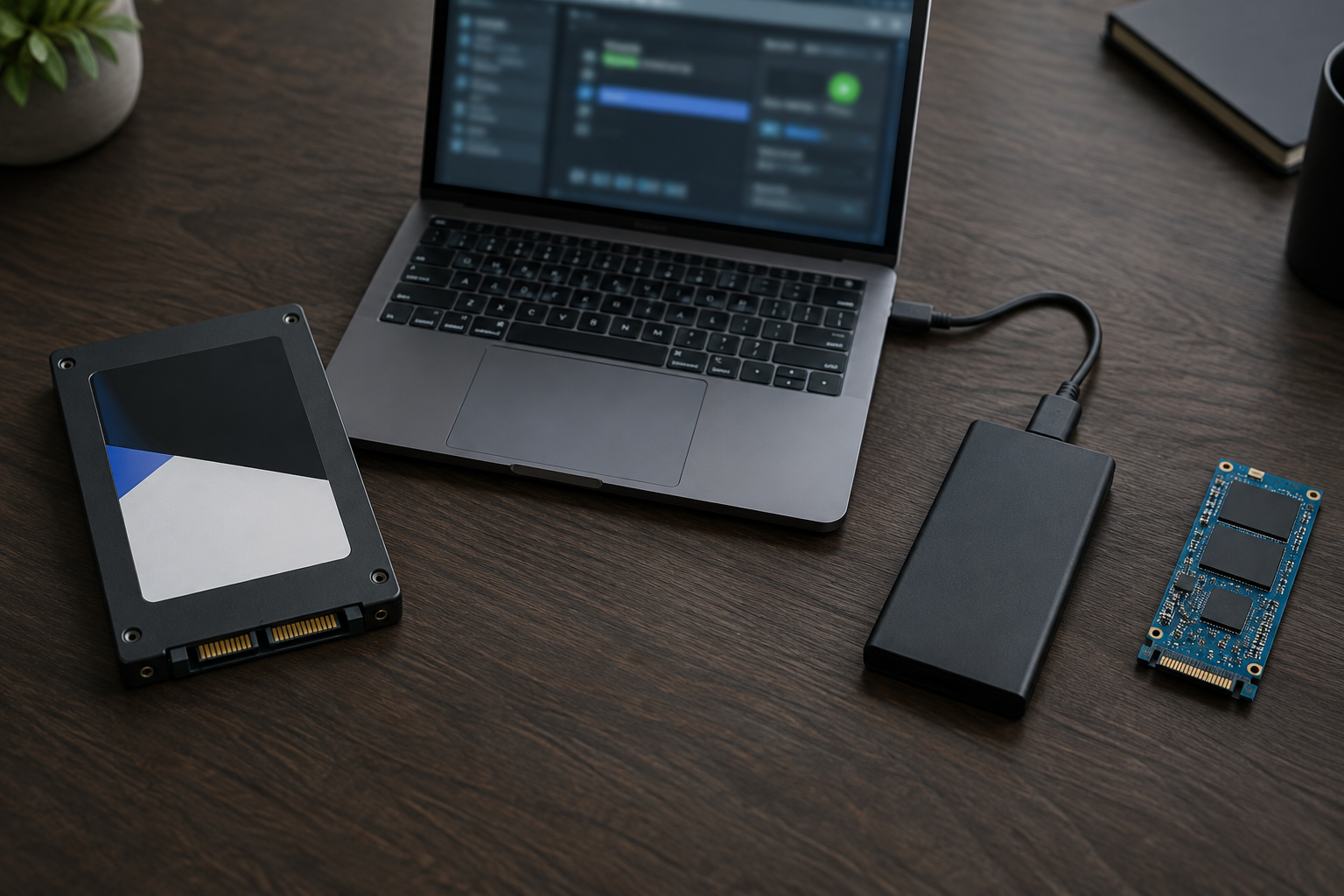
These three terms get mixed up constantly, and mixing them up is the number one reason people get stuck during a warranty check. Here’s the actual difference.
Serial number is a unique identifier assigned to that one specific drive. No two WD SSDs share the same serial number, which is exactly why WD uses it to look up your individual warranty status, purchase date, and RMA eligibility.
Model number identifies the product line and specs, something like WDS500G3B0A for a WD Blue SA510 500GB. Every drive of that same model shares this number. It tells WD what the drive is, but not which one you own.
Firmware version is the software running on the drive’s controller. It’s unrelated to warranty status but matters if you’re troubleshooting performance issues or checking compatibility. If you own a Samsung drive alongside a WD one, the process is similar in spirit, and our guide on upgrading Samsung SSD firmware covers that process step by step.
When you run a warranty check, WD’s tool will ask for the serial number, not the model number. Double check you’re reading the correct string off the label, since some drives print both numbers close together in similarly sized fonts.
How to Run an Official Warranty Check

Skip the third-party lookup sites. They can’t access WD’s actual purchase and registration database, so at best you get a generic answer based on manufacture date, and at worst you get an outright wrong one. Western Digital’s own support site is the only place that can give you an accurate answer.
- Go to the official Western Digital Support and Warranty Status page.
- Enter your drive’s serial number exactly as printed, without spaces or extra characters.
- Submit the form to see your warranty status, including the expiration date and whether the drive is still eligible for replacement.
- If the tool asks for proof of purchase, have your receipt or order confirmation ready, especially if you bought the drive from a third-party seller rather than directly from WD or an authorized retailer.
A few things affect what the tool tells you. Warranty length varies by product line, WD Black drives typically carry longer coverage than WD Green, for instance. Your region matters too, since WD’s warranty terms differ between countries. And if you bought the drive used or from an unauthorized reseller, the original warranty may not transfer to you at all, regardless of what the serial lookup shows.
If the warranty has already expired or the check shows the drive isn’t covered, it might be time to start planning a replacement rather than waiting for a failure. Our overview of how important an SSD really is for laptop performance is a good starting point if you’re weighing whether to upgrade now or wait it out.
Frequently Asked Questions
Can I check my WD SSD warranty without removing it from my computer?
Yes, in most cases. Use the software method instead of physically opening your device. On Windows, the Command Prompt trick mentioned earlier pulls the serial number without any disassembly. On Mac or Windows, WD’s SSD Dashboard software also displays it directly, along with drive temperature and health data, which is handy if you’re troubleshooting anyway.
Does buying a WD SSD from Amazon or a third-party seller affect my warranty?
It can, depending on who the actual seller is. If you bought directly from Western Digital’s Amazon storefront or another authorized retailer, your warranty is fully valid and tied to the serial number. If you bought from a third-party marketplace seller who isn’t an authorized WD partner, there’s a real risk the drive was gray-market, refurbished without disclosure, or has already had its warranty claimed once. Keep your order confirmation as proof of purchase either way, since WD may ask for it during an RMA request.

James Kennedy is a writer and product researcher at Drives Hero with a background in IT administration and consulting. He has hands-on experience with storage, networking, and system performance, and regularly improves and optimizes his home networking setup.