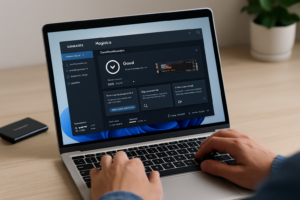
How to Update Samsung SSD Firmware
Samsung SSD firmware updates fix bugs, improve compatibility, and sometimes squeeze out better performance or reliability from your drive. Skipping them isn’t the end of the world, but running outdated firmware on a drive that’s throwing errors or acting slow is one of the first things to rule out before you assume the hardware is dying. Here’s how to check your version and update it safely without bricking the drive.
Before You Start: Prerequisites and Backups
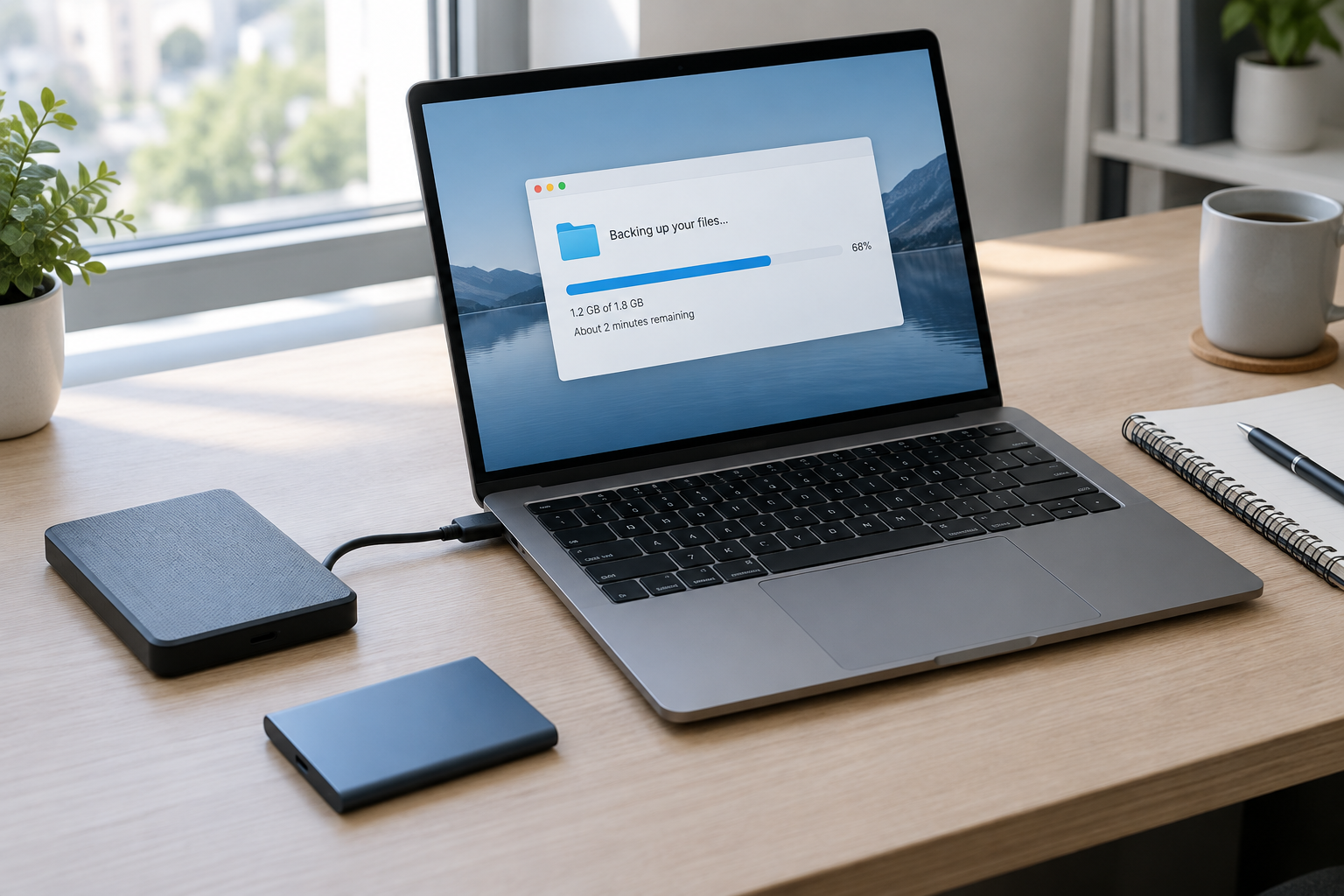
Firmware flashing rewrites the low-level code that controls how your SSD talks to the rest of your system. If something goes wrong mid-update, you can end up with a drive that’s no longer recognized at all. Treat this like any other risky maintenance task and prep accordingly.
- Back up your data first. Even though firmware updates rarely wipe drives, a failed flash can make a drive unreadable. Copy anything important to another drive or cloud storage before you touch Samsung Magician.
- Use a laptop plugged into wall power, or a desktop with a stable power supply. A dead battery or power outage mid-flash is one of the most common causes of a failed update.
- Close background programs that might be reading or writing to the drive, especially antivirus scans, backup software, or torrent clients.
- Connect the drive directly. Samsung’s tools are built around internal SATA and NVMe connections. Some external USB enclosures aren’t supported for firmware updates, so if your SSD is in a USB caddy, you may need to pull it and connect it internally, or temporarily install it in a desktop.
If you’re not sure how important your SSD’s health actually is to your system’s performance, it’s worth reading about how important an SSD really is in a laptop first. It puts the stakes of this maintenance step into perspective.
How to Update Samsung SSD Firmware Step by Step
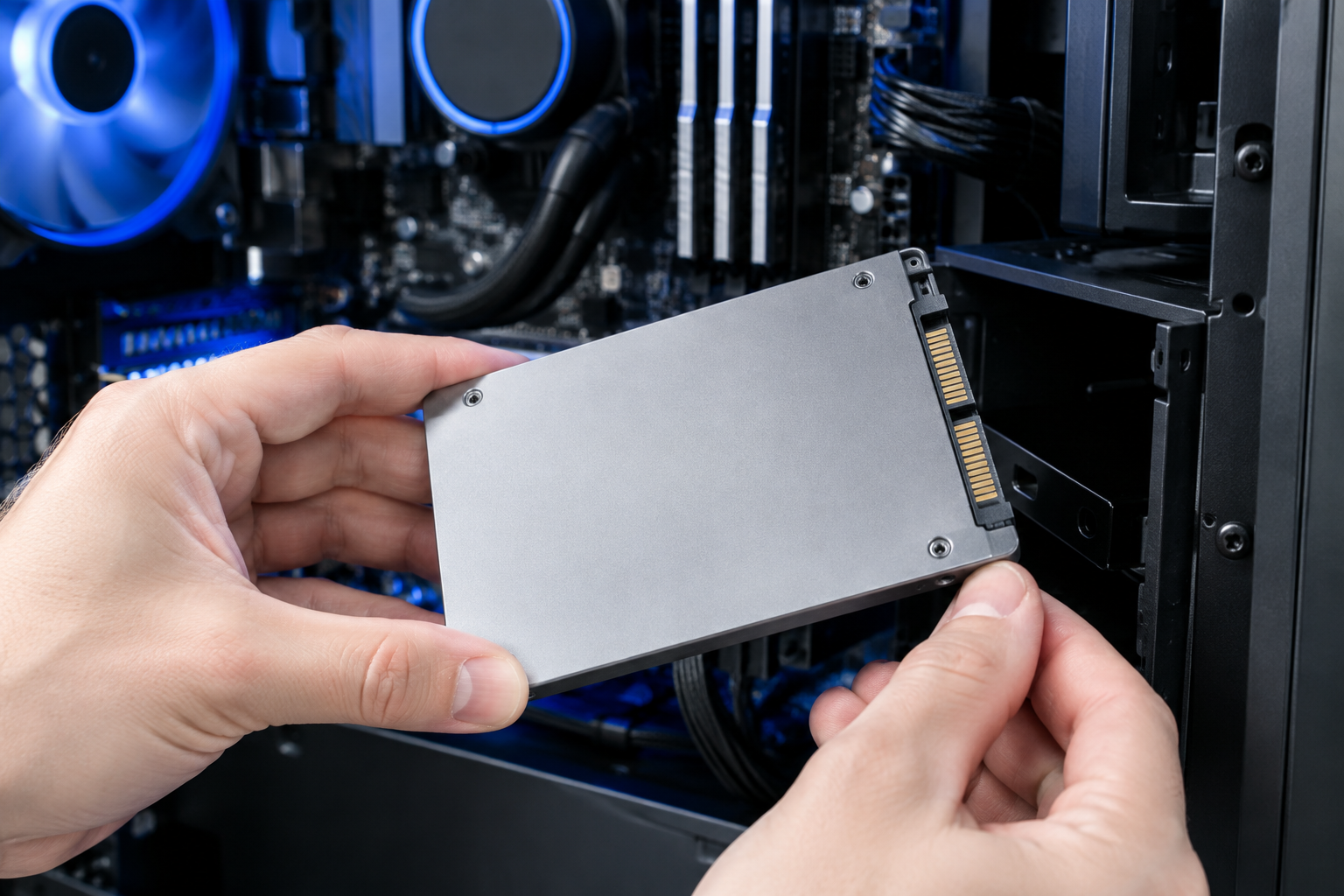
Samsung’s official tool for this is Samsung Magician, free to download from Samsung’s website. It works with most Samsung consumer SSDs, including the 850 EVO, 860 EVO/PRO, 870 EVO/QVO, and the 970/980/990 NVMe series.
- Download and install Samsung Magician from Samsung’s official support site. Don’t grab it from a third-party download mirror.
- Open the software and let it scan for connected Samsung drives.
- Check the “Firmware Update” section. If your drive supports an update, Magician will show your current version alongside the latest available version.
- Read the release notes for the update before installing. Sometimes a firmware revision addresses a specific issue that doesn’t apply to your usage, and other times it fixes something critical.
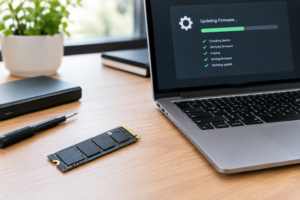
- Click Update and let it run uninterrupted. This usually takes a minute or two. Don’t open other disk-intensive programs while it’s working.
- Restart when prompted. Some Samsung firmware updates require a reboot to fully apply, especially on NVMe drives.
- Re-check the version number in Magician after reboot to confirm the update actually took.
If you’re running an older PC that doesn’t play nice with Magician’s GUI, Samsung also offers an ISO-based firmware update tool for some drive families that boots outside of Windows. That’s worth checking if Magician fails to detect your drive.
What to Do If the Drive Isn’t Detected
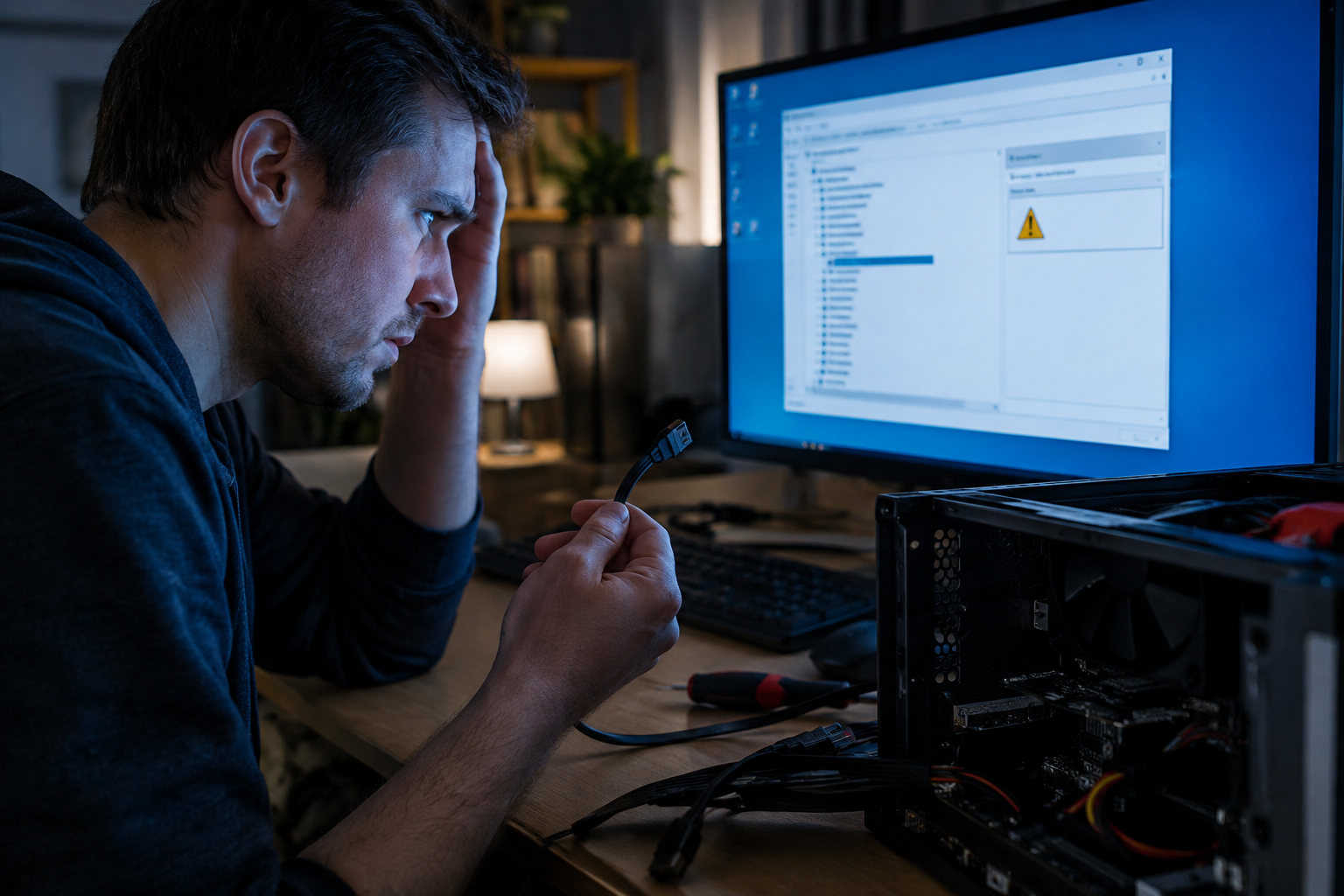
This happens more often than people expect, usually for one of a few reasons.
- USB enclosures often aren’t supported. If your SSD is external, connect it directly to a SATA or M.2 slot instead.
- RAID or unusual controller modes can hide the drive from Magician. Switch your BIOS storage mode to AHCI or NVMe standard mode temporarily if you’re using RAID.
- Outdated Magician versions sometimes don’t recognize newer drives. Make sure you’re running the latest release of the software itself, not just checking for drive firmware.
- Third-party or OEM drives rebranded as Samsung components (common in some prebuilt PCs) may not show up correctly. Check the exact model number printed on the drive label against Samsung’s supported list before assuming something’s broken.
If you’ve upgraded from a spinning hard drive recently and you’re troubleshooting general SSD behavior rather than firmware specifically, our guide on the benefits of upgrading HDD to SSD covers what normal performance should actually look like.
Two Rules That Matter More Than Anything Else
Never interrupt power during a firmware flash. Don’t close your laptop lid, don’t unplug the drive, and don’t let your system sleep or shut down mid-update. A power loss during flashing can corrupt the firmware and make the drive completely unusable, sometimes beyond repair.
Never use firmware built for a different model. Even drives that look nearly identical, like the 970 EVO versus the 970 EVO Plus, use different firmware files. Installing the wrong one can brick the drive instantly. Samsung Magician is designed to prevent this by only showing firmware matched to your detected drive, which is exactly why you should use the official tool instead of manually downloading firmware files from forums or third-party sites.
For a deeper walkthrough with more screenshots and specific model notes, check out our companion guide on how to upgrade Samsung SSD firmware.
Frequently Asked Questions
Do I need to update my Samsung SSD firmware if it’s already working fine?
Not necessarily. If your drive is stable, fast, and shows no errors in Magician’s health check, you can leave it alone. Firmware updates are mainly worth doing when you’re seeing performance drops, compatibility issues, or when Samsung specifically flags a fix for a known bug affecting your drive.
Can I update firmware on an NVMe SSD the same way as a SATA SSD?
Mostly yes. Samsung Magician handles both SATA and NVMe drives through the same interface, though NVMe updates are more likely to require a full system restart to complete. If you’re comparing NVMe and SATA performance in general, our breakdown of SATA vs NVMe SSD for gaming explains why the drive type matters beyond just firmware.

James Kennedy is a writer and product researcher at Drives Hero with a background in IT administration and consulting. He has hands-on experience with storage, networking, and system performance, and regularly improves and optimizes his home networking setup.