How to Update SK hynix SSD Firmware
Firmware updates rarely get the attention they deserve, but they can fix real problems: drives that randomly disconnect, slow write speeds after heavy use, compatibility issues with certain motherboards, or even data corruption bugs. SK hynix has released firmware updates for several of its consumer and OEM SSD lines over the years, and if your drive has been acting up or you just want to keep it running at its best, checking your firmware version takes only a few minutes.
This guide walks you through the entire process, from checking your current version to flashing new firmware safely, plus what to do if things don’t go as planned.
Before You Start: Prerequisites and Backups
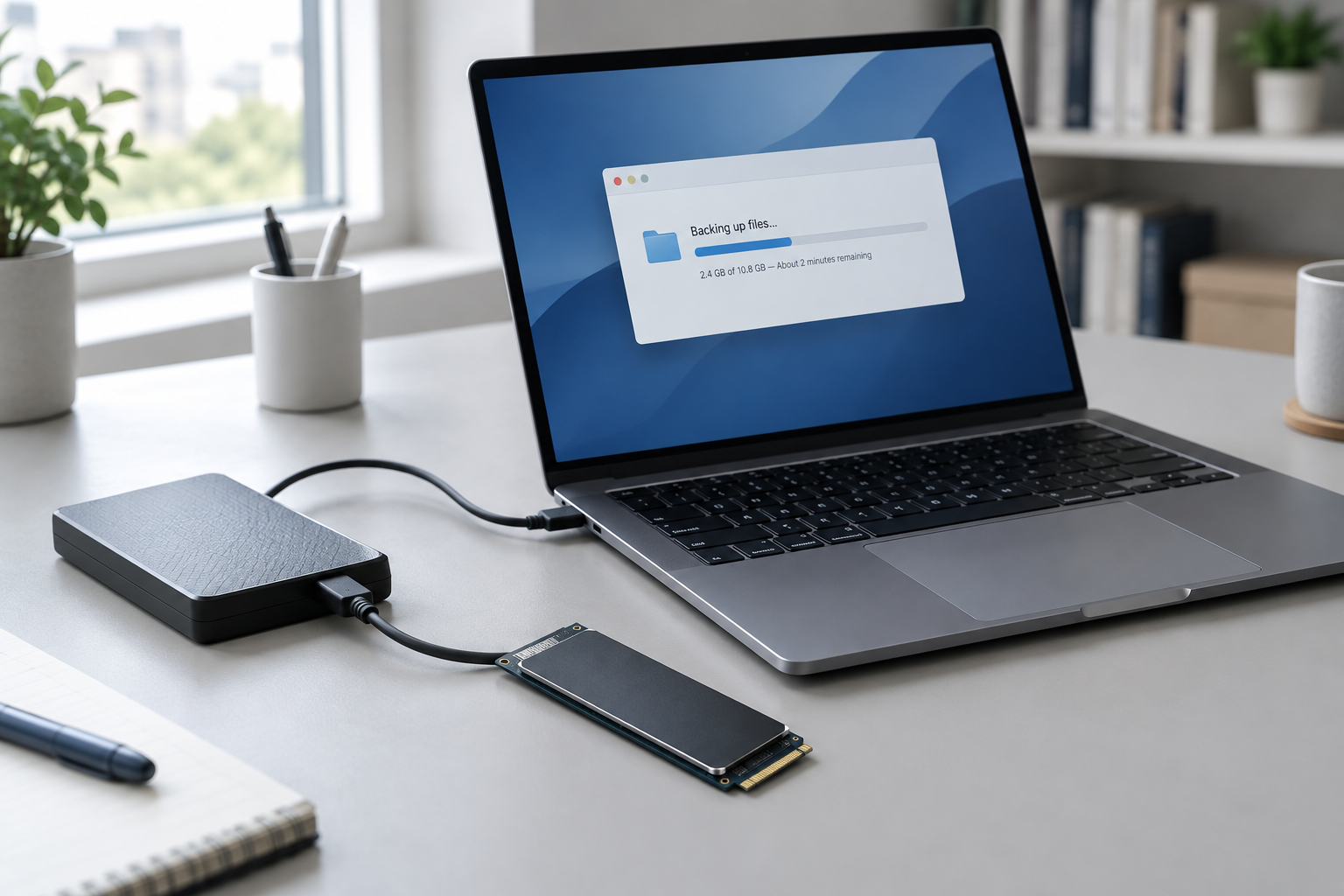
Firmware updates are low-level operations that rewrite the controller software on your drive. It’s a routine process when done correctly, but you still want to set yourself up for success rather than rushing in.
- Back up your data first. Even though firmware updates rarely cause data loss, the risk is never zero. Copy anything important to an external drive or cloud storage before you touch anything.
- Identify your exact model number. SK hynix sells several SSD families (including the Gold, Platinum, and BC series), and firmware built for one model will not work correctly on another, even within the same family.
- Check your current firmware version. You’ll need this to confirm whether an update actually applies to you.
- Make sure your laptop or desktop is plugged into a wall outlet. A dead battery mid-flash can corrupt the drive.
- Close other running applications. You want the system focused entirely on the drive during the update.
If you’re not entirely sure how critical your SSD is to your system’s overall performance, it’s worth reading up on how important an SSD really is in a laptop before you start messing with firmware. It gives good context for why keeping your drive healthy matters in the first place.
Checking Your Current Firmware Version

Before downloading anything, find out what firmware your SSD is currently running. On Windows, you can do this a couple of ways:
- Open Device Manager, expand Disk Drives, right-click your SK hynix SSD, and select Properties. The Details tab often shows hardware IDs that include firmware info.
- Alternatively, download and install the SK hynix SSD utility tool (sometimes distributed as “SK hynix Storage Manager” or a similarly named tool depending on your model). It reads the drive’s firmware version directly and is the most reliable method.
Once installed, the utility will display your model number, current firmware revision, drive health, and total bytes written. Compare that firmware revision against what’s listed on SK hynix’s official support page for your exact model. If they match, you’re already up to date and don’t need to do anything.
Supported Connection Types
How your drive is connected affects whether the update tool can even see it, so this step trips up more people than you’d expect.
Internal SATA and NVMe drives connected directly to your motherboard are the most reliable setup for firmware updates. The utility software can talk directly to the controller without anything in between.
External enclosures are a different story. Many USB-to-SATA or USB-to-NVMe bridge chips block the low-level commands firmware tools need to send, meaning the utility either won’t detect the drive at all or will detect it but refuse to update it. If your SSD is currently sitting in an external enclosure, your best bet is to temporarily install it inside a desktop or laptop for the update, then move it back afterward.
If you’re running the SSD as your boot drive, make sure Windows is fully updated and that no other disk utility (like a cloning tool or antivirus with disk-level scanning) is running in the background during the flash.
Step-by-Step: Updating the Firmware
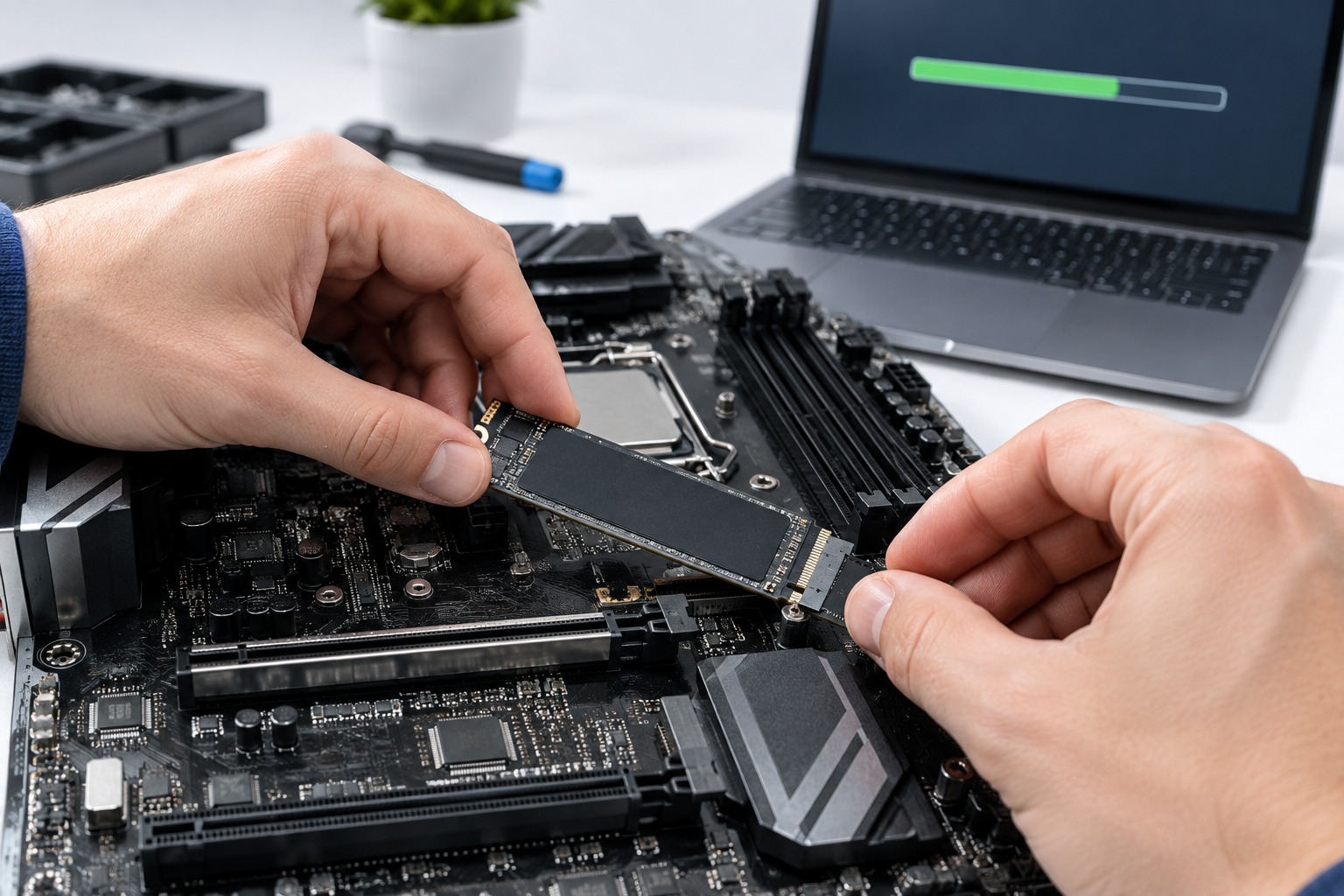
Once you’ve confirmed your model, checked your current version, and backed up your data, here’s the actual update process:
- Download the correct firmware package from SK hynix’s official support site. Double-check the model number and capacity match your drive exactly. Never use firmware built for a different model, even if it looks similar or is from the same product line.
- Run the SK hynix utility and let it scan for connected drives. Your SSD should appear with its current firmware version listed.
- Select the update option within the tool and point it to the downloaded firmware file, or let the tool pull the update automatically if it has that feature.
- Confirm the update when prompted. The tool will usually show a warning about not interrupting the process, take it seriously.
- Wait for the flash to complete. This typically takes anywhere from a few seconds to a couple of minutes. Don’t touch your keyboard, don’t close the laptop lid, and don’t put the system to sleep.
- Restart your computer once the tool confirms the update finished successfully.
- Re-check the firmware version after reboot to confirm it updated correctly.
Never disconnect power, unplug a cable, or shut down your system while a firmware flash is in progress. Doing so can corrupt the controller and turn your SSD into an expensive paperweight. If you’re on a laptop, keep it plugged in the entire time, even if the battery shows a full charge.
What to Do If the Drive Isn’t Detected
If the utility doesn’t see your SSD at all, don’t panic and don’t start reinstalling drivers randomly. Work through this list instead:
- Check the connection type. As mentioned above, external enclosures are the most common culprit. Try connecting the drive internally via SATA or NVMe if possible.
- Update your chipset drivers. Outdated motherboard chipset drivers can prevent Windows from properly reporting the drive to third-party software.
- Try a different cable or port. A worn SATA cable or a flaky USB port can cause detection failures that have nothing to do with the drive itself.
- Restart the utility as administrator. Firmware tools often need elevated permissions to send low-level commands to storage controllers.
- Check BIOS/UEFI settings. Make sure the SATA mode is set correctly (AHCI rather than IDE, for example) and that the drive shows up in the BIOS boot list.
If none of that works, reach out to SK hynix support directly with your model number and a description of what you’ve already tried. Trying to force a firmware update on a drive the software can’t properly identify is a good way to end up with a bricked SSD.
FAQ
Will updating firmware erase my data?
In the vast majority of cases, no. Firmware updates target the controller, not the stored data. That said, backing up first is still smart because interrupted updates or unexpected errors are the scenarios where data loss actually happens.
How often does SK hynix release firmware updates?
There’s no fixed schedule. Updates come out when SK hynix identifies a bug, security issue, or performance improvement worth pushing to end users. Some models go years without an update, while others get patched more frequently after launch as issues get reported.
Can I use firmware meant for a similar SK hynix model?
No. Firmware is built specifically for each model’s controller, NAND configuration, and capacity. Installing firmware meant for a different model, even one that seems nearly identical, can corrupt the drive completely and isn’t covered under warranty.
Keeping your SSD’s firmware current is a small maintenance task that can prevent bigger headaches down the road, especially if you’re relying on that drive for a boot system or important files. And if you’re already thinking about your storage setup more broadly, it might be worth comparing options like NVMe versus other SSD types or checking out the benefits of upgrading from HDD to SSD if you’re still running older storage hardware alongside your SK hynix drive.

James Kennedy is a writer and product researcher at Drives Hero with a background in IT administration and consulting. He has hands-on experience with storage, networking, and system performance, and regularly improves and optimizes his home networking setup.