How to Update Western Digital SSD Firmware
Firmware updates for your Western Digital SSD are not the most exciting thing you’ll do to your PC this year, but they can fix real problems: random freezes, drives that drop out of RAID arrays, incorrect temperature readings, and even performance dips that make your fast NVMe drive feel sluggish. If you’ve been putting off checking your drive’s firmware version, this guide walks you through the process safely, from start to finish.
Before You Start: Prerequisites and Backups
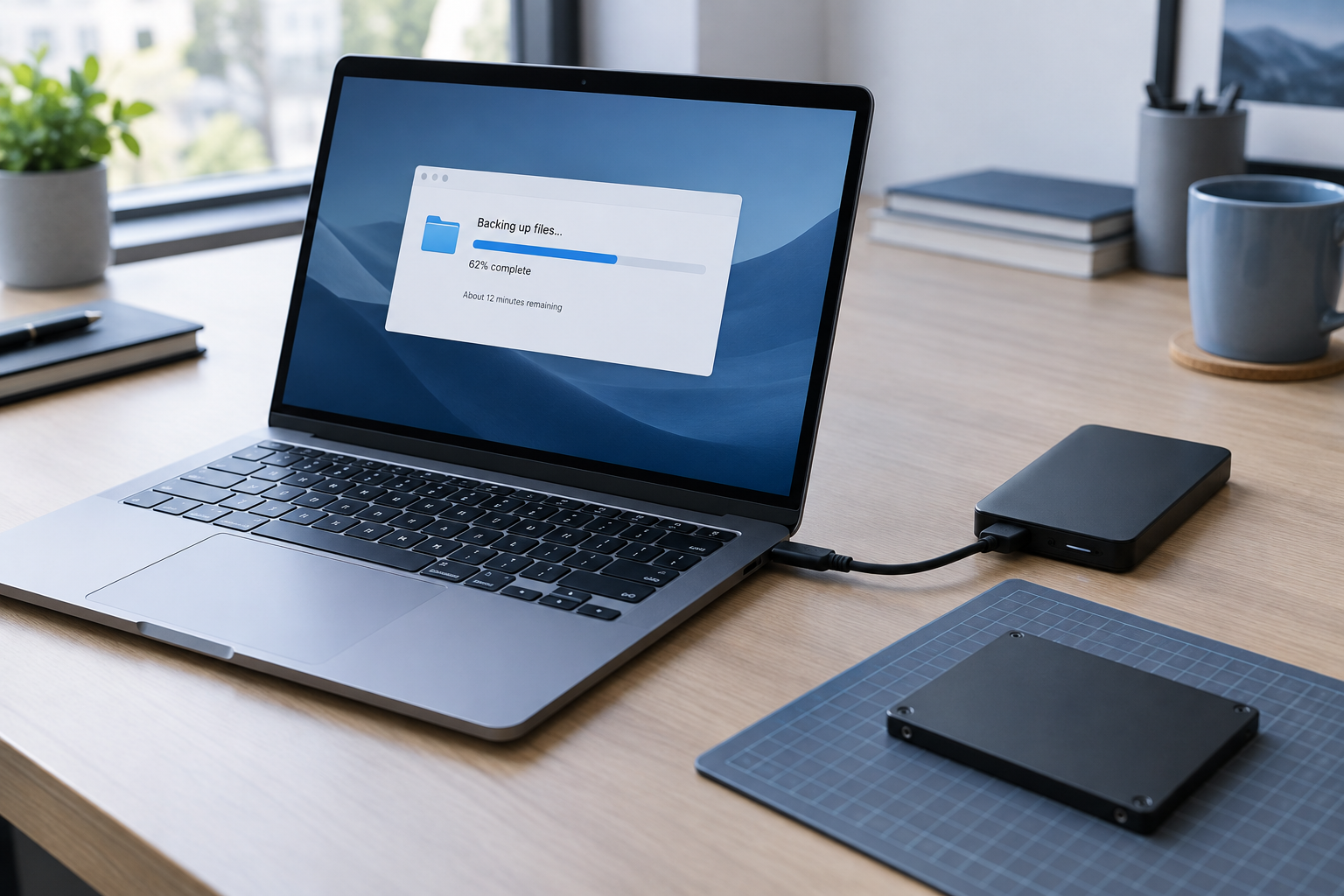
Firmware flashing rewrites the low-level software that controls how your SSD talks to your computer. It’s a routine process, but it’s not one you want to interrupt or rush through without preparation.
- Back up your data first. While firmware updates rarely cause data loss, it’s not impossible, especially on older or already-failing drives. Copy anything important to another drive or cloud storage before you touch anything.
- Confirm your exact model number. WD sells multiple SSD families (WD Blue, WD Black, WD Green) and within each line there are several generations. Check the label on the drive itself or use a tool like CrystalDiskInfo to pull the exact model string.
- Make sure your laptop is plugged in. If you’re updating a drive in a laptop, plug in the charger. A dead battery mid-flash is one of the few ways this process can actually go wrong.
- Close background software. Antivirus scans, backup jobs, and disk cleanup tools running in the background can interfere with the update utility accessing the drive.
If you’re not sure your SSD is even worth this kind of attention, it helps to understand just how important your SSD is to overall laptop performance in the first place. Firmware issues on a critical boot drive are worth fixing promptly.
Downloading the Western Digital Dashboard
WD’s official tool for this job is the Western Digital Dashboard (sometimes still called WD SSD Dashboard on older downloads). It’s free, and it’s the only method WD officially supports for consumer drives.
- Go to the official Western Digital Support / Downloads page and search for “Dashboard.”
- Download the version matching your operating system (Windows is the primary supported OS; some tools have limited Mac support).
- Install the Dashboard and launch it with administrator privileges.
Do not download the Dashboard or firmware files from third-party mirror sites. Firmware is one of the few areas of computing where a file from an untrusted source can genuinely damage your hardware, so stick to WD’s own domain.
Checking Your Current Firmware Version
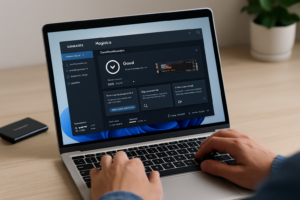
Once the Dashboard is open, it should automatically detect any WD SSD connected to your system, whether it’s installed internally or connected via a USB enclosure. Click on the drive to see its details, including model number, serial number, and current firmware version.
The Dashboard checks WD’s servers to see if a newer firmware version is available for your specific model. If your drive shows “up to date,” you’re done, no action needed. If an update is listed, the Dashboard will show release notes describing what the new firmware fixes or improves.
Read those release notes. Sometimes an update addresses a specific bug that doesn’t affect your use case, and other times it’s a critical fix for stability or data integrity that you’ll want to install right away.
Supported Connection Types
Firmware updates generally work over these connections:
- SATA (internal): The most reliable connection type for flashing, since power delivery is consistent and direct.
- NVMe / M.2 (internal, PCIe): Fully supported on drives like the WD Black SN770 and SN850X, and generally just as reliable as SATA.
- USB (external enclosures): Supported on many drives, but less reliable. Some enclosures don’t pass through the SMART and firmware commands needed for the Dashboard to communicate properly with the drive.
If you’re working with an NVMe drive and want to understand how it differs from other storage types before you go further, our breakdown of NVMe SSDs versus Intel SSDs and this look at what NVMe SSDs are actually used for are both good background reading. And if you’re comparing WD’s own NVMe lineup, our SN770 vs SN850X specs comparison covers the firmware and performance differences between those two popular models.
If you’re flashing a drive over USB and the Dashboard can’t complete the update or throws communication errors, remove the drive from the enclosure and connect it directly via SATA or M.2 if at all possible. This isn’t a workaround, it’s genuinely the more dependable path for a clean flash.
Running the Firmware Update

Once you’ve confirmed an update is available and read the release notes, here’s how to apply it:
- Close all other applications, especially anything reading or writing to the target drive.
- In the Dashboard, select the drive and click the firmware update option.
- Confirm the model and firmware version shown match your drive exactly before proceeding.
- Let the update run without touching your keyboard, mouse, or power button.
- Wait for the confirmation message that the update completed successfully.
- Restart your computer when prompted.
The actual flash usually takes anywhere from a few seconds to a couple of minutes. It might feel anticlimactic given how important the process is, but that’s normal. The drive briefly goes into a non-responsive state while the new firmware is written, then it reboots itself internally.
Never power off your computer, unplug the drive, or put your laptop to sleep during a firmware flash. Interrupting this process can corrupt the drive’s firmware and make it unreadable by your system, sometimes permanently.
This warning applies to any SSD brand, not just WD. If you’ve upgraded a Samsung drive before, you may have seen similar cautions in our guide on how to upgrade Samsung SSD firmware, and the same logic applies here regardless of manufacturer.
Using the Wrong Firmware File
One mistake that causes real damage is installing firmware meant for a different drive model. WD’s Dashboard is generally good about only offering firmware matched to the connected drive, which is one reason to use it instead of manually downloading standalone firmware files.
If you ever do encounter a standalone firmware package (sometimes provided for enterprise or OEM drives), double and triple check the exact model number and revision before applying it. Firmware built for one WD SSD model will not work correctly on another, even within the same product family, and forcing an incompatible file onto a drive can leave it completely unresponsive.
If Your Drive Isn’t Detected
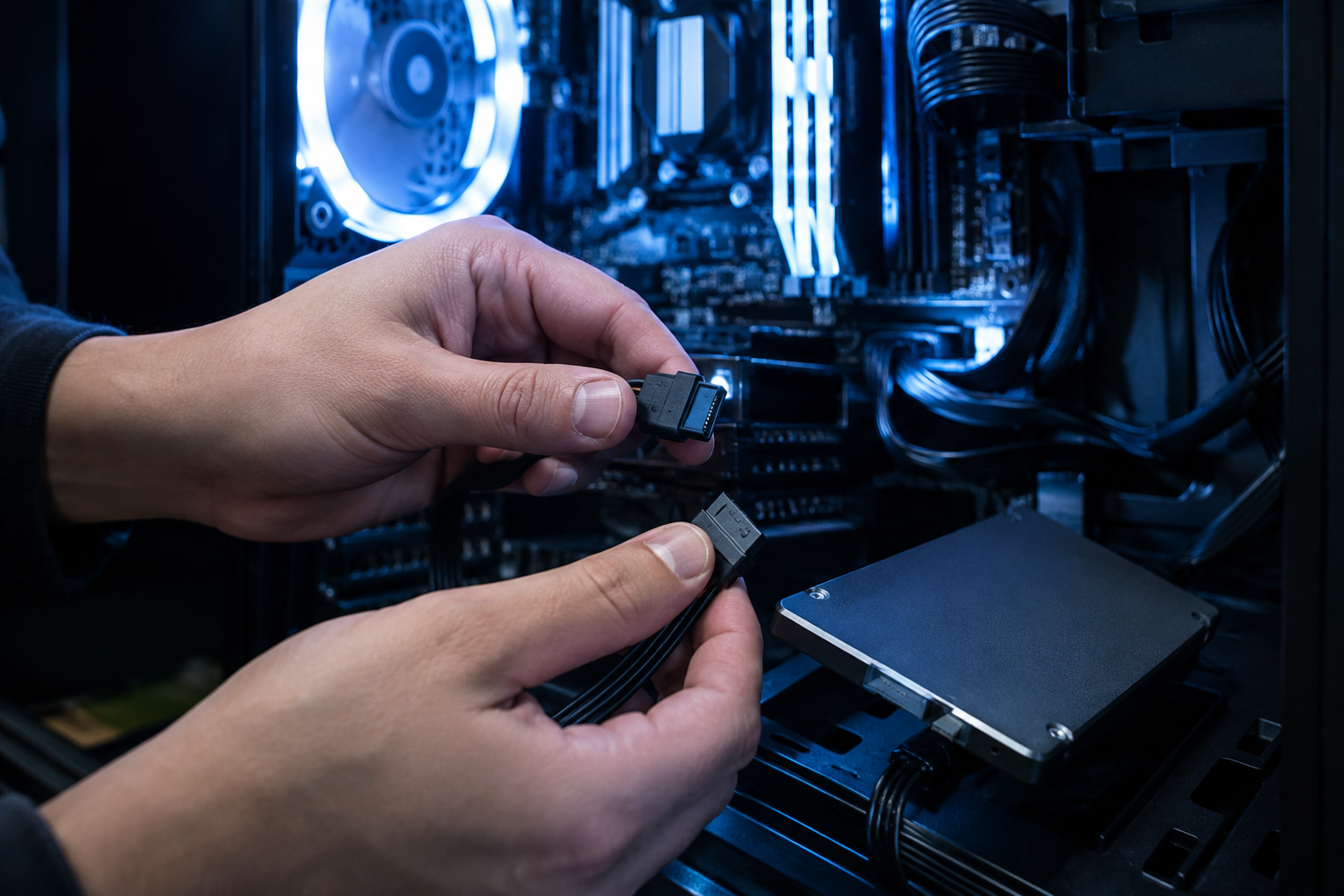
If the Dashboard doesn’t see your SSD, work through these steps in order:
- Try a different SATA or USB cable/port. Bad cables are a surprisingly common cause of detection failures.
- Check Device Manager (Windows) to confirm the operating system sees the drive at all, even if the Dashboard doesn’t.
- If it’s an external drive, test it in a different enclosure or with a different USB controller. Some cheap enclosures block the pass-through commands firmware tools need.
- Update your motherboard’s chipset or NVMe drivers, particularly on older systems.
- Reboot and try again after closing any disk management or backup software running in the background.
If none of that works, the drive may not be officially supported by the Dashboard, which happens with some older or OEM-only WD models. In that case, check WD’s support site for a model-specific tool or contact their support team directly rather than trying to force a generic update through.
FAQ
Do I need to update my WD SSD firmware if it’s working fine?
Not necessarily. If your drive is stable, cool, and performing as expected, there’s no strict requirement to update. Many users check periodically anyway, since some firmware releases fix issues you might not notice yet, like inaccurate wear-leveling data or minor compatibility quirks with certain motherboards.
Can a firmware update improve my SSD’s speed?
Sometimes, yes. Firmware updates occasionally include controller-level optimizations that improve sustained write speeds or fix thermal throttling behavior. Don’t expect dramatic gains, though. If you’re chasing real speed improvements, the difference between SATA and NVMe SSDs for gaming will matter far more than any firmware tweak.
What happens if the firmware update fails halfway through?
Most modern SSDs, including WD’s, have safeguards that keep a backup copy of the previous firmware until the new one is fully verified. A failed update usually just means you’ll need to retry it. Power loss during the actual write phase is the real danger, which is why staying plugged in and avoiding interruptions matters so much.

James Kennedy is a writer and product researcher at Drives Hero with a background in IT administration and consulting. He has hands-on experience with storage, networking, and system performance, and regularly improves and optimizes his home networking setup.