How to Update Sabrent SSD Firmware
Firmware updates on Sabrent SSDs are one of those maintenance tasks people put off until something goes wrong. But if you’re seeing odd performance drops, compatibility issues with your motherboard, or Sabrent has flagged a known bug fix for your drive model, updating the firmware can solve problems that no amount of driver reinstalling ever will. This guide walks you through the process safely, from checking your current version to flashing the update without bricking your drive.
Before You Start: Prerequisites and Backups

Firmware flashing rewrites the low level software that controls how your SSD manages data, wear leveling, and communication with your system. If the process gets interrupted or the wrong file gets used, the drive can become unreadable. This isn’t a step to rush.
Back up everything on the drive before you touch the firmware utility. Even though most updates complete without incident, a failed flash can wipe or corrupt the drive entirely, and Sabrent’s warranty won’t cover data loss. Copy your files to another drive or cloud storage first, no exceptions.
- Confirm your exact Sabrent SSD model number (check the label on the drive or in your system’s disk management tool).
- Make sure your laptop is plugged into power, or your desktop is on a stable power source, not a UPS that might glitch mid-flash.
- Close any background applications that might access the drive during the update.
- Download the firmware file only from Sabrent’s official support page for your specific model.
If you’re not sure how much your SSD matters to your system’s overall speed and reliability, it’s worth reading up on how important an SSD is in a laptop before you start messing with firmware on your main drive.
Checking Your Current Firmware Version
Sabrent doesn’t have one universal utility that covers every SSD in its lineup, unlike Samsung or WD, which maintain dedicated software for their consumer drives. For most Sabrent SSDs, especially the Rocket series, the manufacturer directs users to a third party tool bundled with the controller vendor’s software (often based on the SSD’s controller chip, such as Phison or SMI).
To check your current firmware version:
- Open Windows Disk Management, or use a tool like CrystalDiskInfo, to view the drive’s details.
- Note the exact firmware version string listed next to your drive model.
- Compare it against the latest version listed on Sabrent’s support page or the release notes packaged with the firmware download.
If the versions match, you’re already up to date and don’t need to do anything else. If you’re several versions behind, check the release notes for each intermediate version. Some updates need to be applied sequentially rather than jumping straight to the newest one.
Downloading and Running the Firmware Utility
Go to Sabrent’s official website and find the support or downloads section for your exact model number. This part matters more than people realize: firmware built for one Sabrent drive, even one that looks nearly identical, can permanently damage a different model if you try to flash it there.
Once you’ve confirmed the file matches your drive:
- Extract the firmware package to a folder you can easily find.
- Run the utility as an administrator (right click, “Run as administrator” on Windows).
- Select your Sabrent SSD from the list of detected drives in the utility. If more than one drive shows up, double check you’re selecting the correct one.
- Follow the on screen prompts to begin the update.
The flash itself usually takes anywhere from a few seconds to a couple of minutes. During this window, do not shut down your computer, unplug the drive, or let your laptop go to sleep. Interrupting power during a firmware flash is the single most common cause of a bricked SSD, and there’s often no way to recover from it without specialized (and expensive) data recovery tools.
Supported Connection Types
Firmware updates generally need to run with the SSD connected directly, either as an internal NVMe or SATA drive installed in a desktop or laptop, or through a compatible SATA/NVMe to USB enclosure that supports pass-through commands. Not every USB enclosure allows this. Some external adapters block the low level commands firmware utilities rely on, which is why the update might fail silently or the drive won’t even show up in the tool.
If you’re running the Sabrent SSD as a boot drive, updating firmware while the OS is running from that same drive is usually fine for Sabrent’s tools, but check the specific instructions for your model since some require booting from a secondary drive or USB installer instead.
What to Do If the Drive Isn’t Detected
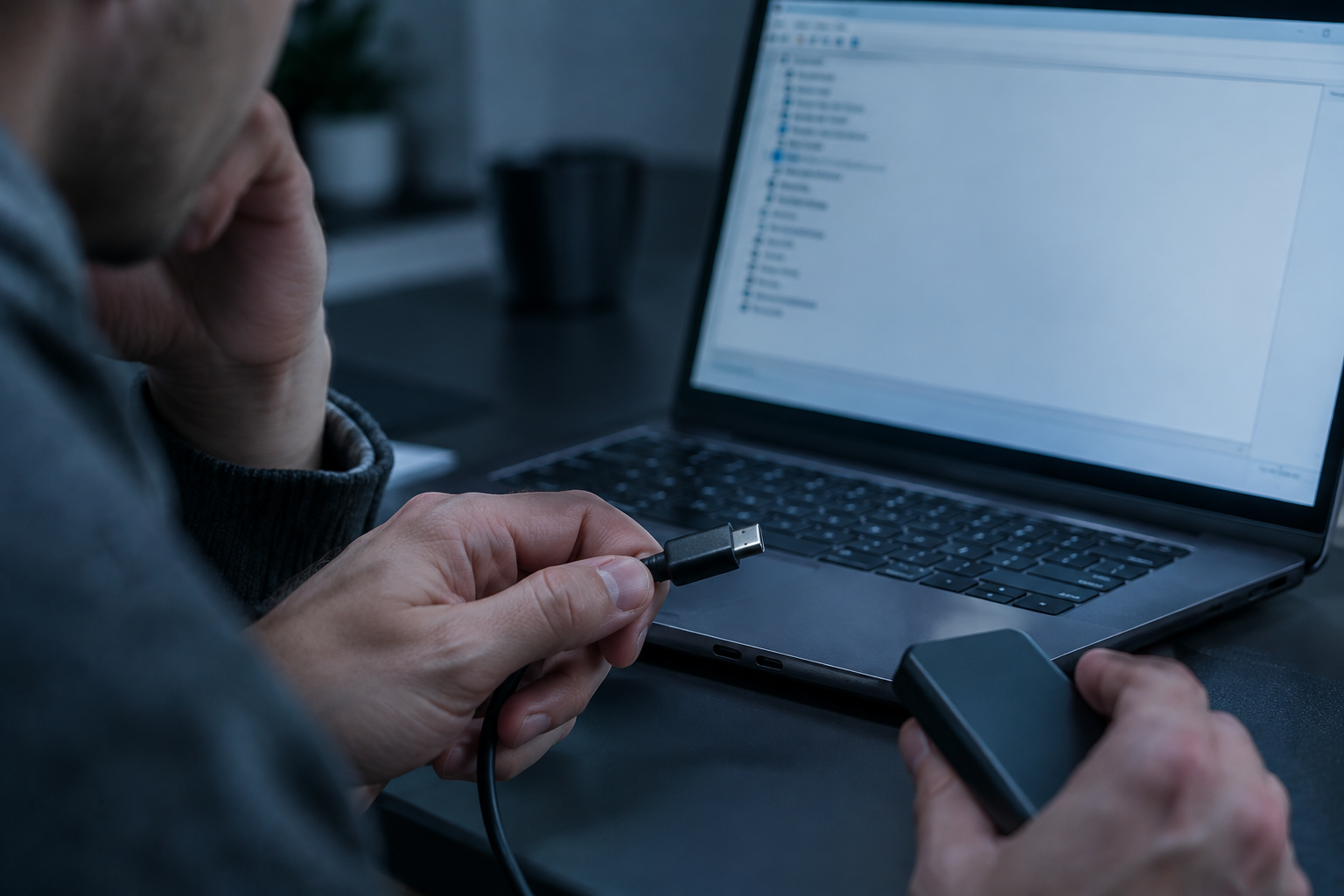
This is the most common snag people hit. A few things to check:
- Connection type: If you’re using an external enclosure, try connecting the drive internally via SATA or M.2 instead. Many firmware utilities can’t see drives through USB bridge chips.
- Cable and port: Swap the SATA cable or try a different M.2 slot on your motherboard. A loose connection can prevent detection even though the drive works fine for normal use.
- Utility permissions: Make sure you launched the tool as an administrator. Without elevated permissions, some utilities can’t communicate with the drive controller.
- Driver conflicts: Third party NVMe drivers sometimes interfere with firmware tools. Try switching to the generic Microsoft NVMe driver temporarily if the manufacturer’s tool won’t recognize the drive.
- BIOS settings: Confirm your motherboard’s SATA mode is set to AHCI, not RAID, since RAID mode can hide drives from firmware utilities entirely.
If none of that works, reach out to Sabrent support directly with your drive’s model and serial number. Don’t try workarounds involving third party flashing tools meant for other brands. If you’re comparing how Sabrent’s NVMe drives stack up against other SSD types in general, this piece on NVMe SSD vs Intel SSD gives some useful context on performance differences between controller types.
After the Update
Once the flash finishes, the drive will typically need a reboot before it’s usable again. After restarting, go back into your disk information tool and confirm the firmware version now matches the one you downloaded.
Run a quick health check with CrystalDiskInfo or Sabrent’s utility to make sure everything reports normal status. If you’re planning any bigger storage moves after this, like swapping in a larger drive down the line, it’s worth reading through how to upgrade to a larger SSD for tips that apply well beyond just Sabrent hardware.
Frequently Asked Questions
Will updating firmware erase data on my Sabrent SSD?
Typically no, firmware updates don’t touch your stored files. But because there’s always a small risk of something going wrong mid-flash, you should back up your data beforehand anyway. Treat every firmware update like there’s a chance of data loss, even though it’s rare.
Can I update firmware on a Sabrent SSD used as an external drive?
It depends on the enclosure. Many USB to SATA or USB to NVMe adapters block the direct commands firmware tools need, so the utility won’t detect the drive. If you’re stuck, try connecting the SSD internally, even temporarily, to complete the update.
What happens if the power goes out during a firmware flash?
This is one of the few situations that can turn a healthy SSD into a paperweight. An interrupted flash can corrupt the controller firmware entirely, and in most cases the drive becomes unrecoverable without professional data recovery services. Always update on a desktop plugged into a stable outlet or a laptop with a full, plugged-in battery.

James Kennedy is a writer and product researcher at Drives Hero with a background in IT administration and consulting. He has hands-on experience with storage, networking, and system performance, and regularly improves and optimizes his home networking setup.