How to Upgrade Samsung Ssd Firmware? 9 Steps!
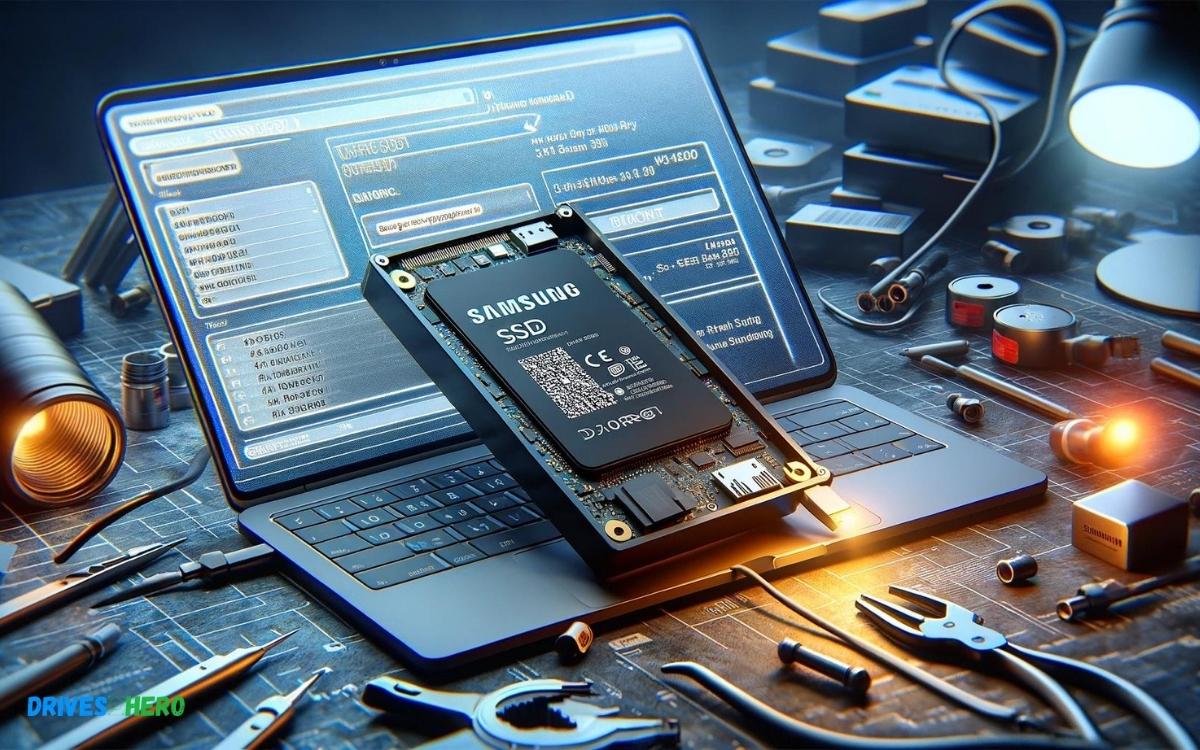
Upgrading the firmware is a key step in achieving this goal. We’ll walk you through the step-by-step process of upgrading the firmware on your Samsung SSD using the Samsung Magician software.
With this simple yet essential maintenance task, you can ensure that your SSD operates at its peak performance and remains compatible with the latest technologies.
Key Takeaway
Upgrading Samsung SSD Firmware: Step-by-Step
Step 1: Preparation
- Backup Important Data: Before proceeding with the firmware upgrade, ensure all critical data on the SSD is backed up to prevent loss in case of unexpected issues.
Step 2: Identify Your SSD Model
- Check SSD Model: Identify the specific model of your Samsung SSD. This information can typically be found on the SSD itself or in your computer’s device manager.
Step 3: Download Samsung Magician Software
- Visit Samsung’s Website: Go to Samsung’s official website.
- Download Samsung Magician Software: Locate and download the Samsung Magician software, which is used for managing and updating Samsung SSDs.
Step 4: Install Samsung Magician Software
- Run Installation: After downloading, run the Samsung Magician installer.
- Follow On-screen Instructions: Proceed with the installation by following the on-screen prompts. Once installed, launch the Samsung Magician software.
Step 5: Check for Firmware Update
- Open Samsung Magician: Launch the Samsung Magician software on your computer.
- Check for Firmware Update: Within the software, navigate to the section that allows you to check for firmware updates for your SSD.
Step 6: Firmware Update Process
- Follow On-screen Instructions: If a firmware update is available, follow the on-screen instructions provided by the Samsung Magician software to initiate the update process.
- Do Not Interrupt: During the firmware update process, ensure that your computer remains powered on and that the SSD remains connected. Do not interrupt the update process.
Step 7: Reboot Your System
- Restart Your Computer: Once the firmware update process is complete, restart your computer to apply the changes.
Step 8: Verify Firmware Update
- Open Samsung Magician: After rebooting your system, reopen the Samsung Magician software.
- Verify Firmware Version: Check the firmware version of your SSD within the Samsung Magician software to confirm that the update was successful.
Step 9: Restore Data and Settings
- Restore Data: If necessary, restore any backed-up data to your Samsung SSD.
- Reapply Settings: Reapply any custom settings or configurations that were previously applied to the SSD.
By following the simple steps outlined in this guide, you can ensure that your SSD is running the latest firmware, potentially enhancing its performance and reliability.
Remember to regularly check for firmware updates to keep your SSD optimized and operating at its best.
Introduction To SSD Firmware
Upgrading the firmware on a Samsung Solid State Drive (SSD) is akin to giving the device a mini-overhaul. It’s the software embedded into the heart of your SSD, influencing everything from its performance to reliability.
What Is Ssd Firmware?
SSD firmware is the low-level software that resides on your Samsung SSD. Contrary to popular belief, it does much more than simply act as an interface to your data.
Firmware is the mastermind behind several critical functions such as garbage collection, wear leveling, and error correction.
Think of SSD firmware as the unseen conductor orchestrating each read-and-write operation with precision and efficiency.
Importance Of Keeping Firmware Updated
Understanding the importance of maintaining the latest firmware is crucial.
A firmware update can offer a multitude of benefits:
- Performance Enhancements: New firmware versions may include tweaks that boost speed and operation efficiency.
- Stability Improvements: Updates often rectify known issues, preventing crashes and data loss.
- Compatibility: As technology evolves, updated firmware ensures your SSD maintains compatibility with new operating systems and hardware.
- Security: Firmware updates can patch vulnerabilities, shielding your data from potential threats.
Staying on top of firmware updates is not just about getting the most out of your SSD; it’s also about safeguarding your digital content.
Hence, regularly updating your Samsung SSD firmware is considered a best practice in managing your device’s health and performance.
Pre-upgrade Preparations
Embarking on an SSD firmware upgrade can significantly bolster your Samsung SSD’s performance and reliability. But before you commence this vital maintenance task, it’s essential to navigate the necessary preliminary steps with precision.
These preparatory actions are crucial to ensure a successful and smooth firmware upgrade process for your Samsung SSD.
Identifying Your Samsung Ssd Model
The first step in the preparation process is to determine the exact model of your Samsung SSD. This information is critical because firmware updates are designed for specific models and using the wrong firmware can lead to potential complications.
To find your SSD model, you can usually check the label on the SSD itself or use Samsung’s Magician software, which offers detailed information about your drive.
Backing Up Your Data
Before proceeding with a firmware update, safeguarding your data is imperative. Backing up your files mitigates the risk of data loss that, albeit rare during firmware updates, could be devastating.
You can use external storage devices, cloud services, or backup software to secure your precious data. Once the backup is complete, you can move forward with peace of mind knowing your data is safe.
Checking Current Firmware Version
Understanding your current firmware version can help you determine whether an update is necessary. This step can be quickly accomplished through the Samsung Magician software, where the firmware version is displayed.
If the version on your drive matches the latest available on Samsung’s official support page, no update is needed. Otherwise, you are one step closer to enhancing your SSD’s performance by proceeding with the firmware upgrade.
Ensuring A Stable Power Supply
A constant power supply during the firmware upgrade is non-negotiable for the integrity of your SSD. Any interruption could potentially corrupt the drive and lead to data loss.
Therefore, if you’re using a desktop, plugging it into an uninterruptible power supply (UPS) is wise. Laptop users should ensure their batteries are fully charged and, if possible, plugged into a power outlet during the update process.
Methods To Upgrade Samsung Ssd Firmware
Keeping your Samsung SSD firmware updated is crucial for ensuring optimal performance and longevity of your drive.
Manufacturers often release firmware updates to improve compatibility, reliability, and speed. For Samsung SSD users, there are several straightforward methods to apply these important updates.
It’s essential to select a method that suits your comfort level and system configuration to ensure a successful firmware upgrade.
Using Samsung Magician Software
Samsung Magician Software is a user-friendly tool designed for Samsung SSD users to manage their drives.
To upgrade your firmware using this software:
- Download and install the Samsung Magician software from the official Samsung website.
- Launch the application and select your SSD from the list of drives.
- Navigate to the Firmware Update section within the software interface.
- If an update is available, click on Update and follow the on-screen instructions.
This method is by far the simplest and highly recommended for its ease of use.
Firmware Upgrade Through Samsung’s Support Website
Another method of upgrading your Samsung SSD firmware is through Samsung’s support website.
This process involves:
- Visiting the Support section on Samsung’s website.
- Searching for your specific SSD model.
- Downloading the latest firmware version available for your SSD.
- Following the included instructions to complete the firmware update process.
Ensure that you carefully follow the steps outlined to avoid any issues during the update process.
Using Bootable USB or CD for Firmware Update
For users without an operating system, updating firmware via a Bootable USB or CD is possible and often necessary.
Steps include:
- Downloading the firmware ISO file from Samsung’s support website.
- Using a third-party program to create a bootable media with the ISO file.
- Restarting your computer and booting from the USB or CD.
- Following on-screen prompts to initiate the firmware update process.
This method is beneficial if your SSD needs to be updated outside of a traditional operating system environment.
Troubleshooting Upgrade Issues
Encountering problems during a Samsung SSD firmware upgrade can be frustrating. Many users have faced such situations, but the good news is that most of these issues have potential fixes.
Common Firmware Upgrade Problems And Solutions
Even with a straightforward process, firmware upgrades can sometimes hit snags. Let’s look at some of the most common firmware upgrade problems and how you can resolve them.
- Issue: SSD not recognized during firmware update
- Solution: Ensure the SSD is correctly connected to the PC and is being recognized by the operating system. If it’s an external drive, try using a different USB port or cable.
- Issue: Firmware update stuck or fails to start
- Solution: Temporarily disable any antivirus or firewall software that may interfere with the upgrade process. Also, ensure that the SSD has enough power supply during the update.
- Issue: Error messages indicating a failed update
- Solution: Reboot your system and attempt the update again. If the error persists, download the firmware file again in case the initial file was corrupted.
When To Seek Professional Help
Firmware upgrades should typically conclude without hitches. Yet, certain persistent issues might require advanced troubleshooting beyond the general user’s expertise. If you find yourself facing such issues, it may be time to seek professional assistance.
Look for these signs:
- Your system fails to recognize the SSD even after trying different connection methods and ports.
- The firmware update process repeatedly fails and displays error codes that aren’t documented, or you’re unsure how to interpret.
- If you encounter data loss following an unsuccessful firmware update attempt, professionals can assist with data recovery services.
Resourceful as DIY methods are, an expert’s input ensures your Samsung SSD receives the correct firmware update, safeguarding your device’s health and your data.
Contact Samsung support or a certified technician who specializes in data storage and SSD technology if you face persistent upgrading problems.
Best Practices
Upgrading your Samsung SSD firmware is a simple yet impactful way to enhance your device’s performance and reliability.
As we delve into the best practices for maintaining and optimizing your SSD’s capabilities, understanding the overarching advantages and the steps for future updates will ensure you reap the full benefits of your technology investment.
Benefits Of Regular Firmware Updates
Keeping your Samsung SSD firmware up to date offers an array of benefits that can significantly boost system performance and stability.
These updates often refine the way your SSD manages data, leading to improved read/write speeds and lower power consumption.
Firmware upgrades can also provide essential security enhancements that protect against potential vulnerabilities, offering a more secure environment for your data.
- Enhanced system performance: Optimizes speed for data transfer tasks.
- Improved efficiency: Reduces energy consumption for eco-friendly operation.
- Security: Integrates patches for known security issues.
- Longevity: Addresses bugs that could shorten the SSD’s lifespan.
Maintaining Ssd Health Over Time
Ensuring your SSD remains healthy over time is critical. Frequent checks and updates to the firmware maintain the optimal functionality of the drive.
Users should leverage Samsung’s dedicated Magician Software for diagnostics, and management, and to seamlessly apply updates.
Setting up regular maintenance schedules will help in identifying potential issues before they escalate, preserving the SSD’s integrity for prolonged usage.
| Best Practice | Details |
|---|---|
| Software Utilization | Use Samsung Magician Software for management and updates. |
| Schedule Checks | Regularly planned diagnostics to catch and resolve issues early. |
| Backup Data | Always keep data backups before applying firmware updates. |
| Follow Instructions | Adhere precisely to update instructions to prevent errors. |
Samsung SSD and Future Firmware Updates
Samsung consistently leads the charge in innovation and support for SSDs. With upcoming advances in firmware development, users can anticipate even smoother integration and automation in the update process.
Staying informed about the latest firmware versions ensures that your Samsung SSD remains at the forefront of performance enhancement and security measures.
Users are encouraged to register their products and subscribe to notifications for effortless tracking of these critical updates.
- Monitor Samsung’s official channels for firmware release announcements.
- Register your Samsung SSD to receive update notifications.
- Trust only official resources for downloads to avoid compromising on security.
Conclusion
Upgrading your Samsung SSD firmware can significantly enhance your device’s performance and reliability. With the steps outlined in this post, it’s a smooth process.
Remember to back up your data before beginning to protect against any unforeseen issues. Keep your SSD running optimally with regular firmware checks and updates.

Harold Williams is a senior writer and technical editor at Drives Hero with 20+ years of experience in IT administration. He specializes in storage systems, SSD reviews, and performance testing, bringing real-world insight to every guide.