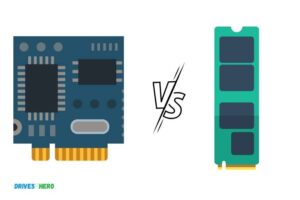
M.2 Vs Sata Ssd Windows 10
M.2 ssds are faster than sata ssds for windows 10. M.2 ssds have faster read/write speeds, making them ideal for gaming, video editing, and other high-performance tasks.
Additionally, m. 2 ssds are compact and require less wiring, making them easier to install and manage in a computer system. Sata ssds, on the other hand, are more affordable and widely available, making them a good option for standard use.
Ultimately, the choice between m. 2 and sata ssd will depend on your needs and budget. In this article, we will compare m. 2 ssds and sata ssds to help you make an informed decision.
What Are M.2 And Sata Ssds?
M.2 Vs Sata Ssd Windows 10: Definition And Explanation
Solid state drives or ssds are replacing traditional hard drives as the primary storage device in recent days due to their faster read-write speeds. Ssds are available in the market in two different types, m. 2 and sata ssds. In this section, we will define and provide an explanation of both ssds.
Definition
M.2 Ssd
M. 2 is a form factor used for solid-state drives (ssds). It is designed to operate at faster speeds with greater efficiency and occupies less space on a motherboard. M. 2 ssds use a small physical footprint and often have a storage capacity of up to 2tb.
M. 2 ssds support sata, pcie, and nvme protocols.
Sata Ssd
Sata ssds use the serial ata interface, which is the same interface as hard drives. These ssds look like traditional 2. 5-inch hard drives and follow the same standard 2. 5-inch form factor. Sata ssds are limited by the physical constraints of the interface, which makes the read-write speeds comparatively lower than m.
2 ssds.
Key Differences Between The Two
Now that we have defined m. 2 and sata ssds let us move onto understanding their differences.
Size And Form Factor
M. 2 ssds are small in size and follow the m. 2 form factor, which makes them up to eight times smaller than 2. 5-inch sata drives. On the other hand, sata ssds have a larger physical footprint and follow the traditional 2.
5-inch form factor.
Speed And Performance
M. 2 ssds support faster pcie and nvme protocols, whereas sata ssds are limited by the slower sata protocol. When comparing read and write speeds, m. 2 ssds are up to four times faster than sata ssds.
Compatibility
M. 2 ssds are compatible with ssd-only laptops and desktops that have pci-express ssd slots. Sata ssds are compatible with all computers with sata interfaces.
Capacity
M. 2 ssds usually have lower storage capacities, whereas sata ssds can store up to 4tb of data.
M. 2 ssds are more efficient due to their faster read-write speeds, smaller physical footprint, and compatibility with pcie and nvme protocols. Sata ssds, on the other hand, have a larger physical footprint but are more compatible with various computer interfaces.
Performance Comparison Of M.2 And Sata Ssds
M. 2 vs sata ssd windows 10: performance comparison of m. 2 and sata ssds
When it comes to upgrading your system’s storage, you may face some confusion between choosing an m. 2 or a sata ssd. Both ssd types come with advantages and disadvantages that you should be aware of. Here we make a performance comparison between m.
2 and sata ssds to help you make an informed decision.
Speed And Processing Power Of M.2 And Sata Ssds
M. 2 ssds are the most advanced type of ssds available and are capable of delivering faster speeds and better overall performance compared to sata ssds. Here’s how:
- M.2 ssds utilize the nvme interface, which provides faster read and write speeds compared to sata ssds which use the ahci interface.
- M.2 ssds also have a faster clock speed which enables better multitasking power.
- M.2 ssds are capable of a larger number of input/output operations per second (iops) which result in quicker processing power compared to sata ssds.
- M.2 ssds allow for a direct connection to the motherboard, which enables them to transfer data at higher speeds than sata ssds.
Differences In Data Transfer Rates
M. 2 ssds have faster data transfer rates compared to sata ssds. Here are the crucial differences in data transfer rates between m. 2 and sata ssds:
- M.2 ssds have reading speeds up to 3.5gb/s, while sata ssds have maximum reading speeds of around 550mb/s.
- M.2 ssds have writing speeds up to 3gb/s, while sata ssds have writing speeds of around 520mb/s.
- M.2 ssds also have better random access and queue depth read and write speeds.
- Sata ssds have a slower data transfer rate due to their older technology but are still an excellent option for people on a budget.
When it comes to storage choices, m. 2 ssds are superior to sata ssds when it comes to speed and processing power. Ultimately, the choice between m. 2 and sata ssds depends on your needs and budget. If you’re in the market for a high-performance system, then m.
2 ssds are the way to go. If you’re looking to save a few bucks, then sata ssds can still get the job done.
Advantages Of M.2 Ssds
M. 2 ssds have become increasingly popular in recent years, and for good reason. They offer several advantages over the more traditional sata ssds. We will explore some of the benefits of m. 2 ssds, specifically focusing on their smaller form factor, improved read and write performance, and higher capacity and better power efficiency.
Smaller Form Factor And Sleek Design
One of the most significant advantages of m. 2 ssds is their smaller form factor, making them ideal for use in thin and light laptops, ultrabooks, and similar devices. Unlike sata ssds, which typically require a 2. 5-inch bay, m.
2 ssds slot directly into the motherboard, taking up far less space. This not only allows for smaller and more compact devices, but it also opens up new design possibilities.
M. 2 ssds are also more aesthetically pleasing than their sata counterparts. Many m. 2 ssds feature a sleek design that complements modern computers’ minimalist style, giving them a more futuristic and sophisticated look.
Improved Read And Write Performance
In addition to their small size, m. 2 ssds offer improved read and write performance. They take advantage of the newer nvme (non-volatile memory express) protocol, which provides faster data transfer rates than sata ssds. Nvme enables m. 2 ssds to read and write at higher speeds, resulting in significantly faster boot times, file transfers, and application launches.
Higher Capacity And Better Power Efficiency
M. 2 ssds have higher storage capacity than sata ssds while consuming less power. They come in various sizes, ranging from 30mm to 110mm, allowing the installation of m. 2 ssds with a higher storage capacity than sata ssds. This makes m.
2 ssds an excellent choice for those who need more storage space for their files, programs, and games.
Additionally, m. 2 ssds use less power than sata ssds, which is critical for portable devices. Lower power consumption means that the battery will last longer, allowing you to do more work or play games without having to recharge your laptop frequently.
M. 2 ssds come with several advantages over sata ssds, making them an excellent choice for those looking for higher performance, better power efficiency, and a cleaner, modern design. They have better read and write speeds, higher storage capacity, and use less power, making them the ideal choice for gamers, professionals, and anyone in need of a fast and reliable storage option.
Disadvantages Of M.2 Ssds
Compatibility Issues With Older Devices
M. 2 ssds are a recent technology, and as such, they may not be compatible with older devices. If your device was manufactured before 2013 and does not have an m. 2 slot, it may not be compatible with m.
2 ssds. This means that you would have to purchase a new motherboard or device with an m. 2 slot if you want to use an m. 2 ssd.
- Older devices might not support m.2 ssds as a result of the absence of m.2 slots.
- You will need to purchase a new device with an m.2 slot to use m.2 ssds.
Higher Cost Per Gb Compared To Sata Ssds
One of the downsides of m. 2 ssds is their higher cost per gb compared to their sata counterparts. You might get a better performance with an m. 2 ssd, but this comes at a higher price.
- M.2 ssds come at a higher expense compared to sata ssds per gb.
- Expect to spend more on m.2 ssds, which may not be favorable for people on a budget.
Limited Upgrade Options
M. 2 ssds are available in different sizes, but they may not provide you with the same upgradeability options as sata ssds. If you have a small m. 2 ssd, you might find it challenging to upgrade to a larger ssd in the future.
This is because most devices only have one or two m. 2 slots, which can make it difficult to upgrade if you already have an m. 2 ssd installed.
- M.2 ssds come in different sizes, but they may not offer the same upgradability options as sata ssds.
- It might be problematic to upgrade to a larger m.2 ssd, especially if your device has limited m.2 slots.
Compatibility Of M.2 Ssds With Windows 10
M. 2 vs sata ssd windows 10: compatibility of m. 2 ssds with windows 10
Solid state drives (ssds) have recently grown in popularity due to their high-speed data transfer and low power consumption. Two types of ssds currently in the market are m. 2 and sata ssds. This article sheds light on m. 2 ssd’s compatibility with windows 10 operating system.
M.2 Ssd Drivers And Support
M. 2 ssds come in different varieties, including sata and nvme. The former operates at slower speeds than nvme. However, sata-based m. 2 ssds are compatible with windows 10. A device with an m. 2 slot compatible with sata can support both sata and pcie-based ssds.
The operating system recognizes the m. 2 ssd as an additional drive, without any additional drivers required for installation. Windows 10 natively supports m. 2 ssds, and therefore, one can transfer their operating system to the new ssd effortlessly.
Windows 10 Requirements For Installation
Installing or transferring windows 10 to an m. 2 ssd requires a few steps and specific details to consider beforehand. Here are some of the most fundamental requirements.
- M.2 slot compatibility: Check your motherboard support for m.2 ssds
- Bios support: Ensure you have the latest bios version that allows booting from pcie or sata m.2 slots
- Cloning software: Use a cloning software such as macrium reflect, aomei backupper, or easeus todo backup to transfer your operating system to the m.2 ssd.
- Product key: If you are transferring the windows operating system to a new device, you might require a new license key.
- Uefi boot: Ensure that the motherboard’s firmware interface is compatible with uefi mode, which is a requirement for pcie-based m.2 ssds that exceed 2 tb.
M. 2 ssds are compatible with windows 10 and do not require additional drivers for installation with the operating system. However, before installing an m. 2 ssd, ensure that it meets the necessary requirements. If you are uncertain about the process, consult with a technician or professional for guidance.
Installation And Configuration Of M.2 Ssds On Windows 10
M. 2 ssds stand out due to their compact size and rapid data transfer speeds. When it comes to upgrading your windows 10 system with an ssd, choosing between m. 2 and sata ssds can feel overwhelming. Although sata ssds seem like a convenient choice with their universal compatibility, m.
2 ssds provide better performance and faster data transfer rates. We’ll look at the installation and configuration of m. 2 ssds on windows 10.
Step-By-Step Guide To Install And Configure M.2 Ssds
Installing m. 2 ssds on your windows 10 machine is super easy, and you can complete the process in a few quick steps:
- Shut down the system, switch off the power supply and disconnect all cables and cords from your computer.
- Open the computer case, locate the m.2 slot on your motherboard and remove the screw that keeps it in place.
- Gently insert the m.2 ssd into the slot, aligning the notches with the key on the slot.
- Press the ssd gently down and secure it with the screw you removed in step two.
- Reassemble your case, connect all cables and wires, and turn on your system.
- Press the power button and enter the bios setting. Go to ‘boot options’ and click the m.2 ssd as the first boot device.
- Save changes and restart your computer.
Once You Configure Your System Settings, You’Re Good To Go!
Common Issues And Troubleshooting Tips
Although the installation process is straightforward, you might face some issues during the setup. Here are some common issues that can arise and their solutions:
- Bios doesn’t detect the m.2 ssd -you can check this by going into the bios by holding down the ‘delete’ key when the pc boots. Verify that the m.2 slot is enabled and runs in nvme mode.
- M.2 ssd doesn’t show up in windows -open disk management, which is part of the computer management utility, and check if the ssd is present.if it is, simply add a partition and format it. In case it’s not present, you’ll need to update your bios drivers to use m.2 ssd.
- Low data transfer speeds – check if the m.2 slot you inserted the ssd is compatible with the pcie 4.0/3.0 standard. If it’s not compatible, the data transfer speed will be slow.
These are some common issues that windows 10 users encounter while using m. 2 ssds. However, the troubleshooting steps mentioned above should help you resolve the issues easily.
M. 2 ssds are faster, more efficient, and offer a great upgrade solution for increasing your computer’s storage and performance. Following the simple installation and configuration steps mentioned above, you can add an m. 2 ssd to your windows 10 system and enjoy faster data transfer rates.
Compatibility Of Sata Ssds With Windows 10
M. 2 vs sata ssd windows 10: compatibility of sata ssds with windows 10
Upgrading to an ssd is a quick way to give your computer a significant performance boost. With sata ssds being the most common type of ssds, it’s worth knowing how they fare with the latest windows version, windows 10.
Sata Ssd Drivers And Support On Windows 10
Windows 10 has been designed with built-in drivers to enable support for most storage devices, including sata ssds. However, in case you’re having trouble identifying your drive or accessing it, there are ways to update your sata ahci controller drivers or your storage controller drivers through the manufacturer’s website.
Here are a few takeaways:
- Windows 10 should have built-in support for most sata ssds
- In case of any trouble, the manufacturer’s website should be your go-to
- Keep your sata ahci controller and storage controller drivers updated for optimal performance
Impact Of Sata Iii On Data Transfer Rates
Sata iii is the most recent version of the sata standard and supports data transfer rates of up to 6gb/s, which is much faster than the previous versions sata i and sata ii. This means that if your sata ssd is connected to a sata iii port on your motherboard that supports 6gb/s data transfer rates, you can expect faster performance than if it were connected to a sata i or sata ii port.
Here are a few more points to bear in mind:
- Sata iii supports vastly superior data transfer rates compared to its predecessors
- If your motherboard supports sata iii, you should connect your ssd to that for optimal performance
Sata ssds are fully compatible with windows 10, with built-in drivers to enable storage device support. Alongside sata iii support, this makes for a powerful combination. Follow our tips above to get the best performance from your sata ssd.
Installation And Configuration Of Sata Ssds On Windows 10
M. 2 vs sata ssd windows 10: installation and configuration of sata ssds on windows 10
Solid state drives, or ssds, are faster and more reliable alternatives to traditional hard disk drives (hdds). Ssds usually come in two types: m. 2 and sata. While m. 2 ssds serve as a more advanced version, many users still prefer sata ssds.
In this guide, we will take you through a step-by-step process of installation and configuration of sata ssds on windows 10.
Step-By-Step Guide To Install And Configure Sata Ssds On Windows 10:
- Before you begin, ensure that your computer is powered off and unplugged.
- Carefully open the computer case and identify the ports. Sata ssds use sata ports, which are usually located close to the power supply on the motherboard.
- Locate the sata ssd, and identify the sata and power connectors.
- Connect the sata and power cables to the ssd.
- Mount the ssd in the designated slot, using screws if necessary.
- Close the computer case, plug in the computer, and power it on.
- Upon startup, windows 10 should detect the new device and initialize it.
- Right-click on the windows start menu and select “disk management” from the dropdown menu.
- Find the newly installed sata ssd and right-click on it.
- Select “new simple volume” from the dropdown menu and follow the prompts.
- Once completed, your new sata ssd is ready to use!
Common Issues And Troubleshooting Tips:
Installing a sata ssd on windows 10 is usually a smooth process. However, if you encounter any issues, here are some troubleshooting tips:
- If the ssd is not detected, ensure that the cables are correctly connected and the drive is mounted correctly.
- If the drive appears in disk management but not in file explorer, assign a drive letter and format the drive.
- If the new drive is causing issues with an existing drive, you may need to adjust the boot order in the bios.
Installation and configuration of sata ssds on windows 10 can be a breezy process. By following these steps and tips, your computer will be able to experience faster speeds and more reliability.
Factors To Consider When Choosing Between M.2 And Sata Ssd For Windows 10
M. 2 vs sata ssd windows 10: factors to consider when choosing between m. 2 and sata ssd
Solid state drives (ssds) have revolutionized data storage and management on computers. Their speed and performance far surpass the traditional hard disk drive (hdd) technology. We will discuss the factors to consider when choosing between two of the most popular ssd technologies – m.
2 and sata.
Usage Requirements And Budget Constraints
The first factor to consider when choosing between m. 2 and sata ssd for windows 10 is your usage requirements and budget constraints. The m. 2 ssd offers faster data transfer speeds, which makes it ideal for gamers, content creators, and other users who need high performance.
On the other hand, the sata ssd is more affordable and is suitable for those with budget constraints. It offers a good balance of speed and cost-effectiveness, which makes it ideal for regular users who do not require high performance.
Consider your usage requirements and budget constraints before deciding on which ssd technology to buy.
Potential For Future Upgrades And Device Compatibility
Another factor to consider is the potential for future upgrades and device compatibility. M. 2 ssds have various form factors that determine their compatibility with different systems. Some m. 2 ssds are compatible with both sata and pcie interfaces; these are more flexible and can be used in different devices.
Sata ssds are less flexible and are primarily designed for use in systems that support sata. If you plan on upgrading your system or using the ssd in different devices, consider an m. 2 ssd that is compatible with multiple interfaces.
Performance And Capacity Needs
The third factor to consider when choosing between m. 2 and sata ssd for windows 10 is performance and capacity needs. M. 2 ssds are faster and more efficient in data transfer, making them ideal for heavy-duty applications and tasks that require high performance.
Sata ssds offer a good balance between speed and performance, making them ideal for regular users who do not require high-end performance. When choosing between the two technologies, consider your capacity needs, as m. 2 ssds come in various capacity sizes.
When choosing between m. 2 and sata ssd technologies, consider your usage requirements, budget constraints, potential for future upgrades and device compatibility, performance, and capacity. Ultimately, the choice between the two will depend on individual preferences, needs, and budget constraints.
Frequently Asked Questions For M.2 Vs Sata Ssd Windows 10
What Is The Difference Between M.2 And Sata Ssd?
M. 2 ssd is faster, uses less power, and has smaller form factor than sata ssd.
Which Is Faster – M.2 Or Sata Ssd?
M. 2 ssd is faster with faster data transfer rates than sata ssd.
Can I Replace My Sata Ssd With M.2 Ssd On Windows 10?
Yes, if your motherboard supports m. 2, you can replace sata ssd with m. 2 ssd.
Is M.2 Ssd Worth It For Windows 10?
Yes, m. 2 ssd is worth it as it improves system performance and speed.
Conclusion
To sum up, choosing between m. 2 and sata ssd for windows 10 is crucial. Both solid-state drives have advantages and disadvantages, but the final decision depends on your purpose, budget, and computer’s compatibility. If you are into gaming or multimedia work, m.
2 ssd is faster and more efficient. But if you need a cheaper but reliable option, sata ssd will suffice. It is important to consider the type of motherboard you have as well since some may only support either m.
2 or sata drives. Overall, ssd undoubtedly enhances your windows 10 experience compared to traditional hdd. Increasing your computer’s speed and performance is essential in this digital age. Therefore, it is crucial to make an informed decision and pick ssd that suits your needs the most.

Harold Williams is a senior writer and technical editor at Drives Hero with 20+ years of experience in IT administration. He specializes in storage systems, SSD reviews, and performance testing, bringing real-world insight to every guide.