How to Check SanDisk SSD Warranty by Serial Number
Your SanDisk SSD started acting up, or maybe you’re just curious how much warranty coverage you have left. Either way, you need the serial number to get a real answer, and you need to check it through SanDisk directly instead of some random website that promises instant results. Here’s how to actually do that without wasting time on tools that can’t give you accurate information anyway.
Where to Find the Serial Number on Your SanDisk SSD
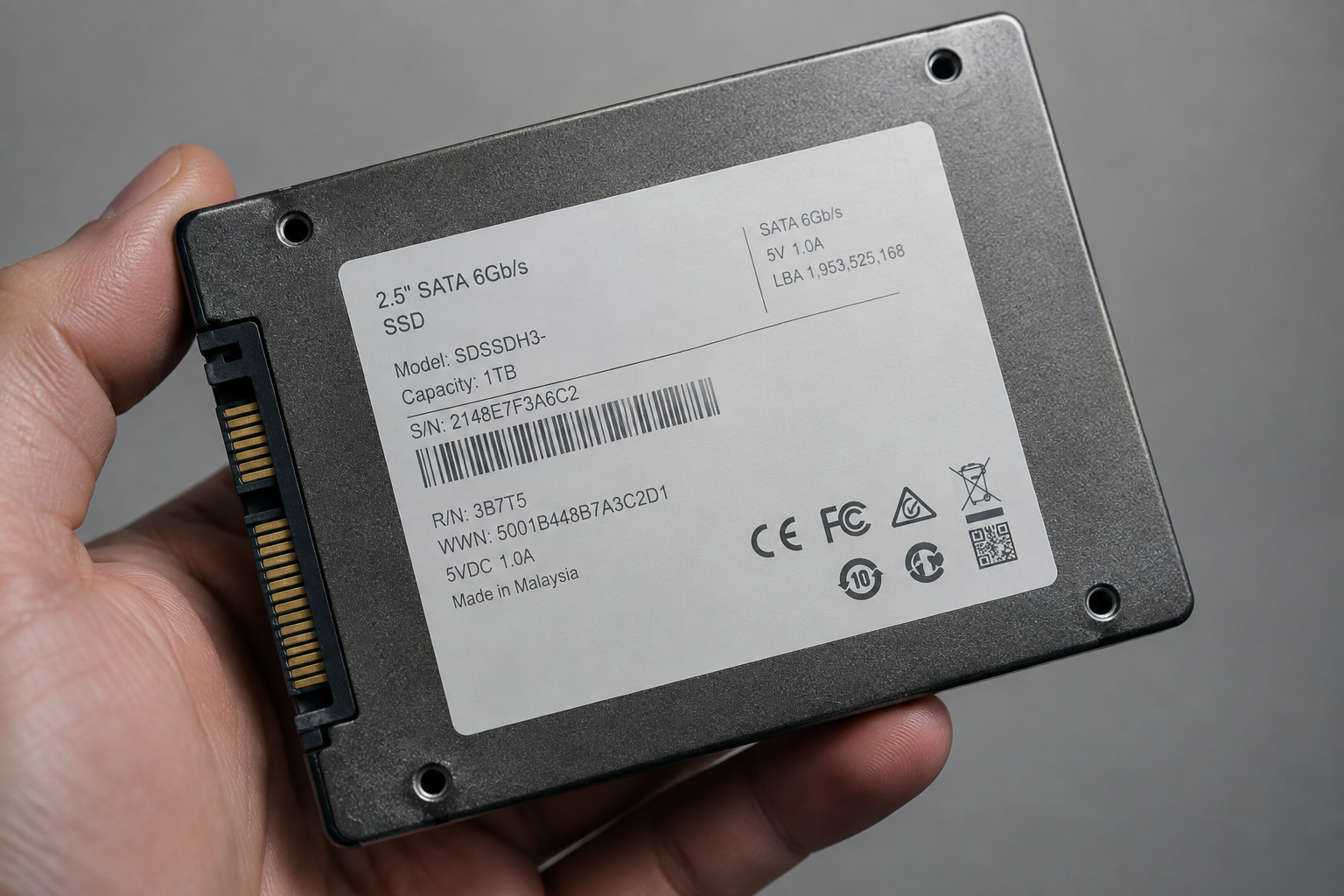
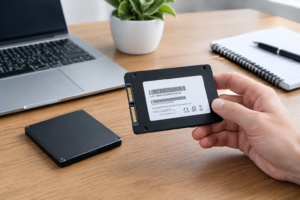
The serial number lives on the physical label attached to the drive itself. If your SSD is still installed in a laptop or desktop, you’ll likely need to pull it out to read the sticker, unless you can read it through software instead (more on that below).
On most SanDisk SSDs, including the Extreme Portable and Extreme Pro lines, the label sits on the back or bottom of the drive casing. Look for a string that starts with a mix of letters and numbers, usually printed under a barcode. It’s often labeled “S/N” directly on the sticker, which makes it easy to spot.
If you don’t want to physically remove the drive, you can find the serial number through your operating system instead:
- Windows: Open Command Prompt and type wmic diskdrive get serialnumber, model. This pulls the serial number and model straight from the drive’s firmware.
- macOS: Click the Apple menu, select “About This Mac,” then “System Report.” Find your SSD under Storage and look for the serial number field.
- SanDisk SSD Dashboard: If you’ve installed SanDisk’s own software, the drive details page shows the serial number without any digging.
Whichever method you use, copy the serial number exactly as shown. A single mistyped character will throw off the warranty lookup, so it’s worth double checking before you submit anything.
Serial Number vs Model Number vs Firmware Version
These three pieces of information look similar at first glance, but they do very different jobs, and mixing them up is one of the most common reasons people get stuck during a warranty check.
The serial number is unique to your specific drive. No two SanDisk SSDs share the same one, which is why it’s the key piece of data manufacturers use to look up purchase and manufacturing records tied to your unit.
The model number identifies the product line, like SDSSDE61-1T00 for a 1TB Extreme Portable SSD. Every drive of that exact model shares the same model number, so it tells SanDisk what kind of product you have, not which specific unit.
The firmware version is software running on the drive’s controller, and it has nothing to do with warranty eligibility directly. It matters more when you’re troubleshooting performance issues or checking whether an update is available, similar to how we cover firmware updates in our guide on how to upgrade Samsung SSD firmware. Firmware can change over time through updates, but your serial number never does.
When you’re checking warranty status, the serial number is what actually matters. The model number just gives context, and firmware is a separate issue entirely.
How to Check Your SanDisk SSD Warranty Officially
SanDisk (now operating under Western Digital’s support infrastructure for many product lines) handles warranty checks through its own support portal. Skip any third party “serial number checker” site you find through a search engine. These tools can’t access SanDisk’s actual database, and some exist purely to collect your information or push unrelated software downloads.
Here’s the legitimate process:
- Go to the official SanDisk support website (support.sandisk.com) or the Western Digital support portal, depending on which brand handles your specific product.
- Navigate to the warranty status or “Check Warranty” section, usually found under a product support or services tab.
- Enter your serial number exactly as it appears on the drive label or software output.
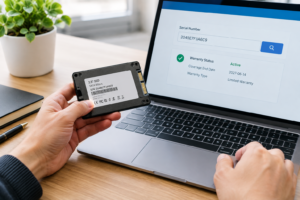
- Submit the form. The system will return your warranty status, including whether it’s active, expired, or requires additional verification.
If the system asks for additional details, have your original purchase receipt or order confirmation ready. Some regions and retailers require proof of purchase even if the serial number lookup shows a valid warranty window, particularly for drives bought through third party marketplace sellers rather than authorized retailers.
Why Your Warranty Status Might Not Be What You Expect
A lot of people assume the warranty period starts fresh the day they open the box, but that’s not always how it works. Warranty terms depend on several factors that can catch you off guard.
Region matters. SanDisk sets different warranty lengths and terms depending on where the product was sold. A drive purchased in one country might carry a different coverage period than the same model sold elsewhere, and the official checker accounts for this based on where the serial number was registered in manufacturing records.
Purchase date and seller matter too. If you bought your SSD from an unauthorized reseller or a marketplace listing that wasn’t fulfilled by an authorized retailer, your warranty could be void even if the drive itself is genuine. This is one reason it pays to buy storage upgrades from reputable sources, especially if you’re planning something like a larger SSD upgrade where you want full coverage on a new purchase.
Manufacturing date also plays a role separate from your purchase date. Some warranty policies calculate coverage from the manufacturing date stamped into the serial number itself, not from when you actually bought the drive. This means a drive that sat in a warehouse for a year before you purchased it might have less remaining warranty than you’d expect.
Keep your receipt or order confirmation email regardless of what the online checker tells you. If you ever need to file a claim, proof of purchase is often the deciding factor when serial number records are incomplete or when a dispute comes up about authorized seller status.
What to Do If Your SanDisk SSD Is Out of Warranty
Finding out your drive is out of warranty isn’t the end of the road. You’ve still got options depending on what’s actually wrong with it.
If the SSD still works but you want more storage or better performance, look into what a replacement drive would actually improve for your setup. Our comparison of WD Black vs Samsung SSD options can help you figure out what to buy next if you’re ready to upgrade rather than repair.
If the drive is failing and data recovery matters more than the warranty itself, back up whatever you can access immediately before doing anything else. Warranty replacement only covers the hardware anyway, not the data stored on it, so recovery and warranty are two completely separate problems.
For laptops where the SSD is soldered in place or difficult to access, an out of warranty situation might mean it’s time to think about upgrade paths instead of repair. Guides like our walkthrough on upgrading a Mac SSD cover what’s actually possible once you’re past manufacturer coverage.
Frequently Asked Questions
Can I check my SanDisk SSD warranty without the serial number?
Not really. The serial number is the only reliable identifier tied to your specific drive’s manufacturing and purchase records. Model number alone won’t work since it’s shared across every unit of that product.
Does SanDisk warranty transfer if I bought the drive used?
This depends on SanDisk’s specific policy at the time, and it can vary by region. In many cases, warranty coverage is tied to the original purchase and proof of purchase from an authorized retailer, so buying used often means you’re taking on whatever coverage window remains without the ability to claim as the original owner.
Why does the official checker say my drive isn’t found?
Double check that you’ve entered the serial number exactly as printed, since it’s easy to confuse similar looking characters like the letter O and the number 0. If you’re still getting no results, the drive might be an older model no longer in the active database, or it could be a counterfeit unit, which is more common with drives bought from unverified third party sellers.

James Kennedy is a writer and product researcher at Drives Hero with a background in IT administration and consulting. He has hands-on experience with storage, networking, and system performance, and regularly improves and optimizes his home networking setup.