Can You Upgrade Mac Ssd? Yes!
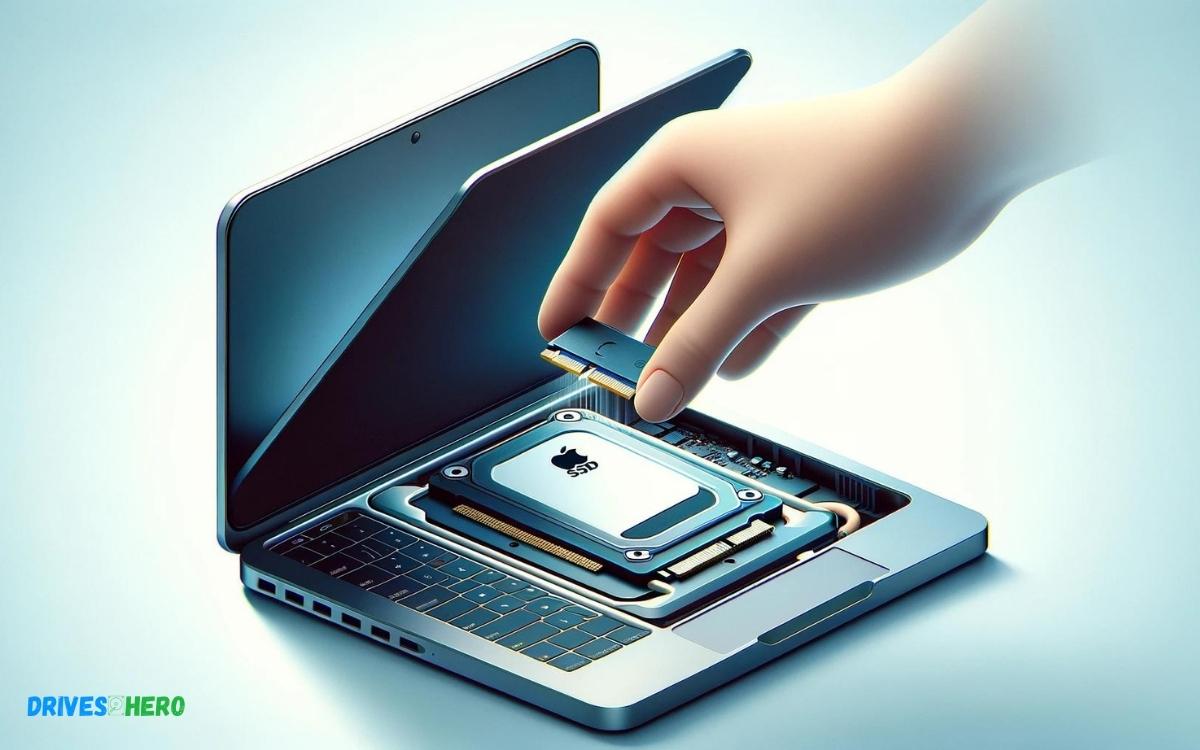
Yes, you can upgrade the SSD on some Mac models. However, the ability to do so varies by model and year.
Older MacBooks typically have upgradeable storage, whereas newer models often have SSDs soldered directly to the motherboard, making upgrades more challenging or impossible for the average user. Third-party upgrade kits are available for models that support SSD upgrades.
The ability to upgrade your Mac’s SSD primarily depends on the model and the year it was manufactured:
Before attempting to upgrade your Mac’s SSD, it’s recommended to consult with Apple’s official support resources or a professional technician to ensure compatibility and avoid potential damage to your device.
If you’re considering upgrading your Mac’s SSD, always verify the compatibility and be aware that DIY upgrades could void any existing warranty on your device.
Key Takeaway
Introduction To Mac Ssd Upgrades
When it comes to boosting the performance of your Mac, few upgrades can compare to installing a new Solid State Drive (SSD).
With the potential for faster boot times, quicker file transfers, and an overall snappier computing experience, it’s no wonder that SSD upgrades are a popular choice among Mac users.
But understanding the specifics of Mac SSD upgrades is crucial before taking the plunge. Below, we explore the nuances of Mac SSDs, why SSD upgrades are critical for performance, and which Mac models are suitable for these upgrades.
Understanding Mac Ssds: Proprietary Technology Vs. Standard Drives
Apple has a history of using proprietary SSDs in their Mac computers. This means that the SSDs are not always the same as the standard ones you can buy off the shelf.
In many cases, these proprietary drives have a unique interface or shape, making them incompatible with standard SSDs. Understanding this distinction is vital before attempting to purchase a replacement or upgrade.
However, as the Mac lineup has evolved, certain models have transitioned to using more standardized NVMe SSDs, which broadens the upgrade possibilities for users.
The Importance Of Ssd Upgrades For Enhanced Performance
Upgrading to an SSD can significantly impact your Mac’s performance.
These are some of the benefits of SSD over traditional Hard Disk Drives (HDDs):
- Faster boot times: SSDs can reduce the time it takes for your Mac to start.
- Improved data transfer speeds: Accessing and transferring files becomes much quicker with an SSD.
- Greater reliability: SSDs lack moving parts, making them less susceptible to physical damage.
- Quieter operation: Without moving parts, SSDs operate silently.
Users who value efficiency and performance will find SSD upgrades to be a worthwhile investment.
Identifying Which Mac Models Allow Ssd Upgrades
Not all Macs can have their SSDs upgraded.
Here’s a quick guide on which models typically support an SSD upgrade:
| Mac Model | Upgrade Possible |
|---|---|
| MacBook Air (pre-2018) | Yes |
| MacBook Pro (non-Retina, pre-2012) | Yes |
| MacBook Pro (Retina, 2012 to 2015) | Limited |
| iMac (pre-2019) | Yes |
| Mac Pro (pre-2013) | Yes |
| Mac Mini (pre-2014) | Yes |
It is essential to verify these details because some newer models have integrated SSDs that are not user-replaceable.
Proceeding with an SSD upgrade on your own may affect your Mac’s warranty, so consider the warranty status and whether professional installation might be a safer option.
Factors To Consider Before Upgrading Mac Ssd
Considering an SSD upgrade for your Mac can be a transformative improvement, leading to faster boot times, quicker file access, and an overall snappier performance.
But before you rush to buy a new Solid State Drive, a few key factors must be carefully examined to make sure the upgrade process is successful and beneficial in the long run.
Evaluating Your Mac’s Compatibility With Ssd Upgrades
Not all Mac models are created equal when it comes to upgrade potential. Assessing your Mac’s model and year is the first step towards determining upgrade feasibility.
Certain older Macs may not support the latest SSD technology, whereas others might have proprietary connectors that require specific types of SSDs.
Visit Apple’s official website or consult with a professional to confirm compatibility before making a purchase.
The Cost-benefit Analysis Of Upgrading An Ssd
When considering a new SSD, performing a cost-benefit analysis is essential. This involves comparing the price of the SSD and potential installation fees with the benefits you expect to gain.
An SSD upgrade can breathe new life into an aging Mac, but if the cost approaches that of a new machine, it may be wiser to invest in a new model entirely.
Understanding The Risks And Warranties Associated With Diy Ssd Upgrades
- Voided warranties: Unauthorized modifications can void your Mac’s warranty.
- Data risks: Always back up data before attempting an upgrade to prevent loss.
- Physical damage: There’s a risk of damaging your Mac if the upgrade isn’t done correctly.
Understanding the implications of a do-it-yourself (DIY) upgrade is critical.
DIY approaches can be more economical, but they come with risks such as voiding your warranty or accidentally damaging your device. Weigh these risks against the potential savings of self-installation.
Choosing The Right Ssd: Specifications And Brands
Selecting the appropriate SSD involves navigating a variety of brands and specifications. It’s crucial to align the SSD’s specifications, such as its storage capacity, read/write speeds, and form factor, with your usage needs.
Brands like Samsung, Crucial, and SanDisk offer reputable options, but compatibility with your Mac model should be the guiding factor in your choice.
| Brand | Model | Read/Write Speeds | Storage Capacity |
|---|---|---|---|
| Samsung | 860 EVO | 550/520 MB/s | 250GB – 4TB |
| Crucial | MX500 | 560/510 MB/s | 250GB – 2TB |
| SanDisk | Ultra 3D | 560/530 MB/s | 250GB – 4TB |
Step-by-step Guide To Upgrading Your Mac’s Ssd
If you’re aiming to enhance your Mac’s performance or simply need more storage space, upgrading the Solid State Drive (SSD) is a highly effective solution.
Essential Tools And Precautions For A Safe Upgrade
Before diving into the upgrade process, it’s crucial to gather the right tools:
- Compatible replacement SSD for your Mac model
- Precision screwdrivers
- Anti-static wrist strap
- External enclosure or adapter for data transfer (optional)
- Mac’s power adapter (ensure full charge)
Take safety precautions seriously. To prevent electrostatic discharge, use an anti-static wrist strap. Ensure your Mac is powered off and disconnected from any power sources during the upgrade.
Backing Up Your Data: Preparing For The Upgrade
Securing your data is a priority.
Follow these steps:
- Connect an external drive with enough space for your current data.
- Use Time Machine or a cloning tool to create a full backup.
- Verify the backup completeness to ensure data integrity.
Only proceed with the hardware swap after confirming a successful backup. Any mishaps during the upgrade could lead to data loss without this safety net.
Removing The Old Ssd And Installing The New One
Turn off your Mac and disconnect all cables.
Perform the following steps:
- Open the Mac’s case cautiously using the appropriate screwdriver.
- Locate the SSD and gently disconnect it from the logic board.
- Remove the SSD by unscrewing it, if necessary.
- Insert the new SSD, reattaching and screwing it securely in place.
- Reassemble the case and ensure everything is back in its original position before powering on the Mac.
This procedure may vary based on Mac model and year. Consult online resources or the Apple manual specific to your device for detailed instructions.
Initializing And Restoring Data To The New Ssd
With the new SSD installed, you’ll need to format and restore your data.
- Boot to Recovery Mode by holding Command + R during startup.
- Use Disk Utility to format the new SSD choose ‘APFS’ for recent macOS versions.
- Once formatted, exit Disk Utility and choose ‘Restore from Time Machine Backup’.
- Select your external backup drive and proceed with the data restoration.
This will return your files, settings, and applications to their previous state, now on a new SSD.
Troubleshooting Common Issues During Upgrades
Encountering problems during an upgrade can be frustrating.
Common issues and solutions include:
- Mac Doesn’t Recognize New SSD: – Ensure SSD is compatible and properly seated. – Reset NVRAM/PRAM by holding Option + Command + P + R during a restart.
- Failed Data Restoration: – Verify connections to the backup drive. – Restart the process, ensuring the backup drive is the selected source.
- Poor SSD Performance: – Ensure correct format during initialization. – Update to the latest macOS version compatible with your Mac.
Seek professional assistance if issues persist after these troubleshooting steps. Upgrading your Mac’s SSD is a valuable process, and exercising caution throughout each step ensures a successful outcome.
Alternative Solutions And Considerations
Exploring the possibility of upgrading your Mac’s SSD may lead you on a quest filled with intricate tech specifications and the daunting reality of intricate hardware designs.
But when a direct SSD upgrade isn’t possible or practical, various alternative solutions and considerations come into play.
Understanding these can be instrumental in enhancing your Mac’s storage capabilities without compromising on performance or risking damage to your device.
Opting For External Ssds: Pros And Cons
Embracing external SSDs is an excellent workaround for storage constraints.
This solution has its advantages, such as easy installation and great portability:
- Increased Storage: Simply plug in the device, and enjoy additional space.
- Portability: Transfer data between different computers effortlessly.
- No Risk to Internal Components: Avoid the perils of opening up your Mac.
However, there are downsides to weigh:
- Speed Limitations: External drives are usually slower than internal upgrades.
- Additional Hardware: Carrying an extra device can be less convenient.
- Power Consumption: External drives may drain battery life more rapidly.
When To Consider Professional Upgrade Services
An intricate Mac model might call for a professional upgrade service. The complexity of opening certain MacBooks or iMacs, as well as warranty considerations, necessitate expert intervention.
Assess these factors:
- Model Specifics: Understand if your particular model allows for SSD upgrades.
- Warranty Status: Verify if DIY upgrades could void your coverage.
- Technical Expertise: Acknowledge the proficiency needed for the task.
If these factors raise concerns, professional services ensure a reliable upgrade without risk to your Mac.
The Future Of Mac Upgradability And Modular Design
The landscape of Mac upgradability is shifting. Advances in modular design hint at a future where users can effortlessly upgrade components.
- This paradigm shift, intended to extend the lifespan of devices and reduce e-waste, signifies Apple’s potential move towards more upgrade-friendly hardware.
- Keep a keen eye on these progressions, as they may alter the way we approach Mac enhancements.
Maximizing Existing Ssd Performance Without Hardware Upgrades
Sometimes, harnessing the full potential of your current SSD is a smarter choice than attempting a hardware upgrade.
Optimize your existing SSD’s performance with these strategies:
| Strategy | Benefit |
|---|---|
| Maintain Adequate Free Space | Prevents performance degradation. |
| Regular Software Updates | Ensures the SSD runs on optimized drivers and firmware. |
| Decluttering | Removes unnecessary files, freeing up resources. |
These approaches can result in a noticeably snappier Mac, postponing the need for a physical upgrade.
Conclusion
Upgrading a Mac SSD is certainly possible, offering a significant boost in performance and storage capacity. Before proceeding, ensure compatibility and back up data to safeguard your information.
With the right tools and guidelines, you can breathe new life into your Mac, making it ready for current demands and future tasks. Embrace the change and enjoy a revitalized system.

Harold Williams is a senior writer and technical editor at Drives Hero with 20+ years of experience in IT administration. He specializes in storage systems, SSD reviews, and performance testing, bringing real-world insight to every guide.