How to Check Seagate SSD Warranty by Serial Number
Your Seagate SSD started acting up, or maybe you’re just being proactive and want to know how much coverage you have left before something goes wrong. Either way, checking your warranty status shouldn’t require guesswork or a third-party website you’ve never heard of. Seagate has an official tool for this, and once you know where to find your serial number, the whole process takes about two minutes.
This guide walks you through exactly where to find that serial number, how it differs from the model number and firmware version printed on the same label, and what can affect whether your drive is actually covered.
Where to Find Your Seagate SSD Serial Number
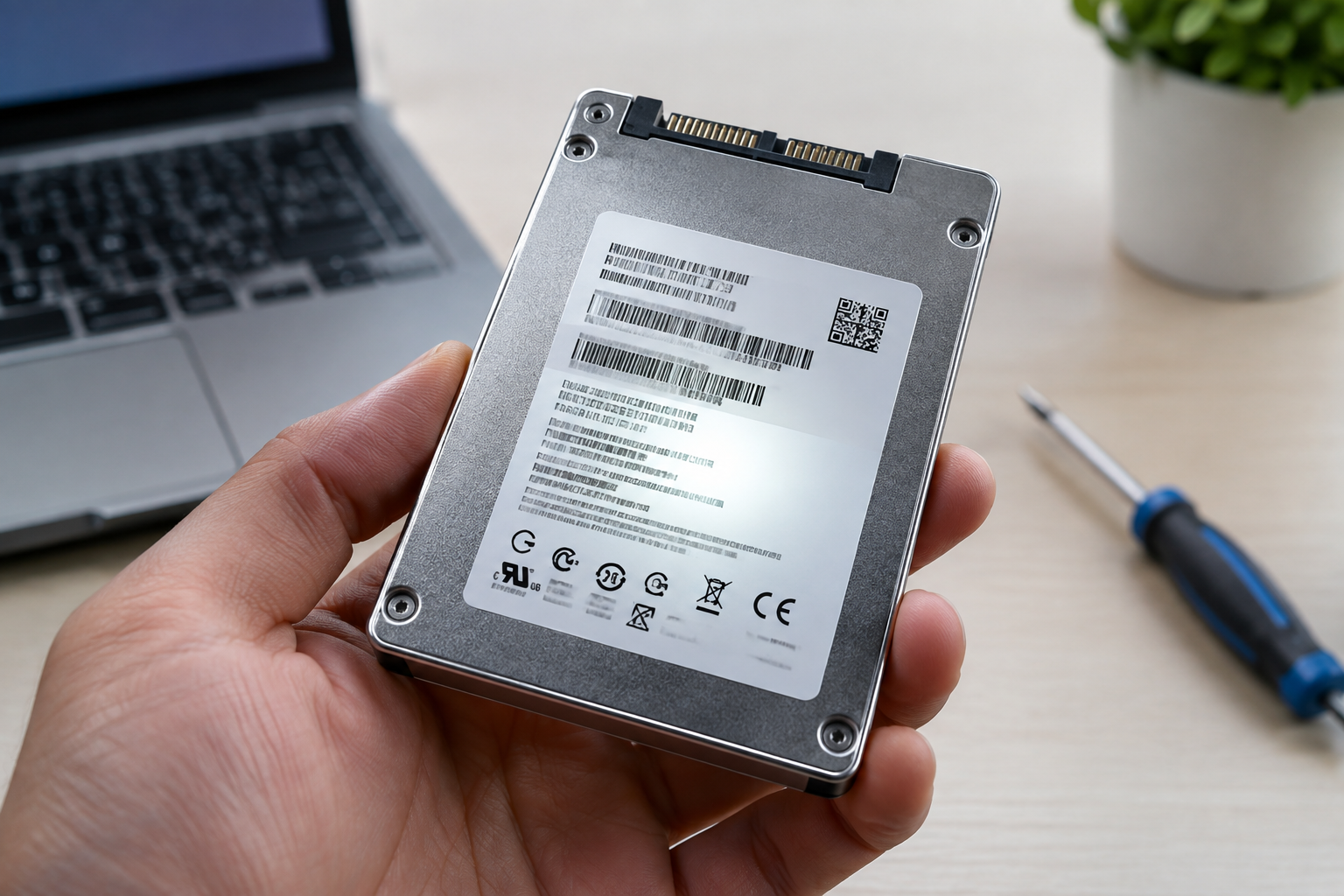
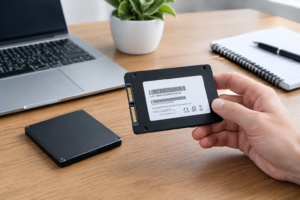
Every Seagate SSD has a label with several strings of numbers and letters on it, and it’s easy to grab the wrong one if you’re not paying attention. The serial number is the unique identifier tied to that specific physical drive, and it’s what Seagate’s system uses to pull up warranty details.
Here’s how to track it down depending on your situation:
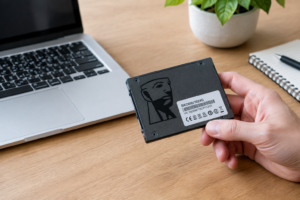
- Physical drive label: Look for a sticker on the SSD itself, usually labeled “S/N” followed by a string of letters and numbers, typically 8 to 12 characters long.
- Packaging or invoice: If you still have the retail box, the serial number is usually printed on a sticker on the side or bottom.
- Seagate software: If the drive is installed and working, Seagate’s DiscWizard or SeaTools software can display the serial number without you needing to open the case.
- Windows Device Manager: Open Device Manager, expand “Disk drives,” right click your Seagate SSD, go to Properties, then the Details tab, and select “Hardware Ids” or “Device Instance Path” from the dropdown. The serial number often appears there.
If you’re installing or replacing a drive and want to grab the serial number before it’s buried inside a laptop chassis, do it now. Once an SSD is mounted inside something like a MacBook Air or a Razer Blade 15, you’ll need to remove panels just to see the label again.
Serial Number vs. Model Number vs. Firmware Version
These three terms get mixed up constantly, and using the wrong one when contacting support just slows everything down. Here’s the actual difference.
The serial number is unique to your individual drive. No two Seagate SSDs share the same one, which is why it’s the key piece of information for warranty lookups and RMA requests.
The model number identifies the product line and specific configuration, like the Seagate BarraCuda Q5 or the FireCuda 530. Every drive of that same model and capacity shares an identical model number. It tells Seagate what kind of drive you have, not which specific unit.
The firmware version is the software running on the drive’s controller. It has nothing to do with warranty status, but you’ll often need it if you’re troubleshooting performance issues or checking for updates. If you’ve ever dealt with firmware updates on a Samsung drive, the same logic applies here, Seagate periodically releases updates that fix bugs or improve stability. Our guide on how to upgrade Samsung SSD firmware covers the general process, though you’ll want Seagate’s own tools for a Seagate-branded drive.
When you contact Seagate support or check warranty status, they need the serial number specifically. Giving them the model number instead just gets you information about the product line in general, not your drive’s individual coverage.
How to Check Your Seagate SSD Warranty Status
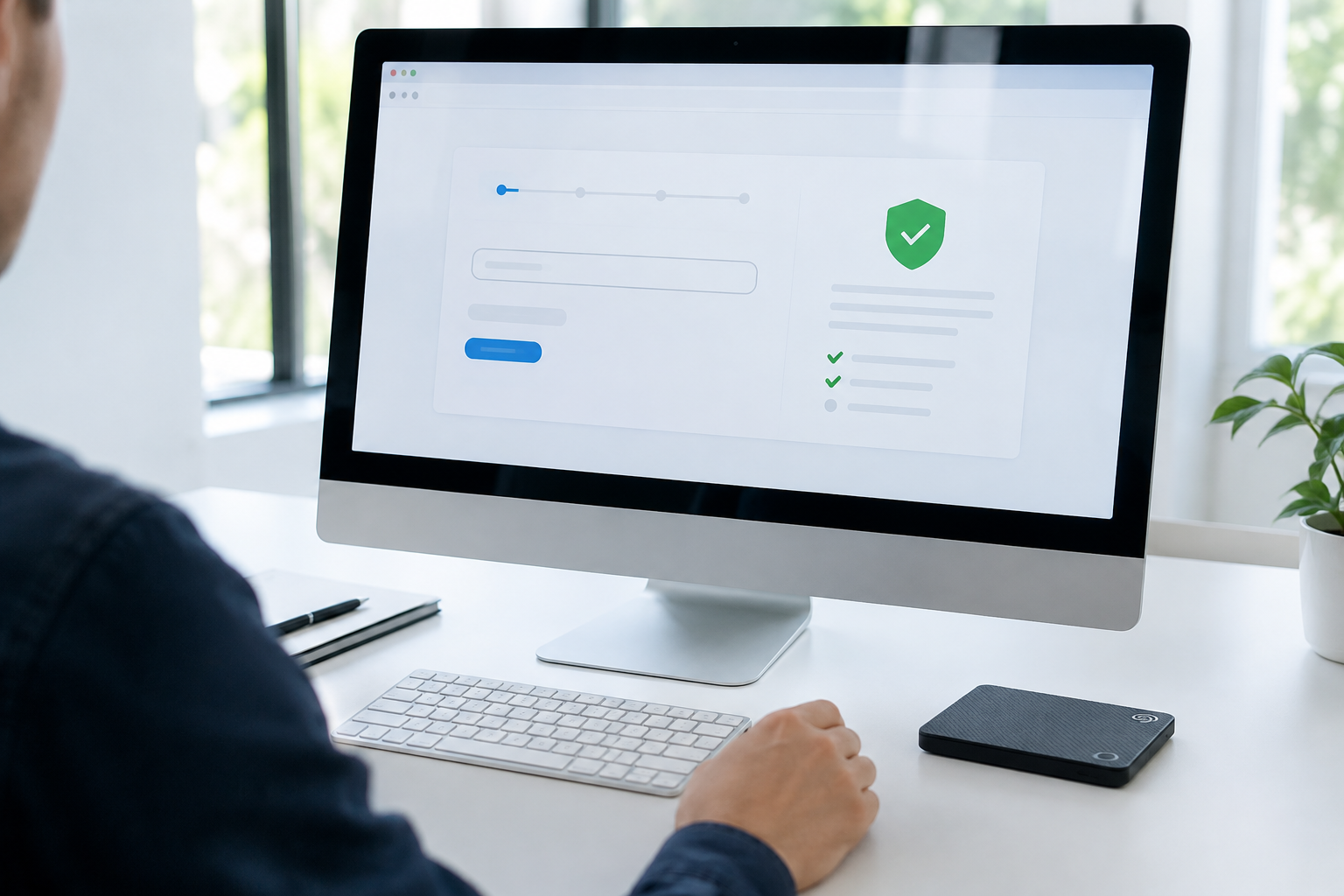
Once you’ve got the serial number in hand, checking warranty status is simple:
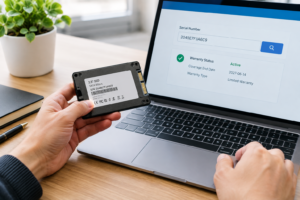
- Go to Seagate’s official warranty checker page (search “Seagate warranty validation” or navigate through their support site).
- Enter your drive’s serial number exactly as it appears on the label, no spaces or extra characters.
- Submit the form and review the results, which will show whether the drive is in warranty, out of warranty, or ineligible.
The results page typically shows the warranty expiration date, the product family, and sometimes the original ship date from Seagate’s factory. If the tool says the drive isn’t found, double check that you typed the serial number correctly. A single mistyped character will return a false negative.
Avoid using third-party serial lookup sites that promise the same information. These tools scrape or guess at warranty data and aren’t connected to Seagate’s actual records. You could get an inaccurate result, and worse, some of these sites exist mainly to collect your drive’s serial number for other purposes. Stick with Seagate’s own portal.
What Affects Your Warranty Eligibility
A “check engine light” moment with your SSD doesn’t automatically mean Seagate owes you a replacement. Several factors determine whether you’re actually covered.
Region matters. Seagate’s warranty terms can vary by country, and a drive purchased in one region may have different coverage length or terms if you try to claim it elsewhere. This is especially relevant if you bought a drive while traveling or through an international reseller.
Seller matters too. Drives bought from unauthorized or gray-market sellers sometimes have voided or reduced warranty coverage, even if the drive itself is genuine. Buying from Seagate directly or from authorized retailers like Amazon, Best Buy, or B&H protects your coverage.
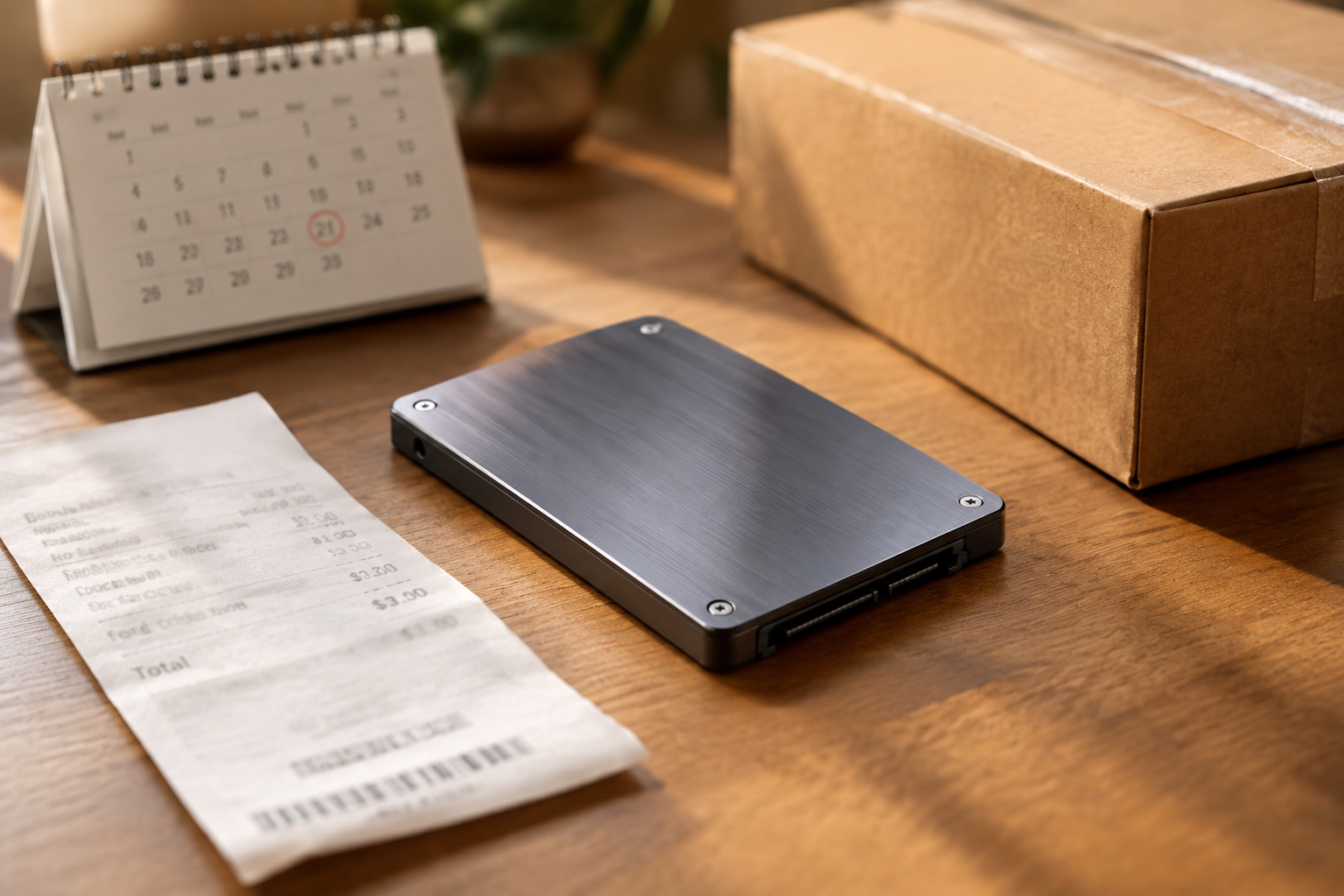
Purchase date and proof of purchase are often required for anything beyond a basic lookup. Seagate’s online checker usually works off the serial number alone, but if you need to file an actual RMA (return merchandise authorization), you may be asked for a receipt or order confirmation showing when and where you bought the drive.
Standard Seagate SSD warranties typically run three to five years depending on the product line, but always confirm with the actual tool rather than assuming based on the drive’s marketing materials. If you’re deciding whether an SSD upgrade is worth pursuing in the first place, our article on the benefits of upgrading from HDD to SSD is a good starting point before you even get to warranty questions.
What to Do If Your Drive Is Out of Warranty
If the checker comes back showing expired coverage, you’ve still got options. Some retailers offer extended protection plans separate from the manufacturer’s warranty, so check your original purchase records for anything like that.
If the drive is failing and truly out of warranty, replacing it is usually more practical than trying to repair or recover a failing SSD. Prices on solid state drives have dropped enough that a new SSD, especially something in the NVMe category, is often a better long-term investment than chasing a repair on aging hardware. If you’re comparing what kind of replacement makes sense, our breakdown of NVMe SSD vs Intel SSD and SATA vs NVMe for gaming can help you figure out what fits your setup.
Frequently Asked Questions
Can I check my Seagate SSD warranty without the physical drive?
Yes, as long as you have the serial number written down somewhere, on an old invoice, in a screenshot from diagnostic software, or saved in your records. You don’t need the drive in hand to run the check itself.
Does Seagate warranty coverage transfer if I bought a used drive?
Generally no. Most manufacturer warranties are tied to the original purchaser and require proof of purchase for any claims beyond a basic status check. If you bought a drive secondhand, the original warranty period still applies based on the ship date, but you likely won’t be able to file a claim without the original receipt.
What if my Seagate SSD serial number isn’t recognized by the warranty checker?
Double check you’re reading the serial number correctly and not accidentally entering the model number instead. If the number is definitely correct and still isn’t recognized, contact Seagate support directly. It can occasionally happen with older drives or unusual retail configurations, and their support team can look into it manually.

James Kennedy is a writer and product researcher at Drives Hero with a background in IT administration and consulting. He has hands-on experience with storage, networking, and system performance, and regularly improves and optimizes his home networking setup.