How to Check Kingston SSD Warranty by Serial Number
Your Kingston SSD is acting up, or maybe you just want to know how much warranty coverage you have left before you buy another drive. Either way, the answer starts with one thing: the serial number printed on the drive itself. Kingston makes this process pretty simple once you know where to look and which tool to use.
This guide walks you through finding that serial number, telling it apart from the model number and firmware version, and running an official warranty check instead of trusting a random third-party site with your drive’s info.
Finding the Serial Number on Your Kingston SSD
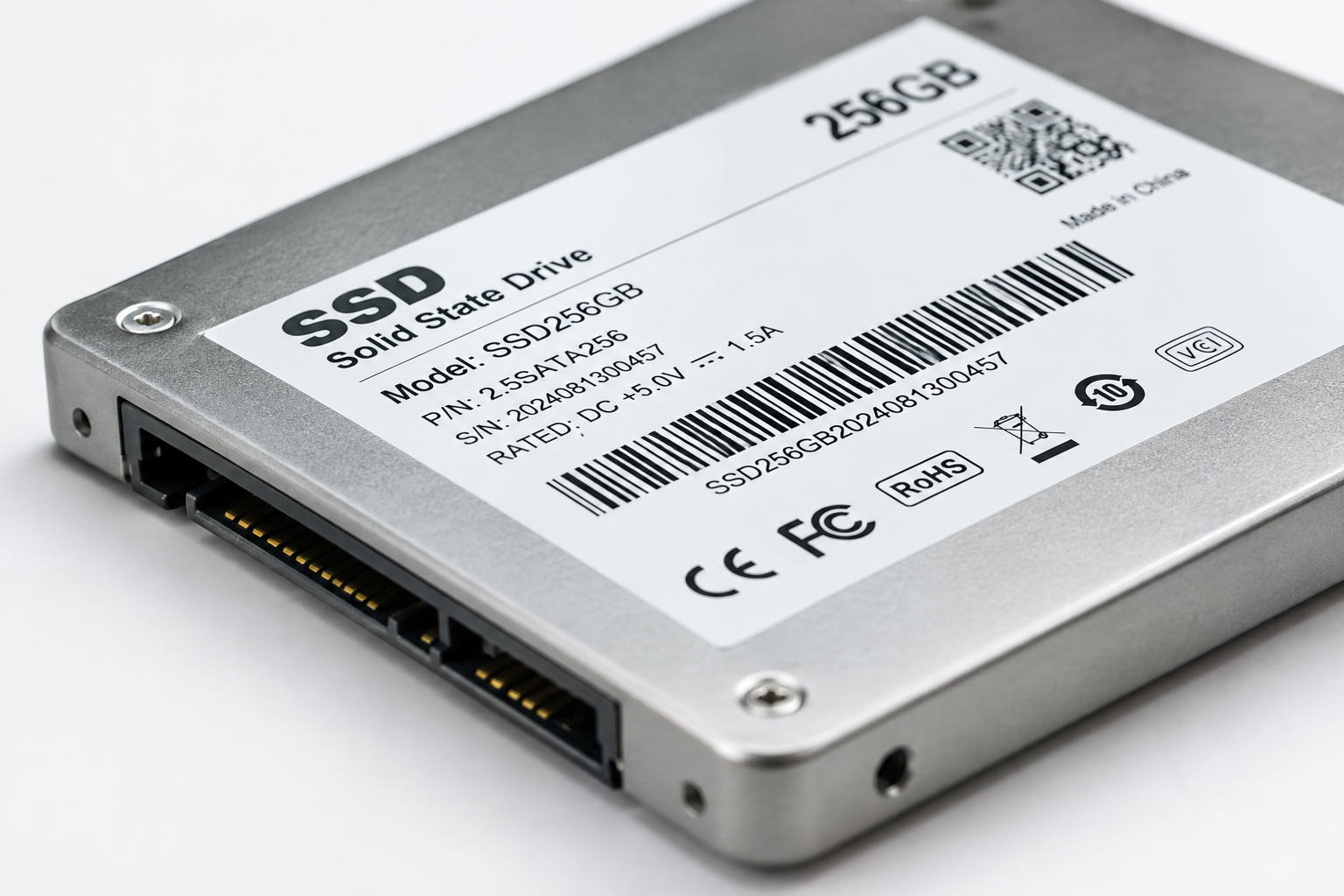
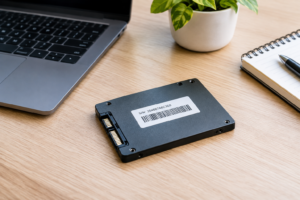
Every Kingston SSD has a label on the drive itself with a block of printed information. You’ll need to physically access the drive to read it, which usually means opening your laptop or desktop case.
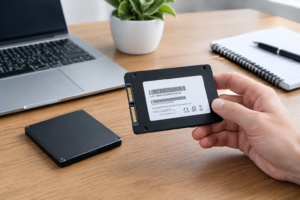
Look for a sticker on the top or bottom of the SSD. Kingston typically prints several lines of text here, and it’s easy to grab the wrong string of characters if you’re not paying attention.
- Serial Number: Usually labeled “S/N” followed by a long alphanumeric string, often 20+ characters.
- Model Number: Labeled “Model” or “P/N,” this identifies the product line, like SA2000M8/500G for a KC2500 series drive.
- Firmware Version: Sometimes printed on the label, but more reliably found through Kingston’s SSD Manager software.
If you can’t open your device, you can also pull the serial number through software. On Windows, open Command Prompt and type wmic diskdrive get model,serialnumber. Kingston’s own SSD Manager tool will display this information as well, along with the current firmware version, which is handy if you’re also checking whether you need an update. For a full walkthrough on managing firmware separately from warranty status, check out this guide on upgrading SSD firmware, which covers similar concepts even though it’s written for Samsung drives.
Serial Number vs. Model Number vs. Firmware: What’s the Difference?
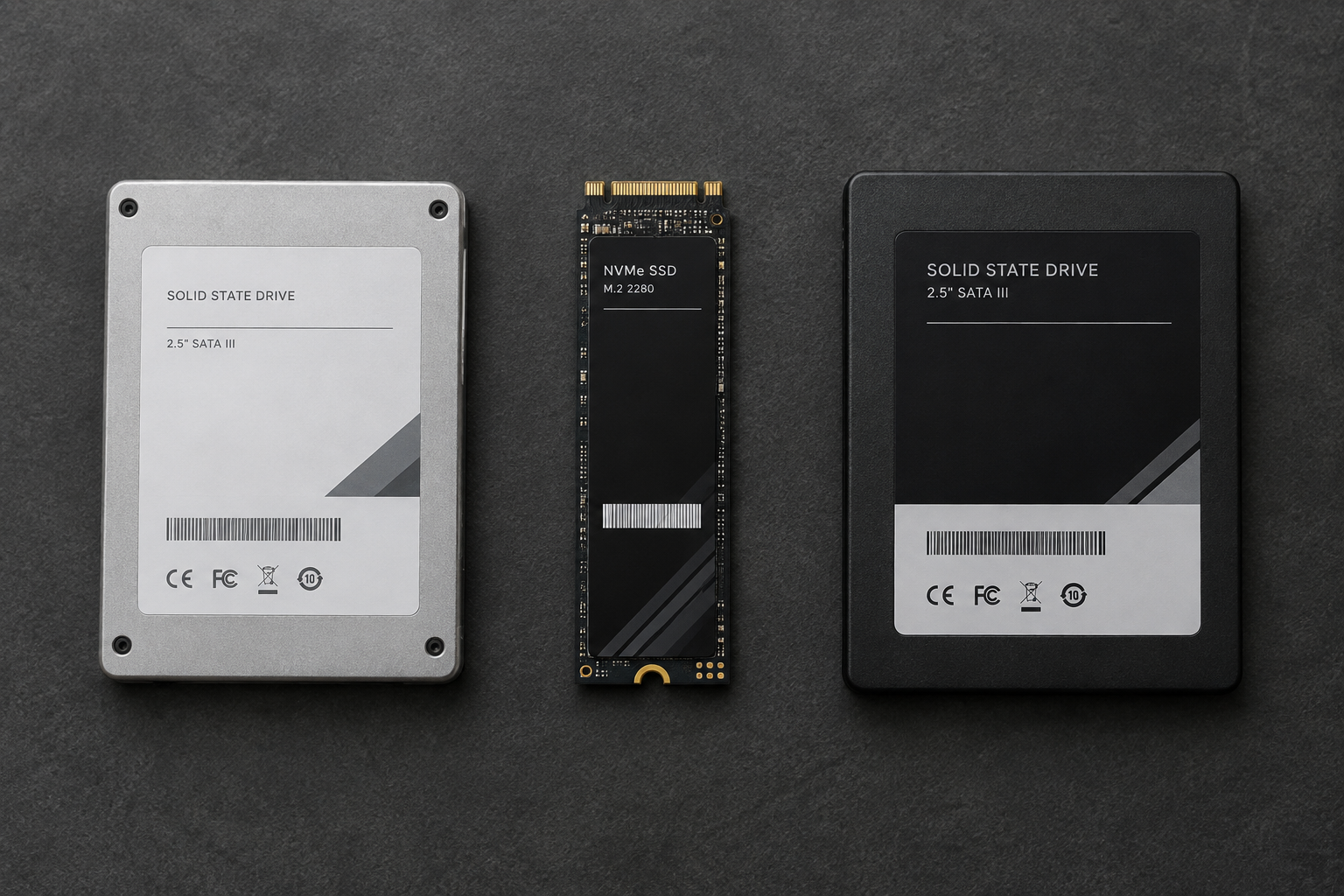
People mix these up constantly, and it’s the number one reason warranty checks fail on the first try.
The serial number is unique to your specific drive. No two Kingston SSDs share the same one, and it’s what Kingston’s system uses to look up your warranty status, manufacturing date, and whether the drive has been flagged for any known issues.
The model number identifies the product line and capacity, like the KC3000 or NV2 series. It’s shared across every drive of that exact configuration, so it won’t tell Kingston anything about your individual unit’s warranty.
The firmware version is software running on the drive’s controller. It’s not tied to warranty at all, but it’s worth checking anyway. Outdated firmware can cause performance issues or bugs that get mistaken for hardware failure. If you’re troubleshooting a drive that seems to be underperforming, it’s worth comparing how your drive stacks up against other options, like in this breakdown of NVMe SSD vs Intel SSD performance differences.
How to Check Your Warranty Through Kingston’s Official Process
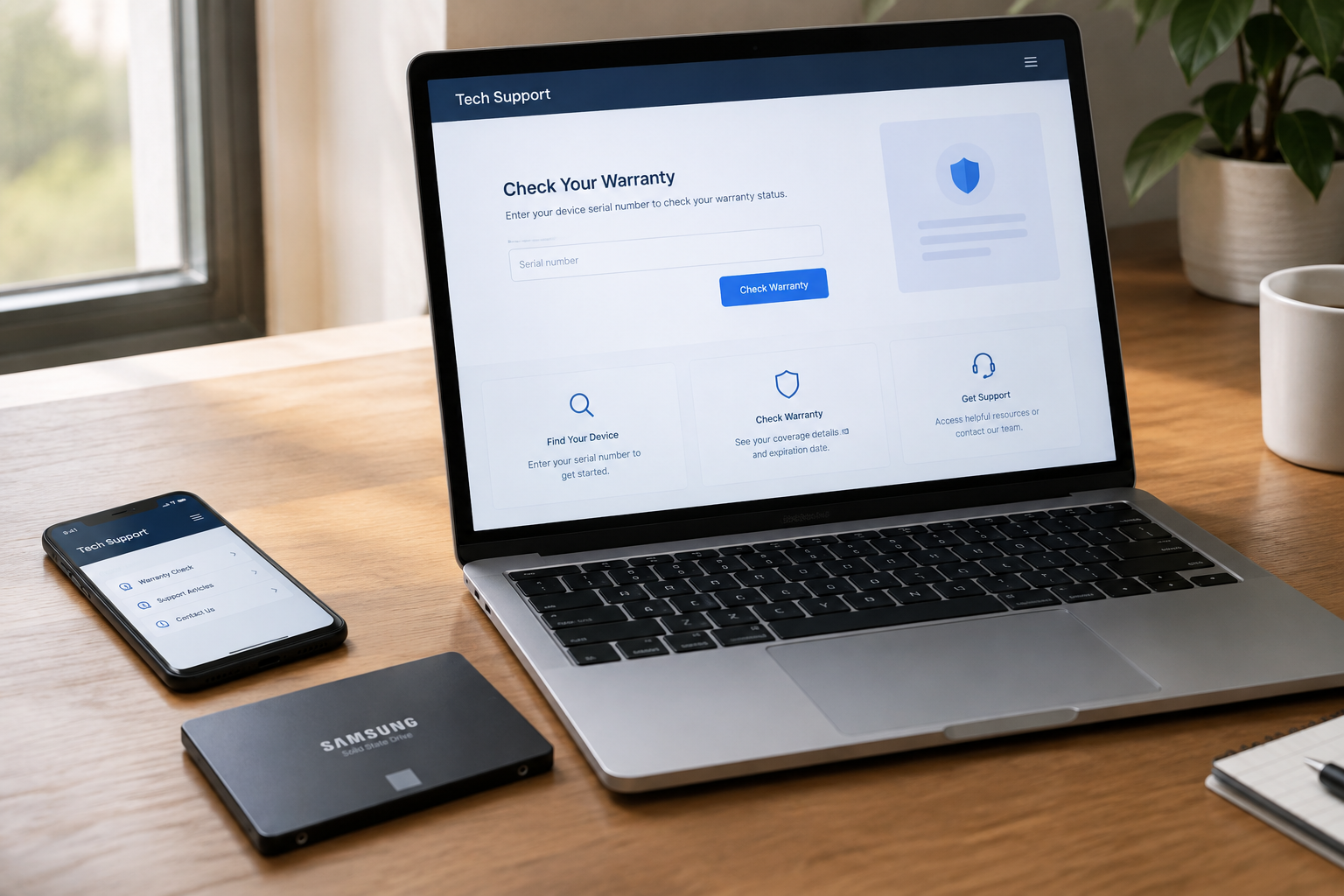
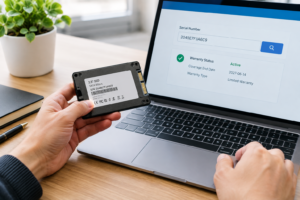
Kingston runs its own warranty verification tool, and it’s the only source you should trust for this. Third-party “serial lookup” sites often scrape outdated data or, worse, exist to collect your information for spam.
- Go to Kingston’s official warranty verification page on their support site.
- Enter your drive’s serial number exactly as printed, without spaces.
- Review the results, which will show manufacture date, warranty status, and whether the drive is still under coverage.
Keep in mind that warranty length varies by product line. Kingston’s consumer SSDs, like the NV2 or A400, typically carry a 3-year limited warranty, while higher-end drives like the KC3000 or FURY Renegade often come with 5 years. Enterprise-grade drives have their own separate terms entirely.
Your region matters too. Kingston’s warranty terms can differ between the US, EU, and other markets, and coverage is often tied to where the drive was originally sold, not where you currently live. If you bought a drive through an unauthorized reseller or a marketplace listing that isn’t clearly Kingston-authorized, you may find the warranty doesn’t transfer the way you’d expect.
Proof of purchase is another piece that trips people up. Even if Kingston’s online tool shows your drive as within its warranty window, you may still need a dated receipt or invoice if you file an actual claim. Save that email confirmation or store receipt somewhere you won’t lose it, ideally the same day you buy the drive.
FAQ
What if my Kingston SSD’s serial number sticker is damaged or unreadable?
You can still pull the serial number through software using Kingston’s SSD Manager tool or the Windows command line method mentioned above, as long as the drive is still functional and recognized by your system. If the drive won’t power on at all, contact Kingston support directly. They can sometimes verify warranty status using your original order information instead.
Does replacing an SSD’s firmware affect its warranty?
No, updating firmware through Kingston’s official SSD Manager software does not void your warranty. It’s a standard maintenance step that Kingston itself recommends. What can cause problems is attempting unauthorized firmware modifications or using tools not provided by Kingston, so stick to their official software when in doubt.

James Kennedy is a writer and product researcher at Drives Hero with a background in IT administration and consulting. He has hands-on experience with storage, networking, and system performance, and regularly improves and optimizes his home networking setup.