How to Tell If an SSD Has DRAM
Why DRAM Matters More Than Most Buyers Realize
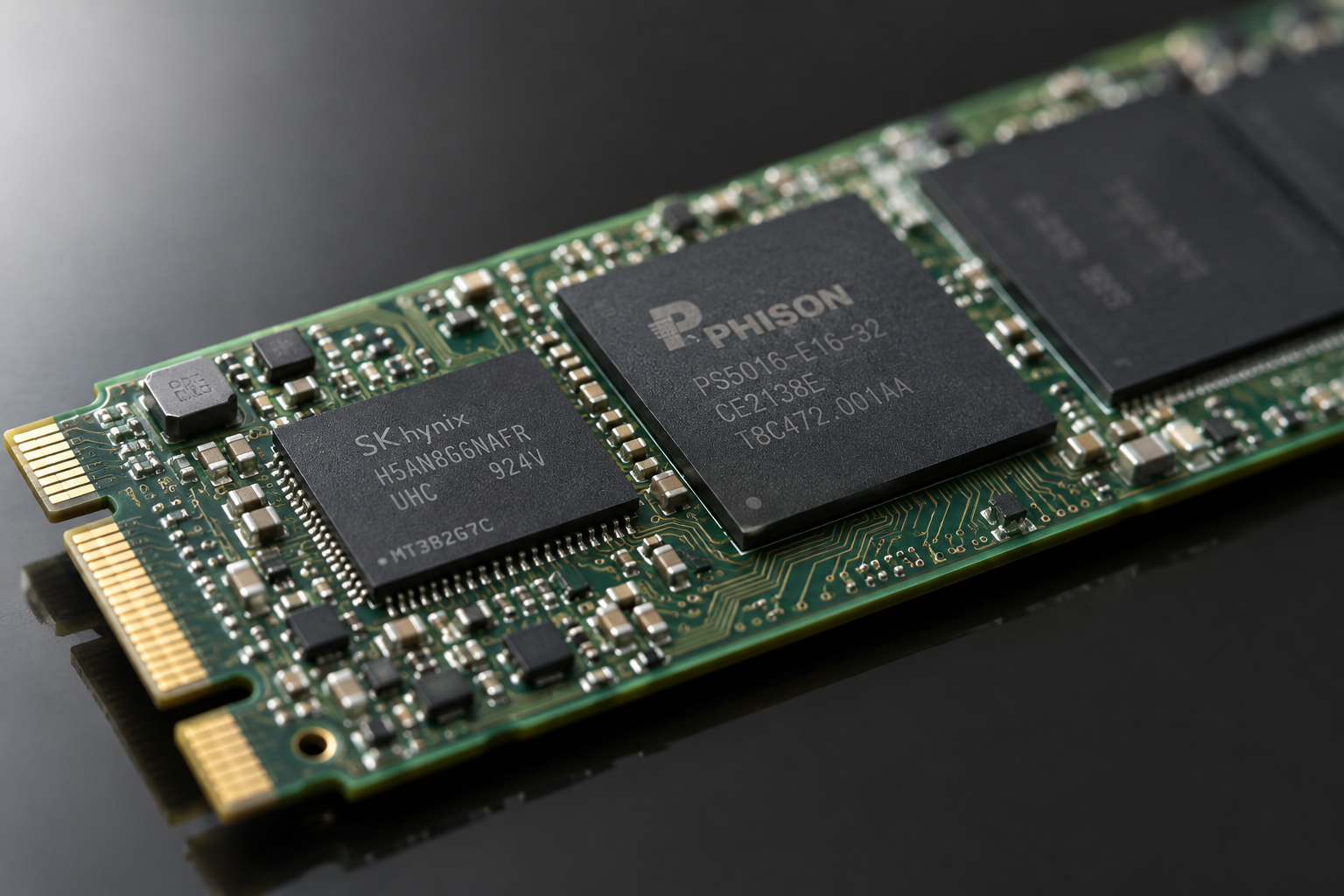
Every SSD needs somewhere to store the mapping table that tells it where your files actually live on the NAND chips. Drives with a dedicated DRAM chip keep that table close by by itself, so lookups happen fast. Drives without one either borrow a slice of your system RAM (Host Memory Buffer, or HMB) or fall back to slower NAND-based caching tricks.
This isn’t just a spec sheet curiosity. It affects sustained write performance, how a drive behaves once its cache fills up, and how it holds up under heavy multitasking or large file transfers. If you’re trying to figure out whether the SSD in your cart (or already in your machine) has DRAM, this guide gives you the actual answer for the most common models, plus a method for checking anything not listed here.
How to Check DRAM Status Without Guessing
Manufacturers rarely put “DRAM-less” in bold letters on the box, so you need to know where to look.
- Read the official spec sheet, not the marketing page. Look for “DRAM” or “HMB” listed under the controller or cache section. If neither is mentioned, check the datasheet PDF, which is usually more honest than the retail listing.
- Search the controller model number. Controllers like the Phison E12, E16, E18, and Silicon Motion SM2262 all pair with DRAM. Controllers like the Phison E13T, E19T, and SM2263XT are built specifically for DRAM-less designs with HMB support.
- Use CrystalDiskInfo (Windows) or smartctl (Linux/Mac). These tools often show the HMB size directly if the drive uses one, which confirms it’s DRAM-less.
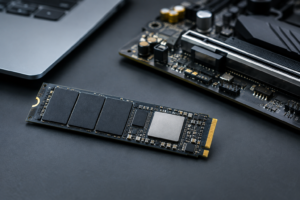
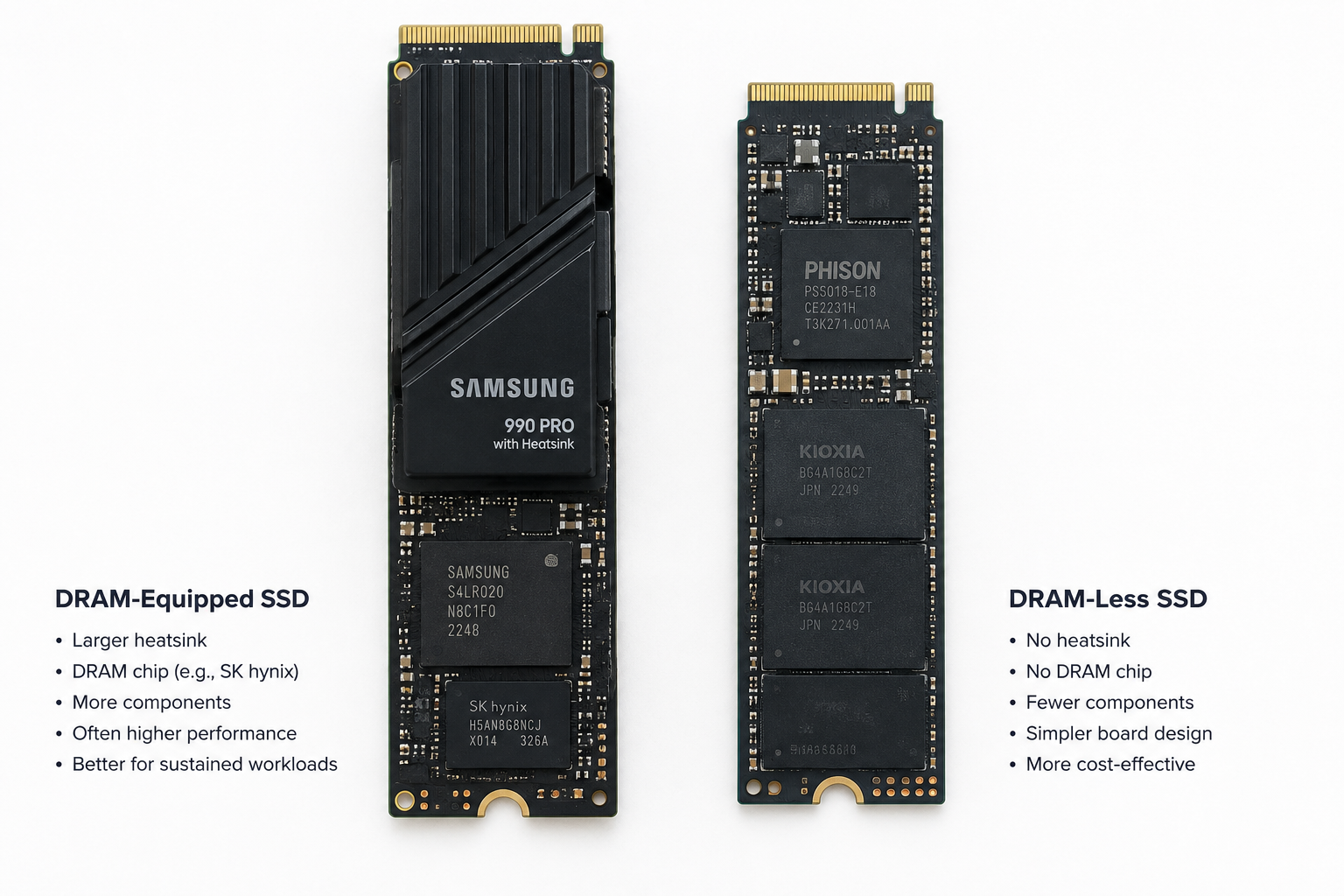
- Check teardown photos. Sites like TechPowerUp’s SSD database photograph the PCB for most retail drives. If you see a small extra chip next to the controller, that’s DRAM.
None of these methods require opening your own drive. Cracking the case usually voids the warranty for no real benefit, since the information is already public if you know where to search.
Popular NVMe SSDs: DRAM vs DRAM-less
Here’s a rundown of common drives people ask about, verified against manufacturer specs and known controller pairings.
- Samsung 990 Pro: Has DRAM (LPDDR4). Uses Samsung’s in-house controller with TLC NAND. PCIe 4.0. Backed by a 5-year warranty and up to 1,200 TBW on the 2TB model.
- Samsung 980 Pro: Has DRAM. Same Elpis controller family as the 990 Pro, TLC NAND, PCIe 4.0. This one is a genuinely different drive from the plain “980” below, despite the similar name.
- Samsung 980 (non-Pro): DRAM-less. Relies on HMB, uses the Pablo controller with TLC NAND, PCIe 3.0. Fine for light use, but sustained writes drop noticeably compared to the Pro models.
- WD Black SN850X: Has DRAM. Uses WD’s in-house controller with TLC NAND, PCIe 4.0. This is the drive to buy if you want WD Black performance for gaming or heavy file work.
- WD Black SN770: DRAM-less, relies on HMB. Same “Black” branding as the SN850X, but a different internal design entirely. If you’re comparing these two, it’s worth reading the full breakdown in WD Black SN770 vs WD Black SN850X specs before assuming they perform the same.
- WD Blue SN580 / SN570: Both DRAM-less, both use HMB, both pair budget controllers with TLC NAND. Solid for everyday laptop use, not ideal for heavy sustained workloads.
- Crucial P3 / P3 Plus: DRAM-less with QLC NAND. Fine for boot drives and general storage, but noticeably slower once the SLC cache runs dry on large transfers.
- Crucial P5 Plus: Has DRAM, TLC NAND, PCIe 4.0. A better pick than the P3 line if performance consistency matters to you.
- Kingston NV2: DRAM-less. Worth flagging specifically because Kingston quietly shifted some capacities from TLC to QLC NAND during production, which changes endurance and sustained speed even under the same model name. Always check the current datasheet by capacity before buying this one.
- Kingston KC3000: Has DRAM, TLC NAND, PCIe 4.0. Kingston’s higher-tier option and a much safer bet if you want predictable performance.
- SK hynix P41 Platinum: Has DRAM, in-house controller, TLC NAND, PCIe 4.0. Consistently rated as one of the more efficient DRAM-equipped drives on the market.
If you’re deciding between NVMe options generally, our comparison on NVMe SSD vs Intel SSD and the deeper dive into whether NVMe is really faster than SATA SSDs both cover how much of that speed advantage depends on DRAM and controller quality rather than the interface alone.
Popular SATA SSDs: DRAM vs DRAM-less
- Samsung 870 EVO: Has DRAM, TLC NAND, MJX controller. One of the most consistent SATA drives you can buy, with a 5-year warranty across most capacities.
- Crucial MX500: Has DRAM (DDR3L), Silicon Motion SM2258 controller, TLC NAND. A long-running favorite for SATA upgrades precisely because it never dropped DRAM across revisions.
- Crucial BX500: DRAM-less. Also worth noting that Crucial has shifted NAND type on this line between TLC and QLC depending on capacity and production batch, so check the specific capacity you’re buying rather than assuming they’re identical.
- Kingston A400: DRAM-less, and infamous for undisclosed component swaps over its production run, including NAND type changes that measurably affected performance. If budget SATA is your goal, the MX500 is the safer, more transparent choice.
For a broader look at how these budget and premium SATA options stack up against each other, the comparison in WD Black vs Samsung SSD is a good next read.
Does DRAM-less Actually Matter for You?
For a laptop used mostly for browsing, office work, and streaming, a DRAM-less drive with HMB support performs close enough to a DRAM model that you likely won’t notice the difference day to day. If you’re just trying to understand what a given capacity means for your system in the first place, this explainer on what 512GB SSD means on a laptop covers the basics well.
Where DRAM-less drives start to show their limits is with large sustained writes: transferring hundreds of gigabytes of video, working with big virtual machine images, or running database workloads. Once the SLC cache empties, DRAM-less drives can drop to a fraction of their rated speed, sometimes below SATA SSD levels temporarily.
If your workload includes any of that, spend the extra money on a DRAM-equipped drive. It’s a small price difference for a meaningful performance floor, and it matters even more if you’re relying on the SSD to make an older laptop feel new again, a topic we cover in how important an SSD really is in a laptop.
Frequently Asked Questions
Can I add DRAM to a DRAM-less SSD?
No. DRAM-less SSDs are designed around controllers that don’t have a DRAM interface at all, so there’s no way to retrofit one. If DRAM matters to your workload, you need to buy a different drive rather than modify the one you have.
Does HMB make a DRAM-less SSD basically the same as a DRAM drive?
Not quite. HMB borrows a small piece of your system RAM to help with mapping tables, which closes some of the performance gap, but it’s still slower than dedicated onboard DRAM and depends on your system having HMB support enabled in the driver and BIOS. It helps, but it’s not a full substitute.
Why do some SSDs with the same model name have different specs?
Manufacturers sometimes swap NAND type, controller revision, or DRAM presence between capacities or production batches without renaming the product, often to manage costs. Kingston’s NV2 and A400 lines and Crucial’s BX500 are known examples. Always check the datasheet for your exact capacity and, if possible, the specific revision before buying.

James Kennedy is a writer and product researcher at Drives Hero with a background in IT administration and consulting. He has hands-on experience with storage, networking, and system performance, and regularly improves and optimizes his home networking setup.