What Does 512Gb Ssd Mean on a Laptop
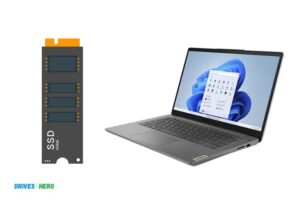
A 512gb ssd on a laptop refers to the amount of storage available on the solid-state drive. The letters ssd stand for solid-state drive, which is a type of storage device used in modern computers and laptops.
Solid-state drives use flash memory to store data and have several advantages over traditional hard drives, including faster read and write speeds, lower power consumption, and increased durability. A 512gb ssd offers a generous amount of storage space for a laptop, allowing users to store large files such as videos, photos, and music without the need for external storage devices.
In today’s fast-paced world, having sufficient storage and fast read and write speeds are essential for smooth and efficient operation, making ssds a popular choice for laptop storage.
Explaining What Ssds (Solid State Drives) Are
What Does 512Gb Ssd Mean On A Laptop
If you’re in the market for a new laptop, you’ve probably come across the term “ssd” when looking at storage options. But what exactly is an ssd, how does it work, and what are the differences between ssds and traditional hdds?
Let’s find out.
Quick Overview Of What An Ssd Is
An ssd, or solid state drive, is a type of storage device that uses flash memory to store data. Unlike traditional hdds, which use spinning disks to read and write data, ssds have no moving parts and store data on interconnected flash-memory chips.
Explanation Of How Ssds Work
When you save data to an ssd, that data is stored on flash memory chips using electrical charges. Ssds use a controller to manage these chips and organize the data. Because ssds have no moving parts, they’re faster and more reliable than traditional hdds.
Differences Between Ssds And Hdds
There are several key differences between ssds and hdds:
- Speed: Ssds are significantly faster than hdds, with faster boot times, faster data read and write speeds, and faster application load times.
- Durability: Because ssds have no moving parts, they’re more durable than hdds. They’re less prone to damage from drops and vibrations, and they’re less likely to fail due to mechanical issues.
- Noise: Hdds can be quite noisy due to the spinning disks inside. Ssds, on the other hand, make no noise at all.
- Capacity: Hdds tend to have larger storage capacities than ssds, although ssds are quickly catching up in this area.
- Price: Ssds are generally more expensive than hdds, but the prices have come down significantly in recent years.
Ssds are a newer, faster type of storage device that are quickly replacing traditional hdds in laptops and other devices. With no moving parts, they’re faster, more reliable, and more durable than traditional hdds, although they tend to be more expensive.
If you’re looking for a new laptop, it’s worth considering one with an ssd for faster performance and better overall reliability.
Understanding Different Storage Capacities
As the world moves towards digitalization, laptops have become an essential part of our daily lives. When it comes to purchasing a laptop, the storage capacity is one of the most important factors to consider. Laptop storage, measured in gigabytes (gb) or terabytes (tb), indicates the amount of data that can be stored on a device.
In this blog post, we will focus on the subheading: understanding different storage capacities, to help you understand what 512gb ssd means on a laptop.
Explanation Of Storage Capacity
The storage capacity of a laptop is the amount of space available for storing files, documents, pictures, and videos. There are two main types of laptop storage – hard disk drives (hdd) and solid state drives (ssd). Hdds are the traditional storage devices that use spinning disks to store information, while ssds store data on memory chips.
Ssds are more expensive than hdds, but they offer better speed and performance, making them an ideal option for many users.
Comparison Of Ssd Storage Capacity With Hdds
Ssds typically have smaller storage capacities than hdds, but their efficiency offsets this limitation. For instance, a 512gb ssd can store almost as much data as a 1tb hdd. Therefore, when choosing between hdds and ssds, you should focus on the speed and performance benefits of an ssd, which can significantly improve your overall work experience.
Different Types Of Ssds And How They Compare In Terms Of Storage Capacity
There are different types of ssds, including sata, nvme, and pcie ssds. Sata drives are the oldest and slowest, while nvme and pcie drives are faster and more expensive. Nvme and pcie ssds offer extremely fast data transfer rates, which improve the overall speed of a laptop.
While sata ssds have lower storage capacities, nvme and pcie ssds can reach up to 8tb.
An In-Depth Explanation Of 512Gb Ssds And How They Compare With Other Storage Capacities
512gb ssds offer a reasonable amount of storage space, making them an excellent option for most users. They are ideal for professionals such as graphic designers, photographers, and videographers who need to store large files. However, if you require more storage space, you can opt for a 1tb ssd, which is twice the size of a 512gb drive.
The price difference between these two options is not significant, making it a more cost-effective solution.
Understanding different storage capacities is crucial when purchasing a laptop. When it comes to storage, ssds are a more efficient and reliable option than hdds. Since ssds are available in different capacities and types, it’s essential to choose the one that suits your needs and budget.
We hope that this article has helped you understand what 512gb ssd means on a laptop and how it compares with other storage capacities.
Compactness
Explanation Of How Size And Weight Affect Laptop Users
When it comes to laptops, size and weight can greatly impact a user’s experience. The smaller and lighter a laptop, the more portable it is, making it easier to carry around and use in different environments. A bigger and heavier laptop can be a hassle to move around and may take up more space in a backpack or bag.
Additionally, a smaller and more compact laptop can also mean a smaller display screen, which may not be ideal for those who require a larger display for work or personal use. However, a smaller laptop can also mean a longer battery life, making it more useful for people who are frequently on the go and need to rely on their laptop for extended periods of time.
Advantages Of Using A Laptop With A 512Gb Ssd
There are many advantages to using a laptop with a 512gb ssd, including:
- Faster boot and load times: A laptop with a 512gb ssd can boot up and load programs much faster than a traditional hard drive, which can improve productivity and streamline workflow.
- More storage space: A 512gb ssd can provide ample storage space for a variety of files, including documents, media, and software, allowing users to have everything they need on their laptop without worrying about running out of space.
- Enhanced durability: Ssds are more durable than traditional hard drives, as they have no moving parts, making them less prone to damage from drops or shocks.
- Improved energy efficiency: Laptops with ssds are more energy-efficient than those with traditional hard drives, which can increase battery life and reduce energy consumption.
A laptop with a 512gb ssd can provide many benefits for users who require fast and reliable storage, energy efficiency, and durability. Additionally, the compactness of the laptop can make it more portable and convenient for users who are frequently on the go.
Speed
Explanation Of How 512Gb Ssds Enhance The Speed Of A Laptop
Solid state drives (ssds) are a type of storage device that have become increasingly popular over the years. When it comes to speed, ssds are much faster than traditional hard disk drives (hdds) and can greatly enhance the performance of a laptop.
Here’s how:
- Ssds have no moving parts, which means they can access data faster than hdds
- They have significantly faster read and write speeds, resulting in faster boot times, file transfers and program launches.
- Ssds utilize flash memory to store data, so they can access multiple files simultaneously without slowing down.
- They don’t need a spin-up time to start working, unlike hdds that need to spin up their disks every time they’re powered on.
With a 512gb ssd, you can expect your laptop to be much faster and more responsive than with a traditional hdd. In addition, it will have more storage space and can hold a larger amount of data.
Comparison Of Speed Between Laptops With Ssds And Those With Hdds
The speed difference between ssds and hdds is quite significant. Here are some key differences between laptops with ssds and those with an hdd:
- Laptops with ssds have much faster boot times, and programs launch almost instantly.
- With an ssd, file transfer speeds are much faster than with an hdd, making it easier to copy/ move large files.
- Ssds are significantly less prone to mechanical failure than hdds, which reduces the risk of data loss due to a hardware malfunction.
- Unlike hdds, ssds don’t fragment their data as the drive fills up, which means there’s no need to defragment the drive regularly.
Overall, laptops with ssds are much faster and more reliable than those with hdds.
Uses That Can Take Advantage Of The Speed Of Ssds
If you’re a designer, video editor, gamer or have any other demanding use case, then a 512gb ssd is a great choice. Here are some uses that can take advantage of the speed of ssds:
- Gaming: Ssds offer faster loading times and enable more seamless gameplay.
- Video editing: Ssds allow for faster rendering times and video export.
- Graphic design: Ssds let you open and operate large photoshop and illustrator files with ease.
- Large file transfers: If you often work with large files like high-res images, videos, and audio files, the faster transfer speeds of ssds will save you a lot of time.
A 512gb ssd can do wonders for the speed and overall performance of a laptop. With faster boot and load times, and increased reliability, laptops with ssds are the perfect choice for any demanding user.
Response Times
A laptop’s storage capacity is one of the most critical factors when purchasing a new one. A 512gb sdd is an excellent choice for those who need both speed and storage capacity. Response times are one of the factors that make a 512gb ssd a must-have.
###explanation of the impact of response times on user experience
Response time is the period it takes for any system to react to a user’s input. In laptops, response times have a significant impact on the user experience. A laptop with a shorter response time will perform better and provide a smoother experience.
The following are some ways response times can impact the laptop experience:
- Applications and programs will open faster, improving productivity
- The operating system will boot up quickly
- Files will save and copy faster with shorter response times
- Playing graphic-intensive games will run smoothly without delays and lags
Advantages Of Using A Laptop With A 512Gb Ssd In Terms Of Response Times
Compared to traditional hard drives, a 512gb ssd offers many advantages in terms of response times. Here are some of the benefits you can enjoy when you use a laptop equipped with a 512gb ssd:
- A 512gb ssd can transmit data much faster than traditional hard drives since it doesn’t rely on moving parts. This means that app loading times, booting up, and file transfers will be much faster.
- With a laptop that has a 512gb sdd, users experience a significant reduction in shutdown time.
- The ssd-equipped laptop results in near-instantaneous startup times for frequently used applications.
- As compared to hard drives, ssd memory access times are orders of magnitude faster, leading to snappier and more responsive devices.
- Even after years of usage, ssds remain much faster than hard drives, with no deceleration over time.
Users benefit from faster response times on laptops using 512gb ssd storage. Shorter response times can reduce lag, boot time, loading times, and improve file transfer speeds, providing a superior user experience.
Identifying Your Needs
With the increasing number of files, photos, and videos we store on our laptops, upgrading to a 512gb ssd (solid state drive) from your traditional hard drive can provide more space, faster read and write speeds, and better performance. Upgrading to a higher ssd capacity is not necessary for everyone, and it is important to consider your storage needs and usage scenarios before making a decision.
Here are some key things to consider before upgrading:
Things To Consider Before Deciding On Upgrading Your Laptop’S Storage
- Storage requirements: Before deciding to upgrade to a 512gb ssd, ask yourself if you actually require the amount of storage space. Evaluate your current storage usage and determine if you need additional storage space. If you do not have a lot of data to store, a smaller ssd may suffice.
- Usage scenarios: Consider how you use your laptop. If you are a casual user who only stores documents, photos, and emails, then you may not benefit from a higher-capacity ssd. However, if you are an avid gamer, video editor, or graphics designer, then a larger ssd may be beneficial.
- Budget: Upgrading to a 512gb ssd can be expensive, and you need to weigh up the benefits against the cost. Analyze your budget and ensure that you have enough funds to upgrade.
- Future storage needs: Think about your future storage needs, consider how long you plan to use your laptop and whether you want to upgrade again in the future. A higher-capacity ssd can provide you with more storage space for your growing needs, so it may be worth investing in a 512gb ssd in the long run.
By considering these factors, you will be able to identify whether or not upgrading to a 512gb ssd is the right choice for you. It is essential that you evaluate your actual storage requirements and usage scenarios before making a final decision.
Compatibility With Your Laptop
Explanation Of The Compatibility Of 512Gb Ssds With Different Laptop Models And Brands
The compatibility of 512gb ssds with different laptop models and brands depends on the size, shape and interface used by the ssd. Here are some of the points to consider:
- Most laptops have a 2.5-inch drive bay, which is where the ssd would fit. So, before you buy an ssd ensure that its size is 2.5-inch.
- Most modern laptops support sata interface which should be compatible with 512gb ssd. However, if your laptop model is an older one, then there is a possibility that only ide interfaces are available.
- The compatibility of ssds with laptop models also depends on the connector. Some laptop models use connector type ahci (advanced host controller interface), whereas some laptops use nvme (non-volatile memory express).
- Ssds can be compatible with any brand of laptop model, be it hp, lenovo, dell, asus, apple, or any other brand.
So, before buying an ssd, ensure the following:
- Check the size of your laptop’s drive bay.
- Check the type of interface your laptop supports.
- Check the type of connector your laptop uses.
Ways To Check If Your Laptop’S Motherboard Supports Ssds
Before upgrading your laptop’s storage to an ssd, it’s essential to check if your laptop motherboard supports ssds. Here are some tips to help you check the motherboard compatibility:
- Research your laptop model using your laptop’s serial number or model number. Check its specifications to see if it supports ssds.
- Check your laptop’s user manual or online documentation to see if it supports ssds.
- Open your laptop and look for a free drive bay slot available. You could also look for a label inside your laptop that indicates the type of drive supported (e.g., m.2, nvme, sata).
- Check for compatibility using upgrading guides on ssd manufacturer websites.
- Use third-party tools such as crystaldiskinfo or hwinfo to comprehend your laptop’s motherboard and storage capabilities.
Tips For Upgrading Your Laptop’S Storage
Upgrading your laptop’s storage with a 512gb ssd can be an excellent choice to improve its speed and performance, but it’s essential to follow some guidelines, so your laptop upgrade goes in a hassle-free manner.
- Back everything up on an external drive or in cloud storage so that you don’t lose any data.
- Before purchasing an ssd, ensure the compatibility of the ssd with your laptop by checking the above-mentioned points.
- Take note of the current storage capacity of your laptop and select the right size ssd accordingly.
- Before upgrading, check how much ram does your laptop have. If your laptop has less than 8gb ram, consider upgrading ram too.
- While upgrading, it’s essential to ground yourself with an anti-static strap or by touching a metal surface to avoid electric shock.
- Follow the manual guide of your laptop or watch an online tutorial video to install the ssd correctly.
Upgrading your laptop’s storage to a 512gb ssd can significantly enhance the speed and performance of your laptop. But it’s essential to ensure compatibility and follow some essential guidelines before upgrading.
Preparing For The Upgrade
Upgrading your laptop’s storage is a great way to improve its performance and speed. If you’re considering upgrading your laptop’s storage to a 512gb ssd, you’ll need to prepare your hardware and tools. In this section, we’ll discuss the necessary tools for upgrading and tips for preparing your laptop’s hardware for upgrading.
Necessary Tools For Upgrading
Before you begin upgrading your laptop’s storage to a 512gb ssd, you’ll need to gather a few necessary tools. Here are the essential tools you’ll need:
- A 512gb ssd
- Screwdrivers (phillips and flathead)
- An external hard drive enclosure or sata to usb adapter
- A cloning software
Preparing Your Laptop’S Hardware For Upgrading
Once you’ve gathered the necessary tools, you’ll need to prepare your laptop’s hardware for upgrading. Here are some tips for preparing your laptop’s hardware:
- Back up your data: Before you begin, make sure to back up all your data to an external hard drive or cloud storage. This will ensure that you don’t lose any crucial data during the upgrade process.
- Power off your laptop: Make sure your laptop is turned off before you begin disassembling it. Disconnect the power cord and remove the battery if it’s removable.
- Ground yourself: Ground yourself by touching a metal object to discharge any static electricity before you begin dismantling your laptop.
- Remove the back panel: Locate the screws on the bottom of your laptop and remove the back panel to reveal the internal components.
- Locate the storage drive: Identify the location of your laptop’s current storage drive. It is typically located near the center of the laptop and held in place by screws or brackets.
- Remove the storage drive: Remove the screws or brackets holding the storage drive in place and disconnect any cables or connectors.
- Insert the new ssd: Insert the new 512gb ssd into the same location as the old storage drive and secure it in place using screws or brackets.
- Clone your data: Use a cloning software to transfer your data from the old storage drive to the new ssd.
- Reassemble your laptop: Once your data is successfully transferred, reattach any cables or connectors that were disconnected, replace the back panel, and turn your laptop on.
By following these tips for preparing your hardware and tools, you can successfully upgrade your laptop’s storage to a 512gb ssd. Enjoy your faster and more efficient laptop!
Making The Upgrade
What does 512gb ssd mean on a laptop: making the upgrade
Upgrading your laptop to a 512gb solid state drive (ssd) can significantly boost its performance and storage capacity. However, before undertaking this upgrade, you need to understand how to go about it without causing any damage to your device. In this section, we will provide you with a detailed guide on how to upgrade your laptop to a 512gb ssd, best practices to follow, and risks associated with the upgrade and how to avoid them.
Detailed Guide On How To Upgrade Your Laptop To A 512Gb Ssd
Upgrading your laptop to a 512gb ssd can seem like a daunting task. However, it is a straightforward process that you can do by following these steps:
- Determine your laptop’s specifications: Before purchasing a new ssd, ensure that it is compatible with your device’s configurations.
- Purchase the right ssd: When selecting an ssd, pay attention to the storage capacity and performance. A 512gb ssd is ideal if you need more storage space and faster performance.
- Back up your data: Transfer all your data to an external drive or cloud storage to prevent any loss during the process.
- Prepare the laptop: Turn off your laptop, unplug it from the power source, and remove the battery. Locate the hard disk and remove it from its slot.
- Install the ssd: Insert the new ssd into the slot and screw it in place. Reinstall the battery and turn on your laptop to ensure that it is functioning correctly.
- Install the operating system: Use your original operating system disc or usb drive to install the system onto your new ssd.
- Restore your data: After successfully installing the os, transfer your old data back to your laptop.
Best Practices To Follow While Upgrading
To avoid any complications when upgrading your laptop to a new ssd, here are some best practices to follow:
- Read your laptop’s documentation: Before starting, read your laptop’s documentation for any special instructions or precautions.
- Ground yourself: Prevent electrostatic damage to your device by wearing an anti-static wristband or holding a grounded object while handling it.
- Use the right tools: Use the correct screwdrivers and tools to avoid damaging your laptop’s components.
- Handle your ssd with care: Always handle the ssd by its edges to avoid damaging the surface.
- Keep your laptop cool: Prevent overheating by placing your laptop on a cool surface.
Risks Associated With The Upgrade And How To Avoid Them
Upgrading your laptop to a new ssd carries several risks, including data loss and damage to your device. Here’s how to avoid them:
- Data loss: Back up your data before starting the upgrade to prevent loss caused by hardware failure or compatibility issues.
- Compatibility issues: Ensure the ssd you choose is compatible with your laptop’s specifications to avoid performance issues or compatibility problems.
- Damage to your laptop: Always handle all components with care to prevent physical damage to your laptop.
Upgrading your laptop to a 512gb ssd can breathe new life into your device and boost its performance. By following the right steps, adhering to best practices, and avoiding potential risks, this upgrade can be done with relative ease and minimal hitches.
Frequently Asked Questions For What Does 512Gb Ssd Mean On A Laptop
What Is A 512Gb Ssd?
A 512gb ssd is a storage device that uses flash memory to store data on a laptop.
How Fast Is A 512Gb Ssd?
A 512gb ssd can achieve read and write speeds several times faster than a traditional hard drive.
What Are The Benefits Of A 512Gb Ssd?
A 512gb ssd provides quicker boot times, faster application load times, and improves overall system performance.
Can A 512Gb Ssd Be Upgraded?
In most cases, a 512gb ssd can be replaced or upgraded with a higher capacity ssd, but it depends on the laptop’s hardware configuration.
Conclusion
To sum up, if you’re planning on purchasing a laptop or upgrading your current one, understanding what 512gb ssd means is crucial. In general, a solid-state drive is a faster and more efficient alternative to a traditional hard disk drive.
A 512gb ssd capacity indicates that the laptop has ample storage space and can handle extensive data, software, and applications. It also means that boot-up and file transfer times will be significantly faster, providing a seamless user experience. However, it’s essential to note that 512gb ssd may not be necessary for everyone, and choosing the right storage capacity should depend on individual needs and preferences.
Hence, knowing the advantages and limitations of a 512gb ssd will ensure that you make an informed decision and invest in a laptop that meets your specific requirements.

Harold Williams is a senior writer and technical editor at Drives Hero with 20+ years of experience in IT administration. He specializes in storage systems, SSD reviews, and performance testing, bringing real-world insight to every guide.