Can You Upgrade Razer Blade 15 Ssd? Yes!
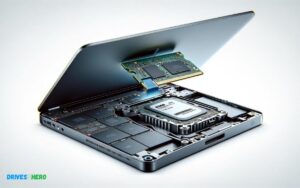
Yes, you can upgrade the SSD on most Razer Blade 15 models. The laptop typically comes with an M.2 PCIe SSD, which can be replaced with a larger or faster M.2 PCIe NVMe SSD, providing more storage space and potentially better performance.
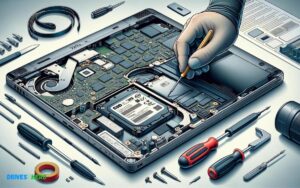
Upgrading the SSD in a Razer Blade 15 involves a few steps:
- Back up your data before starting the upgrade process.
- Ensure you have the correct type of SSD, which is usually an M.2 PCIe NVMe SSD for the Razer Blade 15.
- Power down the laptop and disconnect all cables.
- Open the back cover of the laptop by removing the screws.
- Locate the existing SSD and carefully remove it by unscrewing it from the motherboard.
- Insert the new SSD into the slot and secure it with the screw.
- Reassemble the back cover.
- Reinstall the operating system or recover your data from the backup.
Some Razer Blade 15 models may have additional storage slots, allowing for the addition of a second SSD rather than replacing the original one.
Upgrading the SSD in your Razer Blade 15 is a great way to enhance performance and expand storage, ensuring a smoother and more efficient computing experience.

Key Takeaway
Introduction To Razer Blade 15: Performance And Customization
When it comes to portable gaming powerhouses, the Razer Blade 15 stands out prominently in the realm of premium laptops.
Renowned for its sleek design, stellar performance, and robust build quality, this machine has always been a top choice for gamers and professionals alike who demand power without compromising mobility.
As technology marches forward, users often find themselves seeking ways to revitalize and customize their systems to keep pace with newer software and games.
The flexibility to upgrade components like the SSD is essential for maintaining peak performance and storage capacity.
Understanding The Razer Blade 15’s Original Specs
Out of the box, the Razer Blade 15 comes equipped with a set of features that make it a formidable contender in the gaming laptop market.
Here are the original specs that set the bar:
- Processor: High-performance Intel Core CPUs
- Graphics: NVIDIA GeForce RTX GPUs, ready for intensive gaming and creative work
- Memory: Substantial RAM for multitasking efficiency
- Storage: Fast SSDs for reduced loading times and quick data access
- Display: High-resolution screens with fast refresh rates for silky-smooth visuals
These powerful specifications form the foundation of the Razer Blade 15’s capabilities, influencing its prowess in gaming and heavy-duty tasks.
Demand For Higher Storage Solutions
As digital content grows in size and complexity, the insatiable demand for larger storage solutions becomes more pressing.
The Razer Blade 15, while initially generous with storage, may need an upgrade as users amass extensive game libraries, high-resolution videos, and large software suites.
Games nowadays easily exceed 100GB, and professional applications for video editing, graphic design, and 3D modeling consume significant disk space.
This calls for a seamless solution to expand storage without compromising on speed or overall system performance.
The Importance Of Ssd Upgrades For Gamers And Professionals
Any discerning gamer or professional understands the pivotal role of an SSD in achieving a smooth computing experience.
An SSD upgrade on the Razer Blade 15 can deliver numerous benefits:
| Benefit | Description |
|---|---|
| Faster Boot Times | Significantly reduces the time it takes for the system to start up and be ready for action. |
| Quicker Load Times | Games and applications load much faster, creating a seamless user experience. |
| Enhanced Data Transfer Speeds | Increased efficiency when moving large files, crucial for video editors and content creators. |
| Improved System Responsiveness | A noticeable upgrade in overall system snappiness, making multitasking more efficient. |
| Reliability | SSDs offer better durability and reduced risk of data loss compared to traditional HDDs. |
Thus, whether for gaming dominance or professional mastery, SSD upgrades in a Razer Blade 15 are critical to keeping the machine competitive and future-proof.
Understanding The Razer Blade 15’s Ssd Configuration
Understanding the Razer Blade 15’s SSD Configuration is essential for gamers and professionals who seek optimal performance from their laptops.
The SSD, or Solid State Drive, is a critical component that can impact everything from your system’s boot time to how quickly your applications load.
Factory Ssd Specifications And Performance
The Razer Blade 15 comes equipped with a high-speed PCIe NVMe SSD, designed to offer rapid data transfer speeds and quick load times.
The specifications are quite impressive:
- Interface: PCI Express NVMe
- Capacities: Varies by model (256GB, 512GB, 1TB, etc.)
- Sequential Read/Write Speeds: Up to 3,000 MB/s read and up to 2,200 MB/s write
Performance-wise, the Razer Blade 15’s SSD is capable of booting up Windows in a matter of seconds and delivering exceptional game-loading times.
This is particularly beneficial for users who demand efficiency and speed in both work and play.
The Role Of Ssd In Overall System Performance
The SSD is a powerhouse that contributes significantly to the Razer Blade 15’s overall system performance.
Here are a few performance aspects directly linked to the SSD:
- Quicker boot times and faster system responsiveness.
- Reduced in-game load times leading to a seamless gaming experience.
- Smoother running of resource-intensive applications like video editing software.
Therefore, the quality and speed of the SSD in your Razer Blade 15 can ultimately determine your system’s agility and ability to handle complex tasks effortlessly.
Compatibility: What You Need To Know Before Upgrading
Consider these factors before leaping:
| Factor | Description |
|---|---|
| Form Factor | Typically M.2. Ensure the new SSD matches this specification. |
| Physical Size | 2280 is the size used, meaning 22mm wide by 80mm long. |
| Protocol | Ensure NVMe, not SATA, for optimal performance. |
| Heat Management | New SSDs can run hot; check if additional cooling is necessary. |
Remember that not all SSDs are created equal. Research the market to find a drive that not only fits the Razer Blade 15 but also meets your specific needs for speed, storage, and reliability.
Step-by-step Guide To Upgrading Your Razer Blade 15 Ssd
Upgrading the SSD in your Razer Blade 15 can breathe new life into your gaming laptop, providing faster boot times, improved performance, and more storage space. This step-by-step guide will navigate through the upgrade process from start to finish.
Pre-upgrade Preparations: Backing Up Data And Gathering Tools
Before delving into the hardware upgrade, it’s vital to ensure that your data is safe. Backing up important files is a non-negotiable step. Use an external storage device or cloud service to secure all crucial data.
Next, gather the necessary tools: a small Phillips-head screwdriver and possibly a Torx T5 driver, depending on your Razer Blade 15 model. Ensure your working space is clean and static-free to safeguard your laptop’s sensitive components.
Choosing The Right Ssd: Capacity, Speed, And Brand
- Capacity: Decide how much space you need. For gaming, a 1TB SSD is a sweet spot.
- Speed: Look for NVMe SSDs with high read/write speeds for the best performance.
- Brand: Stick to reputable brands like Samsung, Crucial, or WD for reliability and warranty considerations.
Physical Upgrade Process: Accessing The Internal Components
Power down your Razer Blade 15 and disconnect all peripherals. Flip the laptop and remove the bottom panel by unscrewing to expose the internal components.
The SSD is usually located near the battery. Carefully unscrew and remove the existing SSD, then replace it with your new SSD, securing it in place.
Software Considerations: Cloning And Fresh Installation Options
With the new SSD installed physically, it’s time to think about the software. You have two primary routes: cloning your old drive or performing a fresh installation of your operating system (OS).
Cloning is faster and retains your settings and files, but a fresh installation can offer a clean start, potentially improving performance.
Post-upgrade: Testing And Optimizing Performance
After completing the hardware and software setup, the final step is to test and optimize. Boot up your Razer Blade 15 to verify that the new SSD is recognized by the BIOS.
Use disk benchmarking software to test the performance of your new SSD. Look for expected read/write speeds and ensure there are no issues.
Finally, tweak your OS settings for optimal SSD performance, enabling features like TRIM and ensuring your drive is properly aligned. Congratulations, your Razer Blade 15 SSD upgrade is complete!
Potential Challenges And Solutions When Upgrading
Upgrading your Razer Blade 15 with a new SSD can breathe new life into your laptop, providing faster boot times, quicker file transfers, and overall better performance.
But before you embark on this upgrade journey, it’s important to understand the potential challenges you might face, as well as their respective solutions.
Whether it’s dealing with warranty implications or troubleshooting common upgrade issues, being prepared can make the process smoother.
Dealing With Warranty Implications
One of the first considerations when upgrading the SSD in your Razer Blade 15 is understanding how it affects your warranty. Many manufacturers have specific stipulations regarding upgrades.
Check the warranty terms provided by Razer to ensure that you’re not voiding any coverage by opening up your laptop. Manufacturers allow for upgrades as long as no damage is inflicted during the process.
If you find that upgrading your SSD will impact your warranty, weigh the pros and cons. For those not comfortable with the risk, consider waiting until the warranty period has expired before making any modifications.
Troubleshooting Common Ssd Upgrade Issues
Even with careful preparation, you may encounter issues when upgrading the SSD on your Razer Blade 15.
Here are some common challenges and their solutions:
- Drive Recognition: If your new SSD is not recognized, ensure it’s properly seated in the connector and all screws are tightened. Check also that BIOS is updated and that it’s set to the correct drive mode (e.g., AHCI).
- Data Migration: When transferring data from your old drive, use reliable cloning software and verify that all necessary drivers are up to date.
- Boot Issues: If your laptop doesn’t boot after the upgrade, create a bootable USB drive with your operating system of choice and select it as the primary boot device in BIOS settings.
Tips For Maintaining Ssd Health Post-upgrade
Once you’ve successfully upgraded to a new SSD, maintaining its health is vital for long-term performance.
Follow these tips:
- Keep your laptop’s firmware and the SSD’s firmware up-to-date for optimal compatibility and performance.
- Enable TRIM support to extend the life of your SSD by allowing the operating system to inform the SSD which blocks of data are no longer considered in use and can be wiped internally.
- Avoid unnecessary writing to the drive by minimizing the amount of temporary files and using disk cleanup tools regularly.
- Monitor the SSD’s health using specialized software to anticipate any potential issues before they become critical.
By addressing warranty concerns beforehand, actively troubleshooting during the upgrade process, and keeping a keen eye on SSD health afterwards, you’ll set yourself up for a successful enhancement to your Razer Blade 15’s performance and longevity.
Additional Considerations And Enhancements
Upgrading your Razer Blade 15 with a new SSD is an exciting endeavor that promises enhanced performance and faster loading times.
But before you take the plunge, it’s essential to consider how you can maximize the potential of your new SSD, ensure compatibility, and future-proof your setup for an optimal gaming and productivity experience.
Maximizing The Potential Of Your New Ssd
Once you’ve installed your new SSD, getting the most out of it involves more than just physical installation.
- Update your drivers to ensure your hardware and new SSD function seamlessly together.
- Check for firmware updates regularly for extended functionality and patches.
- Consider a fresh OS installation to avoid clutter and to start anew with a clean slate for optimal performance.
Also, optimizing your OS settings, such as enabling TRIM for your SSD, can extend its lifespan.
Razer Blade 15 Compatibility With Nvme And Sata Ssds
Understanding your Razer Blade 15’s motherboard compatibility is crucial.
It supports:
| Type | Speed | Advantages |
|---|---|---|
| NVMe SSDs | Up to 32 Gb/s | Faster read/write speeds, ideal for gaming and heavy workloads. |
| SATA SSDs | Up to 6 Gb/s | Cost-effective, suitable for general use and storage. |
Making an informed decision between NVMe and SATA is pivotal, as NVMe SSDs offer superior speeds that align with the Razer Blade 15’s capabilities.
Future-proofing Your Setup: When To Consider Another Upgrade
Regularly assessing the evolution of available technology ensures you stay ahead:
- Keep an eye on emerging SSD technology and standards, like PCIe 4.0, for higher speeds and improved performance.
- Monitor storage trends, such as increasing software size demands, to stay ahead of your storage needs.
- Determine whether your usage demands consider larger or additional SSDs, ensuring you’re not limited by capacity constraints in the future.
Staying up-to-date with enhancements and market trends will allow you to take appropriate action, further enhancing your Razer Blade 15’s longevity and performance.
Enhancing Your Razer Blade 15 Experience
Maximizing the potential of your Razer Blade 15 can transform your computing experience, making it faster, smoother, and more efficient.
Recap Of The Upgrade Process And Benefits
Upgrading the SSD in your Razer Blade 15 is a straightforward process:
- Power down your laptop and disconnect all cables.
- Remove the bottom panel by unscrewing the T5 Torx screws.
- Replace the old SSD with a new one, ensuring it is securely connected.
- Reassemble your laptop and boot up the system.
Key benefits include:
- Speed: Load games and applications at lightning-fast speeds.
- Storage: Room for all your files without compromising performance.
- Efficiency: Quicker boot times and data transfer rates.
The Impact Of Ssd Upgrade On Overall User Experience
The swap from a conventional hard drive or an older SSD to a newer one can have a significant impact on your Razer Blade 15:
- Enjoy reduced loading times for operating systems and applications.
- Experience enhanced multitasking capabilities without slowdown.
- Gain better reliability and durability, as SSDs have no moving parts.
Such an upgrade means more seamless gaming sessions and productive workflows.
Final Thoughts And Recommendations For Razer Blade Owners
- The Razer Blade 15’s performance can significantly benefit from an SSD upgrade:
- Choose a reliable SSD brand to ensure compatibility and endurance.
- Upgrading may void your warranty, so check your terms or consider professional help.
- Keep data backups before any hardware modifications to protect your information.
Implementing this upgrade can extend the lifespan of your laptop, making it an investment worth considering for any Razer Blade owner looking to bolster their device’s capabilities.
Conclusion
Upgrading your Razer Blade 15 SSD is indeed possible and worthwhile. By choosing the right SSD and following reliable tutorials, your laptop’s performance can soar.
Remember, backing up data ensures a smooth transition. Dive into the upgrade, and unleash the full potential of your Razer Blade 15.

Harold Williams is a senior writer and technical editor at Drives Hero with 20+ years of experience in IT administration. He specializes in storage systems, SSD reviews, and performance testing, bringing real-world insight to every guide.