Macbook Pro Internal Ssd Vs External Ssd: Which Is Better?
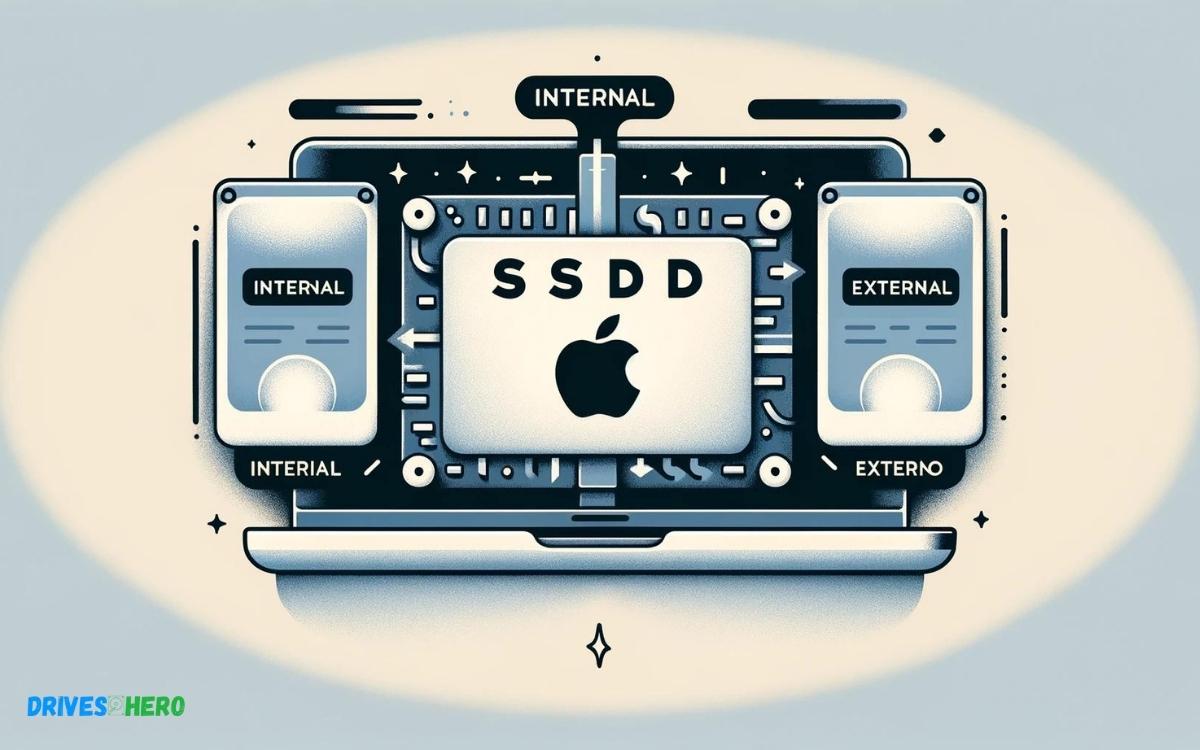
When considering whether to opt for a MacBook Pro with an internal SSD or using an external SSD, several factors come into play.
The internal SSD offers seamless integration with the MacBook’s hardware, providing fast and reliable storage directly accessible to the system.
This setup ensures optimal performance, especially for tasks that demand high-speed data access such as video editing or running complex software. On the other hand, an external SSD offers flexibility and scalability.
Users can choose the capacity and speed of the external SSD according to their needs and budget, and they can easily transfer the drive between multiple devices.
An external SSD can serve as a backup solution, safeguarding important data in case of system failure.
Key Takeaway
Macbook Pro Ssd Overview
The MacBook Pro is synonymous with performance and agility, largely thanks to its integration of solid-state drive (SSD) technology.
An SSD is a type of mass storage device similar to a hard disk drive (HDD), but has no moving parts, making it faster and more reliable.
When considering upgrading or enhancing your MacBook Pro’s performance, the choice between an internal SSD upgrade and an external SSD can be pivotal.
Evolution Of Ssd Technology
The rapid progression of SSD technology has had a transformative impact on computing. From their inception, when they were a high-cost luxury, to their current state as a standard in speed and reliability, SSDs have continuously evolved.
- Initial stage: Use of NAND-based flash memory, which improved the access speed of data.
- Advancement: Introduction of PCIe-based SSDs which offered more bandwidth than the traditional SATA connection, leading to faster data transfer speeds.
- Innovation: Implementation of NVMe protocol, further enhancing performance.
Importance Of Ssd In Macbook Pro
An SSD is a cornerstone for the MacBook Pro’s remarkable capabilities. It is integral to the machine’s performance envelope.
Here’s why:
- Speed: SSDs are much faster than HDDs, which means quicker boot times, faster file transfers, and better overall performance for applications.
- Durability: Since SSDs have no moving parts, they’re more resistant to shock and damage from drops, making them ideal for a portable device like the MacBook Pro.
- Energy efficiency: SSDs consume less power, leading to an improvement in battery life—essential for users on the go.
Macbook Pro Internal Ssd
Exploring the Macbook Pro’s internal SSD offers lightning-fast access to files, enhancing overall efficiency. Opting for an external SSD might provide additional storage flexibility, but with potential trade-offs in speed and portability.
Benefits Of Internal Ssd
- Enhanced Speed: An internal SSD drastically reduces boot-up times and accelerates data transfer rates, providing a smoother user experience.
- Reliability: With no moving parts, internal SSDs are less prone to mechanical failures compared to traditional Hard Disk Drives (HDDs).
- Energy Efficiency: SSDs consume less power, which helps in maintaining longer battery life for the MacBook Pro.
- Durability: A lower chance of damage from shocks and vibrations means that SSDs are ideal for users on the go.
- Silent Operation: SSDs operate quietly, eliminating the noise associated with HDDs.
Technical Specifications
Apple’s MacBook Pro internal SSDs come with impressive technical specs that contribute to their high performance.
These include:
| Capacity | Interface | Form Factor | Controller | Flash Technology |
|---|---|---|---|---|
| 256GB to 8TB | NVM Express (NVMe) | Onboard | Apple-custom | 3D NAND |
These specifications illustrate the MacBook Pro’s commitment to top-tier internal storage solutions.
Performance Comparison With Hdd
When compared to traditional Hard Disk Drives, MacBook Pro internal SSDs stand out significantly:
- Speed: SSDs operate at a much faster pace, offering read and write speeds that can exceed HDDs by up to six times.
- Efficiency: Access times for files and applications are markedly shorter with SSDs, resulting in quicker load times.
- Reliability: The lack of moving parts in SSDs minimizes wear and tear, greatly reducing the risk of data loss over time.
Opting for an internal SSD in a MacBook Pro offers numerous advantages, including performance gains that can enhance productivity and the overall user experience.
Macbook Pro External Ssd
Exploring the differences between MacBook Pro internal SSD and external SSD reveals crucial insights for users regarding speed and storage flexibility.
Opting for an external SSD can significantly boost a MacBook Pro’s data accessibility and backup capabilities.
Advantages Of External Ssd
- Enhanced Data Security: External SSDs facilitate routine backups and safe storage for critical data, reducing the risk of data loss.
- Swift Data Transfer: With high-speed interfaces, external SSDs can handle rapid data transfer, making large file movements a breeze.
- Easy Upgrades: Expand storage capacity without the need to open your MacBook Pro; an external solution makes upgrading straightforward and non-invasive.
- Failsafe Data Access: In case of internal drive failure, having an external SSD ensures continuous access to important files.
Connectivity Options And Portability
External SSDs for the MacBook Pro come with multiple connectivity options that enhance their utility and convenience:
| Connection Type | Speed | Compatibility |
|---|---|---|
| USB-C / Thunderbolt 3 | Up to 40Gbps | MacBook Pro models with USB-C ports |
| USB 3.0 | Up to 5Gbps | MacBook Pro models with USB-A ports (with adapter) |
Usage Scenarios And Practicality
An external SSD’s value lies in its versatility across various usage scenarios:
- Professional Editing: Video editors and photographers benefit from external SSDs for fast, on-the-go editing and storage.
- Creative Workflows: With minimal latency, creative professionals can efficiently manage and preview large projects.
- Gaming: Gamers can store and play games directly from an external SSD, experiencing reduced load times.
- General Backup: Every user can utilize external SSDs for regular backups, ensuring that their data remains safe and accessible.
Regardless of whether it’s for professional use or personal convenience, the practical applications of a MacBook Pro external SSD are boundless.
Macbook Pro Internal Ssd Vs External Ssd Performance
When it comes to optimizing the performance of your MacBook Pro, the choice between an internal SSD and an external SSD is crucial.
Each type of storage solution offers distinct advantages and potential limitations, which can greatly impact your MacBook’s speed and efficiency.
Read And Write Speeds Comparison
| SSD Type | Read Speed (MB/s) | Write Speed (MB/s) |
|---|---|---|
| Internal SSD | Up to 3500 | Up to 3000 |
| External SSD | Up to 2800 | Up to 2300 |
Impact On Boot Time And Application Loading
MacBook with Internal SSD:
- Boot time: Usually under 15 seconds
- Application load time: Instantaneous to a few seconds
MacBook with External SSD:
- Boot time: Slightly longer due to reliance on external ports
- Application load time: Fast, but generally not as swift as internal storage solutions
Multitasking And Heavy Workload Performance
In scenarios demanding high levels of multitasking or during heavyweight processing tasks, the performance gap between internal and external SSDs becomes apparent.
- Internal SSDs offer:
- Better integration with the system’s resources
- Quicker data flow for rigorous tasks like video editing, 3D rendering, or running virtual machines
- External SSDs are suitable for:
- Storing and running less resource-intensive applications
- Offloading large files or backups, freeing up internal SSD space
Macbook Pro Ssd Upgrade Options
Exploring MacBook Pro SSD upgrade choices, users often weigh the benefits of enhancing speed and storage internally against the simplicity and portability of external SSD options.
Both avenues present unique advantages, from the seamless integration of an internal upgrade to the flexibility of external SSDs.
Diy Internal Ssd Upgrade Process
- Purchase a compatible SSD.
- Gather the necessary tools like P5 screwdrivers and possibly a T5 for certain models.
- Back up your data with Time Machine or another backup solution.
- Power down your MacBook Pro and disconnect all cables.
- Open the back panel carefully to access the internal hardware.
- Remove the existing SSD and replace it with the new one.
- Reassemble your MacBook Pro and power it up.
- Restore your data from the backup.
Best Practices And Compatibility Considerations
- Make sure the SSD is compatible with your specific MacBook Pro model.
- Update to the latest MacOS before starting this process to ensure compatibility.
- Be aware of the potential risks, such as voiding warranties or damaging your MacBook during the upgrade.
- Consider professional installation if you are not confident in performing the upgrade yourself.
Pros And Cons Of Internal Vs External SSD Upgrade
| Internal SSD Upgrade | External SSD Upgrade |
|---|---|
| Faster data transfer speeds than external solutions. Seamless integration without additional hardware. Conserves port space as everything is contained internally. Potentially voids warranty. Requires technical know-how to install. | Easy to install – just plug and play. Flexibility to switch between systems or upgrade storage. Non-invasive – doesn’t void the MacBook’s warranty. May require constant connection to an external drive. Possible performance loss compared to internal SSDs. |
Conclusion
Choosing between a MacBook Pro’s internal SSD and an external SSD depends on your needs. Speed and convenience often favor the internal option, while external drives offer flexibility and additional storage.
Assess your workload, budget, and portability requirements. Optimize your Mac experience with the right SSD choice for enhanced performance and productivity.

Harold Williams is a senior writer and technical editor at Drives Hero with 20+ years of experience in IT administration. He specializes in storage systems, SSD reviews, and performance testing, bringing real-world insight to every guide.