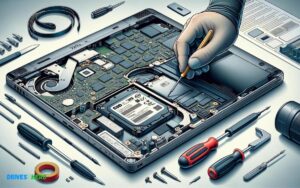
Ram Upgrade Vs Ssd Upgrade
Accurate answer
Upgrading your computer’s RAM (Random Access Memory) generally enhances multitasking and may improve system responsiveness, whereas upgrading to an SSD (Solid State Drive) can significantly increase the speed of data access, leading to faster boot times, application launch times, and overall system performance.
Explanation
When deciding between a RAM upgrade and an SSD upgrade, consider the following factors:
- Current System Specifications: Understand the existing specs and identify the bottleneck. If your system is low on RAM (e.g., 4GB), increasing this will allow more programs to run simultaneously. Conversely, if you have a traditional HDD, switching to an SSD will provide a more noticeable speed boost.
- Performance Needs: If you frequently use memory-intensive applications or multitask heavily, more RAM can help. However, for general speed improvements and faster data retrieval, an SSD is superior.
- Budget: Prices for RAM and SSDs vary; consider how much you’re willing to spend. SSDs tend to be more expensive per gigabyte but offer more performance benefits for general computing.
- Ease of Upgrade: Check if your system allows for easy upgrades. Some laptops, for example, have soldered RAM, making upgrades difficult or impossible. Conversely, most systems allow for SSD upgrades.
Here’s a short example comparing the two upgrades:
- RAM Upgrade: Ideal for a user who has 4GB of RAM and frequently experiences slowdowns or system alerts about low memory when using multiple applications.
- SSD Upgrade: Best for someone with an older HDD who complains about slow boot times, slow file access, and overall sluggish system performance.
Supporting Paragraph
Choosing between a RAM or SSD upgrade is crucial for optimizing your computer’s performance, with SSDs offering dramatic speed improvements and
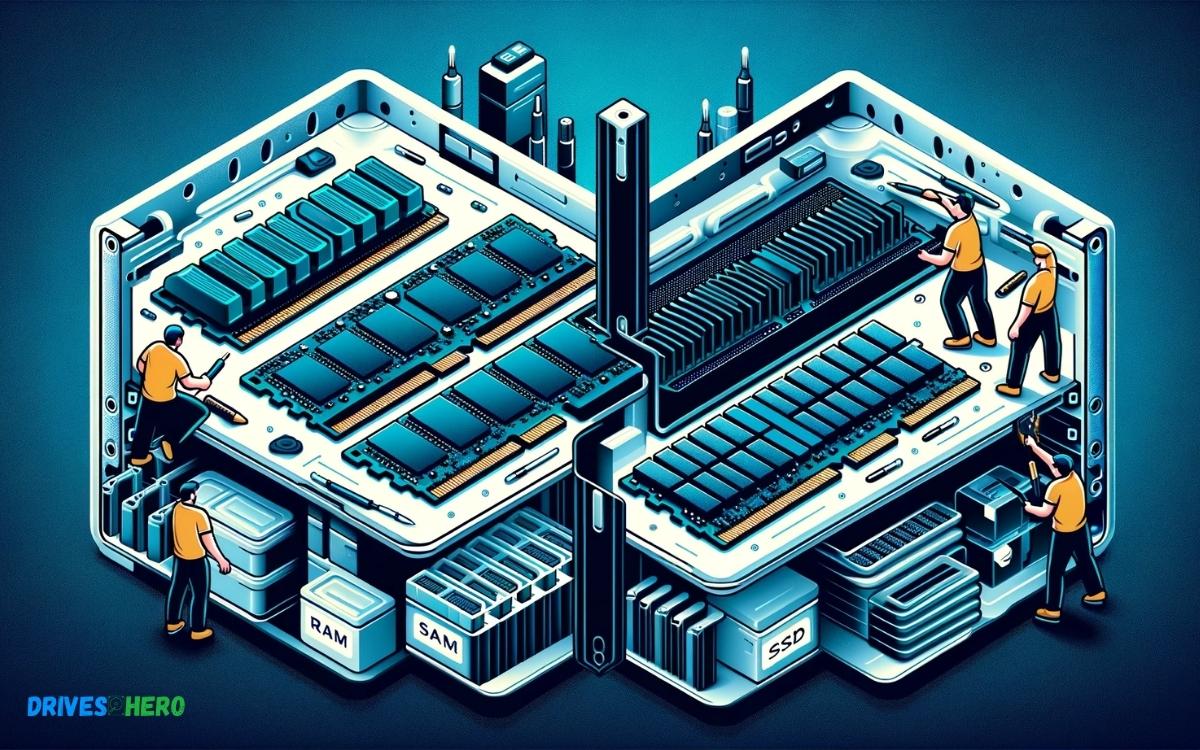
Key Takeaway
Introduction To Performance Upgrades
When it comes to boosting your computer’s performance, you might be considering either a RAM upgrade or swapping your hard drive for an SSD. Both paths can breathe new life into an aging setup or supercharge your workflow, but understanding what each component does and the distinct advantages they provide is key. In this guide, we’ll dive into the world of RAM (Random Access Memory) and SSDs (Solid State Drives), dissecting how they influence your computer’s speed and overall performance.
Understanding Ram: What It Is And How It Affects Your Computer
RAM is your computer’s short-term memory, where it stores data for quick access. It’s where your system keeps currently running programs and processes, enabling swift data retrieval and efficient multitasking. The amount and speed of RAM directly correlate to your computer’s ability to handle complex tasks and the smoothness of operation when switching between applications.
Exploring Ssds: The Basics And Performance Benefits
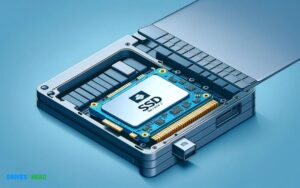
An SSD, or Solid State Drive, represents the modern approach to data storage. Unlike traditional hard drives with moving parts, SSDs store data on flash memory, which results in faster read and write speeds. Upgrading to an SSD slashes loading times, accelerates file transfers, and often leads to a more responsive system.
- Faster Boot Times: Operating systems load significantly faster on SSDs.
- Improved Data Access: Swift access to files and applications enhances productivity.
- Energy Efficient: SSDs consume less power, promoting longer battery life in laptops.
- Durability: With no moving parts, SSDs are less susceptible to physical shock.
The Impact Of Upgrading: How Ram And Ssd Contribute To System Speed
Choosing between a RAM upgrade and incorporating an SSD hinges on your system’s existing configuration and your performance needs. Adding more RAM can eliminate bottlenecks caused by memory-intensive programs, while an SSD upgrade can rejuvenate an entire system with speedier storage capabilities.
| Upgrade Type | Performance Impact | Use Case |
|---|---|---|
| RAM Upgrade | Enhanced multitasking, reduced lag | Content creation, heavy applications |
| SSD Upgrade | Quicker boot times, rapid data access | General system responsiveness, gaming |
Both upgrades have the potential to transform your computing experience, but they do so in different ways. An SSD upgrade generally rejuvenates older systems, offering a noticeable leap in everyday tasks. In contrast, a RAM upgrade can empower users with seamless multitasking and demanding software requirements.
Delving Into Ram Upgrades
Speed and efficiency often define the quality of user experience with any computer system. Enhancing performance might involve contemplating a hardware upgrade. As we settle into the debate of a RAM vs SSD upgrade, let’s scrutinize the finer details of the former. Delving into RAM upgrades unveils certain nuances that could spell out the difference between a sluggish operation and a seamless computing adventure.
When To Consider A Ram Upgrade: Identifying Bottlenecks
Random Access Memory (RAM) is pivotal to system performance. It serves as a temporary storage for data that your computer needs quick access to. If you notice your computer slowing down, especially when multitasking or running memory-intensive applications, a RAM upgrade might be in order. Symptoms of RAM-related bottlenecks include:
- Slow performance when switching between applications
- Suffering software responsiveness during high-demand tasks
- Long load times for software or files
- Frequency of encountering the spinning wheel or hourglass icon
- System crashes when attempting to open or run programs
Upgrading RAM can be a straightforward solution to these issues, enhancing the capacity for multitasking and improving the response times of applications.
Ram Upgrade Pros And Cons: Cost, Performance, And Capacity
| Pros | Cons |
|---|---|
|
|
Considering cost, RAM is often a more affordable upgrade than an SSD. However, there’s a cap to the advantage you can gain. Once a system has enough RAM for its tasks, adding more won’t significantly boost performance.
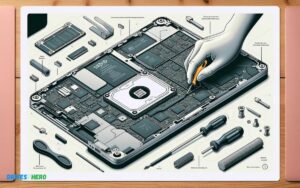
Step-by-step Guide: Installing New Ram Modules
- Turn off your computer and disconnect all cables.
- Open the computer case.
- Locate the RAM slots on the motherboard.
- Release any clips holding the current RAM modules in place and remove old RAM if necessary.
- Align the new RAM module with the slot ensuring the notch on the RAM matches the one on the slot. Insert the RAM firmly until the clips snap securely in place.
- Close the computer case, reconnect all cables, and boot up the system.
- Verify the new RAM is recognized in the system BIOS or under your computer’s System Properties.
Upgrading RAM can often involve physical installation that requires no specialist tools. Always handle RAM modules by the edges to avoid static damage. Ensure your computer is completely powered off before you begin the upgrade process to prevent any electrical hazards or damage to components.
The Advantages Of Ssd Upgrades
The Advantages of SSD Upgrades are compelling, and the performance benefits touch every aspect of your computing experience. Whether you’re a gamer looking for swift load times, a professional with heavy software usage, or someone who just wants quicker boot times and a more responsive system, the switch to an SSD (Solid State Drive) can be transformative.
Why Upgrade To An Ssd: Speed, Durability, And Power Consumption
Shifting from a traditional hard drive to an SSD dramatically enhances speed. Here’s why an SSD upgrade is beneficial:
- Speed: SSDs utilize flash memory to deliver astonishingly fast read and write speeds compared to HDDs. Boot times, data transfer, and application launch speeds vastly improve, often by an order of magnitude.
- Durability: Without moving parts, SSDs are more resilient to physical shock, making them a sturdy choice for laptops and mobile devices that move around frequently.
- Power Consumption: Since SSDs don’t rely on spinning disks, they consume less power, contributing to longer battery life in mobile devices and lesser energy costs for desktops.
Ssd Upgrade Considerations: Compatibility And Storage Needs
Before jumping into an SSD upgrade, consider two key factors to ensure a smooth transition:
- Compatibility: Make sure the SSD form factor and interface match your system. For example, 2.5-inch SATA drives are common, but some systems may require NVMe or mSATA.
- Storage Needs: SSDs come in a variety of storage capacities. Balance your storage requirements with budget, as SSDs typically have a higher cost per gigabyte than HDDs.
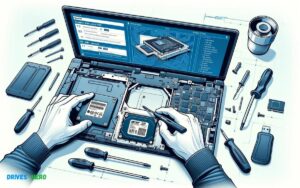
How To Install An Ssd: A Comprehensive Tutorial
Installing an SSD is a straightforward process. Follow these steps for a successful upgrade:
- Backup Data: Begin by backing up important files to prevent data loss.
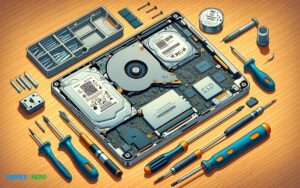
- Prepare Tools: Gather the necessary tools, such as a screwdriver and your SSD’s mounting bracket or adapter, if needed.
- Installation: Power off your computer and open the case. Locate your current hard drive and substitute it with the SSD, securing it in place. Connect the power and data cables accordingly.
- Software Setup: After the physical installation, power on your system and configure the BIOS or UEFI settings if necessary. Then, proceed with the installation or cloning of your operating system onto the new SSD.
Comparing Ram And Ssd Upgrades
When it comes to upgrading your computer, two components frequently stand out for enhancement: Random Access Memory (RAM) and Solid-State Drives (SSD). These upgrades can significantly impact the performance of your system, but they serve different purposes. RAM dictates how much information your computer can handle at once, essentially affecting its multitasking abilities. On the other hand, an SSD accelerates read and write speeds, slashing load times and making data transfer a breeze. Selecting the right upgrade depends on individual needs, usage patterns, and existing system constraints.
Performance Showdown: Ram Upgrade Vs. Ssd Upgrade
Determining whether a RAM or SSD upgrade will yield more significant performance enhancements hinges on the current bottleneck in your system. A RAM upgrade can lead to a smoother computing experience, particularly if you frequently run multiple applications simultaneously or work with memory-intensive programs like video editing software. Conversely, an SSD upgrade can breathe new life into an older system, with the potential for dramatic improvements in boot times, application launch speeds, and overall system responsiveness.
- RAM Upgrade:
- Enables more applications to run concurrently without slowdown.
- Improves performance in data-intensive tasks.
- Essential for gaming, video editing, and other resource-heavy applications.
- SSD Upgrade:
- Decreases boot and load times for the operating system and applications.
- Offers faster data transfer speeds compared to traditional hard drives.
- Reliable with no moving parts, leading to increased durability.
Balancing Improvements: Can You Combine Ram And Ssd Upgrades?
Integrating both RAM and SSD upgrades can provide a comprehensive performance uplift. This dual approach eliminates multiple constraints that may hinder a system’s speed and responsiveness. Upgrading RAM addresses capacity issues, allowing for better multitasking, while an SSD upgrade reduces latency, enhancing overall system speed. The combined effect can drastically reduce bottlenecks and elevate computing experiences to new heights.
Case Studies: Real-world Examples Of Ram And Ssd Upgrade Outcomes
Real-world case studies highlight the tangible benefits of upgrading RAM and SSDs:
| Upgrade Type | Use Case | Outcome |
|---|---|---|
| RAM Increase | Graphic design work with large files | Less lag during high-resolution rendering; faster completion of tasks |
| SSD Replacement | Reviving an old laptop | Boot time cut by more than half; applications launch almost instantly |
| RAM and SSD | Gaming performance | Overall smoother gameplay with reduced in-game loading times |
Making The Right Choice For Your System
Upgrading a computer can rejuvenate its performance, but knowing whether to opt for a RAM upgrade or an SSD upgrade can be perplexing. Each component plays a different role in your system: RAM determines how many tasks can be handled simultaneously, whereas an SSD affects the speed at which programs load and files transfer. The decision hinges on identifying the bottleneck in your system’s performance and aligning it with your computing demands and aspirations.
Assessing Your Needs: Which Upgrade Is Right For You?
To make an informed decision, start by evaluating what feels sluggish on your computer. An upgrade should target the specific tasks that aren’t performing up to par. Here’s a simple guide:
- Choose RAM if: You frequently multitask or use memory-intensive programs.
- Opt for an SSD if: You’re looking for overall system responsiveness and faster boot times.
A straightforward way to identify a RAM deficiency is through your computer’s Task Manager or Activity Monitor. If the memory usage is frequently peaking, additional RAM is beneficial. Conversely, an SSD upgrade is advisable if you endure long wait times for your OS or applications to load.
Budget Considerations: Getting The Most Bang For Your Buck
Cost is a significant factor in any upgrade decision. Compare the price-to-performance ratio to ascertain which upgrade grants a superior experience for your investment.
| Upgrade Type | Cost | Performance Impact |
|---|---|---|
| RAM | Variable depending on size and speed | Can significantly improve multitasking capability |
| SSD | Higher upfront cost | Boosts boot and load times dramatically |
Notably, RAM upgrades generally offer a cost-effective way to enhance performance when dealing with aging hardware. In contrast, an SSD upgrade, despite being pricier, provides a more noticeable speed boost and could extend the lifespan of your system.
Future-proofing Your System: Long-term Planning For Upgrades
Think long-term when upgrading. Your goal should be not merely to alleviate current sluggishness but also to extend the viability of your system.
- Select upgrades that align with upcoming software requirements.
- Anticipate the types of tasks you’ll demand from your computer.
- Ensure new components are compatible with your system to avoid unnecessary future changes.
RAM upgrades can be incremental, while an SSD sets a high-speed foundation for all future operations. A combination of both, circumstances permitting, often leads to the most robust and lasting enhancement of your computing experience.
Conclusion: Maximizing Your Computer’s Potential
When it comes to maximizing your computer’s potential, understanding the impact of upgrading RAM (Random Access Memory) versus investing in an SSD (Solid State Drive) is crucial. Each component plays a distinct role in system performance, affecting everything from boot times to multitasking capabilities. Knowing when to upgrade your RAM or opt for a larger, faster SSD can refresh an aging system or turbocharge a newer one. Let’s distill the key insights gained and explore tailored recommendations for elevating your computing experience.
Summary: Key Takeaways From Ram And Ssd Upgrades
- RAM upgrades primarily enhance multitasking and program responsiveness, minimizing lag when switching between applications or handling large files.
- SSD upgrades lead to quicker system boot-ups, faster file accesses, and overall snappier performance, especially in data-intensive tasks.
- Combining both upgrades can deliver a compelling boost in speed and efficiency, breathing new life into an older system or maximizing the capabilities of a new one.
The Upgrade Path: Recommendations For Different Types Of Users
| User Type | Recommended Upgrade | Reason |
|---|---|---|
| Casual Users | SSD | Improves overall system responsiveness for browsing, media playback, and standard applications. |
| Power Users | RAM & SSD | Enhances complex multitasking and heavy software requirements, ideal for gaming, programming, or creative tasks. |
| Business Users | SSD | Boosts productivity with faster data access, application loading, and improved system reliability. |
Continued Performance: Maintaining Your Upgraded System
Maintenance is key to ensuring your upgraded system continues to operate at peak performance. Implement the following practices to keep your computer running smoothly:
- Regularly clean your computer physically and digitally to prevent dust build-up and data clutter which can impede performance.
- Stay on top of system and security updates to ensure compatibility and protect against vulnerabilities.
- Consider utilizing tools for disk defragmentation (for HDDs) and TRIM commands for SSDs to optimize drive performance.
- Maintain a structured data backup routine to safeguard your files against hardware failures or other potential loss scenarios.
Conclusion
Deciding between a RAM upgrade and an SSD enhancement boils down to your needs. Speedy boot times and swift file access? Go SSD. For multitasking and improved application performance, more RAM is your answer. Whatever your choice, both upgrades offer a cost-effective way to revitalize your computer’s capabilities.

Harold Williams is a senior writer and technical editor at Drives Hero with 20+ years of experience in IT administration. He specializes in storage systems, SSD reviews, and performance testing, bringing real-world insight to every guide.