Best Cloud Backup vs Local NAS: Cost Comparison 2026
Every month, another charge hits your credit card from Google One, iCloud+, Backblaze, or whatever cloud service you’re trusting with your data. It might seem small at first. But over three, five, or ten years, those recurring fees quietly snowball into a figure that could have paid for your own storage hardware several times over.
On the flip side, buying a NAS (Network Attached Storage) device means a bigger upfront investment, plus electricity, hard drive replacements, and the occasional weekend spent tinkering with firmware updates. Neither option is free, and neither is perfect.
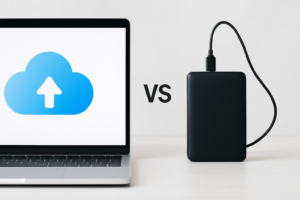
This article breaks down the real long-term costs of cloud backup versus local NAS storage across different data volumes. I’ve built out break-even timelines, factored in the expenses most people forget about, and included specific product recommendations so you can make a decision based on actual numbers rather than marketing hype.
The Cloud Backup Cost Structure
Cloud storage pricing follows a subscription model, which means your total cost scales linearly with time. You’re essentially renting space on someone else’s hard drives indefinitely. The monthly fee never stops, and it typically increases as cloud providers adjust pricing over time.
Here’s what the major cloud backup services charge as of early 2026:
- Backblaze Personal Backup: Approximately competitively priced/month for unlimited backup from a single computer
- Google One: Ranges from competitively priced/month (100 GB) to competitively priced/month (5 TB)
- iCloud+: competitively priced/month (50 GB) up to competitively priced/month (2 TB) and competitively priced/month (12 TB)
- Microsoft 365: competitively priced/month for 1 TB with Office apps included
- Wasabi Hot Storage: competitively priced/TB/month with no egress fees
These prices look manageable in isolation. But compound them over five years, and the picture changes dramatically. Backblaze competitively priced/month becomes roughly competitively priced over five years. Google One’s 2 TB plan competitively priced/month totals competitively priced over the same period. If you need 10+ TB of cloud storage, you’re looking at thousands of dollars across a five-year window.
Hidden Cloud Costs People Forget
The subscription fee isn’t always the full story. Many cloud providers charge egress fees when you download your own data. AWS S3, for example, can charge significant amounts per GB for data retrieval. If you ever need to restore a large backup, that bill can sting.
There’s also the risk of price increases. Google has raised its storage prices before, and other providers have followed suit. You have zero control over future pricing, and migrating away from a cloud provider once you’re locked in with terabytes of data is a painful, time-consuming process.
The Local NAS Cost Structure
A NAS setup involves a one-time hardware purchase plus ongoing costs for electricity, drive replacements, and your time. The upfront investment is higher, but the recurring costs are dramatically lower.
A popular entry point for home users is the Synology DS224+, a two-bay NAS that handles backup, file sharing, and even media streaming. Pair it with a couple of reliable NAS drives like the WD Red Plus 8TB, and you’ve got 8 TB of usable storage in a RAID 1 (mirrored) configuration, or 16 TB in JBOD.
Synology DS224+ 2-Bay NAS DiskStation
Excellent two-bay NAS for home and small office use with strong software ecosystem and low power consumption
For users who need more capacity, a four-bay option like the Synology DS923+ provides room to grow. You can start with two drives and add more as your storage needs increase, which spreads the hardware cost over time.
Ongoing NAS Expenses
Electricity is the most commonly overlooked NAS expense. A typical two-bay Synology or QNAP unit consumes between 15 and 30 watts during operation. Assuming an average of 20 watts running 24/7 and an electricity rate of competitively priced per kWh (the U.S. national average), that’s roughly competitively priced per year. Not nothing, but not a budget-breaker either.
Hard drives have a limited lifespan, typically 3 to 5 years under continuous NAS use. Budget for replacing one drive every 3 to 4 years. A UPS (uninterruptible power supply) is also a smart addition to protect against power surges and data corruption during outages. A basic UPS like the APC BE600M1 will keep your NAS running through brief power interruptions.
There’s also the time cost. Setting up a NAS takes a few hours initially, and you’ll spend some time each year on firmware updates, drive health checks, and troubleshooting any issues. If you value your time highly and don’t enjoy tinkering, this is a real cost to factor in.
Break-Even Analysis: When Does NAS Win?
I’ve modeled out three scenarios based on different data volumes, comparing the total cost of ownership over one, three, five, and seven years. These calculations include NAS hardware, drives, electricity, one drive replacement at year four, and a basic UPS. Cloud costs assume current published rates with no price increases (which is optimistic for the cloud side).
Scenario 1: 2 TB of Data
For 2 TB, a cloud service like Google One runs competitively priced/month (competitively priced/year). A two-bay NAS with two 4 TB drives in RAID 1 costs more upfront but has minimal ongoing expenses.
- Year 1: Cloud wins. Your NAS hardware investment is still much higher than one year of cloud fees.
- Year 3: Roughly even. Cloud has competitively priced, and your NAS total (hardware + electricity + UPS) is in a similar range.
- Year 5: NAS pulls ahead. Cloud totals competitively priced, while your NAS has only added competitively priced in electricity and still has plenty of life left.
- Year 7: NAS wins decisively. Cloud is competitively priced+, while your NAS total (including a drive replacement) remains well below that.
Break-even point for 2 TB: approximately 2.5 to 3 years.
Scenario 2: 8 TB of Data
At 8 TB, cloud costs escalate quickly. Most consumer plans cap out well below this, pushing you toward business-tier pricing. Wasabi competitively priced/TB/month would run competitively priced/month (competitively priced/year). Backblaze B2 at competitively priced/TB/month would be competitively priced/month (competitively priced/year).
A local NAS with two 8 TB drives in RAID 1 provides 8 TB of protected storage with a much lower ongoing cost.
- Year 1: Close to even or slight NAS advantage, depending on which cloud service you’re comparing against.
- Year 3: NAS wins by a wide margin. Cloud has competitively priced to competitively priced, while the NAS total is a fraction of that.
- Year 5: NAS has saved you over competitively priced compared to most cloud options.
Break-even point for 8 TB: approximately 12 to 18 months.
WD Red Plus 8TB NAS Hard Drive (WD80EFPX)
Reliable CMR drive designed for always-on NAS environments with a solid 3-year warranty
Scenario 3: 20+ TB of Data
Photographers, videographers, and data hoarders often land in this territory. Cloud storage for 20 TB is genuinely expensive. Wasabi would cost competitively priced/month (competitively priced/year). AWS S3 or Azure would be even more.
A four-bay NAS like the Synology DS923+ with four 10 TB drives in RAID 5 gives you roughly 30 TB of usable storage with one drive of redundancy. The initial investment is significant, but the math becomes overwhelmingly favorable for local storage within the first year.
Break-even point for 20+ TB: approximately 6 to 10 months.
The Hybrid Approach: Why You Should Probably Do Both
Here’s my honest recommendation: don’t choose one or the other exclusively. The smartest backup strategy follows the 3-2-1 rule. Keep three copies of your data on two different media types, with one copy offsite.
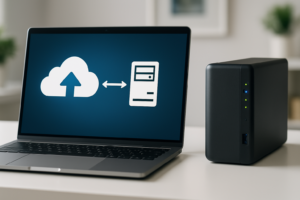
A NAS handles your primary local backup with fast access and no recurring per-TB fees. Then use an affordable cloud service for offsite redundancy. Backblaze B2 or Wasabi can back up your most critical data (not necessarily all of it) for a fraction of the cost of storing everything in the cloud.
Synology’s built-in Hyper Backup app makes this especially easy. You can schedule automatic encrypted backups from your NAS to Backblaze B2, Wasabi, or even another remote NAS. This gives you the speed and cost advantages of local storage with the geographic redundancy of cloud backup.
Scaling Considerations
One of the biggest advantages of a NAS is predictable scaling. When you need more space, you buy another hard drive. There’s no monthly rate hike, no new subscription tier, and no vendor approval needed.
With cloud storage, scaling means your monthly bill grows proportionally, and it never stops growing. Going from 2 TB to 10 TB on Google One means a permanent increase in your annual cost. On a NAS, it means buying a couple more drives and spending 15 minutes inserting them.
For businesses or power users expecting significant data growth, a four-bay or even five-bay NAS (like the Synology DS923+) with expansion options provides a much more cost-effective growth path. You can also add a DX517 expansion unit down the road for five additional drive bays without replacing your existing setup.
What About Data Security and Reliability?
Cloud providers offer excellent durability (AWS S3 quotes 99.999999999% durability), and they handle redundancy, backups, and hardware failures for you. You don’t have to think about it.
A NAS requires you to manage your own redundancy through RAID configurations and offsite backup. RAID is not a backup. A RAID 1 or RAID 5 array protects against a single drive failure, but it won’t save you from ransomware, accidental deletion, fire, or theft. That’s why the hybrid approach matters.
Also consider that a cloud provider could go out of business, change their terms of service, or lock your account. Having local copies means you’re never entirely dependent on a third party’s continued goodwill and solvency.
My Verdict
For anyone storing more than 2 TB of data with a time horizon of three years or longer, a NAS is the more cost-effective choice. The break-even point gets shorter as your data volume increases. At 8 TB and above, the NAS pays for itself in roughly a year.
For very small amounts of data (under 1 TB), cloud storage is simpler and often cheap enough that the convenience justifies the cost. If you have 500 GB of documents and photos, a Google One or iCloud+ plan at a few dollars per month is perfectly reasonable.
Synology DS923+ 4-Bay NAS DiskStation
Best choice for users with growing storage needs who want room to expand over time
For most people reading this article, though, the sweet spot is a two or four-bay NAS for local storage and speed, combined with a lean cloud backup for offsite protection of your most important files. You get the best of both worlds, and the total cost stays far below a cloud-only approach.
Frequently Asked Questions
How long does a NAS typically last before I need to replace it?
A quality NAS unit from Synology or QNAP will typically last 5 to 8 years before the hardware feels outdated. The drives themselves may need replacement every 3 to 5 years. The NAS enclosure (the box itself) rarely fails. Most people upgrade for better performance or new features rather than because the old unit stopped working.
Is cloud backup faster than a NAS for restoring files?
For individual files, cloud can be fast enough. But for large restores (hundreds of gigabytes or more), a local NAS is dramatically faster. Restoring 4 TB from the cloud over a typical 100 Mbps connection would take roughly 4 days of continuous downloading. From a local NAS on a gigabit network, the same restore would take around 10 hours. On a 2.5GbE connection, even less.
Can I access my NAS remotely like cloud storage?
Yes. Synology’s QuickConnect feature and QNAP’s myQNAPcloud both allow secure remote access to your NAS from anywhere with an internet connection. You can also set up a VPN for a more secure connection. The experience won’t be as fast as local access (it depends on your home upload speed), but for grabbing individual files or streaming media, it works well.
What happens if my NAS gets damaged by fire, flood, or theft?
This is exactly why the 3-2-1 backup strategy exists. Your NAS should not be your only copy. Keep a cloud backup of your most critical data, or maintain a second NAS or external drive at a different physical location (a family member’s house, your office, or a safety deposit box). The NAS saves you money on day-to-day storage costs, but offsite protection is non-negotiable for truly important data.
This article contains affiliate links. We may earn a small commission at no extra cost to you.

James Kennedy is a writer and product researcher at Drives Hero with a background in IT administration and consulting. He has hands-on experience with storage, networking, and system performance, and regularly improves and optimizes his home networking setup.