Best USB-C Flash Drives for MacBook and iPad Users
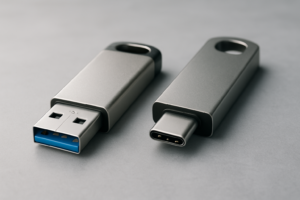
Every modern MacBook and iPad has ditched USB-A entirely. If you’re still carrying around an old flash drive with a chunky USB-A connector, you know the frustration of needing a dongle just to transfer a few files. USB-C flash drives solve this problem completely, plugging directly into your Apple device without any adapter. They’re perfect for quick file transfers, carrying presentations, backing up photos on the go, or expanding your iPad’s storage for a road trip.
But not all USB-C flash drives are created equal. Some are painfully slow, others overheat, and a few won’t even work properly with iPadOS. I’ve dug into the best options available right now and narrowed the field down to drives that actually deliver for Apple users. Here’s what to buy and why.
What to Look for in a USB-C Flash Drive for Apple Devices
Before jumping into specific recommendations, let’s cover the key specs that actually matter when you’re shopping for a USB-C thumb drive to use with a MacBook or iPad.
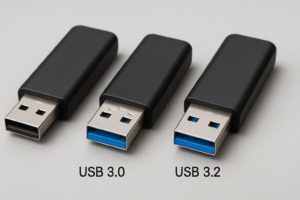
USB 3.2 Gen 1 or better: This is the baseline for acceptable speed. USB 3.2 Gen 1 gives you up to 5 Gbps theoretical throughput, which translates to real-world sequential reads around 100-400 MB/s depending on the drive. Anything slower (USB 2.0) will make transferring large video files genuinely painful. Some premium drives support USB 3.2 Gen 2 (10 Gbps), which is worth the upgrade if you regularly move large files.
iPadOS and macOS compatibility: Most USB-C drives work with macOS out of the box as long as they’re formatted in APFS, HFS+, exFAT, or FAT32. For iPads, you’ll need iPadOS 13 or later and the drive must be formatted in a supported file system. ExFAT is the safest bet if you plan to use the drive with both Apple devices and Windows PCs.
Build quality and size: Since flash drives tend to live on keychains and in pockets, metal housings significantly outlast plastic ones. Also pay attention to cap design. Capless swivel or retractable designs mean one less tiny piece to lose.
Top USB-C Flash Drives for MacBook and iPad
Samsung USB 3.1 Flash Drive FIT Plus (USB-C Version)
Samsung’s FIT Plus line has long been a favorite for its ultra-compact design. The USB-C variant is barely larger than the connector itself, making it nearly flush when plugged into a MacBook. It delivers read speeds up to 400 MB/s, which is genuinely fast for a drive this tiny. The metal unibody construction also means it can handle drops, water splashes, and extreme temperatures.
The main trade-off is that write speeds are considerably slower than reads, typically around 60-100 MB/s. For copying files from the drive to your Mac, it’s excellent. For dumping large folders onto the drive, you’ll need a bit more patience. It’s available in capacities up to 256GB.
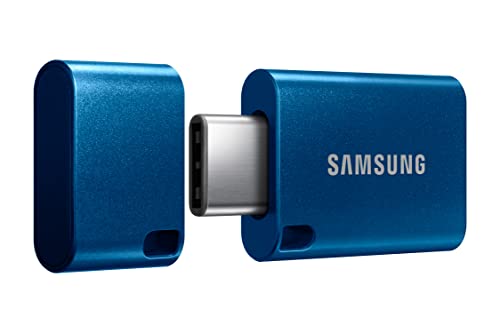
Samsung USB-C FIT Plus Flash Drive
Ultra-compact design with fast 400 MB/s reads, ideal for MacBooks where you want to leave it plugged in.
SanDisk Ultra Dual Drive USB Type-C
If you need a flash drive that works with everything, this is the one to get. The SanDisk Ultra Dual Drive has both a USB-C and a USB-A connector that you can toggle with a simple slide mechanism. This means you can plug it into your MacBook Pro, then walk over to an older desktop or printer that only has USB-A ports. No adapters needed in either direction.
Read speeds top out around 150 MB/s, which is respectable though not chart-topping. It comes in capacities from 32GB up to 1TB. The build quality is solid enough, with a plastic body that still feels reasonably durable. If you bounce between Apple and non-Apple devices regularly, this dual-connector design eliminates a real headache. It’s also one of the most widely available USB-C drives, so you can often find it at competitive pricing.
If your external storage ever stops being recognized by your Mac, our guide on fixing external drives that won’t show up covers the most common causes and solutions, including for flash drives.

SanDisk Ultra Dual Drive USB Type-C
Best dual-connector option with both USB-C and USB-A, available up to 1TB capacity.
Kingston DataTraveler Max
This is the speed king of USB-C flash drives. The Kingston DataTraveler Max supports USB 3.2 Gen 2, delivering read speeds up to 1,000 MB/s and write speeds up to 900 MB/s. Those numbers rival many portable SSDs, which is remarkable for something that fits in your pocket. For anyone transferring 4K video footage or large project files between a MacBook and other devices, this kind of speed saves real time.
The design features a ridged textured grip and a sliding USB-C connector with no cap to lose. It’s larger than the Samsung FIT Plus, about the size of a typical USB flash drive, but still very portable. Available in 256GB, 512GB, and 1TB capacities. If raw speed is your priority, nothing else in the flash drive category comes close.
For those who need even more speed and capacity, you might also want to consider a portable SSD built for travel, which can offer similar performance in a slightly larger package with multi-terabyte options.

Kingston DataTraveler Max USB-C 1TB
Fastest USB-C flash drive available with up to 1,000 MB/s reads, perfect for large file transfers.
Other Notable Options
A few more drives deserve mention. The Lexar JumpDrive P30 offers USB 3.2 Gen 1 performance in a slim metal design with read speeds around 450 MB/s and a built-in LED activity indicator. The Silicon Power C80 is a budget-friendly dual-interface option that won’t break the bank while still offering decent 150 MB/s reads. And Apple users who already own SanDisk products might want to look at the SanDisk Ultra Luxe USB-C, which features an all-metal design and speeds up to 400 MB/s.
Tips for Using USB-C Flash Drives with macOS and iPadOS
Format for cross-platform use: If your drive will only ever touch Apple devices, APFS is the best file system choice. If you need Windows compatibility too, format the drive as exFAT. You can do this in Disk Utility on your Mac in about 30 seconds.
Eject properly: Always eject your flash drive before pulling it out, especially on macOS. Yanking a drive during a write operation can corrupt files or damage the drive’s file system. On iPad, just tap the eject icon next to the drive name in the Files app.
Before passing an old flash drive to someone else or selling it, make sure to securely wipe the drive first. A quick format doesn’t actually erase your data, and anyone with basic recovery software could retrieve your files.
Watch for throttling: Small flash drives can heat up quickly during sustained transfers, causing them to slow down. If you’re copying a huge batch of files and notice the speed dropping, give the drive a minute to cool down. This is especially common with the ultra-compact drives like the Samsung FIT Plus because of their limited surface area for heat dissipation. This same thermal throttling phenomenon affects all flash storage over time, and you can read more about why SSDs slow down and how to address it.
Flash Drive vs. Portable SSD: When to Upgrade
USB-C flash drives are ideal for their portability and convenience. They’re tiny, require no cables, and just work. But if you regularly transfer files larger than 10-20GB, or if you need reliable sustained write performance for things like video editing workflows, a portable SSD is the better tool. Portable SSDs use faster NAND controllers, have better thermal management, and offer consistent speeds even during long transfers.
Think of a USB-C flash drive as your everyday carry for documents, photos, and smaller projects. A portable SSD is what you reach for when you’re moving final cut timelines or full system backups. Many Mac users carry both. If you’re primarily looking for larger external storage for your Mac, our roundup of the best external hard drives for Mac covers options across all capacities and budgets.
Frequently Asked Questions
Can I use a USB-C flash drive with my iPad Pro or iPad Air?
Yes, any iPad with a USB-C port running iPadOS 13 or later supports external USB-C storage. This includes all iPad Pro models from 2018 onward, iPad Air (4th generation and later), and the standard iPad (10th generation). Simply plug the drive in and open the Files app to access your files. Make sure the drive is formatted as exFAT, FAT32, or APFS for compatibility.
Do USB-C flash drives work with MacBooks without installing any software?
Absolutely. macOS natively supports USB-C flash drives with no drivers or additional software required. As soon as you plug one in, it should appear on your desktop and in Finder. If it doesn’t show up, check Finder’s preferences under General and make sure “External disks” is checked. You should also verify the drive is formatted in a macOS-compatible file system like APFS, HFS+, exFAT, or FAT32.
How long will a USB-C flash drive last before it fails?
Modern USB-C flash drives use NAND flash memory, the same basic technology found in SSDs. Most are rated for thousands of write cycles, which translates to years of normal use for the average person. The bigger risk is usually physical damage (losing it, washing it, stepping on it) rather than the flash memory wearing out. Metal-bodied drives like the Samsung FIT Plus and SanDisk Ultra Luxe tend to survive more abuse than plastic ones. For a deeper look at flash storage longevity, our analysis of SSD lifespan and real-world durability data applies to flash drives as well, since they share the same underlying technology.
This article contains affiliate links. We may earn a small commission at no extra cost to you.

James Kennedy is a writer and product researcher at Drives Hero with a background in IT administration and consulting. He has hands-on experience with storage, networking, and system performance, and regularly improves and optimizes his home networking setup.