Common NAS Mistakes Beginners Should Avoid
You finally pulled the trigger on a NAS. You’ve been thinking about it for months, watching YouTube videos, reading forums, and comparing Synology vs QNAP specs. But somewhere between unboxing and setup, something goes wrong. Maybe a drive fails six months in. Maybe you realize your “redundant” data wasn’t actually backed up. Maybe a power surge takes out everything.
These aren’t rare horror stories. They happen constantly to NAS beginners, and almost every one of them is preventable. I’ve seen the same mistakes repeated across forums, subreddits, and tech support tickets for years. If you’re just getting started with network-attached storage, or even if you’ve been running one for a while without thinking too hard about it, this guide will help you dodge the most expensive and frustrating pitfalls.
Mistake #1: Using Desktop Hard Drives in Your NAS
This is probably the single most common beginner mistake, and it makes sense why people do it. You see a standard WD Blue or Seagate Barracuda on sale, and you figure a hard drive is a hard drive. They’re cheaper than NAS-rated drives, and the specs look similar. Why pay more?
Desktop drives aren’t designed for the 24/7 operation that a NAS demands. They run hotter, have more aggressive head parking (which causes excessive wear in always-on environments), and lack the firmware optimizations that prevent vibration-induced errors when multiple drives spin in close proximity. A typical desktop drive is rated for around 2,500 power-on hours per year. A NAS drive is rated for 8,760, which is every single hour of the year.
NAS-specific drives like the WD Red Plus, Seagate IronWolf, or Toshiba N300 include rotational vibration sensors, extended error recovery controls (TLER/ERC), and firmware tuned for multi-bay enclosures. They also come with longer warranties, usually three to five years compared to two years for desktop models.

WD Red Plus 4TB NAS Hard Drive
Built specifically for NAS environments with 24/7 reliability, vibration protection, and CMR recording technology
If you’re comparing drive types for your build, our SSD vs HDD comparison guide breaks down when each technology makes sense. For NAS storage, traditional HDDs still dominate on capacity per dollar, but you need the right kind of HDD.
Mistake #2: Thinking RAID Is a Backup
This misconception has destroyed more data than almost any other. RAID (Redundant Array of Independent Disks) protects you against a single drive failure. It does not protect you against accidental deletion, ransomware, fire, theft, firmware corruption, or a catastrophic multi-drive failure. RAID is about uptime, not backup.
If you accidentally delete a folder on a RAID 1 array, that deletion is instantly mirrored across both drives. If ransomware encrypts your NAS, it encrypts the data on every drive in the array. If your house floods, every drive in your NAS gets destroyed simultaneously, regardless of how many drives are in your RAID configuration.
A real backup follows the 3-2-1 rule: three copies of your data, on two different types of media, with one copy stored offsite. Your NAS can be one piece of that puzzle, but it can’t be the entire solution. Consider pairing your NAS with a cloud backup service like Backblaze B2, an offsite external drive at a family member’s house, or both. We’ve broken down the costs and tradeoffs in our cloud backup vs local NAS cost comparison, which is worth reading before you finalize your strategy.
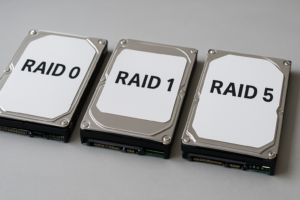
If you’re unsure which RAID level to choose, understanding the differences between RAID 0 and RAID 1 is essential. RAID 0 gives you speed but zero redundancy. RAID 1 mirrors your data but cuts your usable capacity in half. Neither one replaces a proper backup.
Mistake #3: Undersizing Your NAS RAM
Many beginners buy a NAS, set it up for basic file storage, and never think about RAM again. And for simple SMB file sharing, the stock 2GB that ships with most consumer NAS units might be fine. But the moment you start running Docker containers, a Plex media server with transcoding, surveillance station with multiple cameras, or virtual machines, that 2GB becomes a serious bottleneck.
Synology’s DSM operating system, for example, will happily use available RAM for caching frequently accessed files. More RAM means faster access to your most-used data. Running Plex with hardware transcoding and a couple of Docker containers? You’ll want at least 4GB, and 8GB is much more comfortable. Using ZFS on a TrueNAS system? The general recommendation is 1GB of RAM per terabyte of storage, with 8GB as an absolute minimum.
The good news is that most NAS units have upgradeable RAM slots. The Synology DS224+ ships with 2GB but accepts up to 6GB. You can often find compatible DDR4 SODIMM modules for a reasonable price. Just make sure you check your specific NAS model’s compatibility list before purchasing. Third-party RAM modules usually work fine, but verify the specs (DDR4, DDR3, voltage, speed) match your unit’s requirements.
If you’re building a budget home NAS, plan your RAM needs from the start. Upgrading later is possible, but buying the right amount upfront saves you the trouble of opening the enclosure and migrating memory.
Mistake #4: Skipping UPS Protection
A power outage mid-write can corrupt your file system, destroy your RAID array metadata, or brick your NAS firmware. This isn’t theoretical. It happens regularly, and the repair process ranges from “annoying multi-hour rebuild” to “total data loss.”
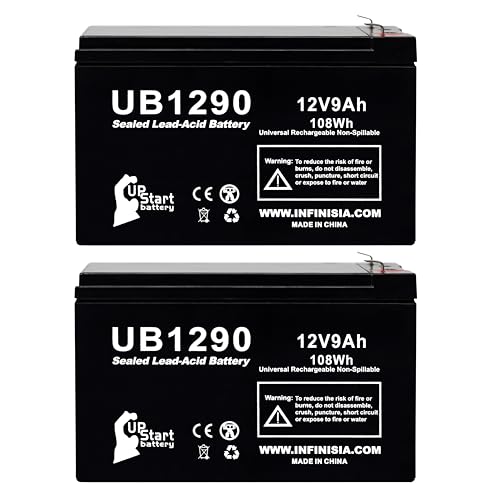
An uninterruptible power supply (UPS) doesn’t just keep your NAS running during a blackout. Its primary job is to give your NAS enough time to safely shut down, closing open files and parking drive heads properly. Most consumer NAS units from Synology, QNAP, and Asustor can communicate with a UPS via USB, detecting a power loss and initiating an automatic graceful shutdown.
You don’t need an enterprise-grade UPS for a home NAS. A basic unit like the APC Back-UPS 600VA or CyberPower CP1500AVRLCD provides enough runtime for a safe shutdown. For a two-bay NAS, even a 350VA unit will give you several minutes of runtime, which is more than enough. Larger setups with four or more bays plus a network switch should aim for 1000VA or above.
CyberPower CP1500AVRLCD UPS
Excellent mid-range UPS with AVR voltage regulation, LCD display, and USB connectivity for automatic NAS shutdown
Connect the UPS to your NAS via USB, then configure the NAS power settings to shut down automatically when battery level drops below a certain threshold. This ten-minute setup can save you from catastrophic data loss. Our article on costly hard drive mistakes that destroy data covers additional protective measures worth considering.
Mistake #5: Filling All Drive Bays on Day One
When you buy a four-bay NAS, there’s a strong temptation to fill all four bays immediately. It feels incomplete otherwise, like a bookshelf with empty shelves. Resist this urge.
Most modern NAS systems, including those from Synology (using SHR) and QNAP, allow you to start with one or two drives and expand later. Starting with two drives in RAID 1 or SHR gives you redundancy from the start. When you need more space in a year or two, you can add a third and fourth drive, expanding your storage pool without rebuilding from scratch.
This approach also lets you take advantage of falling drive prices. Hard drive costs per terabyte have been declining steadily. The 8TB drives you can pick up next year will likely cost less than they do today. Buying all your drives at once means you’re paying today’s prices for storage capacity you might not need for months.
There’s also a reliability argument. Drives from the same manufacturing batch can have similar failure characteristics. If you buy four identical drives from the same shipment, they may reach their end-of-life at roughly the same time, increasing the risk of a second drive failing during a RAID rebuild. Staggering your drive purchases introduces manufacturing diversity into your array.
Mistake #6: Ignoring Network Configuration
You’ve got a shiny new NAS with NAS-rated drives, plenty of RAM, and a UPS. You plug it in with a Cat5e cable to your eight-year-old router, and your transfer speeds are painfully slow. What went wrong?
Your NAS is only as fast as your weakest network link. Most modern NAS units come with at least one Gigabit Ethernet port, and many newer models include 2.5GbE. But if your router only supports 100Mbps, or your Ethernet cables are old Cat5 (not Cat5e or Cat6), you’ll be bottlenecked before data even reaches the NAS.
For a basic file-serving NAS, Gigabit Ethernet (roughly 110-120 MB/s real-world throughput) is perfectly adequate. If you’re editing video directly from your NAS or running multiple simultaneous 4K Plex streams, you’ll want 2.5GbE at minimum. Make sure your router or switch supports the same speed as your NAS port, and use Cat6 cables for any new runs.
Also, don’t rely on Wi-Fi for your NAS connection. Always use a wired Ethernet connection between your NAS and your router or switch. Wi-Fi introduces latency, bandwidth limitations, and reliability issues that make NAS operations frustrating, especially for large file transfers or backup jobs. The machine you’re accessing the NAS from can be on Wi-Fi if necessary, but the NAS itself should always be hardwired.
Mistake #7: Setting It Up and Never Checking It Again
A NAS isn’t a set-it-and-forget-it appliance, even though it can feel like one. Drives degrade over time, firmware updates patch security vulnerabilities, and SMART data can warn you about impending drive failures weeks before they actually happen.
At minimum, you should configure email or push notifications for drive health warnings, RAID degradation alerts, and firmware update availability. Synology, QNAP, and TrueNAS all support this natively. Spend five minutes setting up notifications during initial setup, and you’ll know immediately when something needs attention.
Schedule monthly SMART extended tests for all drives. These tests read every sector on the disk and report any problems. A drive might appear healthy in daily use while developing bad sectors in rarely-accessed areas. Monthly SMART tests catch these issues early. If you notice clicking sounds from your hard drives, that’s a much more urgent signal that something is wrong.
Keep your NAS firmware and installed packages updated. Security vulnerabilities in NAS software have been actively exploited by ransomware groups, particularly targeting internet-exposed units. Speaking of which: don’t expose your NAS directly to the internet without a VPN. Enabling port forwarding for DSM, QNAP’s QTS, or SMB shares is an invitation for brute-force attacks. Use a VPN (WireGuard or OpenVPN) if you need remote access.
Mistake #8: Not Planning for Drive Replacement
When a drive fails in a RAID array, you need to replace it as quickly as possible. The longer your array runs in a degraded state, the higher your risk of a second drive failure, which would mean total data loss in a RAID 5 or SHR setup. Rebuilds put enormous stress on the remaining drives, and a drive that was already borderline can give out during the process.
Keep a cold spare on hand. Buy an extra NAS-rated drive and store it on a shelf. When a drive fails, you can swap it in immediately instead of waiting two to three days for a delivery. This is especially important if you’re using higher-capacity drives (8TB+), where rebuild times can stretch beyond 24 hours.
Also, record the model numbers, serial numbers, and purchase dates of every drive in your NAS. When you need to file a warranty claim, having this information readily available saves time and frustration. A simple spreadsheet works fine. Some NAS operating systems track this information automatically in their storage manager.
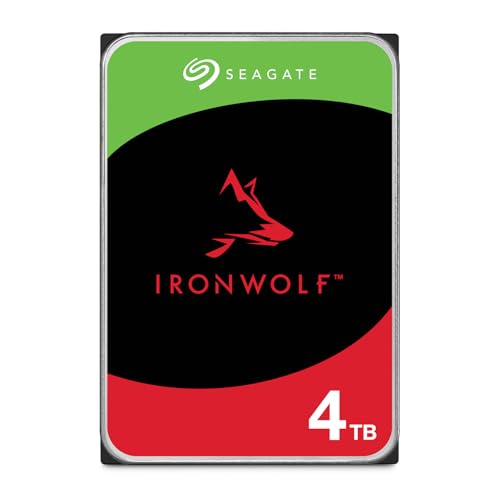
Seagate IronWolf 4TB NAS Hard Drive
Reliable NAS drive with AgileArray technology, rotational vibration sensors, and a three-year warranty with Rescue Data Recovery Services
If you’re just getting started with your first NAS build and want a full walkthrough, our NAS setup guide for beginners covers the entire process from hardware selection to initial configuration. And once your NAS is running, don’t forget to set up automated backups so your data protection actually works without you remembering to do it manually.
Frequently Asked Questions
Can I use an SSD instead of an HDD in my NAS?
Yes, and SSDs offer significant advantages for certain workloads, especially if your NAS handles lots of random read/write operations, runs virtual machines, or serves as a database backend. However, for pure bulk storage, HDDs still offer dramatically more capacity per dollar. Many NAS users find the best approach is using SSDs as a cache tier (most Synology and QNAP models support N

James Kennedy is a writer and product researcher at Drives Hero with a background in IT administration and consulting. He has hands-on experience with storage, networking, and system performance, and regularly improves and optimizes his home networking setup.