External Drive Temperature: How Hot is Too Hot?
Your external drive has been running for a few hours, and you notice it’s uncomfortably warm to the touch. Maybe even hot. You start wondering if you should be concerned, or if this is just the normal cost of doing business with portable storage. It’s a fair concern, and one that too many people ignore until something goes wrong.
Heat is the silent killer of storage drives. It degrades components over time, corrupts data, and can shorten a drive’s lifespan by years. The tricky part is that different drive types have different thermal tolerances, and what feels “hot” to your hand isn’t always a reliable indicator of whether your drive is in danger.
This guide breaks down the safe operating temperatures for HDDs, SSDs, and NVMe-based external drives, along with practical ways to monitor heat, spot the warning signs of overheating, and keep your drives running cool for the long haul.
Safe Operating Temperatures by Drive Type
Not all drives are created equal when it comes to heat tolerance. The type of storage inside your enclosure matters a lot, and manufacturers publish specific operating ranges for a reason.
External Hard Drives (HDDs)
Traditional spinning hard drives are the most temperature-sensitive of the bunch. Most HDD manufacturers, including Western Digital and Seagate, specify an operating range of 5°C to 55°C (41°F to 131°F). But that’s the absolute limit. For optimal longevity, you want to keep an HDD between 25°C and 45°C (77°F to 113°F).
A study by Backblaze, the cloud storage company that operates over 200,000 drives, found that drives consistently running above 45°C had noticeably higher failure rates. Once you pass 50°C, you’re in the danger zone. The mechanical components, platters, and read/write heads inside an HDD are physically stressed by excess heat, which accelerates wear.
External SATA SSDs
SATA-based external SSDs (like those using the popular Samsung 870 EVO internally) handle heat better than HDDs because there are no moving parts. The typical operating range is 0°C to 70°C (32°F to 158°F). Most SATA SSDs will comfortably cruise at 35°C to 50°C under normal workloads.
You generally don’t need to worry much about SATA SSD temperatures in an external enclosure. They simply don’t generate enough heat to cause problems under typical usage patterns like file transfers, backups, and media playback.
External NVMe SSDs
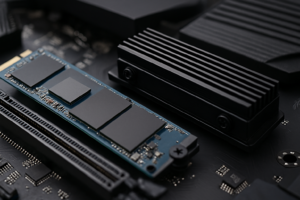
This is where things get interesting. NVMe drives are significantly faster than SATA drives, but that speed comes with a thermal cost. Internal NVMe drives can reach 70°C to 80°C under sustained load, and some will thermally throttle (reduce their speed to cool down) starting around 70°C.
When you put an NVMe drive inside a compact external enclosure, heat dissipation becomes a real challenge. Drives like the WD Black SN850X or Samsung 990 Pro can push serious temperatures during large file transfers. The enclosure itself becomes a heatsink, which is why many premium NVMe enclosures are made of aluminum rather than plastic. If your NVMe external drive regularly exceeds 70°C, it will throttle performance and could degrade the NAND flash cells over time.
Signs Your External Drive Is Overheating
You don’t always need software to tell you something’s wrong. Your drive will often give you physical and behavioral clues that it’s running too hot.
- The enclosure is too hot to hold comfortably. If you can’t keep your hand on it for more than a few seconds, the internal drive is almost certainly above 55°C.
- Sudden drops in transfer speed. This is thermal throttling in action, especially common with NVMe external drives. A transfer that starts at 900 MB/s and drops to 200 MB/s mid-way is a classic symptom.
- Unexpected disconnections. Some drives will disconnect from your computer entirely as a self-preservation measure when they overheat.
- Clicking or unusual sounds from HDDs. While clicking can indicate other problems, heat-induced expansion of mechanical components can cause unusual noises.
- File transfer errors or data corruption. If you’re getting CRC errors or files are arriving corrupted at their destination, overheating could be a contributing factor.
- The drive doesn’t mount after extended use. If your drive disappears from your system after a long session but reappears after cooling down, heat is almost certainly the culprit.
How to Monitor Your Drive’s Temperature
Guessing isn’t good enough when your data is on the line. Fortunately, most modern drives support S.M.A.R.T. (Self-Monitoring, Analysis, and Reporting Technology), which includes temperature reporting. Here are the best tools to access that data.
Windows Tools
CrystalDiskInfo is the gold standard for free drive monitoring on Windows. It reads S.M.A.R.T. data from both internal and external drives (when the enclosure supports passthrough) and displays the current temperature prominently. You can set it to run in your system tray and alert you when temperatures exceed a threshold you define.
HWiNFO64 is another excellent free option that monitors temperatures across your entire system, including external drives. It offers more detailed logging capabilities if you want to track temperature trends over time.
For Western Digital drives specifically, the WD Dashboard utility provides temperature monitoring alongside drive health information. Samsung users can use Samsung Magician for similar functionality with Samsung SSDs.
macOS Tools
DriveDx is the best option for Mac users who want detailed S.M.A.R.T. monitoring, including temperature. It’s a paid app, but it supports external drives better than most free alternatives. For a free option, smartmontools can be installed via Homebrew and accessed through Terminal, though it requires some comfort with command-line tools.
Linux Tools
The smartmontools package (specifically the smartctl command) works beautifully on Linux. Running smartctl -a /dev/sdX will give you the full S.M.A.R.T. readout including temperature. For a graphical option, GSmartControl provides a clean interface for the same data.
A Note About Enclosure Compatibility
Some cheaper external drive enclosures don’t pass S.M.A.R.T. data through to the host computer. If your monitoring tool can’t read your external drive’s temperature, the enclosure’s USB-to-SATA or USB-to-NVMe bridge chip might be blocking the data. Enclosures using JMicron or ASMedia chipsets generally have better S.M.A.R.T. passthrough support. This is something to consider when choosing your next enclosure.
Environmental Factors That Affect Drive Temperature
Your drive doesn’t exist in a vacuum. The environment around it plays a huge role in how hot it gets.
Ambient Room Temperature
This one seems obvious, but it’s easy to forget. If your room is already 30°C (86°F) in summer, your drive starts with a significant disadvantage. A drive that runs at a comfortable 40°C in an air-conditioned office might hit 55°C in a warm room. Keep drives out of direct sunlight and away from heat sources like radiators, gaming PCs exhausting hot air, and window sills.
Surface and Airflow
Placing your external drive on a soft surface like a couch cushion, bed, or carpet is a recipe for overheating. These surfaces trap heat underneath the enclosure and block natural convection. Always place drives on a hard, flat surface. A desk, shelf, or even a book works fine.
Airflow matters more than most people realize. A drive sitting in a closed cabinet or behind a stack of books will run significantly hotter than one in the open. Even a few inches of clearance on all sides makes a measurable difference.
Stacking Multiple Drives
If you’re running multiple external drives (common for media servers or backup setups), don’t stack them directly on top of each other. Each drive generates heat, and stacking compounds the problem. Leave at least an inch of space between drives, or arrange them vertically with gaps.
Cooling Solutions That Actually Work
When passive measures aren’t enough, it’s time to add some active cooling. Here are solutions ranked from simplest to most involved.
Aluminum Enclosures
If you’re building your own external drive, choosing an aluminum enclosure over a plastic one is the single most impactful thermal decision you can make. Aluminum dissipates heat dramatically better than plastic. For NVMe drives, this can mean a 15-20°C difference under sustained load.
Laptop Cooling Pads
A small USB-powered cooling pad designed for laptops also works well for external drives, particularly if you have multiple drives running simultaneously. The fans provide direct airflow across the drive enclosures. The options available on Amazon range from compact single-fan models to larger multi-fan pads.
Dedicated Drive Cooling Fans
For external HDDs, especially 3.5-inch desktop models, a small USB desk fan positioned to blow across the drive makes a surprising difference. You can also find purpose-built hard drive cooling fans that clip onto or sit beneath the enclosure.
ELUTENG USB Fan 120mm
A quiet, USB-powered 120mm fan that works perfectly for directing airflow across external drives on your desk.
NVMe Enclosures with Built-in Cooling
The best solution for hot NVMe external drives is an enclosure that was designed with thermal management in mind. The Ineo M.2 NVMe enclosure with fan and similar products include a tiny built-in fan that actively pulls air across the drive. These are particularly useful for sustained transfers like cloning drives or working with large video files.
Inateck NVMe M.2 Enclosure with Cooling Fan
An aluminum NVMe enclosure with active fan cooling that prevents thermal throttling during extended transfers.
Thermal Pads
If you’re assembling a drive into an enclosure yourself, adding a thermal pad between the drive and the aluminum case improves heat transfer significantly. Most quality enclosures include one, but replacements and upgrades are available. A good thermal pad helps the drive shed heat into the enclosure shell, where it can dissipate into the surrounding air.
Special Considerations for NAS and Always-On Setups
External drives that run 24/7 face a different thermal challenge than ones you plug in occasionally. If you’re using an external drive as part of a NAS, media server, or continuous backup solution, temperature management becomes even more critical.
For always-on setups, invest in drives specifically rated for continuous operation, like the WD Red Plus or Seagate IronWolf series. These drives are designed to handle sustained thermal loads. Pair them with enclosures that have ventilation or active cooling, and monitor temperatures weekly at minimum.
Consider setting up automated temperature logging with a tool like HWiNFO64 or smartmontools so you can spot gradual temperature increases that might indicate dust buildup, fan failure, or degrading thermal pads.
When to Be Concerned (and When to Relax)
Let’s put some practical numbers on this so you know exactly where you stand:
- Below 35°C: Perfectly cool. No action needed.
- 35°C to 45°C: Normal operating range for most drives under load. Nothing to worry about.
- 45°C to 55°C: Getting warm. Fine for SSDs, but HDDs are entering the upper end of their comfort zone. Consider improving airflow.
- 55°C to 65°C: Too hot for HDDs. SSDs are still technically within spec but running warmer than ideal. Take corrective action.
- 65°C to 75°C: NVMe drives may start throttling. SATA SSDs are at their limit. HDDs should never be here.
- Above 75°C: Danger zone for all drive types. Stop the workload, let the drive cool, and fix your thermal situation before continuing.
A brief spike during a large transfer isn’t cause for panic, especially with NVMe drives. Sustained high temperatures over hours or days are what cause long-term damage.
Frequently Asked Questions
Can an external drive overheat just from being plugged in and idle?
It’s uncommon but possible, particularly with NVMe drives in poorly ventilated plastic enclosures. Most drives enter a low-power idle state that generates minimal heat. However, if the drive is indexed by your operating system, running background processes, or part of a sync service like Dropbox, it may not truly be idle. Check your activity monitor to see if the drive is being accessed more than you think.
Does thermal throttling damage my drive, or just slow it down?
Thermal throttling itself is a protective mechanism and doesn’t cause damage. It’s actually preventing damage by reducing the drive’s speed and heat output. The concern is if your drive is constantly hitting the throttling threshold, because that means it’s spending too much time at elevated temperatures. Occasional throttling during large transfers is normal for NVMe drives. Constant throttling means you need better cooling.
Is it better to leave an external drive connected and spinning, or to disconnect it when not in use?
For thermal management and overall longevity, disconnecting (or at least safely ejecting) drives when they’re not in use is the better approach. Continuous operation means continuous heat generation, even at idle. Most external HDDs will spin down after a period of inactivity if left connected, which helps. But if you only use the drive for weekly backups, there’s no reason to leave it running 24/7.
My external drive feels warm but the temperature tools say it’s fine. Should I trust the tools?
Trust the tools. Human hands are poor thermometers. A drive enclosure at 40°C (104°F) will feel noticeably warm to the touch, but 40°C is a perfectly healthy operating temperature for any drive type. The enclosure feeling warm actually means it’s doing its job by transferring heat away from the internal components. It’s when the enclosure feels too hot to touch, typically above 50-55°C, that you should verify with monitoring software.
This article contains affiliate links. We may earn a small commission at no extra cost to you.

James Kennedy is a writer and product researcher at Drives Hero with a background in IT administration and consulting. He has hands-on experience with storage, networking, and system performance, and regularly improves and optimizes his home networking setup.