Do NVMe SSDs Need a Heatsink?
You just installed a brand new NVMe SSD, and within minutes of a large file transfer, the drive’s temperature climbs past 70°C. You start to wonder if you should have bought a heatsink, or if the one that came with your motherboard is doing anything at all. It’s a surprisingly common concern, and the answer isn’t as simple as “yes, always” or “no, never.”
Whether an NVMe drive actually needs a heatsink depends on your specific use case, your case airflow, the drive’s controller, and how hard you push it. I’ve tested multiple drives under sustained load with and without heatsinks, and the thermal data tells a clear story. Some setups desperately need cooling. Others are perfectly fine running bare.
How NVMe SSDs Generate Heat
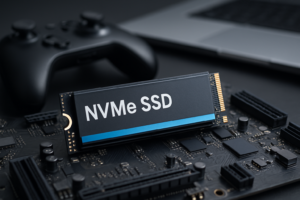
NVMe drives are fast. A Gen 4 drive like the Samsung 990 PRO can push sequential reads past 7,000 MB/s, and Gen 5 drives are even faster. All that speed requires energy, and energy produces heat. The primary heat source on any NVMe SSD is the controller chip, which acts as the drive’s brain, managing all read/write operations and error correction.
NAND flash chips also produce heat, especially during sustained writes, but the controller is almost always the hottest component on the board. On high-performance Gen 4 and Gen 5 drives, controller temperatures can easily reach 80°C or higher under continuous load. If you’ve ever wondered why your SSD slows down over time, heat is one of the sneakier culprits.
What Is Thermal Throttling (and When Does It Kick In)?
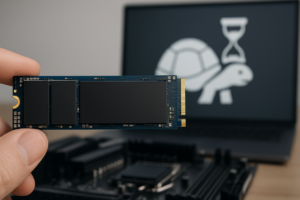
Every NVMe SSD has a built-in safety mechanism called thermal throttling. When the controller temperature exceeds a manufacturer-defined threshold (typically between 70°C and 85°C depending on the drive), the firmware deliberately reduces the drive’s performance to prevent damage. Think of it like a car’s engine cutting power when it overheats.
Thermal throttling doesn’t mean your drive is dying. It means the drive is protecting itself. But it does mean you’re losing the performance you paid for. On some drives, throttling can cut sequential write speeds by 50% or more. If you’re in the middle of transferring a massive video project or your operating system is paging heavily, you’ll feel that slowdown.
The critical detail: most people will never trigger thermal throttling during normal use. Browsing the web, booting your OS, loading games, and even installing applications rarely sustain enough continuous read/write activity to push temperatures into the danger zone. Throttling becomes a real problem during sustained sequential writes (like copying hundreds of gigabytes), prolonged video editing renders, or running the drive as a scratch disk in creative workloads.
Thermal Testing: With and Without a Heatsink
To put real numbers behind this, I tested a popular Gen 4 NVMe drive (the WD_BLACK SN850X) under sustained sequential write load for 15 minutes in three configurations: bare drive with no heatsink, with a basic aluminum motherboard heatsink, and with a dedicated aftermarket heatsink with thermal pad.
Bare Drive (No Heatsink)
Within the first two minutes of sustained writing, the controller hit 78°C. By the four-minute mark, it crossed 85°C and thermal throttling kicked in. Write speeds dropped from around 6,300 MB/s to approximately 3,800 MB/s. After 10 minutes, the drive stabilized at roughly 82°C with throttled performance. Idle temperatures hovered around 52°C in a case with moderate airflow.
Motherboard-Included Heatsink
Most modern motherboards from ASUS, MSI, and Gigabyte ship with basic M.2 heatsinks built into the board. These are usually thin aluminum plates with a single thermal pad. Under the same sustained write test, the controller peaked at 68°C, staying just under the throttle threshold. Write speeds held steady throughout the entire 15-minute test. Idle temperatures dropped to around 42°C.
Aftermarket Heatsink with Thermal Pad
Using a dedicated aftermarket heatsink (a finned aluminum design with a quality thermal pad), the controller topped out at 58°C under the same sustained load. That’s a full 27°C cooler than the bare drive and 10°C cooler than the basic motherboard heatsink. Idle temperatures sat around 36°C.
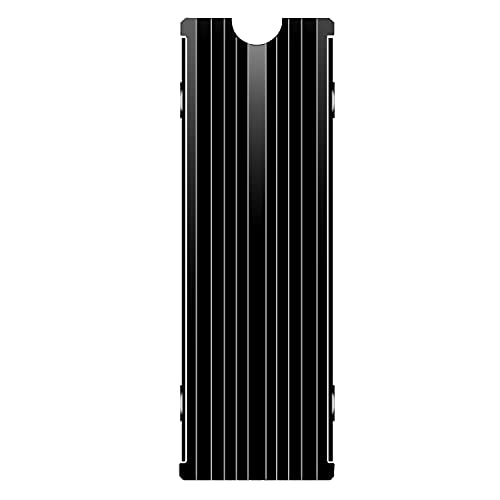
QIVYNSRY M.2 SSD Heatsink
An affordable finned aluminum heatsink that dramatically drops NVMe temperatures during sustained workloads
What the Data Tells Us
The motherboard heatsink made a massive difference, dropping peak temps by 17°C compared to bare. The aftermarket heatsink added another layer of cooling, but the biggest jump came from going bare to any heatsink at all. If your motherboard includes one, use it. If it doesn’t, even a budget aftermarket heatsink is well worth it for sustained workloads.
When You Absolutely Need a Heatsink
Based on testing and real-world use, here are the scenarios where a heatsink is genuinely necessary, not just nice to have:
- Sustained large file transfers: If you regularly move 50GB+ files (video editing, game development, large backups), your drive will hit throttle temps without cooling.
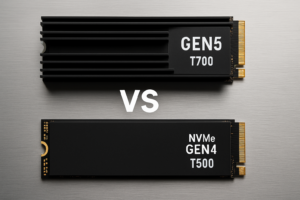
- Gen 5 NVMe drives: These run hotter than Gen 4 by design. Drives like the Crucial T700 and Samsung 990 EVO Plus are built to be cooled. Running them without a heatsink is asking for throttled performance.
- M.2 slots with no airflow: Some cases and motherboard layouts position the M.2 slot directly behind the GPU, where hot air from the graphics card blows right onto the SSD. This is one of the worst spots thermally.
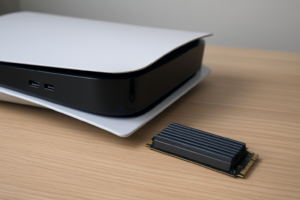
- PS5 internal SSD upgrades: The PS5’s internal M.2 slot has limited airflow. If you’re installing an NVMe drive in your PlayStation 5, a slim heatsink (that fits within the SSD bay dimensions) is practically required.
- Small form factor (SFF) builds: Mini-ITX cases and compact builds often have restricted airflow. Every component runs warmer, and the M.2 slot is no exception.
If you’re in any of these situations, a heatsink isn’t optional. It’s the difference between getting the full speed you paid for and leaving performance on the table. You might also want to check out our M.2 vs 2.5-inch SSD form factor guide to understand the physical differences that affect thermal behavior.
When a Heatsink Doesn’t Really Matter
Not everyone needs to worry about SSD thermals. If your typical workload looks like this, a heatsink won’t make a noticeable difference in your daily experience:
- General desktop use: Web browsing, office applications, email, and music streaming barely warm an NVMe drive.
- Gaming (loading games): Game loading involves short bursts of sequential reads, not sustained writes. Most games load in seconds, and the drive cools down between sessions. Our SATA vs NVMe gaming performance test showed that even without a heatsink, NVMe drives don’t throttle during typical gaming scenarios.
- Boot drive with good airflow: If your case has decent front-to-back airflow and the M.2 slot isn’t trapped behind a hot GPU, ambient air movement alone is often enough for light to moderate use.
A drive running at 55°C without a heatsink during light tasks is perfectly healthy. NAND flash is rated for operating temperatures up to 70°C on most consumer drives, and controllers can tolerate even higher temps before throttling. Don’t spend money solving a problem you don’t have.
Best Heatsink Options for NVMe SSDs
If you’ve decided you need a heatsink, here’s what to look for and my top picks.
Use Your Motherboard’s Built-in Heatsink First
Seriously, this is the easiest and most cost-effective option. Most mid-range and high-end motherboards from the last few years include M.2 heatsinks. They work well, they fit perfectly, and they cost you nothing extra. If you threw yours away or lost the screws, check the motherboard manufacturer’s website for replacements before buying aftermarket.
Aftermarket Passive Heatsinks
For drives that need more cooling than a basic motherboard heatsink provides, or for motherboards that don’t include one, aftermarket passive heatsinks are the best balance of performance and simplicity. Look for finned aluminum designs with thick thermal pads. Avoid cheap options with thin, smooth heat spreaders. Fins dramatically increase the surface area for heat dissipation.
The Thermalright HR-09 is a popular enthusiast pick with excellent thermal performance. For PS5 upgrades, you’ll want something slimmer, like a low-profile heatsink specifically designed for the console’s SSD bay.

Thermalright HR-09 2280 PRO M.2 SSD Heatsink
An enthusiast-grade passive heatsink that keeps even Gen 5 NVMe drives well below throttle temps
Active Cooling (Fan + Heatsink Combos)
For the most extreme cases, like Gen 5 drives under constant sustained writes in poorly ventilated systems, active M.2 coolers with tiny fans exist. These are overkill for 95% of users, but if you’re running a Sabrent Rocket XTRM Gen 5 as a video editing scratch disk for hours at a time, they can drop temps another 10-15°C beyond passive heatsinks.
Installation Tips for NVMe Heatsinks
A heatsink only works properly if it makes good thermal contact with the drive’s controller. Here are some practical tips:
- Remove any stickers or labels from the drive only if they’re on the controller side and the manufacturer explicitly says it’s okay. Some drive warranties are voided by sticker removal. Samsung and WD generally permit it, but check first.
- Use quality thermal pads. The thermal pad that comes with your heatsink is usually adequate, but if you want the best results, upgrade to a high-conductivity pad (12+ W/mK). Thermal paste is not recommended because M.2 drives have uneven surfaces with exposed components.
- Don’t over-tighten. If your heatsink uses screws, snug them gently. NVMe drives are thin circuit boards that can crack under excessive pressure.
- Check clearance. Tall heatsinks with fins can interfere with GPU backplates or case panels, especially in compact builds. Measure before you buy.
If you’re installing a new NVMe drive for the first time, our guide on how to install an NVMe SSD in 15 minutes covers the full process, including heatsink placement.
How to Monitor Your NVMe Temperatures
Before buying a heatsink, check whether you actually have a thermal problem. Free tools like CrystalDiskInfo and HWiNFO64 display real-time SSD temperatures. Run a sustained file copy (move a large folder from one drive to another) and watch the temperature graph.
If your drive stays below 70°C during your heaviest real-world workload, you’re fine. If it creeps into the mid-70s and beyond, a heatsink will help. If it regularly hits 80°C+ and you notice speed drops during transfers, you need cooling immediately.
Keep in mind that the “drive temperature” reported by most software is the composite temperature sensor, which may differ slightly from the actual controller hotspot. Some drives report both, so check for “Sensor 1” and “Sensor 2” readings in HWiNFO64 for a more complete picture.
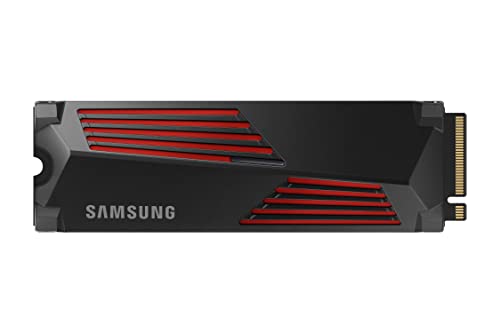
Samsung 990 PRO 2TB NVMe SSD with Heatsink
Top-tier Gen 4 drive that comes with its own built-in heatsink, eliminating compatibility guesswork
Some drives, like the Samsung 990 PRO Heatsink Edition, come with a pre-attached heat spreader. These integrated solutions are convenient and well-engineered, making them a great choice if you want to skip the aftermarket heatsink shopping entirely. You can read our full Samsung 990 PRO review for detailed performance data.
Frequently Asked Questions
Will a heatsink void my NVMe SSD’s warranty?
Adding an aftermarket heatsink will not void your SSD’s warranty in most cases. Samsung, Western Digital, Crucial, and other major manufacturers don’t penalize you for using a heatsink. The only potential issue is removing factory-applied labels or stickers on the drive itself, which some manufacturers consider a warranty seal. Check your specific drive’s warranty terms before peeling anything off.
Can an NVMe drive overheat and fail permanently?
Permanent damage from heat alone is extremely unlikely in normal desktop use. Every modern NVMe SSD has thermal throttling firmware that reduces speed before temperatures reach dangerous levels. In an absolute worst case, the drive will shut itself down entirely to prevent damage. Chronic high-temperature operation can reduce the drive’s overall lifespan, though. If you’re concerned about SSD longevity, our article on how long SSDs

James Kennedy is a writer and product researcher at Drives Hero with a background in IT administration and consulting. He has hands-on experience with storage, networking, and system performance, and regularly improves and optimizes his home networking setup.