Why Your NVMe SSD May Be Slower Than Expected
You finally upgraded to an NVMe SSD, expecting blazing-fast speeds that would transform your computing experience. But after running a benchmark or just using the drive for a few weeks, something feels off. The sequential reads that should be hitting 7,000 MB/s are barely cracking 1,500 MB/s, or the drive starts fast and then tanks mid-transfer. You’re not imagining it, and you’re not alone.
Several common issues can quietly cripple your NVMe SSD’s performance, and most of them are fixable without spending a dime. I’ve seen every one of these problems crop up in builds over the years, so let me walk you through what’s likely going wrong and how to get the speeds you paid for.
1. You Installed It in the Wrong M.2 Slot
This is the single most common reason NVMe drives underperform, and it’s the easiest to fix. Most motherboards have multiple M.2 slots, but they aren’t all created equal. One slot might run at PCIe 4.0 x4 (giving you full bandwidth), while another runs at PCIe 3.0 x4 or even PCIe 3.0 x2. Some lower slots share bandwidth with SATA ports, cutting your speed in half or worse.
For example, if you plug a Samsung 990 Pro into a PCIe 3.0 x4 slot instead of a Gen 4 slot, you’re capping yourself at roughly 3,500 MB/s instead of the 7,450 MB/s the drive is capable of. On some budget B660 or B550 boards, the second M.2 slot only runs at x2 speeds, which limits you to about 1,750 MB/s. If you haven’t read our M.2 vs 2.5-inch SSD comparison guide, it covers slot types and interface differences in detail.
Fix: Check your motherboard manual and identify which M.2 slot connects directly to the CPU with the highest PCIe generation. That’s where your fastest NVMe drive should live. The primary slot (usually labeled M2_1 or M.2_CPU) is almost always the fastest.
2. Thermal Throttling Is Silently Killing Your Speeds
NVMe SSDs are fast because their controllers work incredibly hard, and that work produces significant heat. When an NVMe drive hits its thermal threshold (typically around 70 to 80°C for most controllers), it automatically reduces performance to protect itself. You’ll see speeds drop dramatically during large file transfers, game installations, or sustained writes.
This problem is especially bad if your drive is installed in an M.2 slot sandwiched between a GPU and the motherboard, where airflow is essentially zero. Drives with no heatsink in a poorly ventilated case can hit thermal limits within 30 seconds of sustained load.
Fix: Add a heatsink. Many motherboards come with M.2 heatsinks built in, so make sure you’re actually using it (I’ve seen plenty of builders toss them aside). If your board doesn’t include one, aftermarket NVMe heatsinks with thermal pads are affordable and make a meaningful difference, often dropping temps by 15 to 25°C.

Thermalright M.2 NVMe SSD Heatsink
One of the best-rated aftermarket NVMe heatsinks with excellent thermal pad contact and easy installation
You can monitor SSD temperatures using free tools like CrystalDiskInfo or HWiNFO64. If your drive regularly hits 75°C+ under load, thermal throttling is almost certainly affecting your performance.
3. SLC Cache Depletion (The QLC/TLC Speed Cliff)
This is the one that catches most people off guard. Nearly all modern consumer NVMe drives use a trick called SLC caching, where a portion of the NAND flash temporarily operates in single-level cell mode for faster writes. When that cache fills up, the drive falls back to its native TLC or QLC write speed, which can be dramatically slower.
QLC drives are the worst offenders. A QLC NVMe drive might write at 5,000 MB/s while the SLC cache holds out, then plummet to 500 to 800 MB/s once it’s exhausted. Some budget QLC drives drop to as low as 150 MB/s, which is slower than a mechanical hard drive. If you’ve noticed your SSD slowing down over time, cache depletion combined with a full drive is often the culprit.
The size of the SLC cache varies by model and depends on how full the drive is. A drive that’s 80% full has much less free NAND to use as cache, meaning the speed cliff arrives sooner.
Fix: Keep at least 20 to 25% of your drive free. If you regularly transfer large files (video editing, game installations), invest in a TLC-based drive with a generous and well-managed cache. The WD Black SN850X and Samsung 990 Pro both handle sustained writes far better than budget QLC alternatives. Our Samsung 990 Pro vs WD Black SN850X showdown breaks down how these two compare in real workloads.
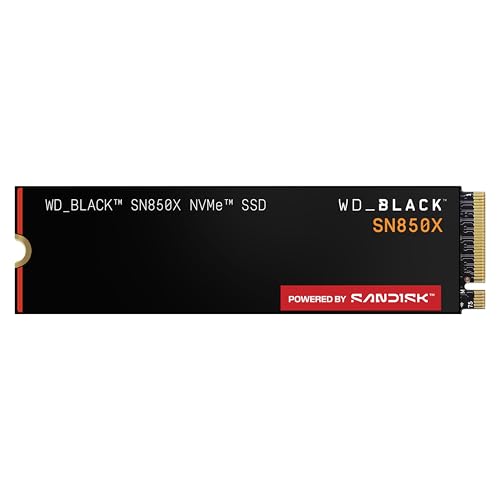
WD_BLACK SN850X 1TB NVMe SSD
Excellent sustained write performance with a large dynamic SLC cache, ideal for heavy file transfers and gaming
4. Driver and BIOS Settings Are Holding You Back
Two frequently overlooked culprits live in your software configuration, not your hardware.
AHCI vs NVMe Mode in BIOS
Your BIOS storage settings matter. Some systems default to AHCI mode or even Legacy/IDE mode, both of which can limit NVMe performance. Your NVMe drive should be set to use the NVMe protocol, not AHCI. On most modern boards, this is automatic when using the CPU-direct M.2 slot, but chipset-connected slots sometimes need manual adjustment.
While you’re in BIOS, also verify that the correct PCIe generation is set. Some motherboards default M.2 slots to “Auto” or even lock them to Gen 3. If you have a Gen 4 or Gen 5 drive, confirm the slot is configured to run at the proper generation.
Windows Storage Drivers
The default Windows NVMe driver (stornvme) works fine for most drives, but Samsung and WD drives can benefit from manufacturer-specific drivers or NVMe management tools. Samsung Magician, for example, can optimize performance and update firmware. Outdated firmware is a real performance problem, especially on early batches of new drive models.
Fix: Enter your BIOS (usually DEL or F2 at boot), navigate to storage settings, and confirm NVMe mode is active. Then download the latest firmware and management software for your specific SSD from the manufacturer’s website. If you need a walkthrough on installing an NVMe drive with proper BIOS configuration, our NVMe installation guide covers the full process.
5. Your Power Settings Are Throttling the Drive
Windows power management can put your NVMe drive into low-power states that add latency and reduce throughput. This is especially noticeable on laptops, but desktop users aren’t immune if they’re running the “Balanced” or “Power Saver” plan.
The specific setting to watch is “Primary NVMe Idle Timeout” and “Primary NVMe Power State Transition Latency Tolerance” in the advanced power settings. When these are set aggressively, the drive enters deep sleep states and takes time to wake up, causing stutters and inconsistent speeds.
Fix: Switch to the “High Performance” power plan in Windows. If you want more granular control, open an elevated command prompt and run powercfg /setacvalueindex scheme_current sub_disk 0b2d69d7-a2a1-449c-9680-f91c70521c60 0 to disable NVMe idle timeouts. For laptops, consider toggling this only when plugged in to preserve battery life.
Quick Diagnostic Checklist
Before you tear your hair out, run through this in order:
- Check your M.2 slot: Confirm it’s running at the correct PCIe generation and lane width (use GPU-Z or HWiNFO64).
- Monitor temperatures: Run CrystalDiskInfo during a file transfer. If temps exceed 75°C, add a heatsink.
- Check drive capacity: If your drive is over 80% full, free up space or migrate data.
- Update firmware: Visit your manufacturer’s support page and install the latest firmware.
- Review BIOS settings: Verify NVMe mode is enabled and the PCIe generation isn’t artificially limited.
- Adjust power plan: Switch to High Performance and check NVMe idle timeout settings.
If you’re still seeing poor results after all six steps, run a benchmark with CrystalDiskMark and compare to published reviews for your exact drive model. Significant deviations could indicate a defective drive or a motherboard compatibility issue. For anyone considering budget SSDs, keep in mind that lower-cost models are more likely to use QLC NAND and smaller SLC caches, making some of these issues more pronounced.

Samsung 990 Pro 2TB NVMe SSD
Top-tier Gen 4 NVMe with outstanding sustained write speeds and an included heatsink option
Frequently Asked Questions
How can I tell if my NVMe SSD is thermal throttling?
Download HWiNFO64 or CrystalDiskInfo and monitor the “Drive Temperature” sensor while copying a large file (at least 20 GB). If the temperature climbs above 75°C and your transfer speed drops noticeably mid-copy, thermal throttling is the cause. Adding an M.2

James Kennedy is a writer and product researcher at Drives Hero with a background in IT administration and consulting. He has hands-on experience with storage, networking, and system performance, and regularly improves and optimizes his home networking setup.