Top Portable SSDs for Fast External Boot Drives
Booting your operating system from an external SSD can completely transform how you use your computer. Maybe you want a portable Windows-to-Go setup you can plug into any machine, or perhaps your Mac’s internal storage is maxed out and you need a fast, reliable boot volume. Whatever the reason, a good portable SSD paired with the right interface can deliver near-internal-drive performance, and sometimes you won’t even notice the difference.
But not every external SSD is up to the task. Boot drives demand sustained read/write speeds, low latency, and a reliable connection that won’t drop mid-session. I’ve tested and researched the best options for this specific use case, and in this guide, I’ll walk you through the top picks, how to set everything up on both Windows and Mac, and what to watch out for.
Why Boot from an External SSD?
There are plenty of legitimate reasons to boot from an external drive. IT professionals carry portable boot environments for troubleshooting. Developers run different operating systems without partitioning their internal drives. And if you’re stuck with a Mac that has soldered, non-upgradeable storage, an external boot drive is one of the few ways to expand your usable space without compromising speed.
The key requirement is speed. Traditional external hard drives are painfully slow for booting, often taking several minutes to reach a usable desktop. A quality external SSD over USB 3.2 Gen 2 or Thunderbolt can boot an OS in under 20 seconds. If you’re still debating whether solid-state is worth the upgrade, our SSD vs HDD comparison breaks down the performance differences in detail.
Best Portable SSDs for External Boot Drives
Not all portable SSDs perform equally as boot drives. You need consistent sequential read speeds, reliable firmware, and an interface fast enough to avoid bottlenecking the OS. Here are my top recommendations, organized by interface type.
Best Thunderbolt Option: Samsung T9
The Samsung T9 is my top pick for anyone with a Thunderbolt-equipped Mac or PC. It uses USB 3.2 Gen 2×2, delivering up to 2,000 MB/s sequential reads. That’s fast enough to make booting from an external drive feel virtually identical to an internal NVMe SSD. It’s available in 1TB, 2TB, and 4TB capacities, and Samsung’s build quality and firmware reliability are consistently excellent.
For Mac users specifically, the T9 works beautifully with Apple Silicon machines. If you need help getting it connected, our guide on how to connect an external SSD to a MacBook Pro covers the process step by step.
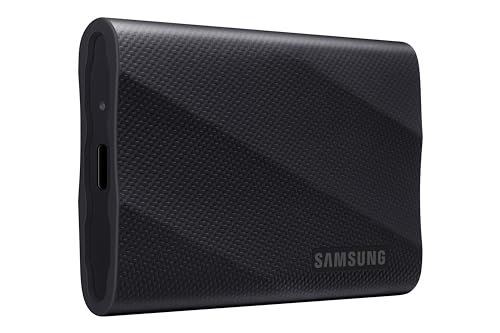
Samsung T9 Portable SSD 2TB
Fastest USB-C portable SSD available with up to 2,000 MB/s reads, ideal for boot drive use on both Mac and Windows.
Best USB-C Value: SanDisk Extreme Pro V2
The SanDisk Extreme Pro Portable SSD V2 hits a sweet spot between speed and affordability. With sequential reads up to 2,000 MB/s over USB 3.2 Gen 2×2, it matches the Samsung T9’s throughput. It’s also IP55 rated for dust and water resistance, which matters if you’re carrying a boot drive between locations. The forged aluminum chassis dissipates heat well during sustained writes, which is exactly what you want during OS installations and large updates.
If you’re looking for something even more durable for travel, we’ve done extensive drop and water testing in our best portable SSDs for travel roundup.
Best Thunderbolt 4: OWC Envoy Pro FX
The OWC Envoy Pro FX is purpose-built for this exact use case. OWC has a long history of making Mac-compatible storage, and the Envoy Pro FX supports both Thunderbolt 3/4 and USB-C, giving you universal compatibility. It delivers up to 2,800 MB/s over Thunderbolt, which is the fastest option on this list. The aluminum enclosure is also rated IP67 for dust and water resistance.
This drive is particularly well-suited for creative professionals running macOS from an external volume while keeping their internal drive dedicated to projects and media files.

OWC Envoy Pro FX 1TB Thunderbolt SSD
Thunderbolt 4 compatible with speeds up to 2,800 MB/s, built specifically with Mac boot drive compatibility in mind.
Budget-Friendly Pick: Samsung T7
The Samsung T7 is a generation older but still very capable as a boot drive. You’ll get up to 1,050 MB/s over USB 3.2 Gen 2, which is more than fast enough for snappy OS performance. It’s compact, lightweight, and widely available at competitive prices. If you’re setting up a secondary boot environment and don’t need bleeding-edge speed, the T7 is hard to beat for the money.
Over time, any SSD can experience performance degradation with heavy use. Our article on why your SSD slows down over time explains how to monitor drive health and keep things running smoothly.
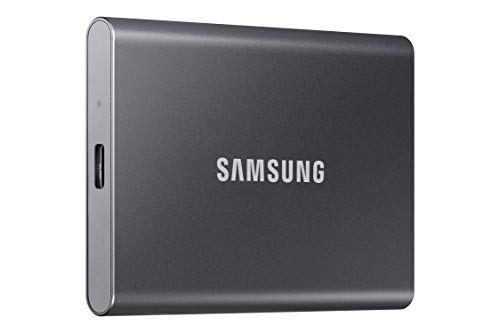
Samsung T7 Portable SSD 1TB
A budget-friendly boot drive option with reliable 1,050 MB/s speeds and Samsung’s proven firmware stability.
How to Set Up a Boot Drive on Windows
Windows doesn’t natively support “Windows to Go” anymore (Microsoft officially discontinued it), but you can still create a bootable external SSD using free tools. Here’s the process:
- Download Rufus (rufus.ie), a free and widely trusted tool for creating bootable media.
- Get a Windows ISO from Microsoft’s official media creation tool.
- Connect your external SSD via USB-C or Thunderbolt and open Rufus.
- Select “Windows to Go” as the image option in Rufus. Choose your SSD as the target device and your downloaded ISO as the source.
- Click Start and wait for the process to complete. This typically takes 10 to 20 minutes depending on your SSD’s write speed.
- Reboot and access your BIOS/UEFI (usually by pressing F2, F12, or Del during startup). Change the boot order to prioritize your external SSD.
One important note: make sure your SSD is formatted as GPT (not MBR) for UEFI boot compatibility. Rufus handles this automatically if you select the right options, but it’s worth double-checking. If your external drive isn’t being recognized, our troubleshooting guide for external drives not showing up can help you diagnose the issue.
How to Set Up a Boot Drive on Mac
Apple makes this process considerably easier, especially on Apple Silicon Macs (M1, M2, M3, M4). Here’s what to do:
- Connect your external SSD to your Mac via USB-C or Thunderbolt.
- Open Disk Utility and format the SSD as APFS (Apple File System) with GUID Partition Map. This is required for booting macOS.
- Open System Settings > General > Software Update or use the macOS installer app (downloadable from the App Store) to install macOS directly onto the external SSD.
- Once installed, go to System Settings > General > Startup Disk and select your external SSD as the boot volume.
- Restart, and your Mac will boot from the external drive.
On Apple Silicon Macs, you may need to enter Recovery Mode (hold the power button on startup) to allow booting from external media in the Security Policy settings. Intel Macs are more permissive by default. For more Mac-specific SSD guidance, check out our walkthrough on installing an OS on a new SSD for MacBook Pro.
What to Look for in an External Boot Drive
Beyond raw speed, a few factors can make or break your experience with an external boot drive.
Interface matters more than you think. USB 3.2 Gen 2 (10 Gbps) is the minimum you should consider. USB 3.2 Gen 2×2 (20 Gbps) and Thunderbolt 3/4 (40 Gbps) are noticeably better for boot performance. Avoid USB 3.0 (5 Gbps) drives entirely for this purpose.
Thermal management is critical. Boot drives sustain reads and writes for longer periods than a typical file transfer. SSDs without adequate heat dissipation will throttle under load, which causes stuttery OS performance. Look for drives with aluminum enclosures or built-in heat sinks.
Cable quality matters. A flimsy cable or loose connection can cause your boot drive to disconnect, potentially corrupting your OS installation. Use the cable that ships with the drive, and avoid cheap adapters or hubs. If you’ve dealt with connection drops before, our article on why your external drive keeps disconnecting covers seven quick fixes.
Capacity planning: A 500GB drive is the bare minimum for a boot setup. Windows 11 needs about 64GB just for the OS, and macOS Sequoia requires roughly 30GB. Once you add applications, updates, and swap files, 1TB is a much more comfortable starting point. For help deciding on the right size, our 1TB vs 2TB SSD guide breaks down the capacity decision.
Frequently Asked Questions
Will booting from an external SSD be as fast as an internal drive?
It depends on the interface

James Kennedy is a writer and product researcher at Drives Hero with a background in IT administration and consulting. He has hands-on experience with storage, networking, and system performance, and regularly improves and optimizes his home networking setup.