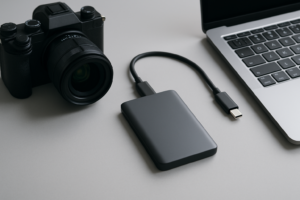
Best Portable SSDs for iPhone and iPad USB-C File Transfers
Since Apple switched to USB-C with the iPhone 15 lineup, photographers and videographers finally have a direct way to offload files to an external SSD without needing adapters or workarounds. But not every portable SSD plays nicely with iOS, and the speed you’ll actually get might surprise you. Here’s what you need to know before buying, plus our top picks for iPhone and iPad file transfers.
Understanding iPhone and iPad USB-C Speed Limits
Before you spend money on the fastest SSD you can find, you need to understand a key limitation. The iPhone 15 and iPhone 16 (non-Pro models) use USB 2.0 over their USB-C port, which caps transfer speeds at about 480 Mbps. The iPhone 15 Pro, 15 Pro Max, 16 Pro, and 16 Pro Max support USB 3.0 (up to 10 Gbps), which is a massive difference when you’re moving large video files.
iPads vary too. The iPad Pro models with M-series chips support USB 3.0 or Thunderbolt, while the base iPad (10th gen) is limited to USB 2.0. This matters because buying a premium NVMe SSD won’t give you any speed advantage on a USB 2.0 device. You’ll be bottlenecked by the port, not the drive. If you’re curious about the differences between SSD technologies, our M.2 vs 2.5-inch SSD form factor guide breaks it down well.
What to Look for in an iPhone-Compatible Portable SSD
Compatibility with iOS is generally good across major brands, but there are a few things to check. The drive needs to be formatted as APFS, exFAT, or FAT32 to work with the Files app on iPhone and iPad. Most drives ship formatted as exFAT, which works out of the box.
You’ll also want a drive that draws low power. Some higher-performance NVMe drives can pull more current than an iPhone’s USB-C port can supply, which leads to the drive disconnecting or not being recognized at all. If you’ve run into connection issues before, our guide on why your external drive keeps disconnecting covers several fixes. Stick with drives designed for mobile use, and you’ll avoid most of these headaches.
Our Top Picks for iPhone and iPad
Best Overall: Samsung T7 Shield
The Samsung T7 Shield is our top recommendation for most people. It’s IP65 rated for dust and water resistance, compact enough to fit in a pocket, and works flawlessly with iPhone 15 and 16 Pro models at USB 3.0 speeds. On non-Pro iPhones, it’ll still work fine, just at USB 2.0 speeds. It comes in 1TB and 2TB capacities, which is plenty for photo and video offloading on the go.

Samsung T7 Shield Portable SSD
IP65-rated, lightweight, and reliable with iPhone USB-C connections right out of the box.
If you’re a frequent traveler, we’ve tested several rugged options in our roundup of the best portable SSDs for travel in 2026, and the T7 Shield consistently ranks at the top for durability.
Best Budget Option: SanDisk Extreme Portable SSD V2
The SanDisk Extreme Portable SSD V2 is a fantastic pick if you want reliable iPhone compatibility without spending as much. It offers USB 3.2 Gen 2 speeds (up to 1,050 MB/s on compatible devices), IP55 water and dust resistance, and a carabiner loop that’s genuinely useful when you’re out shooting. It’s widely available in 500GB, 1TB, 2TB, and 4TB options.
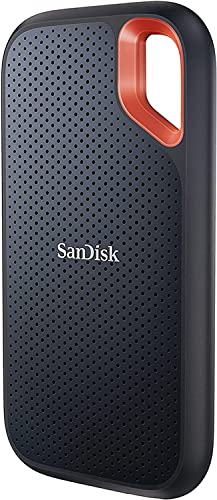
SanDisk Extreme Portable SSD V2
Budget-friendly, IP55 rated, and includes a handy carabiner loop for travel.
Best for Pro Video: SanDisk Extreme PRO Portable SSD V2
Shooting 4K ProRes on your iPhone 16 Pro eats storage fast. The SanDisk Extreme PRO Portable SSD V2 offers read speeds up to 2,000 MB/s, which means you’ll saturate the USB 3.0 connection on Pro iPhones and M-series iPads. It also supports direct recording to external storage on iPad Pro, which is a huge deal for video editors. If you’re regularly working with large files, choosing the right capacity between 1TB and 2TB is worth thinking through before you buy.
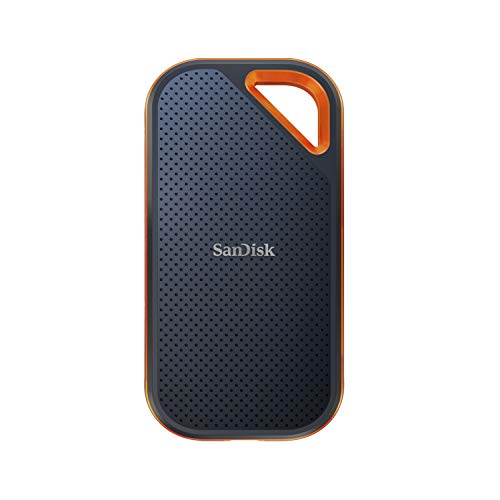
SanDisk Extreme PRO Portable SSD V2
Fastest option for iPhone 16 Pro and iPad Pro users who shoot heavy video.
Frequently Asked Questions
Can I record video directly to an external SSD from my iPhone?
As of iOS 17 and later, direct recording to external storage is not natively supported on iPhone. You can, however, record to your iPhone’s internal storage and then offload to the SSD through the Files app. iPad Pro with iPadOS does support direct recording to external drives in certain apps. For long-term storage of offloaded footage, you might also want to consider cloud backup vs. a local NAS as part of your backup strategy.
Do I need a special cable to connect a portable SSD to my iPhone?
Most portable SSDs come with a USB-C to USB-C cable, and that’s exactly what you need for iPhones 15 and 16. Make sure the included cable supports USB 3.0 data speeds if you have a Pro model. Some cheap cables are charge-only or USB 2.0, which will bottleneck your transfers. When in doubt, a certified USB 3.2 Gen 2 cable will give you the best results.
This article contains affiliate links. We may earn a small commission at no extra cost to you.

James Kennedy is a writer and product researcher at Drives Hero with a background in IT administration and consulting. He has hands-on experience with storage, networking, and system performance, and regularly improves and optimizes his home networking setup.