How Fast Is an External SSD Compared to an Internal SSD?
You just picked up a shiny new external SSD, plugged it into your laptop, and ran a speed test. The numbers look good, but they don’t quite match the specs you saw on the box. And they’re nowhere near what your internal NVMe drive pulls. So where exactly does the speed get lost, and how much does it actually matter for your workflow?
I’ve spent a lot of time benchmarking different SSD configurations, and the gap between internal and external drives is both larger and smaller than most people assume, depending entirely on the interface you’re using. Let’s break down the real numbers so you can make a smart decision about where to put your money.
Understanding the Interfaces: Where Speed Gets Made (and Lost)
Before jumping into benchmarks, you need to understand the four main connection types we’re comparing. Each one has a theoretical speed ceiling, and that ceiling determines the maximum performance you’ll ever see, regardless of how fast the SSD itself is.
- Internal SATA III (2.5-inch SSDs): 6 Gbps theoretical, roughly 550 MB/s real-world max
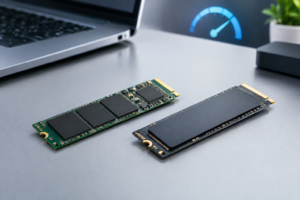
- Internal NVMe (M.2 PCIe Gen 3/Gen 4): Gen 3 tops out around 3,500 MB/s; Gen 4 pushes to 7,000+ MB/s
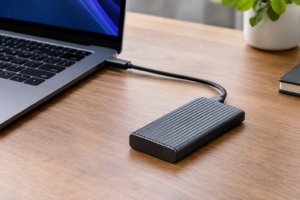
- External USB 3.2 Gen 2 (USB-C): 10 Gbps theoretical, roughly 1,000 MB/s real-world max
- External Thunderbolt 3/4 (USB-C connector): 40 Gbps theoretical, roughly 2,800 MB/s real-world max
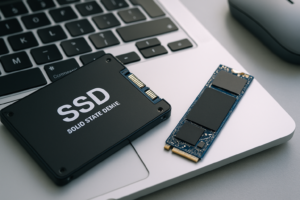
Notice something important: an external USB-C drive is actually faster than an internal SATA SSD. Many people don’t realize this. If you’re comparing a portable USB 3.2 Gen 2 SSD against an older internal 2.5-inch SATA drive, the external drive wins on paper and in practice. If you want a deeper look at the form factor differences for internal drives, check out our M.2 vs 2.5-inch SSD comparison guide.
Real-World Benchmark Results
Here’s where theory meets reality. I tested sequential read and write speeds using CrystalDiskMark, along with real-world file copy tests (a 50 GB mix of large video files and small documents). These are representative numbers based on popular drives in each category.
Sequential Read / Write Speeds
- Internal SATA SSD (Samsung 870 EVO): ~560 / 530 MB/s
- Internal NVMe Gen 3 (WD Black SN770): ~3,500 / 2,900 MB/s
- Internal NVMe Gen 4 (Samsung 990 PRO): ~7,400 / 6,900 MB/s
- External USB 3.2 Gen 2 (Samsung T7 Shield): ~1,000 / 950 MB/s
- External USB 3.2 Gen 2×2 (Samsung T9): ~2,000 / 1,900 MB/s
- External Thunderbolt 3 (SanDisk Professional PRO-G40): ~2,700 / 2,400 MB/s
Real-World File Copy (50 GB Mixed Files)
- Internal SATA SSD: ~2 minutes
- Internal NVMe Gen 4: ~15 seconds
- External USB 3.2 Gen 2: ~55 seconds
- External Thunderbolt 3: ~22 seconds
The takeaway: a standard USB-C external SSD delivers roughly double the speed of an internal SATA drive for sequential workloads. A Thunderbolt external SSD gets you surprisingly close to internal NVMe Gen 3 performance. But nothing external touches a Gen 4 NVMe drive installed directly on your motherboard.
For a broader look at how SATA and NVMe stack up in everyday tasks like gaming, our SATA vs NVMe real-world gaming test covers that in detail.

Samsung T7 Shield 1TB Portable SSD
The best all-around USB 3.2 Gen 2 external SSD with IP65 dust and water resistance and consistently strong speeds.
Where the Bottleneck Actually Lives
Most people blame the SSD when their external drive feels slow. But the drive itself is almost never the bottleneck. The bottleneck is the connection between the drive and your computer.
Inside a Samsung T7, there’s an NVMe SSD that could easily push 3,000+ MB/s if it were installed internally. But USB 3.2 Gen 2 caps data transfer at 10 Gbps (about 1,250 MB/s theoretical, ~1,000 MB/s real-world after protocol overhead). The SSD inside is waiting around with nothing to do. It’s like putting a sports car engine in a vehicle with a speed limiter set to 60 mph.
Thunderbolt 3 and 4 open the pipe much wider at 40 Gbps. This is why Thunderbolt external drives can nearly match internal NVMe Gen 3 speeds. The protocol overhead is lower, and the bandwidth is four times greater than standard USB-C.
There’s one more hidden bottleneck: the USB-to-NVMe bridge controller inside the enclosure. Cheap enclosures use budget bridge chips that can throttle speeds or cause stability problems. If your external drive keeps disconnecting, a poor bridge chip is often the culprit.
Random Read/Write: The Overlooked Gap
Sequential speeds get all the attention, but random 4K read/write performance is what determines how snappy your drive feels during everyday use: booting apps, browsing files, running databases. Here, internal NVMe drives absolutely dominate. A Samsung 990 PRO can hit 1,200K+ IOPS for random reads internally. External drives over USB-C typically max out around 100K-200K IOPS due to protocol latency. This is a 6x to 12x difference that raw sequential benchmarks don’t reveal.
This means running an operating system or applications from an external SSD will always feel noticeably slower than running them from an internal NVMe drive, even if large file transfers seem reasonably fast. Keep this in mind if you’re considering an external SSD as a boot drive. Over time, SSDs can slow down as they fill up too, so the gap may widen with use.
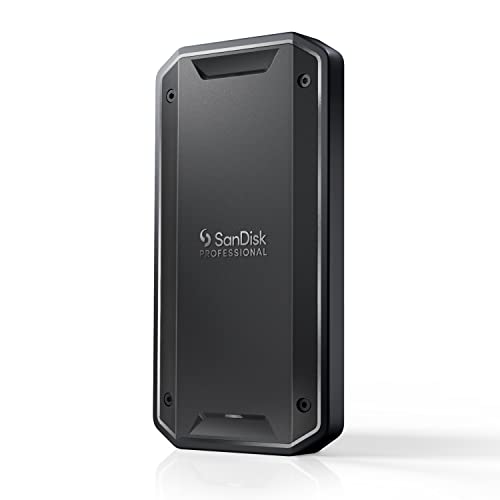
SanDisk Professional PRO-G40 2TB Thunderbolt 3 SSD
Best pick for creative professionals who need near-internal NVMe speeds in a portable form factor with both Thunderbolt 3 and USB-C support.
Which Setup Should You Actually Choose?
Your ideal setup depends entirely on what you need the drive for.
For your main system drive: Internal NVMe, no contest. Install a Gen 4 drive like the Samsung 990 PRO or WD_BLACK SN850X directly on your motherboard. You’ll get the fastest possible speeds for your OS, applications, and games. We’ve covered both of these drives in our Samsung 990 PRO vs WD_BLACK SN850X showdown if you want a head-to-head comparison.
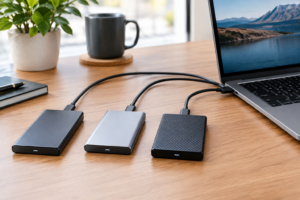
For portable storage and backups: A USB 3.2 Gen 2 external SSD like the Samsung T7 Shield or SanDisk Extreme Portable SSD V2 is the sweet spot. You’ll get around 1,000 MB/s, which is more than enough for transferring photos, videos, and documents. If you travel frequently, we’ve tested the most durable options in our best portable SSDs for travel roundup.
For video editing on the go: This is where Thunderbolt external SSDs justify their premium pricing. Editing 4K or 6K footage directly from an external drive requires sustained high bandwidth, and Thunderbolt delivers it. A drive like the SanDisk Professional PRO-G40 can keep up with multi-stream timelines without dropping frames.
For supplemental game storage: A standard USB-C external SSD works well for storing games and transferring them to your internal drive when you want to play. Console gamers on PS5 or Xbox Series X should note that only internal NVMe expansion slots support full-speed gaming on those platforms.

Samsung 990 PRO 2TB NVMe SSD
The fastest consumer Gen 4 NVMe drive available, ideal as a primary internal system drive for demanding workloads.
Frequently Asked Questions
Can an external SSD be as fast as an internal one?
With Thunderbolt 3 or 4, an external SSD can approach internal NVMe Gen 3 speeds for sequential transfers (around 2,700 MB/s). However, it won’t match internal NVMe Gen 4 speeds, and random I/O performance will always be significantly lower over any external connection due to protocol overhead. For internal SATA drives, though, a USB 3.2 Gen 2 external SSD is actually faster.
Is USB-C fast enough for video editing?
Standard USB 3.2 Gen 2 at ~1,000 MB/s is adequate for editing 1080p and basic 4K projects. For multi-stream 4K, 6K, or RAW video workflows, you’ll want Thunderbolt. The sustained bandwidth and lower latency of Thunderbolt prevent stutt

James Kennedy is a writer and product researcher at Drives Hero with a background in IT administration and consulting. He has hands-on experience with storage, networking, and system performance, and regularly improves and optimizes his home networking setup.