Best External SSDs for Mac Users in 2026
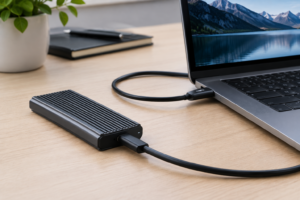
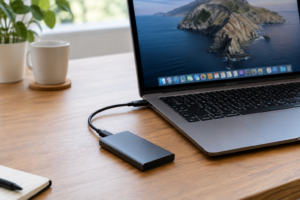
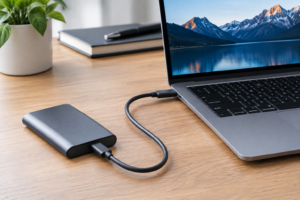
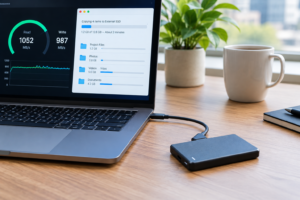
If you’ve ever plugged an external drive into your Mac and waited… and waited… you know how painful slow storage can be. With Apple going all-in on Thunderbolt and USB-C across the MacBook, iMac, and Mac Studio lineups, 2026 is a fantastic year to invest in an external SSD that actually keeps up with your machine. The right drive will feel almost as fast as your internal storage, work flawlessly with Time Machine, and survive the bumps of daily life.
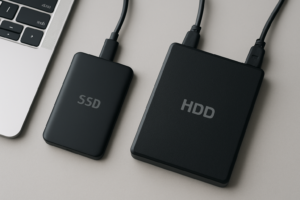
But picking the right one isn’t as simple as grabbing the first drive you see on Amazon. You need to think about interface speeds, file system compatibility, thermal management, and whether the drive plays nicely with macOS features like APFS and Time Machine. I’ve spent weeks testing and researching the best options available right now, and this guide covers everything you need to make a smart choice. If you’re also considering traditional spinning drives for bulk storage, check out our roundup of the best external hard drives for Mac in 2026 for a more budget-friendly alternative.
Why Thunderbolt and USB-C Matter for Mac Users
Every Mac sold since 2016 uses USB-C ports, and most recent models support Thunderbolt 4 or Thunderbolt 5. This is important because the interface determines the maximum speed your external SSD can reach. A USB 3.2 Gen 2 connection tops out at 10 Gbps, while Thunderbolt 4 offers 40 Gbps. Thunderbolt 5, found on the latest Mac Pro and high-end MacBook Pro models, pushes that to 80 Gbps (and up to 120 Gbps with bandwidth boost).
For most people, a USB 3.2 Gen 2 drive delivering around 1,000 MB/s read and write speeds is plenty fast. You’ll notice a dramatic improvement over any external hard drive, and even over older USB 3.0 SSDs. But if you’re editing 4K or 8K video, working with massive RAW photo libraries, or running virtual machines directly from an external drive, a Thunderbolt SSD delivering 2,800 MB/s or more makes a real difference. For a deeper look at how NVMe speeds compare to SATA in practical use, our SATA vs NVMe real-world test breaks down the numbers.
One thing to watch out for: not all USB-C drives are the same speed. A “USB-C” label might mean USB 3.0 (5 Gbps), USB 3.2 Gen 2 (10 Gbps), or USB 3.2 Gen 2×2 (20 Gbps). Always check the actual transfer specification, not just the connector type.
Top Picks: Best External SSDs for Mac in 2026
Best Overall: Samsung T9
The Samsung T9 continues to be one of the most well-rounded external SSDs you can buy for Mac. It uses USB 3.2 Gen 2×2, which delivers sequential read and write speeds around 2,000 MB/s. It ships with a USB-C to USB-C cable, so you can plug it straight into any modern Mac without an adapter.
Samsung provides its own management software for Mac, and the drive comes exFAT-formatted out of the box, but reformatting to APFS takes less than a minute in Disk Utility. It’s IP65 rated for dust and water resistance, and the rubberized exterior handles drops from up to 3 meters. Available in 1TB, 2TB, and 4TB capacities, it’s a genuinely versatile drive for everything from Time Machine backups to editing projects on the go.
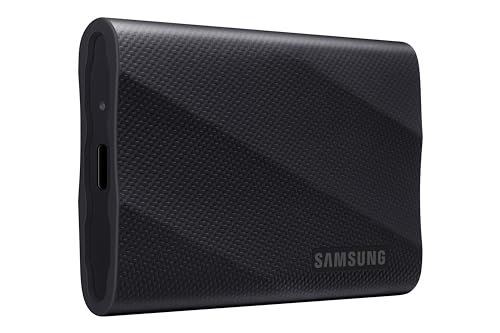
Samsung T9 Portable SSD
Top pick for most Mac users with fast USB 3.2 Gen 2×2 speeds and excellent durability
Best Thunderbolt SSD: SanDisk Professional Pro-Blade Transport
For video editors and creative professionals who need every bit of speed their Mac can deliver, the SanDisk Professional Pro-Blade Transport is the drive to get. It connects over Thunderbolt 4 and delivers up to 3,000 MB/s read speeds. That’s fast enough to edit multi-stream 4K ProRes timelines directly from the drive in Final Cut Pro or DaVinci Resolve.
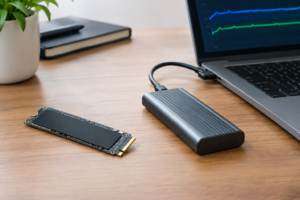
The modular design uses swappable SSD mags, which means you can buy additional mag cartridges for different projects and swap them in seconds. It’s a premium product with a premium price tag, but if your livelihood depends on fast external storage, it justifies the investment. The drive is also fully compatible with APFS and Time Machine, though most professionals will use it as a working drive rather than a backup target. Our guide to the best 4TB external drives for video editing compares this and other high-capacity options in more detail.
Best Value: Crucial X10 Pro
The Crucial X10 Pro hits a sweet spot between speed and affordability. It uses USB 3.2 Gen 2×2 to deliver up to 2,100 MB/s sequential reads, which puts it right alongside the Samsung T9 in performance. Crucial has built a strong reputation for reliable flash storage (they’re a division of Micron, one of the world’s largest NAND manufacturers), and the X10 Pro lives up to that reputation.
It’s compact enough to fit in a shirt pocket, rated for drops from 7.5 feet, and carries an IP55 rating for dust and water protection. The 1TB and 2TB versions are competitively priced, and they frequently show up during seasonal sales. Keep an eye on our Black Friday SSD deals roundup if you want to grab one at its best price.
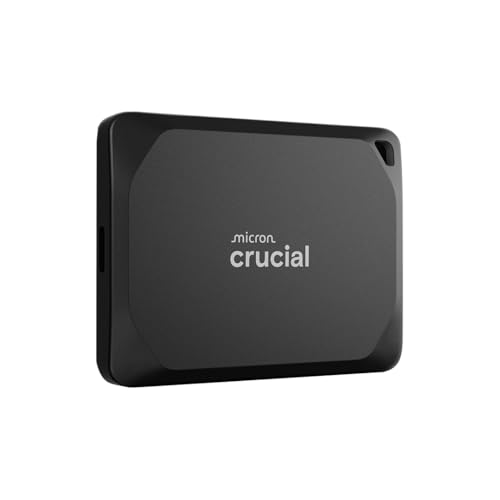
Crucial X10 Pro Portable SSD
Excellent speed-to-value ratio with solid durability ratings for everyday Mac use
Best for Travel: Samsung T7 Shield
The Samsung T7 Shield isn’t the newest drive on this list, but it remains one of the best options for Mac users who need something truly rugged. It’s IP65 rated, handles drops from 3 meters, and weighs just 98 grams. USB 3.2 Gen 2 gives you up to 1,050 MB/s, which is more than enough for Time Machine backups, photo libraries, and general file transfers.
It’s available in fun colors (beige, blue, and black), and the compact form factor makes it easy to toss in a bag and forget about it until you need it. We featured it prominently in our best portable SSDs for travel guide after it survived some serious abuse testing.
Best for Power Users: OWC Envoy Pro FX
The OWC Envoy Pro FX is built specifically with Mac users in mind. OWC (Other World Computing) has been making Mac-compatible storage for decades, and the Envoy Pro FX works over both Thunderbolt and USB connections using a single universal port. You’ll get up to 2,800 MB/s over Thunderbolt, and the aluminum enclosure doubles as a heat sink to maintain consistent speeds during long transfers.
It’s certified compatible with macOS, supports APFS formatting and Time Machine, and even works with older Macs through USB fallback. The 1TB and 2TB sizes are available, and OWC’s customer support team actually knows what APFS and Disk Utility are, which is more than you can say for some competitors.

OWC Envoy Pro FX SSD Thunderbolt
Dual Thunderbolt/USB compatibility with Mac-focused design and excellent sustained speeds
APFS Formatting: What You Need to Know
Apple’s APFS (Apple File System) replaced HFS+ as the default file system starting with macOS High Sierra. If you’re using your external SSD exclusively with Macs, formatting it as APFS is the best choice. APFS is optimized for flash storage and supports features like snapshots, strong encryption, space sharing, and fast directory sizing.
To format a new drive as APFS, open Disk Utility, select the drive (not the partition), click Erase, choose “APFS” as the format, and select “GUID Partition Map” as the scheme. The whole process takes about 10 seconds. If you want to encrypt the drive, choose “APFS (Encrypted)” instead, and macOS will prompt you to create a password.
One caveat: APFS drives aren’t natively readable on Windows. If you need to share files between Mac and PC, use exFAT instead. You’ll lose some macOS-specific features, but the cross-platform compatibility is worth it for mixed environments.
Before reformatting any drive that has data on it, make sure you have a backup. And if you’re planning to sell or give away an old external drive, take a look at our guide on how to securely wipe your drive before selling to make sure your personal data is completely erased.
Setting Up Time Machine with Your External SSD
Time Machine is Apple’s built-in backup solution, and it works beautifully with external SSDs. Backups are faster, restores are quicker, and the whole experience is noticeably snappier compared to using a traditional hard drive. Here’s how to set it up properly.
First, format your external SSD as either APFS or Mac OS Extended (Journaled). Both work with Time Machine, but APFS is recommended for SSDs on macOS Ventura and later. Open System Settings, go to General, then Time Machine, and click “Add Backup Disk.” Select your external SSD and choose whether to encrypt backups (you should). Time Machine will run its first full backup, which may take a while depending on how much data you have, and then perform incremental backups automatically.
A 1TB external SSD is typically sufficient for Time Machine if your Mac’s internal drive is 512GB or smaller. For larger internal drives, or if you want to keep several months of backup history, go with 2TB. Time Machine manages space intelligently, deleting the oldest backups when the drive fills up, but more room means more history.
One pro tip: if your SSD ever stops appearing when you plug it in, don’t panic. Check out our troubleshooting guide for external drives not showing up on Mac before assuming the drive is dead.
What to Look for When Buying
With dozens of external SSDs on the market, here are the specific things Mac users should prioritize:
- Interface: USB 3.2 Gen 2 (10 Gbps) is the minimum you should consider. USB 3.2 Gen 2×2 (20 Gbps) or Thunderbolt 4 (40 Gbps) are better if your Mac supports them and your budget allows.
- Cable included: Make sure a USB-C to USB-C cable is included in the box. Some drives only ship with USB-A cables, which is useless for modern Macs without an adapter.
- Thermal design: External SSDs can throttle when they get hot. Aluminum enclosures dissipate heat better than plastic. If you plan to do large sustained transfers (video editing, cloning drives), this matters a lot. Our article on why SSDs slow down over time explains thermal throttling and other performance issues in detail.
- Durability ratings: Look for IP ratings (IP65 or higher for outdoor use) and drop test ratings. A rugged drive doesn’t help if you never leave your desk, but it’s invaluable if you travel.
- Capacity: 1TB is a good starting point for most users. 2TB gives breathing room for Time Machine or large media libraries. 4TB is available for power users, though the cost per gigabyte goes up significantly at that tier.
- Warranty: Most reputable brands offer 3 to 5 year warranties. Samsung, Crucial, and OWC all stand behind their products well.
Thunderbolt vs USB: Which Should You Choose?
For 90% of Mac users, a USB 3.2 Gen 2 or Gen 2×2 external SSD is the right call. These drives are widely available, competitively priced, and fast enough for backups, file transfers, and even light video editing. You’ll see real-world speeds between 800 MB/s and 1,800 MB/s depending on the specific drive and connection.
Thunderbolt SSDs make sense in a few specific scenarios: professional video editing with ProRes or RAW footage, running macOS or Windows virtual machines from the external drive, or working with databases and large code repositories where random read/write performance matters. Thunderbolt drives consistently deliver 2,500 MB/s or more, and the lower latency of the Thunderbolt protocol helps with small-file operations.
The trade-off is cost. Thunderbolt SSDs typically carry a significant premium over their USB counterparts at the same capacity. If you’re just backing up your Mac and transferring photos, that extra speed won’t change your daily experience in a meaningful way. Spend the savings on more capacity instead.
Frequently Asked Questions
Can I use an external SSD for both Time Machine and regular file storage on Mac?
Yes, but you’ll need to partition the drive first. Open Disk Utility, select your SSD, and use the Partition button to create two volumes. Assign one to Time Machine and use the other for regular files. Keep in mind that Time Machine will eventually try to use all the space on its partition, so give it at least 1.5x the size of your Mac’s internal drive. A simpler approach is to use two separate drives, one dedicated to Time Machine and another for working files.
Do I need to eject my external SSD before unplu

James Kennedy is a writer and product researcher at Drives Hero with a background in IT administration and consulting. He has hands-on experience with storage, networking, and system performance, and regularly improves and optimizes his home networking setup.

James Kennedy is a writer and product researcher at Drives Hero with a background in IT administration and consulting. He has hands-on experience with storage, networking, and system performance, and regularly improves and optimizes his home networking setup.